
🎮 Gaming on CachyOS: Why I Ditched Legacy Distros for Bleeding-Edge FPS (2026)
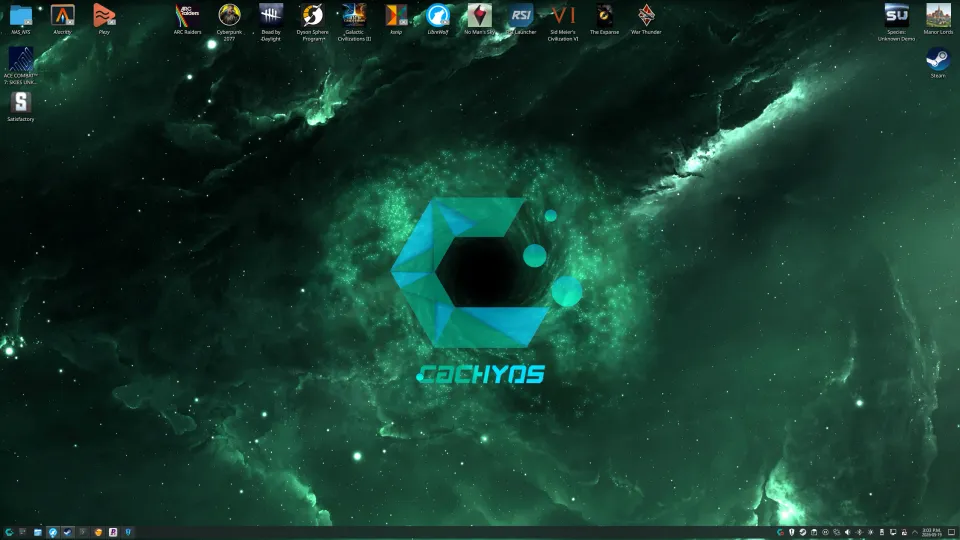
Building a high-performance Linux gaming machine used to be about finding the most stable "beginner-friendly" base and tweaking it until it stopped stuttering. For a long time, distros like Pop!_OS held that crown... Now it's all about Cachy, and this is your CachyOs Gaming Guide!
According to recent Steam hardware data, CachyOS (shown as Arch Linux in the Steam report) has exploded to become the #1 desktop Linux distribution for gamers on Steam, capturing over 21% of the market Linux OS on Steam. Why? Because it doesn't just bundle gaming apps - it rebuilds the entire operating system backend specifically to maximize your hardware's frame times.
This post is part of my Linux Gaming & Performance Series:
Linux Gaming & Performance Series
The Background
I build a new Ryzen workstation PC Winter 2025! Check out what all the fuss is about and read about "Dirty Snow"...
But new hardware demands software that can actually feed it. I didn't want to choke a brand-new system on an aging desktop environment or older package repositories. I wanted bleeding-edge software, I wanted the modern smoothness of KDE Plasma, and I kept reading that an Arch-based derivative called CachyOS was supremely optimized for gaming workloads.
Spoiler alert: The internet was absolutely right. I live-booted it off a USB and never went back!
Why CachyOS? (The Optimization is Real)
Most standard Linux distributions compile their software packages for generic, lowest-common-denominator x86-64 processors to ensure maximum compatibility with old computers. CachyOS does the exact opposite.
They maintain separate repositories compiled specifically for modern CPU instructions (x86-64-v3, x86-64-v4, and Zen4+), utilizing advanced compiler features like LTO (Link-Time Optimization) and PGO (Profile-Guided Optimization). Combined with an aggressively tuned kernel scheduler (like BORE or EEVDF), the operating system significantly reduces micro-stuttering and input latency. It kind of shocked me when I first booted in, I did NOT such a drastic performance increase. I was coming from a Ryzen 5800X CPU and honestly thought there would not be much of a difference but between the new CPU (Ryzen 9800X3D), DDR5 RAM and Cachy, my socks were blown off...
When you pair native Wayland rendering on KDE Plasma with CachyOS's custom-tailored packages, your desktop doesn't just feel snappy - your 1% low frame rates in heavy titles like Cyberpunk 2077 or Helldivers 2 get a measurable, real-world uplift.
Even in War Thunder, I was seeing better performance.
CachyOS Install Briefing
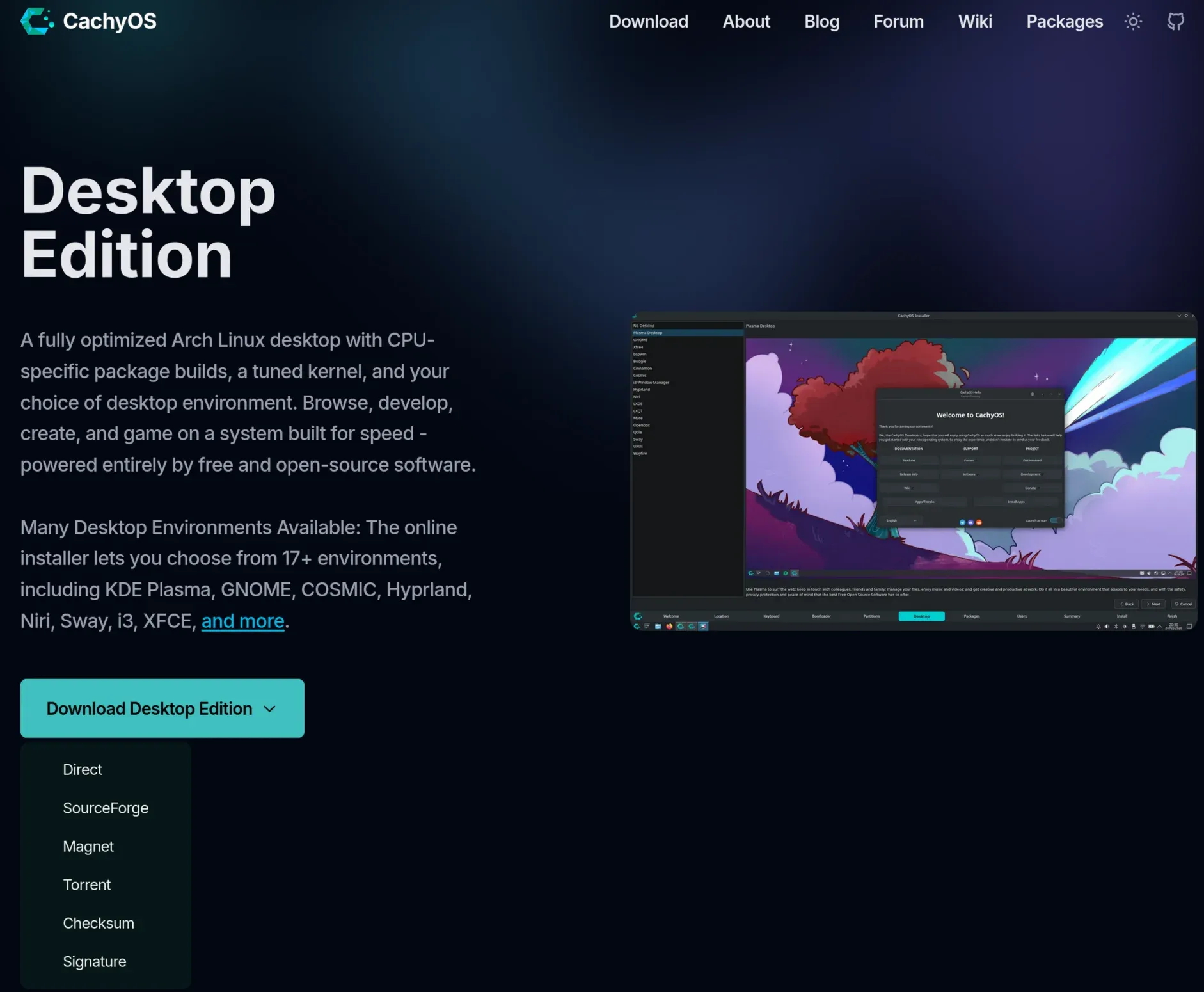
Install is VERY simple, so I'll only graze over it briefly.
- Download the desktop ISO or handheld version, if that's your plan.
- Burn it to USB, boot off said USB stick.
- Follow the guided install menu (tutorial like isn't it?) and ensure to select the Gaming profile/package set. This will ensure you get all kinds of things automatically installed like Steam, Proton, gaming-related libraries (libs) and common gaming optimizations & schedulers.
- NVIDIA GPU drivers come with the install!
🛠️ Post-Install Verification: Checking Your Hardware Drivers
NVIDIA GPU Verification
One of the nice things about CachyOS is that NVIDIA support is generally handled automatically. After installation, I would verify:
nvidia-smiYou should see your RTX card listed along with the installed driver version. You can also check:
pacman -Qs nvidia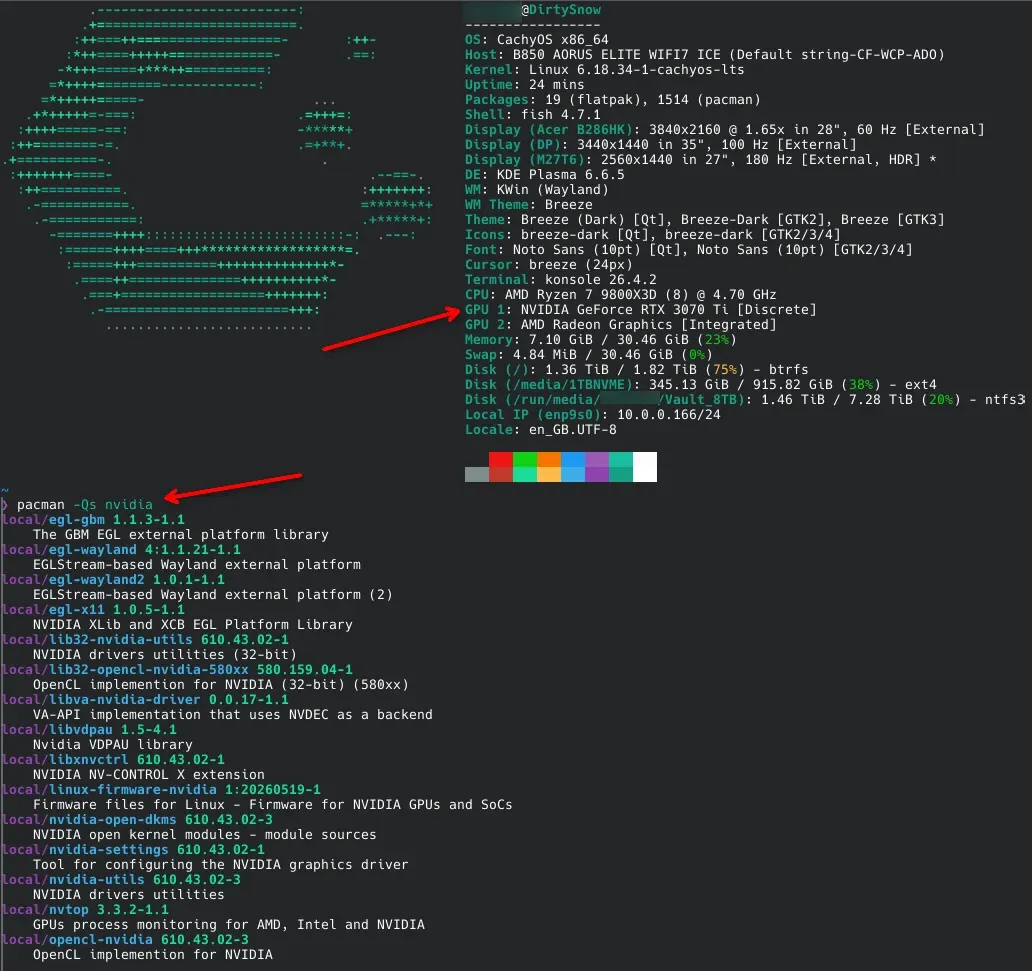
AMD GPU Native Kernel Check
AMD GPU's are even simpler to use on Linux, they just work straight out of the 'box' and are already compiled into the CachyOS kernel!
Verify AMD Driver is Active
Check the GPU:
lspci -k | grep -A 3 VGAYou should see:
Kernel driver in use: amdgpuCheck OpenGL:
glxinfo -BCheck Vulkan:
vulkaninfo --summaryIf those work, you're good.
First Update After Install
Before installing games, run:
sudo pacman -Syuor use the CachyOS package manager GUI.
This will pull:
- Latest kernel
- Latest NVIDIA driver
- Latest Mesa packages
- Latest CachyOS scheduler/kernel optimizations
Reboot afterward. It'll prompt you to anyway because CachyOS doesn't leave a user hanging!
Essential Post-Install Tweaks for Peak Performance
HDR Setup & Optimizations (gamescope)
If you don't have an HDR monitor/TV hooked up to Cachy, skip this part. Otherwise install Gamescope if it isn't already present:
sudo pacman -S gamescopeVerify:
which gamescopereturns something like:
/usr/bin/gamescopeIf Hydra previously reported "gamescope not available in path", this command should fix it.
Configuring Advanced Proton & SLR Runtimes
For your setup, I'd install:
yay -S proton-cachyosand optionally:
yay -S proton-cachyos-slrThe SLR build often has newer patches and can help with HDR and newer game compatibility, though I usually start with regular Proton-CachyOS and only switch if a specific game benefits.
Forcing Smooth Performance with MangoHud and GameMode
Install relevant gaming packages:
sudo pacman -S mangohud gamemode gamescopeCheck GameMode:
gamemoded -tEnable MangoHud in Steam launch options:
mangohud %command%At this point you're basically ready to install a game from Steam and start gaming. CachyOS is one of the smoother distributions for NVIDIA users right now, especially compared to the amount of manual driver work that was common a few years ago...
🎛️ The Hybrid/Dual-GPU Laptop Guide
If you are gaming on a hybrid graphics setup (an integrated CPU graphics card paired with a dedicated discrete NVIDIA GPU), proper power management and offloading are vital to prevent massive battery drain or severe frame drops.
CachyOS utilizes PRIME Render Offload flawlessly, but to integrate it cleanly into your desktop environment, you should manage your hardware state using standard Arch utilities rather than broken third-party wrappers.
- Step 1: Install the core system bus controllers:
sudo pacman -S switcheroo-control
sudo systemctl enable --now switcheroo-control.service
Step 2 (Advanced Power Management): For notebooks requiring fine-grained PCI-Express Runtime D3 (RTD3) power control to ensure the NVIDIA card completely goes to sleep when not gaming, utilize the specialized AUR payload:
yay -S nvidia-prime-rtd3pmOnce configured, you can launch launchers like Lutris or Steam explicitly using your dedicated card by simply prepending prime-run to your execution targets, or right-clicking your application icon in KDE Plasma and selecting "Run with dedicated graphics processor."
🌐 For deeply specific hardware layouts, refer directly to the Official CachyOS Dual GPU Wiki.
🔊 Slaying the Audio Beast: Creative SoundBlaster AE-5 Fix
If you are using a dedicated internal sound card like the Creative SoundBlaster AE-5, you might find your system completely silent on your headphones upon your first boot. This is a common Linux kernel mapping quirk where the card defaults to unmuted rear speaker lines instead of front panel headphone routing.
Here is the quick, terminal-based workaround to fix your audio stream instantly:
- Open your terminal and launch the core ALSA mixer panel:
alsamixer- Press F6 to bring up the hardware card selection menu, and use your arrow keys to highlight your SoundBlaster AE-5.
- Use the Left / Right arrow keys to slide across the audio channels.
- Locate Front Audio and ensure it is unmuted (if it shows
MM, press the M key to toggle it to unmute). - Navigate to the very last entry in the list, labeled Output, and use your up/down keys to change it explicitly to Headphones.
- (Optional) Scroll through the remaining specialized hardware effects columns and press M to mute them to keep your audio output pure and unprocessed.
- Exit the mixer by pressing Ctrl + C.
- The Critical Step: Save your hardware settings so they survive a system reboot:
sudo alsactl storeIf your configuration reverts after a major system update, you can drop this sequence into a simple startup script executed upon user login to keep your headphone channel active automatically!
🕹️ Next-Gen Gaming: Local Performance vs. Dedicated Worlds
Squeezing 140+ FPS out of your local CachyOS setup feels incredible, but local hardware optimization can only take you so far if you're trying to host multiplayer worlds at the same time.
To keep your local desktop environment completely unburdened and fluid, consider offloading your multiplayer persistence layer entirely. Check out my Ultimate Linux Gaming Server Guide to see how deploying a dedicated, high-performance private server can keep your multiplayer worlds running 24/7 without stealing a single frame from your local rig. You can just use an older PC, you don't need high end specs really.
Where To Get Games in 2026?
I use Kinguin for picking up PC game keys at a discount off retail. It is a marketplace of identity-verified sellers rather than a storefront itself, which is why prices regularly beat retail without anything shady behind it. I wrote up the full trust and verification breakdown here if you want the details before buying anything through a marketplace like this for the first time. Kinguin has been around since 2013 and I've been using it since about 2016.
Enter the Hydra Launcher: One App to Rule Them All 🏴
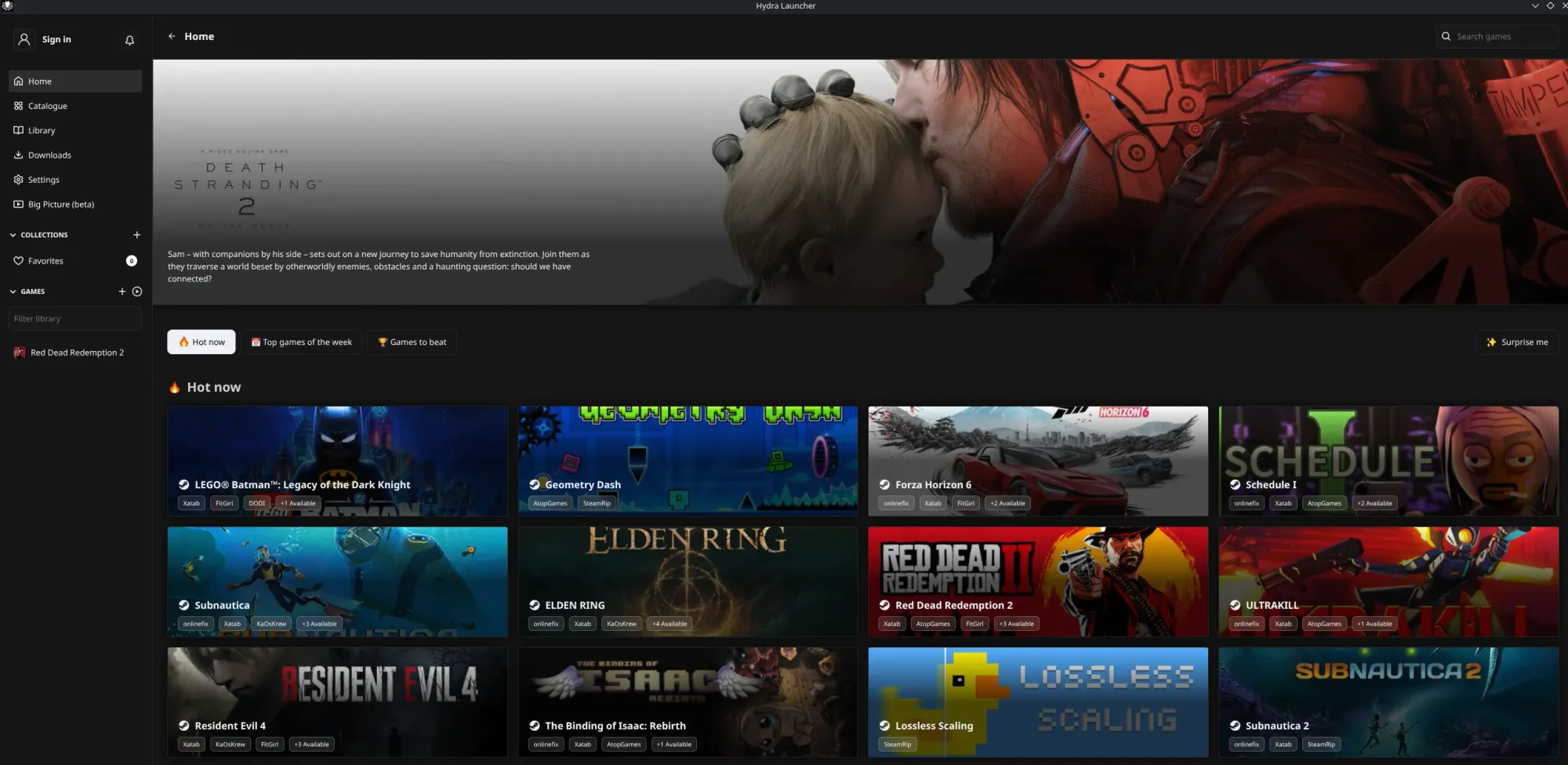
What is Hydra you ask? ALL HAIL HYDRA! Not a Marvel fan? That's fine it was a nerd reference. Hydra is a game launcher like Steam, Epic, GoG, and all the other launchers out there... Except, you can use it and not them any more! See what they did there? Hydra is one launcher to rule them all. Like one ring to rule them all. See what I did there? You have to be picking up some of these references c'mon! ...
Hydra is incredible. It allows you to install a game from multiple sources, all without leaving it's interface or launching yet another, launcher.
In some countries you simply need to own a legal copy of the game, either digital or physical and can install & play it however you chose, even from a digitized 'backup/archive'. In some countries - this is not enough and it's not legal!
Another massive advantage of Hydra, is it's integrations. You can enhance the speed at which you download games massively, via Debrid services! Yeah, you read that right - so you can download a backup of your legally owned game 😉 via torrents on here, Debrid services, and other means.
📡 Already Using Debrid for Movies?If you already set up my Stremio + Real-Debrid "Netflix Killer" Config or my hybrid Plex/Jellyfin media server build, you can use the exact same API key here. There is no need to buy a second subscription - Hydra will leverage your existing cloud cache to instantly max out your local download speeds.
If you don't already have a subscription, feel free to use my referral links which help the site!


Installing Hydra and the aria2 Download Engine
Simply run these commands which first is the Hydra launcher itself:
paru -S hydra-launcher-binand then:
sudo pacman -S aria2This installs Hydra first as mentioned, and the second command installs the backend download library so it can download things for you via torrent, magnet, etc...
Debrid Integration & High-Speed Media Caching
Next up, make an account (or not!) if you like and click on Settings->Integrations, to go slap your Debrid API key in!
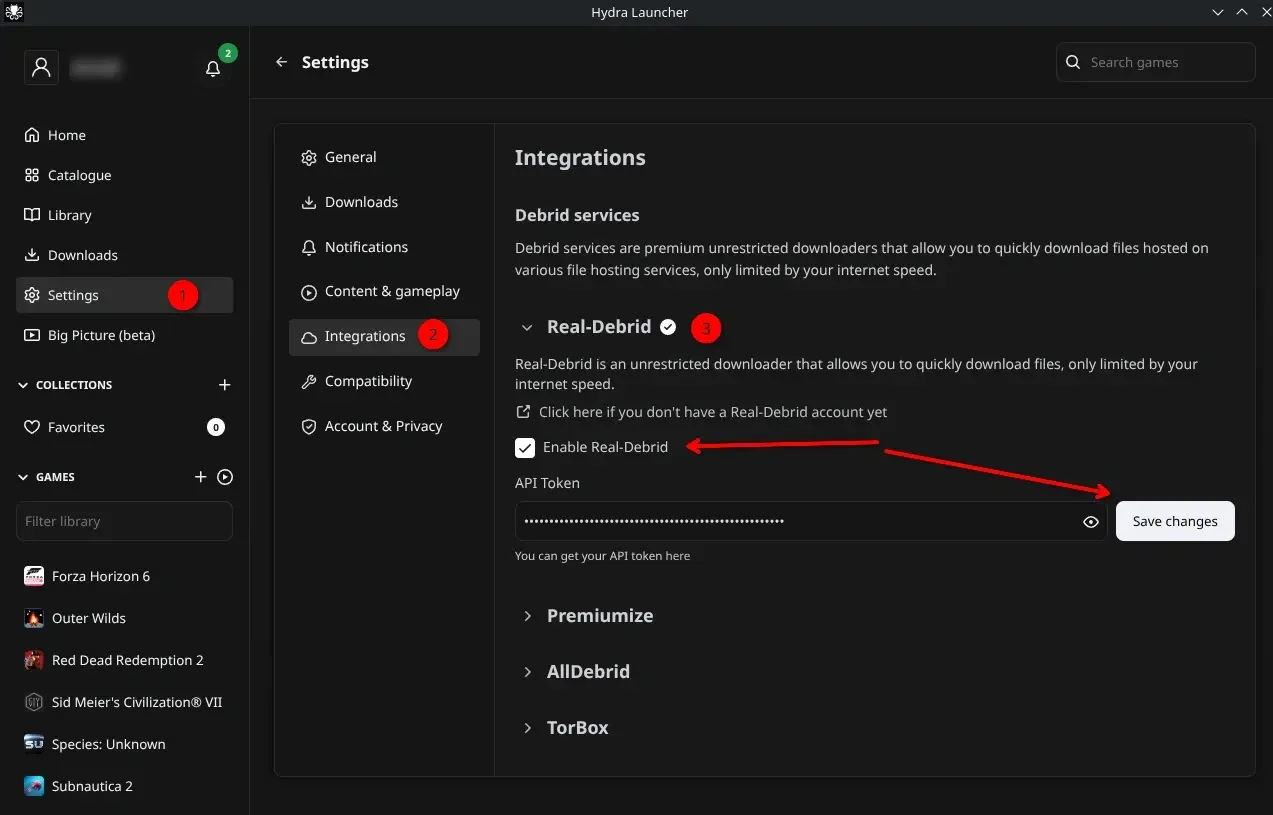
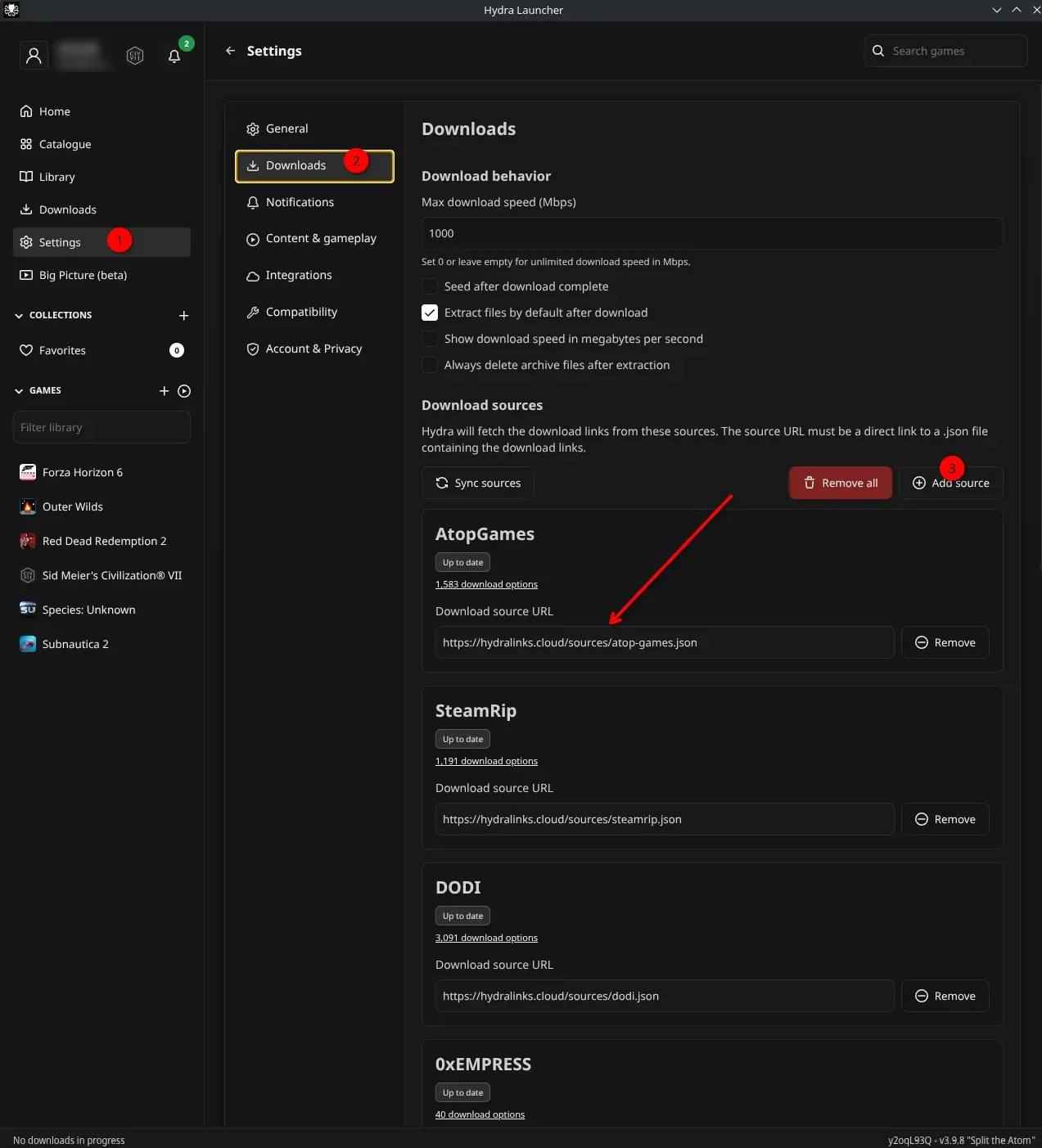
Adding Download Sources to Hydra (Mandatory):
Now hit the Settings->Downloads tab and here you will add in download sources from these links:
https://github.com/enmafps/Hydra-Launcher-Guide
https://library.hydra.wiki/
https://igames.ink/hydralinks/
To save you time, here they are below and you have to add & save them one by one (one at a time), with my fav ones ordered from top to bottom:
Hydra Sources
https://davidkazumisource.com/fontekazumi.jsonhttps://hydralinks.cloud/sources/fitgirl.jsonhttps://hydralinks.cloud/sources/gog.jsonhttps://hydralinks.cloud/sources/empress.jsonhttps://hydralinks.cloud/sources/dodi.jsonhttps://hydralinks.cloud/sources/xatab.jsonhttps://hydralinks.cloud/sources/steamrip.jsonhttps://hydralinks.cloud/sources/tinyrepacks.jsonhttps://hydralinks.cloud/sources/onlinefix.jsonhttps://hydralinks.cloud/sources/kaoskrew.jsonhttps://hydralinks.cloud/sources/atop-games.jsonhttps://hydralinks.cloud/sources/repack-games.json
Once you've configured Hydra with your optional Debrid API Key, a few download sources, you can start browsing their catalogue to find your games!
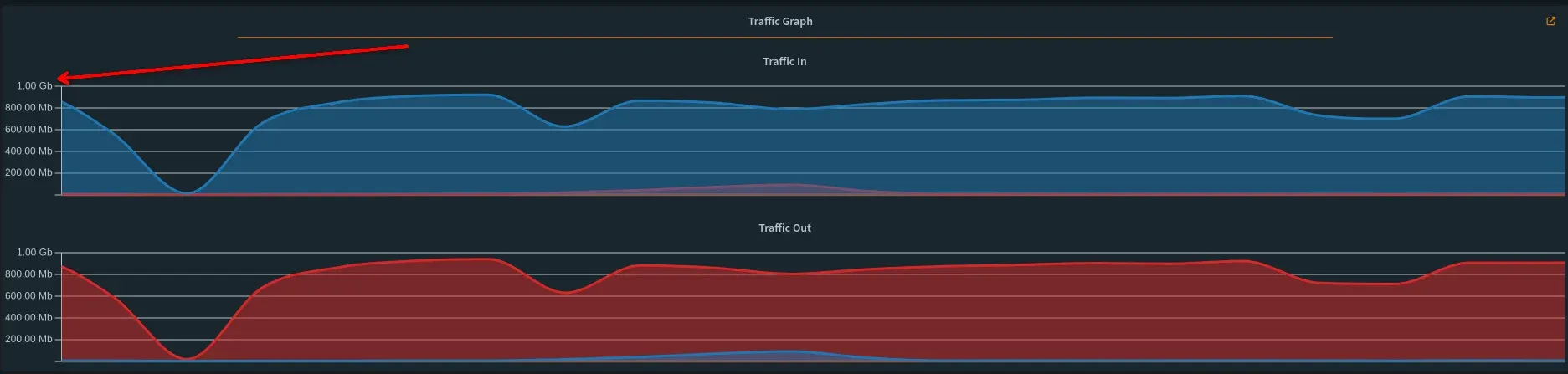
With Debrid service enabled, once you click Download, it should max out your internet connection! I had to set mine to 1Gbps so it didn't choke my entire WAN connection out...
Fixing Gaming Obstacles: Linux HDR & Gamescope Solutions
Now when I loaded a few games up for the first time, I went into the graphical settings as I always do to tweak and noticed some of them would not let me enable HDR for my HDR monitor. Sometimes you will simply have to ensure your running the right proton version or that you set some launch options.
ProtonPlus Setup
ProtonPlus is great in that it does a few things well:
- Installs:
- Proton-GE
- Proton-CachyOS builds
- Wine-GE
- Switches compatibility tools per game
- Manages versions cleanly
What it DOES NOT do (by itself)
- Does not enable HDR
- Does not fix Gamescope path issues
- Does not improve rendering quality directly
- Does not replace Steam/Proton runtime behavior
Install it:
sudo pacman -S protonplusor:
paru -S protonplusSimplest HDR Fix in Linux - Runtime Variables
The best actual fix for HDR and other advanced graphics in games is simply to enable some runtime variables:
If using Wayland & NVIDIA:
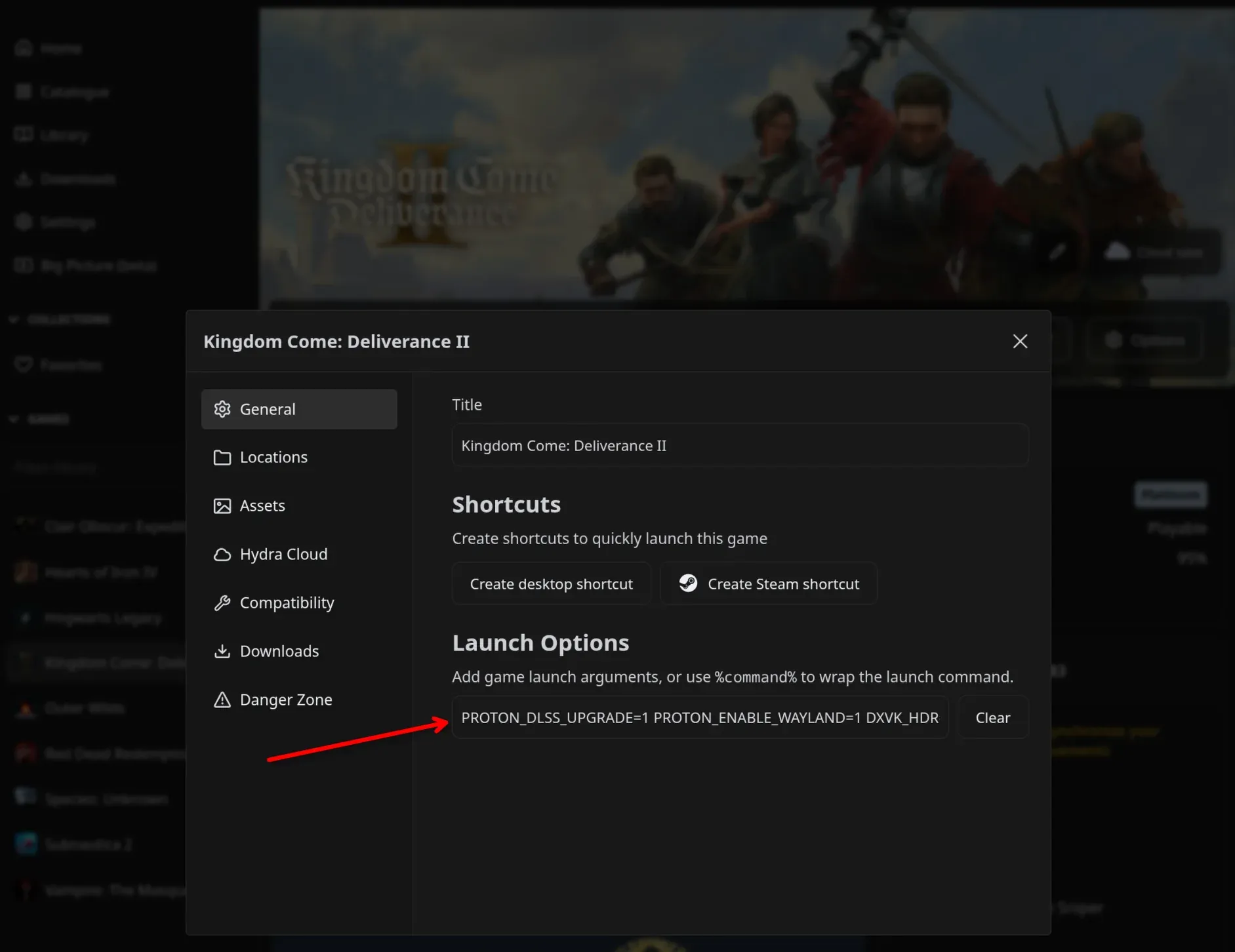
PROTON_DLSS_UPGRADE=1 PROTON_ENABLE_WAYLAND=1 DXVK_HDR=1 game-performance %command%You hit the Cog wheel on the game itself, then on General tab under Launch options as this picture:
If using Gamescope (most reliable HDR path)
gamescope --hdr-enabled -- %command%or:
gamescope -f --hdr-enabled -- %command%Hydra-specific reality (important)
Hydra is often the weak link here:
- It doesn’t always inherit PATH correctly
- It sometimes fails to detect system tools like Gamescope
- ProtonPlus may show “installed but unknown” versions
So even after installing ProtonPlus:
- Sometimes you still configure Proton inside Hydra manually
- It still relies on system-level tools (Gamescope, drivers, Wayland)
- As intended, this is the 'plan'
📦 The Traditional Pillars: Lutris & Heroic Launcher
While we are about to dive into next-gen launchers, you still need a clean way to manage your legitimate Epic Games, GOG, and Amazon Prime libraries. Don't go installing individual Windows launchers through Wine bottles manually - CachyOS makes installing the two kings of Linux game management incredibly simple.
1. Heroic Games Launcher (Best for Epic, GOG, & Amazon)
Heroic is a beautiful, native open-source frontend. It doesn't run the bloated Epic Games store in the background; it talks directly to their APIs. Install it cleanly via the terminal:
bash sudo pacman -S heroic-games-launcher-binPro-Tip: In Heroic settings, you can point your game's Wine/Proton version directly to proton-cachyos that we installed earlier for instant performance optimization.
2. Lutris (The Universal Game Manager)
Lutris is the absolute vanguard of Linux gaming. If you are installing standalone desktop games, emulation packs, old physical DVD backups, or Blizzard/Ubisoft titles, Lutris handles the script configurations for you.
Install it along with standard web rendering dependencies:
sudo pacman -S lutris webkit2gtk-4.1💡 The CachyOS Shortcut: If you hate the terminal, just open the CachyOS Hello app from your desktop, click Apps/Gaming Menu, check the boxes next to Lutris and Heroic, and click install. It handles the heavy lifting in the background.
Final Tweaks
Power Optimizations
Review this link and optionally install this package to allow your NVIDIA GPU to fully power down when not in use. Example would be where you have a system with 2 GPUs like 1 on CPU, and you use that for all functions except gaming. You can save power (money!) with the discrete GPU being shutdown entirely.

Waking from Sleep Issues - NVIDIA's fault!
sudo systemctl enable nvidia-suspend.service
sudo systemctl enable nvidia-resume.service
sudo systemctl enable nvidia-hibernate.service
and then:
sudo mkinitcpio -PTo recompile the boot loader to have these settings on startup.
❓ Frequently Asked Questions (Combined & Expanded)
Q: Why does Hydra show a "Gamescope not available in path" error even after installing it? A: Hydra often fails to inherit environment paths correctly from the system. Ensure you install Gamescope globally (sudo pacman -S gamescope) and confirm its location using which gamescope. If Hydra still struggles to pull the environment, launch Hydra directly from your terminal session to inherit your user profile parameters.
Q: Why am I getting zero audio out of my headphones using a SoundBlaster AE-5? A: The Linux kernel frequently misinterprets the routing matrix of the SoundBlaster AE-5, defaulting your output stream to the unmutes of the rear panel instead of your front headphones. Run alsamixer, select your card via F6, find the final Output toggle column, and change it explicitly from speakers to Headphones. Remember to type sudo alsactl store afterward to lock the state past system reboots.
Q: Do I really need a VPN if I link my Debrid API key to Hydra Launcher? A: No. Just like using a Debrid service with streaming apps, your connection to the edge server is entirely secured with SSL/TLS encryption. Your ISP only detects an inbound download stream from a secure cloud host, rendering a standard VPN redundant.
Q: What is the benefit of using the proton-cachyos-slr build over standard Proton? A: The Steam Linux Runtime (SLR) variant compiled by CachyOS includes bleeding-edge, upstream patches explicitly optimized for micro-stutter reduction, modern HDR display processing, and compatibility layers for newly released titles.
Q: Why won't my system wake up cleanly from sleep on an NVIDIA card? A: NVIDIA configurations require specialized systemd power management hooks to preserve VRAM allocation over sleep cycles. Run sudo systemctl enable nvidia-suspend.service nvidia-resume.service nvidia-hibernate.service and regenerate your initial ramdisk using sudo mkinitcpio -P.



Member discussion