
The Definitive Arr Docker Compose Guide (2026) + Generator

Building a fully automated home media server used to require dozens of hours tinkering with individual config files and broken permissions. Not anymore!
This guide is your complete blueprint for deploying the *Ultimate Arr Stack (Sonarr, Radarr, Prowlarr, Plex/Jellyfin) using Docker Compose. We have designed this stack to be 'production-ready' for 2026—integrating VPN security (via Gluetun or Hotio), Hardlinks for instant storage efficiency, and even AI-powered subtitles with Whisper.
Whether you are building your first homelab or upgrading an old setup, this guide provides the exact YAML code you need to build a 'Media Fortress' that runs itself.
Docker & Self-Hosting Mastery
Docker Compose Fundamentals
Part 1: What Is Docker Compose and Why Does Every Homelab Use It?
Definitive Docker Compose Guide
Part 2: Learn Docker Compose from Beginner to Power User
Real-World Docker Deployment
Part 3: Build the Ultimate Arr Stack with Docker Compose
Backup & Disaster Recovery
Part 4: Protect Your Containers with Simple Backup Strategies
The Philosophy: Hunting Down the Perfect Setup.
The 'arr stack is the holy grail of media automation for self-hosters. When I discovered these it blew my mind! Sonarr was first to burst onto the scene apparently in 2012, but I hadn't noticed it until I discovered Docker, in 2013/14. Me and a buddy were like, "Man this is amazing, would be great if someone made a version for movies tho..." BAM - Then Radarr gang-busted onto the scene as a fork in 2017! Wild times to be self-hosting.
🚀 Skip the YAML Headaches? Don't want to manually copy-paste 500 lines of code? Jump to the *Arr Stack Generator at the bottom of this guide. Simply enter your paths (e.g., /mnt/media), and it will write the docker-compose.yml file for you automatically.
GONE are the days of hunting and pecking through sites to find quality Linux ISOs! GONE are the days of sobbing due to a fav site going down or seized...
The "*aarr" stack is a suite of open-source applications that work in harmony to automatically discover, download, sort, and organize your media collection—whether it's TV shows, movies, music, or more. By deploying this entire ecosystem within Docker, we create a robust, easily-managed, and portable "media fortress" that turns media management into a (mostly) set-it-and-forget-it process.
This guide is your blueprint for building the *Ultimate Arr Stack using Docker Compose on your homelab server. We'll build a single, comprehensive docker-compose.yml file step-by-step and add to it as we setup each container. At the end, there's a docker compose generator where you can set variables and it will make the compose & .env for you!
Prerequisites & The Crucial Shared Path
Before we start, a single, critical step: Storage Mappings. All your *arr containers and your download client (like qBittorrent) must share the exact same root media and download folders for an efficient process known as Hardlinking. This prevents copying files, saving massive amounts of time and disk space. If at all possible, you want to set yourself up to utilize hard links / atomic moves.
TL;DR: The Complete Compose File in 1 Shot⚡
Want to skip the explanation? Here is the full, production-ready stack. Copy this, customize the sample .env, and deploy!
Create the folders first:
mkdir -p {sonarr,radarr,prowlarr,profilarr,qbittorrent,bazarr}/configAlso uncomment Gluetun below if you want to use that, the stack is defaulted to Gluetun disabled, and qbittorrent hotio w/VPN as ready to go.
Copy the Compose:
services:
# Sonarr - TV Shows
  sonarr:
    image: lscr.io/linuxserver/sonarr:latest
    container_name: sonarr
    environment:
      - PUID=${PUID}
      - PGID=${PGID}
      - TZ=${TZ}
    volumes:
      - ./sonarr/config:/config
      - ${ROOT_MEDIA_PATH}:/data # Access to /data/downloads and /data/media/tv
    ports:
      - 8989:8989
    restart: unless-stopped
    networks:
      - internal-proxy

  # Radarr - Movies
  radarr:
    image: lscr.io/linuxserver/radarr:latest
    container_name: radarr
    environment:
      - PUID=${PUID}
      - PGID=${PGID}
      - TZ=${TZ}
    volumes:
      - ./radarr/config:/config
      - ${ROOT_MEDIA_PATH}:/data # Access to /data/downloads and /data/media/movies
    ports:
      - 7878:7878
    restart: unless-stopped
    networks:
      - internal-proxy

networks:
  internal-proxy:
    driver: bridge

# Prowlarr - Indexer centralized management
  prowlarr:
    image: lscr.io/linuxserver/prowlarr:latest
    container_name: prowlarr
    environment:
      - PUID=${PUID}
      - PGID=${PGID}
      - TZ=${TZ}
    volumes:
      - ./prowlarr/config:/config
    ports:
      - 9696:9696
    restart: unless-stopped
    networks:
      - internal-proxy

# Profilarr & Decluttarr (Config only, no media access needed usually)
  profilarr:
    image: santiagosayshey/profilarr:latest
    container_name: profilarr
    environment:
      - TZ=${TZ}
    volumes:
      - ./profilarr/config:/config
    ports:
      - 6868:6868
    restart: unless-stopped
    networks:
      - internal-proxy
    depends_on:
      - sonarr
      - radarr

# FlareSolverr - Bypasses Cloudflare protection for Indexers
  flaresolverr:
    image: ghcr.io/flaresolverr/flaresolverr:latest
    container_name: flaresolverr
    environment:
      - LOG_LEVEL=${LOG_LEVEL:-info}
      - TZ=${TZ}
    ports:
      - 8191:8191
    restart: unless-stopped
    networks:
      - internal-proxy

# Gluetun - VPN Client
#  gluetun:
#    image: qmcgaw/gluetun:latest
#    container_name: gluetun
#    cap_add:
#      - NET_ADMIN
#    environment:
#      - PUID=${PUID}
#      - PGID=${PGID}
#      - TZ=${TZ}
#      - VPN_SERVICE_PROVIDER=${VPN_SERVICE_PROVIDER}
#      - VPN_TYPE=${VPN_TYPE}
#      - WIREGUARD_PRIVATE_KEY=${WIREGUARD_PRIVATE_KEY}
#      - WIREGUARD_ADDRESSES=${WIREGUARD_ADDRESSES}
#      - VPN_PORT_FORWARDING=${VPN_PORT_FORWARDING}
#    ports:
#      - 8888:8888 # Health check and control
#      - 6881:6881 # qBittorrent P2P port
#      - 6881:6881/udp
#    restart: unless-stopped
#    networks:
#      - internal-proxy

# If using Gluetun, use qbittorrent from linuxserver io, NOT the hotio image below!
qbittorrent:
    image: lscr.io/linuxserver/qbittorrent
    network_mode: "service:gluetun" # The "Magic" line
    depends_on:
      gluetun:
        condition: service_healthy # Wait for VPN to be up first

qbittorrent-vpn:
    image: hotio/qbittorrent:latest
    container_name: qbittorrent-vpn
    cap_add:
      - NET_ADMIN
    environment:
      - PUID=${PUID}
      - PGID=${PGID}
      - TZ=${TZ}
      - VPN_SERVICE_PROVIDER=${VPN_SERVICE_PROVIDER}
      - VPN_USER=${VPN_USER}
      - VPN_PASS=${VPN_PASS}
      - OPENVPN_CONFIG=${VPN_OPENVPN_CONFIG}
    volumes:
      - ./qbittorrent-vpn/config:/config
      - ${ROOT_MEDIA_PATH}:/data # This maps the whole root to /data
    ports:
      - 8080:8080
      - 6881:6881
      - 6881:6881/udp
    restart: unless-stopped
    networks:
      - internal-proxy

# Lidarr - Music
  lidarr:
    image: lscr.io/linuxserver/lidarr:latest
    container_name: lidarr
    environment:
      - PUID=${PUID}
      - PGID=${PGID}
      - TZ=${TZ}
    volumes:
      - ./lidarr/config:/config
      - ${ROOT_MEDIA_PATH}:/data
    ports:
      - 8686:8686
    restart: unless-stopped
    networks:
      - internal-proxy

  # Bazarr - Subtitles
  bazarr:
    image: lscr.io/linuxserver/bazarr:latest
    container_name: bazarr
    environment:
      - PUID=${PUID}
      - PGID=${PGID}
      - TZ=${TZ}
    volumes:
      - ./bazarr/config:/config
      - ${ROOT_MEDIA_PATH}:/data
    ports:
      - 6767:6767
    restart: unless-stopped
    networks:
      - internal-proxy

  # whisper-ai - Local Subtitle Generation (Requires GPU)
  whisper-ai:
    image: ${WHISPER_IMAGE_URL} # Use a pre-built image like "jellyfin-whisper-lab/whisper-container"
    container_name: whisper-ai
    environment:
      - PUID=${PUID}
      - PGID=${PGID}
      - TZ=${TZ}
    volumes:
      - ./whisper/config:/config
      - ${ROOT_MEDIA_PATH}:/data
    # Enable GPU access if you have one, or comment out the 'deploy' section for CPU-only:
    # deploy:
    #   resources:
    #     reservations:
    #       devices:
    #         - driver: nvidia
    #           count: all
    #           capabilities: [gpu]
    restart: unless-stopped
    networks:
      - internal-proxy

  # Decluttarr - Queue Cleaner
  decluttarr:
    image: hotio/decluttarr:latest
    container_name: decluttarr
    environment:
      - PUID=${PUID}
      - PGID=${PGID}
      - TZ=${TZ}
      - DECLUTTARR_CRON="*/15 * * * *"
      # API Keys/URLs for Sonarr, Radarr, etc. go here post-setup!
    volumes:
      - ./decluttarr/config:/config
    restart: unless-stopped
    networks:
      - internal-proxy

# Whisparr - Adult # Optional, niche
  whisparr:
    image: ghcr.io/whisparr/whisparr:latest
    container_name: whisparr
    environment:
      - PUID=${PUID}
      - PGID=${PGID}
      - TZ=${TZ}
    volumes:
      - ./whisparr/config:/config
      - ${ROOT_MEDIA_PATH}:/data
    ports:
      - 6969:6969
    restart: unless-stopped
    networks:
      - internal-proxy

  # Dozzle - Real-Time Container Log Viewer
  dozzle:
    image: amir20/dozzle:latest
    container_name: dozzle
    volumes:
      # CRITICAL: Mounts the Docker socket to read logs from ALL other containers
      - /var/run/docker.sock:/var/run/docker.sock:ro
    ports:
      - 8081:8080 # Using 8081 to avoid conflict with qBittorrent's 8080 UI
    restart: always
    # Note: Dozzle does not need to be on the internal-proxy network.
If you used nano, which is my fav, then it's CTRL-O to write the file and CTRL-X to save it. If it's brand new, CTRL-X will suffice.
Complete .env you need paired with it:
# User and Group IDs for Permissions
PUID=1000
PGID=1000
TZ=America/Toronto

# Global Paths for Download Client and *Arr Apps
DOWNLOADS_PATH=/mnt/media/downloads
MEDIA_PATH=/mnt/media/media

# Network Settings
PROXY_NETWORK=internal-proxy

# Hotio qBittorrentVPN Settings / another VPN option
VPN_SERVICE_PROVIDER=nordvpn
VPN_USER=your_vpn_username
VPN_PASS=your_vpn_password
VPN_OPENVPN_CONFIG=

# If using NordVPN, uncomment a server name below:
# OPENVPN_CONFIG=NordVPN/servers/countries/united_states/seattle.ovpn
# If using PIA, define the region:
# REGION=us_east
Hardlinking is alternatively named "atomic moves" by the TRaSH guides.
Comparison: Atomic Move vs. Copy/Delete
| Feature | Single Root Mount (Recommended) | Multiple Mount Points |
| Move Speed | Instant (Atomic) | Slow (Copy + Delete) |
| Disk Wear | Minimal | High (Full Read/Write) |
| Hardlinks | Supported (Saves Space) | Not Supported |
| Setup Complexity | Low (Internal paths match) | High (Requires Mappings) |
The "Lost in Translation" Bridge: Remote Path Mappings
Even in 2026, the most common reason for the "No files found are eligible for import" error is a path mismatch. Think of Remote Path Mappings as a translator for two apps speaking different dialects of the same language.
When do you actually need them?
You need a Remote Path Mapping if the path your Download Client (qBittorrent) reports is not exactly the same as the path your *Arr app (Sonarr/Radarr) uses to see those same files.
This usually happens when:
- The "Mistake" Setup: You mapped downloads to
/downloadsin qBit, but/data/downloadsin Sonarr. - Cross-Platform: Your download client is running on a Windows PC or a Seedbox, but your *Arr stack is in Docker on Linux.
- Permissions/Security: You are intentionally isolating containers and refusing to use a single root mount.
How to Configure Them
In Sonarr/Radarr, go to Settings > Download Clients and scroll to the bottom.
The Golden Rule of 2026: If you have to use a Remote Path Mapping, you have likely sacrificed Atomic Moves. Your system will now "Copy + Delete" (slow) instead of "Instant Move" (fast) because it views these paths as being on different filesystems.
Why I Recommend Avoiding Them in my Guides
In this "Ultimate" setup, we use the Single Root Path (/data). Because qBittorrent sees /data/downloads and Sonarr sees /data/downloads, the "Remote Path" and "Local Path" are identical. When the paths match perfectly, the apps don't need a translator—they just work.
| Field | Purpose | Example |
| Host | The "Download Client" name as defined in your settings. | qbittorrent-vpn |
| Remote Path | The path the Download Client thinks it's using. | /downloads/ |
| Local Path | The path the Arr App needs to use to see that same folder. | /data/downloads/ |
- Host Path:
/mnt/media(or your preferred server path, this is the actual directory path ON your server!) - Container Path:
/data(We'll use a standard convention, this is how /mnt/medai/ looks inside your container!)- It'll look like this:
/mnt/media (The Root)
├── data
│   ├── downloads
│   │   ├── torrents
│   │   └── usenet
│   └── media
│       ├── movies
│       ├── tv
│ └── music- Docker Compose installed & ready (Permissions, user, etc)
- If you don't understand any of the variables or concepts in the docker examples below, that's ok! Go back and have a read above at my compose guide, or leave a comment!
- Permissions: You will also need to set your PGID (Group ID) and PUID (User ID) to ensure the containers have the correct permissions to read, write, and move files. Find these by running
id <username>on your host machine. What I do is have a specific user who I use to run the *arr stack, PUID/PGID: 1000:1000. The username doesn't matter, you could call it "media" or "automedia", whatever is logical to you.- The Permission Pre-Check: > Before running
docker compose up, run this command to ensure your media user owns the directory:sudo chown -R $USER:$USER /mnt/media && sudo chmod -R 775 /mnt/mediawith $USER being the user you're currently logged in as, or you can swap that out for what makes sense for you. Maybe you created a user named media. Or you just gave everything to plex?
- The Permission Pre-Check: > Before running
- Your storage/NAS/system ready to go!

4-Bay NAS! Intel Pentium Gold 8505 5-Core CPU, 8GB DDR5 RAM, 128G SSD, 1 * 10GbE, 1 * 2.5GbE, 2 * M.2 NVMe Slots, 4K HDMI
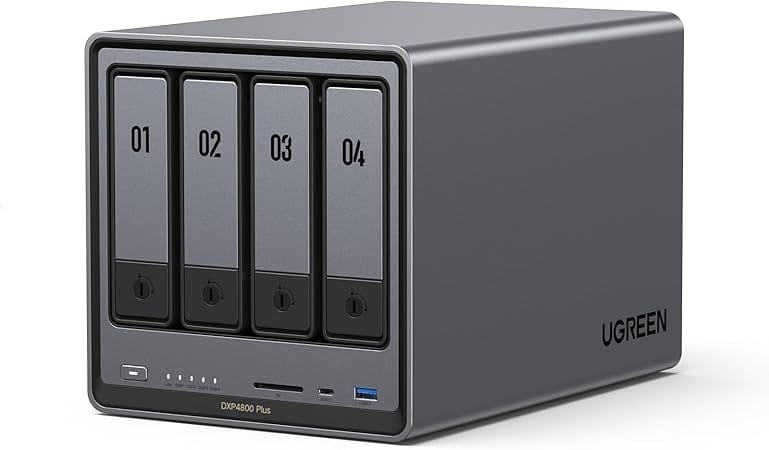
4-Bay NAS! Intel Pentium Gold 8505 5-Core CPU, 8GB DDR5 RAM, 128G SSD, 1 * 10GbE, 1 * 2.5GbE, 2 * M.2 NVMe Slots, 4K HDMI
The .env File (Environment Variables)
Create a file named .env in your project directory. We will use this to manage all our configurations centrally. This is a best practice and you'll see .env or environment variables referenced all over the place as you continue to deploy more containers.
# User and Group IDs
PUID=1000
PGID=1000
TZ=America/Toronto

# THE ROOT PATH (Change this to your actual base media folder)
ROOT_MEDIA_PATH=/mnt/media

# Network Settings
PROXY_NETWORK=internal-proxy

# VPN Settings (Example: Mullvad - UPDATE WITH YOURS)
VPN_SERVICE_PROVIDER=mullvad
VPN_TYPE=wireguard
WIREGUARD_PRIVATE_KEY=your_wireguard_key
WIREGUARD_ADDRESSES=your_wireguard_ip/32
VPN_PORT_FORWARDING=yes
📺 The Frontend: Plex vs. Jellyfin (The Streaming Interface)
The entire *Arr stack is worthless if you don't have a media server to showcase your perfectly organized library! This component acts as your own private Netflix, streaming content to your mobile, smart TV, or web browser.
Presently I run Plex and have it installed directly into my OMV8 os, bare metal.
The Streaming Choices
- Jellyfin (The Open-Source Hero): Jellyfin is 100% free and open-source. It offers a powerful, customizable experience without any account lock-in or premium subscriptions. It's the preferred choice for self-hosters prioritizing privacy and control.
- Plex (The Polished Powerhouse): Plex offers a more polished, widely adopted interface with clients available on virtually every device (Roku, Apple TV, etc.). While the core functionality is free, some features (like mobile sync or certain viewing features) require a Plex Pass subscription.
Read more here:
 Core Lab Joe
Both servers read from the exact same media folders you defined (\${MEDIA\_HOST\_PATH}/...) and are the target for requests managed by Overseerr/Jellyseerr.
The Request Gateways
Often the "final" piece of the ultimate media stack is the user-facing request portal. This component abstracts the automation, allowing users to request media in a beautiful, Netflix-style UI. Sounds quite nice eh?
- Overseerr (For Plex): The original request manager, tightly integrated with Plex's user base and API.
- Jellyseerr (For Jellyfin): A fork of Overseerr specifically built and optimized for the Jellyfin ecosystem. More recently, Jellyseerr has been updated to work for Plex as well, and both projects are merging soon! For this reason, I use Jellyseerr only, and it's the default choice below.
Awesome news! Jellyseer/Overseer
by u/No-Abbreviations4075 in selfhosted
You only need to include one of these request managers, ensuring your choice matches your media server (Plex or Jellyfin).
Sonarr & Radarr Docker Compose Configuration
Sonarr manages your TV shows, and Radarr manages your movies. They are the twin engines of your automation setup, monitoring your libraries and indexers, and requesting downloads.
Evolving docker-compose.yml (Part 1)
services:
# Sonarr - TV Shows
  sonarr:
    image: lscr.io/linuxserver/sonarr:latest
    container_name: sonarr
    environment:
      - PUID=${PUID}
      - PGID=${PGID}
      - TZ=${TZ}
    volumes:
      - ./sonarr/config:/config
      - ${ROOT_MEDIA_PATH}:/data # Access to /data/downloads and /data/media/tv
    ports:
      - 8989:8989
    restart: unless-stopped
    networks:
      - internal-proxy

  # Radarr - Movies
  radarr:
    image: lscr.io/linuxserver/radarr:latest
    container_name: radarr
    environment:
      - PUID=${PUID}
      - PGID=${PGID}
      - TZ=${TZ}
    volumes:
      - ./radarr/config:/config
      - ${ROOT_MEDIA_PATH}:/data # Access to /data/downloads and /data/media/movies
    ports:
      - 7878:7878
    restart: unless-stopped
    networks:
      - internal-proxy

networks:
  internal-proxy:
    driver: bridge
Automating Quality Profiles with Prowlarr and Profilarr
This section ensures you have the indexers (sources) and the quality profiles (standards) locked down. 😮I recently swapped from recyclarr & TRasH guides to Profilarr & simplicity!
- Prowlarr: Centralizes all indexer/tracker management, syncing them to all *arr apps automatically.
- Profilarr: This is the new hotness. It manages and automatically syncs high-quality Custom Formats and Quality Profiles (e.g., those inspired by TRaSH Guides) to your Sonarr and Radarr instances through a simple, modern web UI. No more complex YAML files!
- The Cloudflare Crusher: FlareSolverr: In 2026, many public indexers (trackers) are hidden behind "Verify you are a human" screens. Without help, Prowlarr will see these sites as "Down." FlareSolverr is a proxy server that stays in the background, solves those Cloudflare challenges, and passes the data back to Prowlarr.
Evolving docker-compose.yml (Part 2)
# Prowlarr - Indexer centralized management
  prowlarr:
    image: lscr.io/linuxserver/prowlarr:latest
    container_name: prowlarr
    environment:
      - PUID=${PUID}
      - PGID=${PGID}
      - TZ=${TZ}
    volumes:
      - ./prowlarr/config:/config
    ports:
      - 9696:9696
    restart: unless-stopped
    networks:
      - internal-proxy

# Profilarr & Decluttarr (Config only, no media access needed usually)
  profilarr:
    image: santiagosayshey/profilarr:latest
    container_name: profilarr
    environment:
      - TZ=${TZ}
    volumes:
      - ./profilarr/config:/config
    ports:
      - 6868:6868
    restart: unless-stopped
    networks:
      - internal-proxy
    depends_on:
      - sonarr
      - radarr

# FlareSolverr - Bypasses Cloudflare protection for Indexers
  flaresolverr:
    image: ghcr.io/flaresolverr/flaresolverr:latest
    container_name: flaresolverr
    environment:
      - LOG_LEVEL=${LOG_LEVEL:-info}
      - TZ=${TZ}
    ports:
      - 8191:8191
    restart: unless-stopped
    networks:
      - internal-proxy
🔗 How to Link it in Prowlarr
Once the container is running, you need to tell Prowlarr to use it. You don't need it for every indexer—only the ones giving you "Cloudflare" errors.
- Open Prowlarr and go to Settings > Indexers.
- Click the + to add a new Proxy.
- Select FlareSolverr.
- Name: FlareSolverr
- Tag:
flaresolverr(You will use this tag on any indexer that needs it). - Host:
http://flaresolverr:8191(Because they share the same Docker network, we use the container name!) - Save and test.
Pro Tip: Only tag the indexers that actually fail with Cloudflare errors. Using a proxy for every single search can slow down your "Grab" speed.
Routing qBittorrent Traffic Safely Through a Docker VPN (Gluetun vs Hotio)
Two choices, Gluetun or qBit Hotio. You can use Gluetun to route qBittorrent's traffic through a VPN, providing essential security and privacy for your torrenting.
Pros: Security! Flexibility. Gluetun allows you to do this with any docker in your stack which is pretty awesome. If the Gluetun container stops, all attached apps lose internet immediately. This is a feature, not a bug! It's a killswitch.
Cons: Confusion/Complexity - If you use network_mode: service:gluetun, you must move the ports (like 8080:8080) from qBittorrent to the Gluetun block. When using Gluetun, you're not just routing a client docker to / through Gluetun, the magic therein is that it's actual NIC is sitting basically IN the Gluetun docker! VERY secure...
| Feature | Gluetun (Sidecar) | Hotio (Integrated) |
| Best For | Routing multiple apps (qBit + Prowlarr + etc.) | Just qBittorrent (Simplicity) |
| Complexity | Higher (Needs network_mode) | Lower (Standard Docker setup) |
| Flexibility | Extreme (Switch VPN providers easily) | Moderate (Built into the image) |
| Troubleshooting | Can be tricky to spot which container failed | Easier to read one log file |
I chose Hotio qBittorrent for simplicity and the fact I don't need any other containers to go through a VPN. That part is below.
Evolving docker-compose.yml (Part 3) (PICK 1 Qbit image!)
# Gluetun - VPN Client
  gluetun:
    image: qmcgaw/gluetun:latest
    container_name: gluetun
    cap_add:
      - NET_ADMIN
    environment:
      - PUID=${PUID}
      - PGID=${PGID}
      - TZ=${TZ}
      - VPN_SERVICE_PROVIDER=${VPN_SERVICE_PROVIDER}
      - VPN_TYPE=${VPN_TYPE}
      - WIREGUARD_PRIVATE_KEY=${WIREGUARD_PRIVATE_KEY}
      - WIREGUARD_ADDRESSES=${WIREGUARD_ADDRESSES}
      - VPN_PORT_FORWARDING=${VPN_PORT_FORWARDING}
    ports:
      - 8888:8888 # Health check and control
      - 6881:6881 # qBittorrent P2P port
      - 6881:6881/udp
    restart: unless-stopped
    networks:
      - internal-proxy

# If using Gluetun, use qbittorrent from linuxserver io, not the hotio image below!
qbittorrent:
    image: lscr.io/linuxserver/qbittorrent
    network_mode: "service:gluetun" # The "Magic" line
    depends_on:
      gluetun:
        condition: service_healthy # Wait for VPN to be up first

qbittorrent-vpn:
    image: hotio/qbittorrent:latest
    container_name: qbittorrent-vpn
    cap_add:
      - NET_ADMIN
    environment:
      - PUID=${PUID}
      - PGID=${PGID}
      - TZ=${TZ}
      - VPN_SERVICE_PROVIDER=${VPN_SERVICE_PROVIDER}
      - VPN_USER=${VPN_USER}
      - VPN_PASS=${VPN_PASS}
      - OPENVPN_CONFIG=${VPN_OPENVPN_CONFIG}
    volumes:
      - ./qbittorrent-vpn/config:/config
      - ${ROOT_MEDIA_PATH}:/data # This maps the whole root to /data
    ports:
      - 8080:8080
      - 6881:6881
      - 6881:6881/udp
    restart: unless-stopped
    networks:
      - internal-proxy
Why I Choose qBit Hotio vs qBit and Gluetin
🌟Using the Hotio image consolidates two containers into one, reducing resource consumption and simplifying troubleshooting. There's no separate internal network routing to worry about—if qBittorrent is running, it's securely connected through the VPN. This is the definition of efficiency for an ultimate self-hosted setup!
While the previous setup used a separate VPN container (Gluetun) for security, the Hotio qBittorrentVPN image is an excellent alternative. It integrates the VPN client directly into the qBittorrent container, eliminating a separate service and simplifying your network setup. This ensures all download traffic is automatically secured.
Crucial Setup: Any qBittorrent container you chose, MUST use the same volume mapping for downloads (/data/downloads) as the *arr apps for the Hardlinking feature to work correctly.
Updated .env (Adding Hotio VPN Variables)
We need to add the required VPN environment variables for the Hotio image. You must choose one provider and fill out its corresponding credentials.
# User and Group IDs for Permissions
PUID=1000
PGID=1000
TZ=America/Toronto

# Global Paths for Download Client and *Arr Apps
DOWNLOADS_PATH=/mnt/media/downloads
MEDIA_PATH=/mnt/media/media

# Network Settings
PROXY_NETWORK=internal-proxy

# Hotio qBittorrentVPN Settings / another VPN option
VPN_SERVICE_PROVIDER=nordvpn
VPN_USER=your_vpn_username
VPN_PASS=your_vpn_password
VPN_OPENVPN_CONFIG=

# If using NordVPN, uncomment a server name below:
# OPENVPN_CONFIG=NordVPN/servers/countries/united_states/seattle.ovpn
# If using PIA, define the region:
# REGION=us_east
Updated docker-compose.yml (Part 3: The New Download Client)
This block entirely replaces the previous gluetun and qbittorrent services in your docker-compose.yml.
# qbittorrent-vpn - Download Client with Integrated VPN
  qbittorrent-vpn:
    image: hotio/qbittorrent:latest
    container_name: qbittorrent-vpn
    cap_add:
      - NET_ADMIN # Required for the integrated VPN to function
    environment:
      - PUID=${PUID}
      - PGID=${PGID}
      - TZ=${TZ}
      # VPN Configuration
      - VPN_ENDPOINT_IP=
      - VPN_SERVICE_PROVIDER=${VPN_SERVICE_PROVIDER}
      - VPN_USER=${VPN_USER}
      - VPN_PASS=${VPN_PASS}
      # Set up VPN configuration file if needed, e.g., for custom servers
      - OPENVPN_CONFIG=${VPN_OPENVPN_CONFIG}
    volumes:
      - ./qbittorrent-vpn/config:/config
      - ${ROOT_MEDIA_PATH}:/data # This maps the whole root to /data
      - /etc/localtime:/etc/localtime:ro
    ports:
      - 8080:8080 # qBittorrent Web UI
      - 6881:6881 # qBittorrent P2P Port
      - 6881:6881/udp
    sysctls:
      # Increases the file descriptor limit, preventing connection issues under heavy load
      - net.core.somaxconn=10000
      # Increases the kernel's ability to handle connections, improving torrent speed
      - net.core.rmem_max=2500000
    restart: unless-stopped
    networks:
      - internal-proxy
🧭 The 8-Step Journey of a Media Request
Understanding how these apps communicate is the secret to a stable "Media & Automation Fortress." Here is the logical path every file takes from the moment you click "Request" to the moment it hits your screen:
- Media Request: A user browses the beautiful Seerr (Overseerr/Jellyseerr) interface on their phone or web browser and hits "Request".
- Route Request: Seerr checks its logic and sends the "Request" to Sonarr (if it's a TV show) or Radarr (if it's a movie).
- Search: The *Arr app asks Prowlarr to find the best quality file across all your configured indexers and trackers.
- Cloudflare Bypass (Optional): If a tracker is being stubborn, FlareSolverr steps in to solve the "human verification" challenge and pass the data back to Prowlarr.
- Send Grab: Once the best file is found, the *Arr app sends a "Grab" command to your download client.
- Add Torrent: qBittorrent receives the file and begins downloading it securely behind its integrated VPN.
- Download & Atomic Move: Once the download is 100% complete, the *Arr app sees it and performs an Atomic Move (instant move) from your download folder to your library folder.
- Library Scan & Stream: Plex or Jellyfin detects the new file, grabs the metadata (posters, descriptions), and notifies you that it's ready to stream!
Advanced Tools: Bazarr, Whisper AI & Decluttarr
Rounding out the automation stack with niche media handlers and queue management.
- Lidarr (Music)
- Bazarr (Subtitles)
- Bazarr's capabilities can be enhanced greatly, using locally hosted AI.
- Whisper-ai (Backup subtitles via LLM powered subtitle generation!)
🧠 Advanced Integration: AI Subtitle Generation with Whisper
For true media mastery—especially if you deal with rare, non-English, or highly niche media—the standard subtitle indexers Bazarr uses might fall short. This is where locally hosted AI comes in.
You can augment Bazarr's capability by integrating it with a dedicated AI transcription tool like Whisper, the open-source speech recognition model from OpenAI, packaged in a container like jellyfin-whisper-lab or a similar wrapper.
The typical workflow for this advanced integration involves two stages:
- Bazarr (Primary): Bazarr handles the bulk of your subtitle needs by querying standard online indexers.
- Whisper (Fallback/Niche): If Bazarr fails to find subtitles for a specific item (a common issue with local media servers), you can deploy a secondary container to generate them.
How the AI Workflow Works (The Gap Filler)
While a direct API connection between Bazarr and Whisper for generation isn't standard, you can create an advanced cleanup or maintenance job:
- Bazarr Fails: Bazarr attempts to find subs and marks the movie/episode as "Missing Subtitles."
- Whisper Container Runs: You run a containerized version of Whisper (which requires GPU support for fast processing) against the media file. This container transcribes the audio and generates the
.srtsubtitle file in your desired language.
Adding the Whisper Container (The GPU Requirement)
The Whisper model is resource-intensive. For practical generation (not just transcription), this container ideally requires a dedicated NVIDIA GPU and the NVIDIA Container Toolkit to run efficiently.
We'll add a place for the container in the docker-compose.yml, assuming the user has the necessary hardware and setup.
- Decluttarr (Queue Cleanup)
- Can't state how awesome decluttarr is! It makes managing your qBittorrent download queue automatic, easy, and efficient! Stalled downloads, GONE...
- Whisparr (Specialized Adult Media manager)
Evolving docker-compose.yml (Part 4)
# Lidarr - Music
  lidarr:
    image: lscr.io/linuxserver/lidarr:latest
    container_name: lidarr
    environment:
      - PUID=${PUID}
      - PGID=${PGID}
      - TZ=${TZ}
    volumes:
      - ./lidarr/config:/config
      - ${ROOT_MEDIA_PATH}:/data
    ports:
      - 8686:8686
    restart: unless-stopped
    networks:
      - internal-proxy

  # Bazarr - Subtitles
  bazarr:
    image: lscr.io/linuxserver/bazarr:latest
    container_name: bazarr
    environment:
      - PUID=${PUID}
      - PGID=${PGID}
      - TZ=${TZ}
    volumes:
      - ./bazarr/config:/config
      - ${ROOT_MEDIA_PATH}:/data
    ports:
      - 6767:6767
    restart: unless-stopped
    networks:
      - internal-proxy

  # whisper-ai - Local Subtitle Generation (Requires GPU)
  whisper-ai:
    image: ${WHISPER_IMAGE_URL} # Use a pre-built image like "jellyfin-whisper-lab/whisper-container"
    container_name: whisper-ai
    environment:
      - PUID=${PUID}
      - PGID=${PGID}
      - TZ=${TZ}
    volumes:
      - ./whisper/config:/config
      - ${ROOT_MEDIA_PATH}:/data
    # Enable GPU access if you have one, or comment out the 'deploy' section for CPU-only:
    # deploy:
    #   resources:
    #     reservations:
    #       devices:
    #         - driver: nvidia
    #           count: all
    #           capabilities: [gpu]
    restart: unless-stopped
    networks:
      - internal-proxy

  # Decluttarr - Queue Cleaner
  decluttarr:
    image: hotio/decluttarr:latest
    container_name: decluttarr
    environment:
      - PUID=${PUID}
      - PGID=${PGID}
      - TZ=${TZ}
      - DECLUTTARR_CRON="*/15 * * * *"
      # API Keys/URLs for Sonarr, Radarr, etc. go here post-setup!
    volumes:
      - ./decluttarr/config:/config
    restart: unless-stopped
    networks:
      - internal-proxy

# Whisparr - Adult # Optional, niche
  whisparr:
    image: ghcr.io/whisparr/whisparr:latest
    container_name: whisparr
    environment:
      - PUID=${PUID}
      - PGID=${PGID}
      - TZ=${TZ}
    volumes:
      - ./whisparr/config:/config
      - ${ROOT_MEDIA_PATH}:/data
    ports:
      - 6969:6969
    restart: unless-stopped
    networks:
      - internal-proxy
Monitoring: Dozzle
The final layer provides the user-facing request portal, the streaming service, and your all-important log dashboard.
- Dozzle: A lightweight, real-time log viewer. It gives you immediate feedback on all your *arr containers, making troubleshooting a breeze. It needs access to the host's
/var/run/docker.sockfile to read logs from all other running containers.
I recently switched from Portainer to Dozzle. Dozzle is like a natural evolution of container GUI management, allowing fantastic visibility to the logs & ability to restart dockers etc.
Evolving docker-compose.yml
  # Dozzle - Real-Time Container Log Viewer
  dozzle:
    image: amir20/dozzle:latest
    container_name: dozzle
    volumes:
      # CRITICAL: Mounts the Docker socket to read logs from ALL other containers
      - /var/run/docker.sock:/var/run/docker.sock:ro
    ports:
      - 8081:8080 # Using 8081 to avoid conflict with qBittorrent's 8080 UI
    restart: always
    # Note: Dozzle does not need to be on the internal-proxy network.
Launching Your Ultimate Stack
- Save: Ensure you have the final, complete
docker-compose.ymland the filled-out.envfile in the same directory. - Deploy: From that directory, run the command
docker compose up -d - Post-Configuration:
- Your ultimate, modern, and high-quality media automation server is now fully operational!
- Prowlarr (9696): Add all your indexers/trackers. Then, add Sonarr, Radarr, Lidarr, and Whisparr as "Applications." Prowlarr will configure the indexers for you.
- *The Arr Apps (8989, 7878, 8686, 6969): Configure the Download Client (point to qBittorrent/Gluetun) and the Media Management Root Folders (
/data/media/tv,/data/media/movies, etc.). - Profilarr (6868): Connect Profilarr to your Sonarr and Radarr instances using their URLs and API keys. Use the UI to select and sync the latest, high-quality Custom Formats and Profiles instantly!
- Dozzle (8081): Navigate to the dashboard to monitor your entire stack. If an *arr app fails, you'll see the error logs instantly.
🛠️ The Ultimate *Arr Stack Generator
This interactive tool lets you customize your paths, IDs, and network settings for the complete *Arr stack, instantly generating the two files you need: docker-compose.yml and .env ready for immediate implementation!
Yes, 📳vibe-coded, but carefully fed all the proper info & variables 😉
FREE for all Core Lab members! Simply create an account so you can then save & download your configs!👇
Join the Core Lab Inner Circle
Self-Hosting, Cybersecurity & Digitial Privacy Guides delivered directly to you.
Example Compose out of the generator:
version: "3.7"
services:
  sonarr:
    image: lscr.io/linuxserver/sonarr:latest
    container_name: sonarr
    environment:
      - PUID=${PUID}
      - PGID=${PGID}
      - TZ=${TZ}
    volumes:
      - ./sonarr/config:/config
      - ${DOWNLOADS_HOST_PATH}:${CONTAINER_DOWNLOADS_PATH}
      - ${MEDIA_HOST_PATH}/tv:${CONTAINER_MEDIA_PATH}/tv
    ports:
      - 8989:8989
    restart: unless-stopped
    networks:
      - ${NETWORK_NAME}

  prowlarr:
    image: lscr.io/linuxserver/prowlarr:latest
    container_name: prowlarr
    environment:
      - PUID=${PUID}
      - PGID=${PGID}
      - TZ=${TZ}
    volumes:
      - ./prowlarr/config:/config
    ports:
      - 9696:9696
    restart: unless-stopped
    networks:
      - ${NETWORK_NAME}

  lidarr:
    image: lscr.io/linuxserver/lidarr:latest
    container_name: lidarr
    environment:
      - PUID=${PUID}
      - PGID=${PGID}
      - TZ=${TZ}
    volumes:
      - ./lidarr/config:/config
      - ${DOWNLOADS_HOST_PATH}:${CONTAINER_DOWNLOADS_PATH}
      - ${MEDIA_HOST_PATH}/music:${CONTAINER_MEDIA_PATH}/music
    ports:
      - 8686:8686
    restart: unless-stopped
    networks:
      - ${NETWORK_NAME}

  bazarr:
    image: lscr.io/linuxserver/bazarr:latest
    container_name: bazarr
    environment:
      - PUID=${PUID}
      - PGID=${PGID}
      - TZ=${TZ}
    volumes:
      - ./bazarr/config:/config
      - ${MEDIA_HOST_PATH}/tv:${CONTAINER_MEDIA_PATH}/tv
      - ${MEDIA_HOST_PATH}/movies:${CONTAINER_MEDIA_PATH}/movies
    ports:
      - 6767:6767
    restart: unless-stopped
    networks:
      - ${NETWORK_NAME}

  profilarr:
    image: santiagosayshey/profilarr:latest
    container_name: profilarr
    environment:
      - TZ=${TZ}
    volumes:
      - ./profilarr/config:/config
    ports:
      - 6868:6868
    restart: unless-stopped
    networks:
      - ${NETWORK_NAME}

  decluttarr:
    image: hotio/decluttarr:latest
    container_name: decluttarr
    environment:
      - PUID=${PUID}
      - PGID=${PGID}
      - TZ=${TZ}
      - DECLUTTARR_CRON="*/15 * * * *"
      # API Keys must be added manually post-setup
    volumes:
      - ./decluttarr/config:/config
    restart: unless-stopped
    networks:
      - ${NETWORK_NAME}


networks:
  ${NETWORK_NAME}:
    driver: bridge
🛠️ Troubleshooting: The "Path Mismatch" Plague
If your downloads are finished but your library stays empty, or if your hard drive is filling up twice as fast as it should, use this checklist to find the leak.
1. The "Invisible File" Check
Symptom: Arr logs show: Import failed, path does not exist or is not accessible by Sonarr: /downloads/complete/...
- The Cause: Your download client is telling the *Arr app the file is at
/downloads/, but the *Arr app is looking at/data/downloads. - The Fix: Go to your Download Client settings (qBit/Deluge) and change the Default Save Path to exactly match your internal Docker volume (e.g.,
/data/downloads). - The Verification: Use the terminal. Run
docker exec -it sonarr ls /data/downloads. If you don't see your finished downloads there, Sonarr is blind to them.
2. The "Slow Import" Check (Atomic Move Failure)
Symptom: Imports take several minutes for large 4K files instead of being instant.
- The Cause: You have used multiple volume mounts (e.g.,
- /mnt/downloads:/downloadsand- /mnt/movies:/movies). Even if they are on the same physical disk, Docker treats these as different file systems. - The Fix: Consolidate to a single root mount (e.g.,
- /mnt/media:/data). - The Verification: Check your *Arr "Events" log. If it says "File copied and deleted," atomic moves are broken. It should say "File moved" or "Hardlink created."
3. The "Permission Denied" Check
Symptom: Logs show: Permission denied or Access to path is denied.
- The Cause: Your
PUIDandPGIDin the Compose file don't own the folders on your host machine. - The Fix: Run
ls -ld /mnt/mediaon your host. Ensure the user ID listed there matches thePUIDin your.envfile. - The Nuclear Option: If you're stuck, run
sudo chown -R 1000:1000 /mnt/media(replacing 1000 with your PUID/PGID).
4. Remote Path Mapping: The Last Resort
Symptom: You are using a Seedbox or a separate machine for downloads and can't change the paths.
- The Fix: 1. In Sonarr/Radarr, go to Settings > Download Clients. 2. Add a Remote Path Mapping. 3. Host:
qbittorrent-vpn(or your client's name). 4. Remote Path: The path qBit uses (e.g.,/downloads/). 5. Local Path: The path Sonarr sees (e.g.,/data/downloads/).
Frequently Asked Questions
- What is a "Hardlink" and why does it matter for my media server? Hardlinking allows a file to exist in two places on your disk (e.g., your
/downloadsfolder and your/media/moviesfolder) without taking up double the space. This allows you to continue seeding a torrent while simultaneously having it organized in your media library. It is "instant" and puts zero wear on your drives. - Why do I need a single root path (e.g.,
/data) for all containers? Docker treats different volume mounts as different file systems. If you map/downloadsand/moviesseparately, the "Arr" apps cannot perform an "Atomic Move" or a "Hardlink." By using a single root mount like/data, the apps see everything as one disk, enabling instant, space-saving moves. - Is it better to use Gluetun or a VPN-integrated download client? It depends on your scale. Gluetun is better if you want to route multiple apps (like qBittorrent and Prowlarr) through a single VPN tunnel. Hotio's integrated image is better for simplicity and reduced resource usage if you only need the download client protected.
- Do I really need FlareSolverr in 2026? Yes, if you use public trackers. Many indexers use Cloudflare "I'm not a robot" challenges that block automated tools like Prowlarr. FlareSolverr acts as a background proxy that solves these challenges automatically, ensuring your indexers stay "Online."
- Can I run the "Arr" stack on a Raspberry Pi? Yes, but avoid heavy tasks like AI-subtitle generation (Whisper) or 4K transcoding. For a Pi or low-power N100 build, the core "Arr" apps (Sonarr/Radarr) run efficiently in Docker.



Member discussion