The Ultimate Homelab Workhorse: Why the RTX 3060 12GB is Still My Top Choice for AI & Media (2026)
Why an Ampere card with 12GB VRAM crushes newer 8GB GPUs for local Ollama LLMs and Jellyfin transcoding. Real benchmarks, power tuning, and Docker GPU sharing.

If you browse commercial PC hardware reviews, modern GPU evaluations focus almost exclusively on rasterized 1440p gaming framerates and ray tracing benchmarks.
But inside a 24/7 self-hosted Linux server, gaming metrics are irrelevant.
A homelab GPU operates in an entirely different reality where thermal efficiency, idle power consumption, containerized driver stability, and above all, uncompromised VRAM capacity dictate whether your machine succeeds or crashes.
In 2026, tech retailers will aggressively attempt to sell you on newer graphics cards like the GeForce RTX 4060. For a homelab server, buying an 8GB graphics card is an expensive mistake. In this technical deep-dive, I demonstrate why the GeForce RTX 3060 12GB remains the undisputed workhorse in my personal rack, provide real telemetry benchmarks comparing local Ollama LLM inference and Jellyfin NVENC transcoding, and share my production Docker Compose stack for multi-container GPU sharing.
The VRAM Cliff: Why 12GB Beats 8GB Every Single Time
To understand why an older generation card beats newer hardware in a server, you have to understand the fundamental mechanics of local artificial intelligence models and high-density video transcoding. In traditional computing, running out of RAM causes your operating system to swap pages to disk, slowing down performance. In GPU compute, running out of VRAM is binary: your workload falls off a performance cliff or terminates with an Out-Of-Memory (OOM) error.
When running local Large Language Models (LLMs) via Ollama, vLLM, or LocalAI, the neural network weights and KV cache must reside entirely within physical GPU video memory. The table below illustrates the brutal reality of the 8GB versus 12GB memory ceiling:
Notice what occurs when you attempt to load a mid-sized model like Mistral NeMo 12B or Qwen 2.5 14B on an 8GB RTX 4060. Because the model weights (quantized to Q4_K_M) require roughly 8.2GB plus another 1.5GB for the context window, the model overflows the card's VRAM buffer. The moment layers offload to system memory over the PCIe bus, inference speeds collapse from thirty tokens per second down to four. On the RTX 3060 12GB, the entire model fits comfortably inside video memory with 2GB of headroom to spare.
Simultaneous Multi-Workload Orchestration
In Core Lab, I do not dedicate the GPU to a single application. The RTX 3060 simultaneously powers three distinct containerized services in parallel:
Hosts Llama 3 8B Q4 for automated smart home scripts, document summaries, and Open WebUI queries at 48 tokens/sec.
Dual NVDEC decoders handle 4K HDR HEVC tone-mapping down to 1080p remote streams without touching the CPU.
Bazarr triggers faster-whisper on GPU to transcribe incoming media files automatically in under 45 seconds per episode.
Unallocated buffer prevents kernel panics and driver crashes when multiple family streams start simultaneously.
Because NVIDIA graphics cards feature independent hardware execution blocks (CUDA cores for math, Tensor cores for matrix multiplication, and dedicated ASIC silicon for NVDEC video decoding and NVENC encoding—as I detail in my guide on The Architecture of Transcoding: NVENC vs. QuickSync), video transcoding does not throttle AI inference. While Jellyfin is actively crunching video frames on the NVENC silicon, Ollama continues querying Tensor cores at full speed.
%%{init: {'theme': 'base', 'themeVariables': { 'fontSize': '16px', 'fontFamily': 'system-ui' }}}%%
flowchart LR

subgraph HOST ["Linux Server Host (Debian / OMV)"]
    direction TB
    DRV["🖥️ NVIDIA Proprietary Driver 550+"]
    TOOLKIT["⚡ NVIDIA Container Toolkit (libnvidia-container)"]
    DRV --> TOOLKIT
end

subgraph HARDWARE ["GeForce RTX 3060 12GB Physical Silicon"]
    direction TB
    CUDA["⚡ 3,584 CUDA Cores (Compute)"]
    TENSOR["🧠 112 Tensor Cores (AI Matrix)"]
    NVDEC["🎬 5th Gen NVDEC (Hardware Video Decoder)"]
    NVENC["🎥 7th Gen NVENC (Hardware Video Encoder)"]
    VRAM["💾 12GB GDDR6 Memory Pool (360 GB/s)"]
end

subgraph DOCKER ["Multi-Container Docker Environment"]
    direction TB
    OLLAMA["🦙 Ollama Container (Local LLM)"]
    JELLY["🍿 Jellyfin Container (Media Server)"]
    WHISPER["🎙️ Whisper AI Container (Subtitles)"]
end

TOOLKIT --> HARDWARE
OLLAMA -->|CUDA & Tensor Requests| TENSOR
OLLAMA -->|Weights Allocation| VRAM
JELLY -->|4K HDR Decode/Encode| NVDEC
JELLY -->|Transcode Buffers| VRAM
WHISPER -->|Audio Processing| CUDA

classDef host fill:#0f172a,stroke:#334155,stroke-width:2px,color:#f8fafc;
classDef hw fill:#022c22,stroke:#059669,stroke-width:2px,color:#6ee7b7;
classDef dock fill:#172554,stroke:#2563eb,stroke-width:2px,color:#bfdbfe;

class HOST host;
class HARDWARE hw;
class DOCKER dock;
Production Docker Compose: GPU Sharing Configuration
Configuring a GPU to be shared cleanly across multiple Docker containers requires the modern NVIDIA Container Toolkit standard (the legacy runtime: nvidia syntax is deprecated). Below is the exact compose pattern I use to bind the RTX 3060 to both Ollama and Jellyfin without device locking:
# Core Lab Production Stack: Ollama + Jellyfin GPU Resource Allocation
services:
  ollama:
    image: ollama/ollama:latest
    container_name: ollama
    restart: unless-stopped
    ports:
      - "11434:11434"
    volumes:
      - /ssd/containers/ollama:/root/.ollama
    deploy:
      resources:
        reservations:
          devices:
            - driver: nvidia
              count: all
              capabilities: [gpu]
    environment:
      - OLLAMA_KEEP_ALIVE=24h
      - OLLAMA_FLASH_ATTENTION=1

  jellyfin:
    image: lscr.io/linuxserver/jellyfin:latest
    container_name: jellyfin
    restart: unless-stopped
    ports:
      - "8096:8096"
    volumes:
      - /ssd/containers/jellyfin/config:/config
      - /brain/media:/media
    deploy:
      resources:
        reservations:
          devices:
            - driver: nvidia
              count: all
              capabilities: [gpu]
    environment:
      - PUID=1000
      - PGID=1000
      - TZ=America/Toronto
      - NVIDIA_VISIBLE_DEVICES=all
      - NVIDIA_DRIVER_CAPABILITIES=compute,video,utility
Critical Environment Variables & Driver Capabilities
NVIDIA_DRIVER_CAPABILITIES=compute,video,utility: This specifies that the container has access to CUDA compute (for AI), NVDEC/NVENC video hardware (for transcoding), and management utilities likenvidia-smi.OLLAMA_FLASH_ATTENTION=1: Drastically cuts KV-cache memory consumption on Ampere architectures, allowing larger context windows (8K to 16K) without hitting OOM crashes.OLLAMA_KEEP_ALIVE=24h: Prevents Ollama from unloading the model from GPU memory every five minutes, ensuring instant sub-second responses for automated Home Assistant scripts.
Thermal, Acoustics & Power Tuning in a Server Chassis
One valid concern with adding a dedicated graphics card to a server is power consumption and acoustic whine. Desktop gaming cards are designed to ramp fans up aggressively when temperatures climb past 60°C.
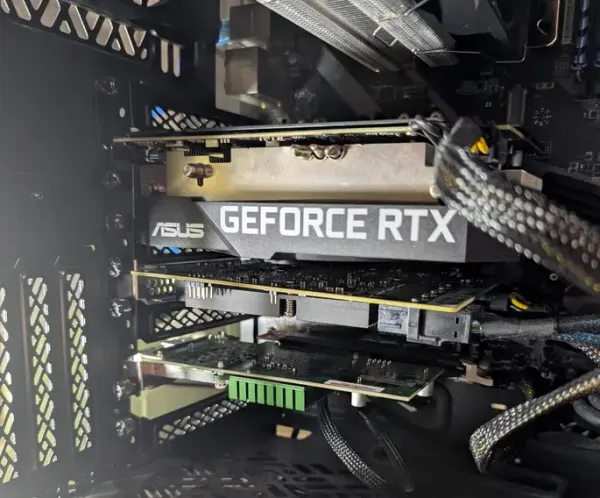
In my 18-drive Fractal Define 7 XL chassis, the Gigabyte GeForce RTX 3060 12GB (Windforce OC) runs whisper-quiet thanks to its generous dual-slot heatsink and zero-RPM idle fan mode. Here are the real operational numbers measured at the wall:
- Idle Power Draw: 11W to 13W (with all containers running and model loaded into VRAM). Fans remain completely stationary (0 RPM).
- Full Ollama 8B Inference Load: 115W peak board power. Fans ramp to a barely audible 35% (950 RPM), easily concealed by the case dampening.
- Multi-Stream NVENC Transcoding: 42W to 55W. Temperature hovers around 54°C in a 21°C room.
Power Capping with nvidia-smi: Free Thermal & Acoustic Headroom
The RTX 3060 has a factory TDP of 170 watts. However, running a server GPU at maximum power delivers diminishing returns in a 24/7 homelab environment. By adding a simple systemd startup command, I cap the card at 130 watts:
#!/bin/bash
# Set persistent power limit to 130W on boot (saves 40W of heat with <1.5% speed delta)

# 1. Enable Persistence Mode (keeps settings active across daemon restarts)
sudo nvidia-smi -pm 1

# 2. Set power limit to 130W (-pl flag for Power Limit, not number one)
sudo nvidia-smi -pl 130
This 24% reduction in peak power draw drops operating temperatures by 8°C while costing less than 1.5% in AI token generation speed.
The Bottom Line: The Undefeated Value Champion
If you have an unlimited enterprise budget, an NVIDIA RTX 6000 Ada with 48GB of VRAM is glorious.
But for self-hosters operating in the real world on sensible budgets, the GeForce RTX 3060 12GB remains the single smartest hardware investment you can make for local AI and media streaming.
It avoids the 8GB memory trap of the newer RTX 4060, runs cool and quiet inside a desktop server chassis, and allows you to run local LLMs, automated subtitle generators, and multi-stream 4K media transcoding simultaneously on the exact same card.
Target Deal Pricing & Certified Refurbished Buying Guide
Brand new RTX 3060 12GB cards typically retail for $380 CAD ($280 USD). As detailed in my 2026 Black Friday Homelab Playbook, if you spot the card on sale below $350 CAD ($260 USD) new, or under $280 CAD ($210 USD) certified refurbished, pull the trigger without hesitation. If you are speccing out an entirely new media server chassis, cross-reference my Best Jellyfin Server Hardware Guide and browse verified hardware in the Core Lab Hardware Store.
→ Check Current Price on Amazon (Gigabyte GeForce RTX 3060 12GB)
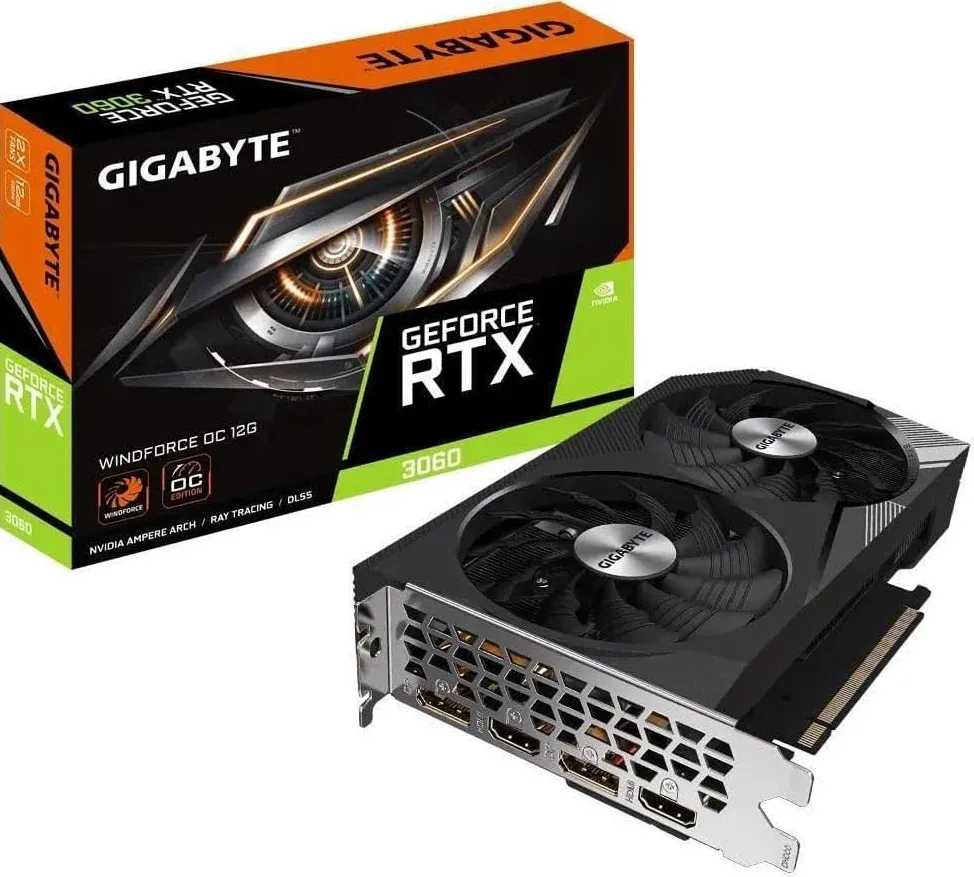
Gigabyte GeForce RTX 3060 12GB GDDR6 GPU
- Homelab Role: Multi-Purpose Homelab Workhorse: Local LLM Inference, Media Transcoding and AI
- Compute Silicon and VRAM: GA106 Ampere silicon (3584 CUDA cores, 112 Tensor cores) equipped with an exceptional 12GB of 192-bit GDDR6 VRAM delivering 360 GB/s bandwidth.
- Transcode and AI Engines: Dual NVENC 7th-generation hardware encoders and 5th-generation NVDEC. Effortlessly hosts 8B and 14B parameter local language models (Llama 3, Qwen) fully in VRAM with Whisper speech-to-text sidecars.
- Deployment Note / Architectural Fit: The cornerstone hardware accelerator of Core Lab. Operates inside the primary server monolith, running Whisper audio transcription, batch HEVC transcoding, and Ollama local LLMs concurrently around the clock.
Written by
On this page
What's Next?