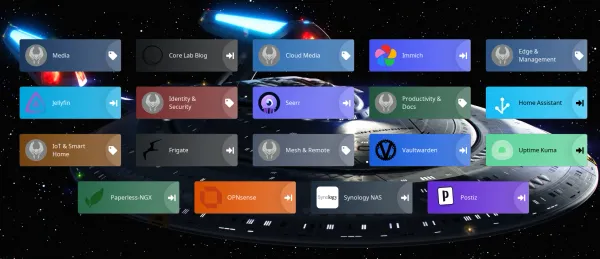
Building a Clean Homelab Dashboard: Deploying Heimdall with Tag Folders and the *Arr Stack
How I deployed Heimdall on an isolated Docker network, unlocked native nested folders using tags, and organized my *Arr media stack into clean category drawers without exposing my homelab to the public web.

Every self-hosted homelab begins the same way: three Docker containers running on a spare PC or mini-PC. But as your services grow, bookmark sprawl sets in and before long, your browser bookmarks bar is cluttered with random IP addresses and high ports: :8989 for Sonarr, :7878 for Radarr, :9696 for Prowlarr, :8886 for qBittorrent, and :8096 for Jellyfin.
When you want to check a download or queue up a film, hunting through bookmarks or typing raw socket addresses is clunky.
The standard community suggestion is to install a homelab dashboard. Yet modern options like Homepage or Dashy often introduce more friction than they solve. Editing 400 lines of brittle YAML indentation just to add one link, or having an entire dashboard fail to render over a missing space, is exhausting. I literally gave up on those and just used IP:PORT for ages... Like actual years of time.
If you want a lightweight, visually polished, web-manageable launchpad that does not require writing code every time you spin up a container, Heimdall remains one of the most reliable tools available. Behind its interface lies a built-in SQLite database, zero config files to edit, and an essential feature most users overlook: Native Tag Folders.
While Heimdall technically includes optional legacy plugins for polling basic numbers, treating Heimdall as a real-time telemetry dashboard is a mistake.
Its true strength is being an unkillable, distraction-free application launcher and category organizer.
Here is how I deployed Heimdall on an isolated Docker network, unlocked native nested folders using tags, and organized my *Arr media stack into clean category drawers without exposing my homelab to the public web.
1. Dashboard Architecture: Why Heimdall Hits the Sweet Spot
Before deploying containers, it helps to understand why different dashboard architectures suit different workflows. The table below contrasts the four most popular self-hosted dashboard engines across resource footprint, configuration friction, and folder support:
| Dashboard Platform | Config Engine | Memory Footprint | Folder / Grouping Support | API Widgets / Metrics | Configuration Friction |
|---|---|---|---|---|---|
| Heimdall | Web GUI (SQLite) | ~35 MB - 65 MB | Native Tag Folders | Legacy Plugins (Best Kept Static) | Very Low (Point & Click) |
| Homepage | Static YAML Files | ~45 MB - 80 MB | Grid Groups Only (No Drawers) | Excellent (60+ API widgets) | Medium (Syntax Sensitive) |
| Dashy | YAML + Optional Web UI | ~120 MB - 250 MB | Nested Sections & Tabs | Extensive (Custom Widgets) | High (Heavyweight & Complex) |
| Flame | Web GUI (SQLite) | ~20 MB - 35 MB | Categories (Flat List) | None (Static Bookmarks) | Very Low |
Homepage is phenomenal if you love maintaining infrastructure purely as code in Git with live API telemetry cards. But for daily homelab operations where you spin up, test, or reconfigure media containers, Heimdall provides the cleanest balance. You never have to worry about a misplaced YAML space breaking your homepage, and the interface is fully manageable from any phone or tablet on your network.
Dashboard Architecture: Web GUI vs. Code-Driven
Comparing configuration complexity and breaking change risk across homelab dashboard paradigms
- Zero Syntax Breaking Risk: Modifying, reordering, or adding containers happens visually without touching configuration files.
- Mobile-Friendly Management: Add services and organize drawer folders directly from your phone or tablet browser.
- Git-Tracked Deployments: Ideal if you manage your entire homelab via automated Ansible or CI/CD pipelines.
- Syntax Brittleness: A single indentation error or malformed widget parameter crashes the rendering engine.
- Device Fragmentation: Bookmarks must be synchronized manually across every PC, laptop, phone, and tablet.
- Zero Centralization: No category drawers, no centralized access point, and no clean landing page.
2. Production Docker Compose Deployment
To deploy Heimdall cleanly, I run the LinuxServer.io container image. Rather than running containers as root, I bind non-root UID and GID permissions (PUID=1000, PGID=100) and map persistent storage directly to an NVMe SSD pool.
Here is my production Docker Compose block:
services:
  heimdall:
    container_name: heimdall
    image: lscr.io/linuxserver/heimdall:latest
    restart: unless-stopped
    networks:
      corelab_lan:
        ipv4_address: 10.0.0.65
    environment:
      - PUID=1000
      - PGID=100
      - TZ=America/Toronto
    volumes:
      - /docker/containers/dashboard/heimdall:/config
    deploy:
      resources:
        limits:
memory: 256MKey Architectural Decisions
- Static IP on Isolated VLAN: By binding Heimdall to my internal trusted network (
corelab_lan (VLAN 7)at10.0.0.65), any computer, phone, or tablet connected to my home Wi-Fi or WireGuard tunnel can navigate directly tohttp://10.0.0.65/without needing port forwarding or external internet exposure. - Persistent SSD Root: Everything Heimdall requires, including its SQLite database (
app.sqlite), uploaded custom icons (/icons/), and desktop wallpapers (/backgrounds/), lives inside a single mounted directory at/docker/containers/dashboard/heimdall. Backing up the entire dashboard requires nothing more than snapshotting that single folder. - Strict Memory Cap: Heimdall is lightweight PHP and NGINX. Capping memory to 256MB ensures it runs effortlessly even on low-power Intel N100 mini-PCs or NAS appliances without competing with media transcode pipelines.
Why Heimdall Suddenly Throws 403 Forbidden After Container Updates
If your Heimdall dashboard suddenly locks you out with an unstyled 403 Forbidden error after a routine container rebuild, you have likely run into one of two silent Docker architecture traps:
Upstream LinuxServer.io base images dynamically evaluate default.conf on boot. If the container checks for /app/www/public and misfires, it falls back to set $root /config/www;. Because /config/www has no index file, NGINX blocks directory listings and serves an instant 403.
When running Heimdall on a dedicated Macvlan/VLAN IP (like 10.0.0.65), an interrupted update can leave an orphaned containerd-shim running. Both the old zombie container and the new container fight over the same IP. The zombie with stale config intercepts incoming traffic and returns 403.
- Inspect parsed NGINX rules:
docker exec heimdall nginx -T | grep -E "root|index". Ensureroot /app/www/public;is explicitly defined. - Check for duplicate IP bindings: If NGINX config is valid but you still get 403, check host processes for severed shims:
ps aux | grep containerd-shim | grep heimdall. - Reap orphaned worker shims via host PID namespace to clear ARP conflicts and restore clean HTTP 200 routing.
3. The "Tags as Folders" Feature
By default, when you first launch Heimdall, all added applications appear as a flat list across the main screen. Once you accumulate 20 or 30 services, your screen quickly turns into an overwhelming wall of tiles.
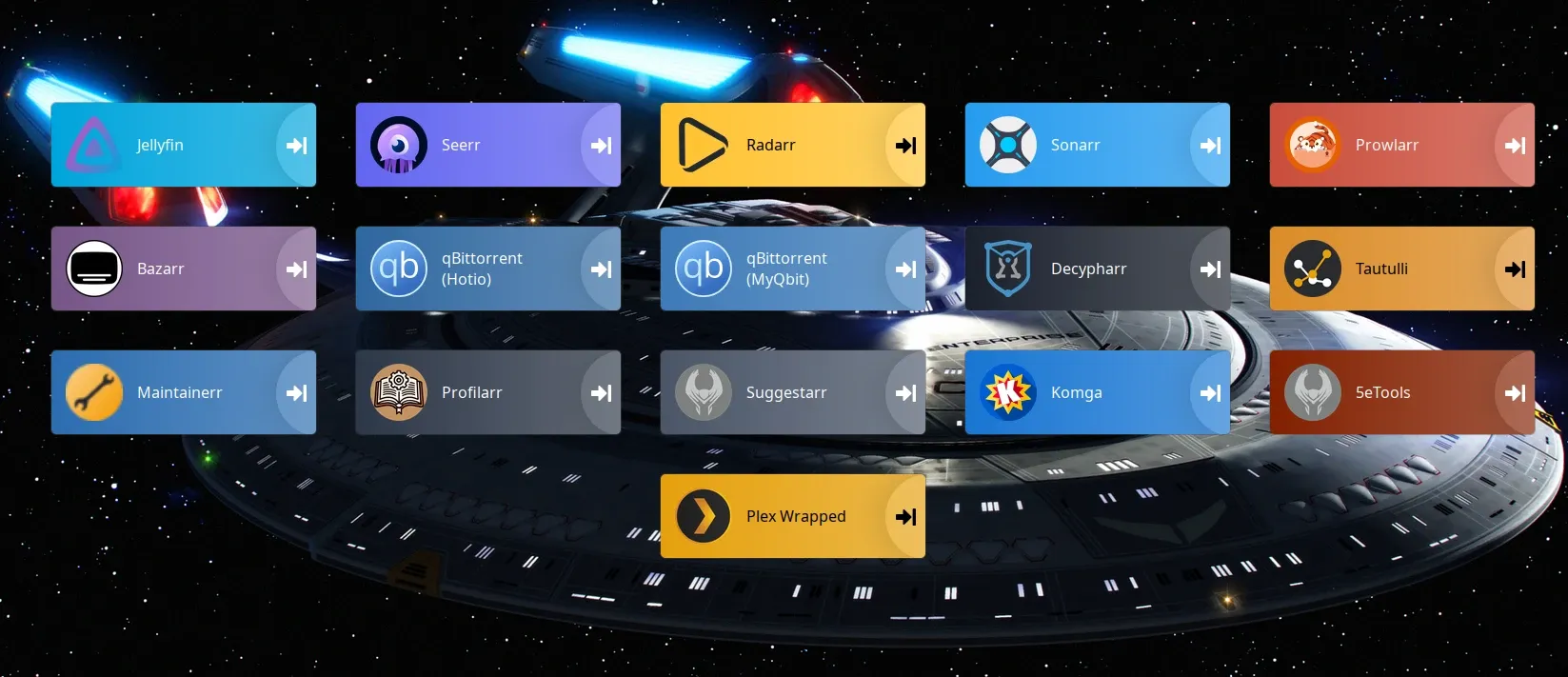
Heimdall solves this through a built-in folder system integrated into its tag engine. Here is how to activate it:
- Open your Heimdall dashboard at
http://<your-server-ip>/. - Click the Settings (gear icon) in the bottom right corner.
- Scroll to "Treat tags as" and change the dropdown from Tags to Folders.
- Set your preferred Window Target (I prefer opening links in the same tab or a dedicated workspace window).
- Click Save.
Once enabled, Heimdall creates interactive, clickable folder cards directly on your dashboard. When you click a folder card, it opens that folder's view with its own dedicated URL (e.g. http://10.0.0.65/tag/media), keeping your main screen uncluttered while keeping all administrative tools one click away.
4. Building the Media Folder with the *Arr Stack (Step-by-Step)
Let us walk through how to construct an organized Media folder containing the full automated downloading and streaming stack: qBittorrent, Radarr, Sonarr, Prowlarr, Bazarr, and Seerr.
Step 1: Create the "Media" Tag Folder
- In the bottom right navigation bar, click the Tag icon (Tags list).
- Click Add Tag.
- Set the Title to
Media. - Choose a distinct accent colour (for example, a dark navy slate like
#1a365d). - Ensure "Pin to dashboard" is toggled ON. This guarantees the folder tile itself appears prominently on your main home screen.
- Click Save.
Step 2: Add Radarr and Sonarr
- Click the Add Application (+) button.
- In the Application Name search field, type
Radarrand select it. Heimdall will automatically populate the official high-resolution vector icon and brand colour. - Enter your server's internal web URL:
http://10.0.0.13:7878. - Under Tags, select your newly created
Mediatag. - Leave "Pin to dashboard" OFF if you want Radarr to live exclusively inside your Media folder drawer, or toggle it ON if you want it pinned on both screens.
- Click Save.
- Repeat the exact same steps for Sonarr on port
8989.
A Practical Note on Enhanced Apps
Heimdall includes optional "Enhanced App" configuration fields to enter API keys for services like Radarr and Sonarr. While this can display simple missing item counters, I deliberately avoid using it. In production, Heimdall's PHP polling scripts can add latency to page loads and frequently break when upstream applications update their API authentication specifications. Keeping your launcher tiles purely static ensures lightning-fast page loads, prevents database exceptions, and keeps administrative API credentials out of your dashboard database.
Step 3: Add qBittorrent
- Click Add Application (+) and search for
qBittorrent. - Enter your WebUI URL (e.g.
http://10.0.0.11:8886). - Assign the
Mediatag. - Choose whether to pin the tile to the main dashboard or keep it strictly inside the Media drawer.
- Click Save.
Step 4: Tuck Away Prowlarr and Bazarr
Indexers and subtitles run quietly in the background; you rarely need to look at Prowlarr or Bazarr every day. By adding them to the Media folder with "Pin to dashboard" unchecked, they stay neatly organized inside the drawer without cluttering your home view:
- Prowlarr: Search
Prowlarr, enterhttp://10.0.0.16:9696, assign tagMedia, uncheck Pin to Dashboard. - Bazarr: Search
Bazarr, enterhttp://10.0.0.17:6767, assign tagMedia, uncheck Pin to Dashboard.
Step 5: Pin Your Daily Drivers (Jellyfin and Seerr)
Unlike administrative background indexers, Jellyfin (or Plex) and Seerr are consumer-facing applications that you use constantly.
For these two apps, add them with the Media tag, but toggle "Pin to dashboard" ON. Heimdall will display them cleanly on your main front screen next to your folder drawers, while simultaneously cataloguing them inside the Media drawer for logical grouping.
flowchart TD
    subgraph Clients ["Authorized Ingress Clients"]
        LANClient["Home LAN Client
(PC / Mac / Tablet)"]
        VPNClient["Remote Mobile Client
(WireGuard Tunnel)"]
    end

    subgraph Gateway ["Network & Security Boundary (OPNsense)"]
        FW["OPNsense Firewall
(Zero Inbound Ports Opened)"]
        WG["WireGuard Gateway
(UDP 51820 Ingress)"]
    end

    subgraph CoreLabLAN ["Private Subnet: VLAN 7 (10.0.0.0/24)"]
        Heimdall["Heimdall Dashboard
(10.0.0.65:80)
[SQLite app.sqlite]"]

        subgraph MediaStack ["The *Arr Media Services"]
            Radarr["Radarr :7878
(Movie Manager)"]
            Sonarr["Sonarr :8989
(Series Manager)"]
            QBit["qBittorrent :8886
(Download Client)"]
            Prowlarr["Prowlarr :9696
(Indexer Drawer)"]
            Bazarr["Bazarr :6767
(Subtitle Drawer)"]
            Seerr["Seerr :5055
(Media Requests)"]
            Jellyfin["Jellyfin :8096
(Streaming Server)"]
        end
    end

    LANClient -->|Direct L2 Route| Heimdall
    VPNClient -->|Encrypted Handshake| WG
    WG -->|Internal Forward| Heimdall

    Heimdall -->|1-Click Launch| Radarr
    Heimdall -->|1-Click Launch| Sonarr
    Heimdall -->|1-Click Launch| QBit
    Heimdall -->|1-Click Launch| Prowlarr
    Heimdall -->|1-Click Launch| Bazarr
    Heimdall -->|1-Click Launch| Seerr
    Heimdall -->|1-Click Launch| Jellyfin
5. Custom Wallpapers and Aesthetic Polishing
A plain grey dashboard is functional, but a customized homelab command centre should feel personal. Heimdall makes it straightforward to apply high-resolution backgrounds.
Rather than linking to an external image URL (which can break if the hosting site goes down or leaks referrers), save your preferred 4K wallpaper locally into your container storage:
# Place your wallpaper directly into the container's background directory
curl -sSL "https://images7.alphacoders.com/327/327837.jpg" \
  -o /docker/containers/dashboard/heimdall/www/backgrounds/startrek.jpg

# Ensure web server permissions are set
chmod 644 /docker/containers/dashboard/heimdall/www/backgrounds/startrek.jpgThen, inside Heimdall's Settings, set the Background Image to backgrounds/startrek.jpg and turn off Trianglify. Heimdall automatically applies background-size: cover and background-position: center, giving you a clean, cinematic backdrop across your entire homelab.
6. The Security Rule: Why Dashboards Belong Behind WireGuard
One dangerous trend in self-hosting forums is putting homelab dashboards directly on the public internet behind Cloudflare or basic NGINX reverse proxies without authentication.
In my opinion - Never do this! Your dashboard is an architectural map of your entire infrastructure.
It aggregates your internal subnets, container IP addresses, open administrative ports, and application names into a single index. If an attacker discovers your dashboard, you have handed them a curated roadmap of every target on your network.
The Secure Access Standard
- Keep it Local: Run Heimdall strictly on your private LAN subnet (e.g.
10.0.0.65) or a dedicated management VLAN. - Remote Access via WireGuard: When you are away from home, connect through an OPNsense WireGuard tunnel. Once the VPN handshake completes, your phone or laptop sits virtually on your home subnet, granting instant, encrypted access to your dashboard at
http://10.0.0.65/without punching a single inbound hole in your firewall. - No Docker Socket Exposure: Unlike some heavier dashboards that require mounting
/var/run/docker.sockto query container health, Heimdall runs entirely detached from the Docker daemon. Even if the container were somehow compromised, the host system remains fully isolated.
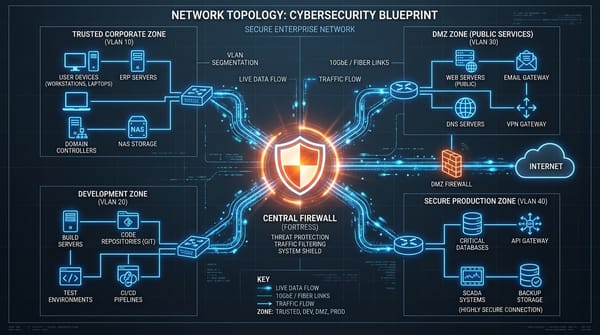
Security Blueprint: The Isolated Dashboard Paradigm
Why homelab dashboards must remain strictly private and accessible only via WireGuard
Direct Layer 2 access over trusted VLANs (e.g. 10.0.0.65). No traffic traverses external networks, Cloudflare edge proxies, or public DNS resolvers.
On-demand WireGuard handshake directly into OPNsense. Phone securely accesses http://10.0.0.65/ from anywhere in the world without exposing ports to public scanners.
Publishing a dashboard directly to https://dashboard.domain.com leaks internal IP addresses, service names, port numbers, and authentication endpoints to search crawlers and internet scanners.
Summary: A Clutter-Free Homelab Command Deck
Organizing a homelab should not require maintaining a second career as a YAML debugger. With Heimdall, taking 15 minutes to configure native Tag Folders transforms a chaotic collection of IP addresses into an elegant, responsive command centre.
If you are looking for dedicated low-power hardware to host your core management services, reverse proxies, and Docker stacks, explore my Best Mini-PC Homelab Hardware Guide or check out curated hardware recommendations in the Core Lab Hardware Store.
Frequently Asked Questions
Can Heimdall organize applications into nested folders or categories?
Yes. While Heimdall defaults to displaying applications as a flat grid, navigating to Settings and changing the "Treat tags as" dropdown from Tags to Folders transforms tags into interactive category drawers. Each folder generates a dedicated URL (such as http://<server-ip>/tag/media) and acts as a clickable desktop folder tile on your main dashboard screen.
Is Heimdall better than Homepage or Dashy for a homelab?
It depends on your configuration preference. Heimdall is superior if you want a zero-maintenance, web-managed dashboard backed by an embedded SQLite database where adding, reorganizing, or styling links requires zero code or YAML editing. Homepage is better if you prefer managing your dashboard strictly as code in Git with live API widgets, while Dashy offers extensive visual customisation at the cost of higher memory consumption and configuration complexity.
Why should I avoid using Heimdall's Enhanced Apps (API key polling) in production?
Heimdall includes optional 'Enhanced App' configuration fields to enter API keys for services like Radarr, Sonarr, and qBittorrent. However, these background PHP polling scripts frequently break when upstream applications update their API specifications or authentication models (such as qBittorrent API v2). Polling multiple services can also introduce page load latency. Running Heimdall with clean, static launcher tiles ensures maximum rendering speed and avoids storing administrative API keys in your dashboard database.
Why does Heimdall show 403 Forbidden after updating the Docker container?
A 403 Forbidden error in Heimdall typically stems from two Docker configuration issues: (1) An upstream LinuxServer.io base image update causing NGINX's site-confs/default.conf to evaluate root as /config/www rather than /app/www/public, or (2) An orphaned containerd-shim holding an old container instance with an identical IP address on a Macvlan network, causing an ARP conflict. To fix it, verify default.conf points explicitly to root /app/www/public; and check host processes for severed shims using ps aux | grep containerd-shim.
Should I expose my Heimdall dashboard to the public internet?
No. A homelab dashboard is an architectural directory of your private network, revealing internal IP addresses, service names, port numbers, and administrative endpoints. Exposing it directly to the public web presents an unnecessary security risk. The safest access model is keeping Heimdall strictly bound to an internal LAN or isolated management VLAN (such as 10.0.0.65) and accessing it remotely through an encrypted WireGuard VPN tunnel hosted on OPNsense.
How do I back up my entire Heimdall configuration?
Because Heimdall is self-contained and uses an embedded SQLite database, backing up the entire dashboard requires snapshotting or copying a single directory: /docker/containers/dashboard/heimdall. This directory contains the database (/www/app.sqlite), custom uploaded icons (/www/icons/), and wallpapers (/www/backgrounds/). Taking an automated file sync or ZFS snapshot of that directory captures your complete configuration without needing database dump commands.
Written by
On this page
What's Next?

The Homelab Digital Estate: Building an End-of-Life Disaster Response Plan (From Markdown to ReMemory)
What happens to your homelab and encrypted family photos if you die tomorrow? How I built a two-tier digital estate response plan, combining plain-language family runbooks with offline Shamir threshold cryptography using ReMemory.

Cybersecurity Threat Intel: What the Critical PHP RCEs and Tailscale Disclosures Mean for Homelabbers
The past 72 hours delivered a brutal one-two punch: critical PHP RCEs ('php2shell') followed by a 12-hour-old Tailscale SSH socket vulnerability disclosure. Here is my technical breakdown and how I hardened my homelab.