
The Ultimate "Unlimited" Media Server: DUMB & Real-Debrid Guide (2026)

Imagine a 100TB Plex/Jellyfin server that fits in your pocket, costs $3/month, and never runs out of space.
If you are tired of buying hard drives, managing RAID arrays, and worrying about drive failure, this guide is your exit strategy. By combining Real-Debrid with Docker, we can build an "Infinite" media server that streams 4K Remux content instantly without downloading a single file locally.
The good news is that the ecosystem adapted quickly. With updated filtering and configuration changes, Decypharr continues to function well with Real Debrid, although you may notice fewer release options than before.
Many users have migrated to Torbox in search of greater consistency, and I'm actively testing it as part of a more resilient, failover-friendly media stack. However, I've chosen to continue using Real Debrid for the time being, as it's still working reliably for me in the vast majority of cases.
The bottom line: both Real Debrid and Torbox can be used successfully with Decypharr, Plex, and Jellyfin. If you value simplicity and already have a Real Debrid subscription, there's no urgent need to jump ship. If maximum redundancy and future-proofing are your priorities, experimenting with Torbox -or even running both services side-by-side - may be the ideal approach.
This is part of my Real-Debrid Media Server Series:
Choose Your Media Journey
Start with the path that best matches how you want to watch and manage your media.
Fastest Setup
Stremio + Real Debrid (2026)
Netflix simplicity with virtually no maintenance. No hard drives, no server, just press play.
Automation
Decypharr: Instant Downloads & Streaming
Automatically find and queue content while still leveraging Debrid services behind the scenes.
Ultimate Control
Plex/Jellyfin + Debrid (DUMB)
Share with family, build a true media server, and unlock the full power of the hybrid approach.
Who this guide is for:
- You already have Plex or Jellyfin and want to avoid buying more drives
- You do or want to use Real-Debrid and want Plex access from multiple devices
- You want a Docker-based setup
- You are comfortable copying Docker Compose examples
📡 Did you know your Debrid account isn't just for movies?
Check out my CachyOS Linux Gaming Guide to see how to plug your API key into Hydra Launcher to download your PC game archives at unrestricted speeds.
NOT for you if:
- If you only stream on one device, use Stremio + Real-Debrid instead
- If you do not want to manage Docker, this may be too advanced
- If you already have 100TB of local storage, you may not need this
- But you might be looking for a way out of buying new hard drives!
This is a natural evolution from a previous post:
 Core Lab Joe
In that solution, you can only utilize your incredible new streaming solution from 1 IP address / home / location at a time. This unlocks the power to stream through a media server, to wherever and however many devices you so chose. You can stream to your phone while away from home, because Plex/Jellyfin act as the 'device' with the 1 IP connecting to Real-Debrid. The connection to Real-Debrid always comes from your home IP address!
This post will walk you through a detailed step by step technical guide, through the entire process to implement this ultimate self-hosted streaming service!
🏗️ Architecture: How "Dark IT Magic" Works
Before we paste code, you need to understand the flow. We are using a stack called DUMB (Debrid Unlimited Media Bridge). It tricks Plex/Jellyfin into thinking the Cloud is a local Hard Drive. This is the secret Dark IT magic 😉
The Stack:
- Real-Debrid: The Storage (Cached Torrents).
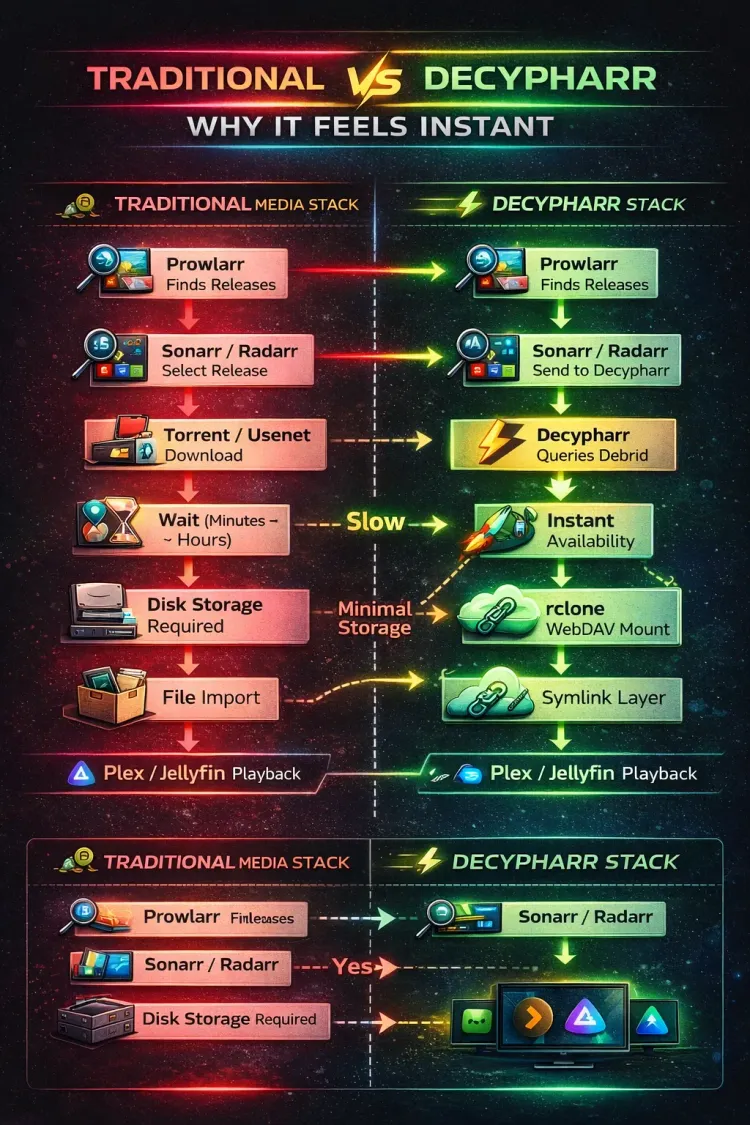
Zurg: The Driver (Mounts Real-Debrid as a filesystem).- Decypharr/Jellyseerr/Radarr/Sonarr: The Brains (Finds content and adds it to the virtual drive).
- Decypharr has rclone and webdav builtin, replacing Zurg's function into a more elegant & performant solution.
- Plex/Jellyfin: The Player (Streams it to your TV).
- Reverse Proxy (SWAG/NGINX): Securely share your Jellyfin/services as needed.
Final Architecture Overview:
flowchart TD
%% =====================================
%% USER SIDE
subgraph User["👤 User Devices"]
U["🧑💻 User"]
TV["📺 Smart TV"]
PC["💻 Computer / Phone"]
IPHONE["📱 iPhone / iPad / MacBook"]
U -->|Watches on| TV
U -->|Watches on| PC
U -->|Watches on| IPHONE
end
%% =====================================
%% MEDIA PLAYER HARDWARE
subgraph HW["🧱 Media Player Hardware"]
CHROME["🪄 Chromecast"]
SHIELD["🎮 Nvidia Shield"]
ATV["🍎 Apple TV"]
TV --> CHROME
TV --> SHIELD
TV --> ATV
end
%% =====================================
%% MEDIA PLAYER SOFTWARE
subgraph SW["📦 Media Player Software"]
PLEX["🧩 Plex App"]
INFUSE["🔥 Infuse App"]
CHROME --> PLEX
SHIELD --> PLEX
ATV --> PLEX
PC --> PLEX
IPHONE --> INFUSE
end
%% =====================================
%% SERVER CONNECTIONS
PLEX -->|Gets data from| PMS["💽 Plex Media Server"]
INFUSE -->|Gets media from| RD["⚡ Real-Debrid"]
PMS -->|Mounted via rclone WebDAV| DMM["🪶 Debrid Media Manager"]
DMM -->|Curates & syncs content from| RD
%% =====================================
%% REAL-DEBRID DETAILS
subgraph RDDETAILS["🌍 Real-Debrid Details"]
RD --> COST["💰 ~€2.67/month ($2.8)"]
RD --> BENEFITS["🎞️ Unlimited movies & TV shows"]
end
%% =====================================
%% INFUSE DETAILS
subgraph INFDETAILS["💡 Infuse Details"]
INFUSE --> ICOST["💵 $10/year for Dolby Vision/Atmos (Free otherwise)"]
end
%% =====================================
%% OTHER MEDIA SERVERS / PLAYERS
subgraph SERVERS["🖥️ Other Media Servers & Players"]
PMS --> OTHERSRV["🧰 Jellyfin / Emby / etc."]
PLEX --> OTHERPLAY["🔁 Jellyfin / Emby / etc. (clients)"]
end
%% =====================================
%% STYLING (dark-mode friendly)
style U fill:#e0f2fe,stroke:#3b82f6,stroke-width:1px
style TV fill:#2563eb,stroke:#1e40af,stroke-width:1px,color:#fff
style PC fill:#a7f3d0,stroke:#059669,stroke-width:1px
style IPHONE fill:#fce7f3,stroke:#be185d,stroke-width:1px
style CHROME fill:#f0abfc,stroke:#7c3aed,stroke-width:1px
style SHIELD fill:#93c5fd,stroke:#1e40af,stroke-width:1px
style ATV fill:#ffd6a5,stroke:#b45309,stroke-width:1px
style PLEX fill:#c4b5fd,stroke:#7c3aed,stroke-width:1px,color:#111
style INFUSE fill:#fca5a5,stroke:#be185d,stroke-width:1px,color:#111
style PMS fill:#fff7ed,stroke:#d97706,stroke-width:1px
style RD fill:#bbf7d0,stroke:#16a34a,stroke-width:1px,color:#111
style DMM fill:#fef3c7,stroke:#f59e0b,stroke-width:1px
style COST fill:#ffffff,stroke:#444,stroke-width:1px
style BENEFITS fill:#ffffff,stroke:#444,stroke-width:1px
style ICOST fill:#ffffff,stroke:#444,stroke-width:1px
style OTHERSRV fill:#ffffff,stroke:#444,stroke-width:1px
style OTHERPLAY fill:#ffffff,stroke:#444,stroke-width:1px
%% Subgraph styling (transparent, dashed)
style User fill:transparent,stroke:#888,stroke-width:1px,stroke-dasharray:4 4
style HW fill:transparent,stroke:#888,stroke-width:1px,stroke-dasharray:4 4
style SW fill:transparent,stroke:#888,stroke-width:1px,stroke-dasharray:4 4
style RDDETAILS fill:transparent,stroke:#888,stroke-width:1px,stroke-dasharray:4 4
style INFDETAILS fill:transparent,stroke:#888,stroke-width:1px,stroke-dasharray:4 4
style SERVERS fill:transparent,stroke:#888,stroke-width:1px,stroke-dasharray:4 4
How do we achieve this?
DUMB is an all-in-one Docker container that includes Plex Media Server pre-configured, along with the essential backend tools like Zurg (for creating a virtual filesystem from Real Debrid) and Riven (for content automation). It makes your Real Debrid cloud library appear as local files, which Plex/Jellyfin can then scan and serve—all from one tidy container!
We are going to deploy the entire stack using Docker Compose, integrating the DUMB container with the powerful *arr automation suite, paying extra attention to the details that make or break a complex self-hosted setup.
 I-am-PUID-0
📋 Phase 1: Prerequisites (Don't Skip‼️)
Read twice, implement once... You need 3.5 things before we launch:
1. The Hardware
You don't need a monster server. Because we are streaming, not transcoding storage, a modern Mini PC is perfect.
- Recommendation: Intel N150 Mini PC (Great QuickSync support for transcoding).
- OS: Debian 13 Trixie (Recommended) or Ubuntu 24.04.
- Instructions below will work on any debian based distro, and most likely anything that can run docker!
- Storage all sorted out (NAS / HDDs?)
- I myself use my custom server/nas.
2. The Accounts
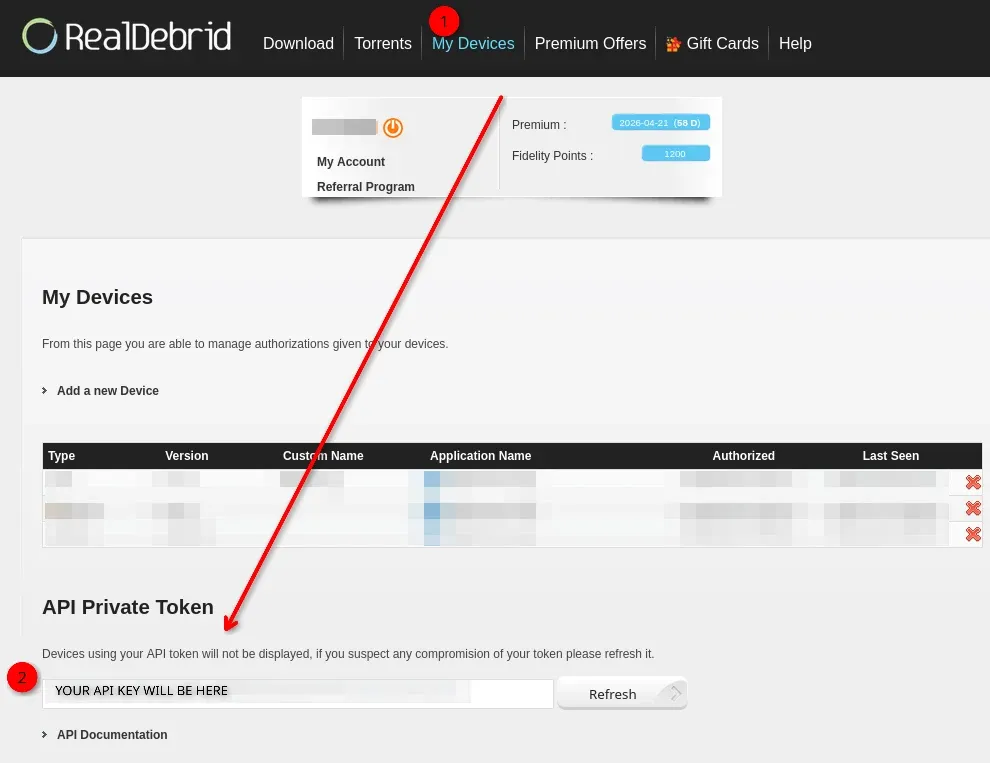
- Real-Debrid: Sign Up & Subscribe: Go to the Real Debrid website and ensure you have an active subscription.
- Get Your API Key: Log in, navigate to My Devices, and find the section for your API Key. Copy this long string somewhere, notepad, etc...
If you don't mind, sign up using my referrals below which helps this site!


- Plex Claim Token: (Only if using the built-in Plex server). 👉Instructions
- If using DUMB's internal Plex): Click here 👉Plex Claim URL. Copy the alphanumeric string.
- Do this right before deploying DUMB, as it expires fast!
- You also navigate to https://IPofYourPLEX:32400/web and "claim" the server this way.
3. Your User IDs (PUID/PGID) & Folder Ownership
To ensure your deployment is rock-solid, you need a dedicated environment where permissions won't get messy. Running everything as root is a recipe for disaster, and using your main personal account can get confusing but can work (/home/username/appdata/dumb/)
Here is how to prep your permissions & pathways from scratch.
# 1. Create the user
sudo adduser mediauser
sudo usermod -aG docker mediauser

# 2. Get your PUID/PGID (Write these numbers down!)
id mediauser

# 3. Create the directory skeleton
sudo mkdir -p /opt/appdata/dumb/{config,log,data,mnt/debrid}

# 4. Set Ownership (CRITICAL)
sudo chown -R mediauser:mediauser /opt/appdata/dumb
sudo chmod -R 755 /opt/appdata/dumb
What did we just create?
- /config: Where Plex and the *Arrs store their settings.
- /log: Where the system writes "what happened" if things break.
- /data: For any small local metadata.
- /mnt/debrid: The Magic Folder. This must stay empty so
ZurgDecypharr can mount your cloud drive here.
You'll see later (once you start the container up) that it creates additional folders inside the path you made for DUMB. These will be:
# Where decypharr mounts your cloud files to:
/mnt/debrid/decypharr/realdebrid/__all__/

# Sonarr & Radarr folders, made by those apps:
/mnt/debrid/decypharr_symlinks/sonarr-debrid
/mnt/debrid/decypharr_symlinks/radarr-debrid
Note: You might not see those last two folders be created by sonarr & radarr until you try to 'add' something. Kinda like a chicken before the egg. This is why (as you'll see later in the guide) I ended up creating a /tv and /movies folder; unnecessarily.
The FUSE Folder Check
Zurg requires FUSE to mount the virtual drive. If this check fails, the guide won't work.
ls -l /dev/fuse
- Success looks like:
crw-rw-rw- 1 root fuse ... /dev/fuse - Failure looks like:
ls: cannot access '/dev/fuse': No such file or directory- If it exists: Move to the next step.
- If missing: Run
sudo apt update && sudo apt install libfuse2 -y.
- Make it permanent (The Pro Move) To ensure FUSE starts every time your server reboots, run this one-liner:
echo "fuse" | sudo tee -a /etc/modules
Stop. Read this twice. Real-Debrid is not a local hard drive. It is a "caching" service that works like a streaming service.
If you leave Plex's default "Scanner" settings enabled, Plex will attempt to download every single frame of your movies to generate thumbnails, detect intros, and analyze audio levels.
- The Result: Real-Debrid will see thousands of rapid API requests (simulating massive abuse), and they will ban your account permanently without a refund.
You MUST disable the following settings in Plex or Jellyfin (Settings -> Library):
- ❌ Generate video preview thumbnails: set to NEVER
- ❌ Generate intro video markers: set to NEVER
- ❌ Generate chapter thumbnails: set to NEVER
- ❌ Analyze audio tracks for loudness: set to NEVER
- ❌ Perform extensive media analysis: UNCHECK this box (if available in Scheduled Tasks)
Why? These features require reading the entire file. On a 50GB remix, that is 50GB of bandwidth used just to make a tiny thumbnail. Turn them off.
Lastly, perhaps crucially, you'll need some
Final Warnings & Prereqs
🇨🇦 CANADIAN / ISP WARNING
If you use Rogers Ignite or Bell Fibe, Real-Debrid may be blocked by default.
- The Symptom: Decypharr/rclone/zurg fails to mount, or Plex sees files but cannot play them.
- The Fix: Log into your ISP modem/app and turn OFF "Advanced Security" or change your DNS to
1.1.1.1or8.8.8.8 - Some ISPs intercept DNS port 53. Suggesting DNS over HTTPS (DoH) in the router or strictly setting it in the OS network config is safer.
Lastly, perhaps crucially, you'll need some time, patience & fav beverage of choice!
Pick 2A or 2B below. 🎯
- 2A is a Compose Generator, giving you an optimized Docker compose out of the gate to use!
- 2B is a Compose Template, you simply modify the variables to your liking, and
docker compose up -dand voila!
You can run this Core Lab "dumb check" script to check your pre-requisites!
📜 The Configurable Script: Create a new file with your editor of choice, mine is nano. So nano dumb-check.sh then copy & paste this into the file, change the top variables to match your environment, and make it executible. sudo chmod +x dumb-check.sh and run it! sudo bash dumb-check.sh
#!/bin/bash
# Core Lab DUMB Stack Pre-Flight Troubleshooting Script
# Purpose: Validate HWA and FUSE requirements with user-defined variables.

# --- ⚙️ CONFIGURATION BLOCK ---
# Change these to match your environment
TARGET_MOUNT="/opt/appdata/dumb/mnt/debrid"
TARGET_UID=1000
# ------------------------------

echo "🔍 Starting Core Lab DUMB Pre-Flight Check..."
echo "📍 Target Mount: $TARGET_MOUNT"
echo "👤 Target UID:   $TARGET_UID"
echo "--------------------------------------------"

# 1. Check for GPU Render Nodes
echo -n "[ ] Checking for Intel/AMD Render Nodes... "
if [ -e /dev/dri/renderD128 ]; then
    echo "✅ FOUND (/dev/dri/renderD128)"
    ls -l /dev/dri/renderD12*
else
    echo "❌ NOT FOUND. (Check BIOS 'Internal Graphics' or drivers)"
fi

# 2. Check for NVIDIA (if applicable)
if command -v nvidia-smi &> /dev/null; then
    echo -n "[ ] Checking NVIDIA Drivers... "
    NV_VER=$(nvidia-smi --query-gpu=driver_version --format=csv,noheader)
    echo "✅ FOUND (Version: $NV_VER)"
else
    echo "[!] NVIDIA SMI not found. (Ignore if using Intel/AMD)"
fi

# 3. Check for FUSE (Required for Debrid)
echo -n "[ ] Checking for /dev/fuse... "
if [ -c /dev/fuse ]; then
    echo "✅ FOUND"
else
    echo "❌ CRITICAL: /dev/fuse missing. Run: sudo modprobe fuse"
fi

# 4. UID and Group Permissions Check
echo -n "[ ] Checking UID & Group Membership... "
CURRENT_UID=$(id -u)
GROUPS=$(groups)

if [ "$CURRENT_UID" -ne "$TARGET_UID" ]; then
    echo "⚠️ WARNING: Current UID ($CURRENT_UID) does not match Target UID ($TARGET_UID)."
fi

if [[ $GROUPS == *"render"* ]] || [[ $GROUPS == *"video"* ]]; then
    echo "✅ OK (render/video groups found)"
else
    echo "❌ ERROR: Current user is not in 'render' or 'video' groups."
    echo "    Fix: sudo usermod -aG render,video $USER"
fi

# 5. Check Magic Mount Path
echo -n "[ ] Checking Magic Mount Path... "
if [ -d "$TARGET_MOUNT" ]; then
    OWNER_ID=$(stat -c '%u' "$TARGET_MOUNT")
    OWNER_NAME=$(stat -c '%U' "$TARGET_MOUNT")
    echo "✅ EXISTS (Owner: $OWNER_NAME [UID:$OWNER_ID])"

    if [ "$OWNER_ID" -ne "$TARGET_UID" ]; then
        echo "    ⚠️ WARNING: Path owner UID ($OWNER_ID) does not match Target UID ($TARGET_UID)."
    fi
else
    echo "❌ MISSING: $TARGET_MOUNT not found. Create it first!"
fi

echo "--------------------------------------------"
echo "🏁 Check Complete. If warnings persist, verify your PUID/PGID logic."
It'll give you a nice little short output. The user permission check on render or video can be a bit aggressive, so if everything else checks out as ok, you're prob GTG just fire it up and see. What's nice is it outputs what it detects in /dev/dri/ for you ;)
Navigating the Real-Debrid Purge: How to Filter Blocked Keywords in Radarr and Sonarr
If you have been running a self-hosted media stack backed by Real-Debrid over the last few days, your download queues likely ran into a brick wall. In a sudden shift to comply with enforcement mandates, Real-Debrid rolled out an automated keyword filtration system. The platform now systematically blocks specific tracking markers, release group strings, and structural scene tags, throwing instant "infringing file" errors back to your automation pipeline.
When services like Decypharr attempt to resolve these automated grabs, the pipeline locks up trying to process files that are permanently blacklisted on the backend. Rather than micro-managing your queues or waiting for an upstream fix, the cleanest mitigation is to inject these blocked terms straight into your Arrs as negative criteria. By doing this, your applications filter out problematic releases before they ever hit your download client.
The Backend Target: Understanding the Purge Pattern
The automated compliance script running on Debrid infrastructure isn’t parsing content semantics; it is querying exact string patterns in the release payload titles. Extensive logs and community testing indicate the filtering mechanisms aggressively flag traditional scene metadata tags, major tracking nodes, and streaming platform fingerprints.
To drop these toxic assets cleanly before they parse into your ecosystem, we can condense the known targeted tags into a case-insensitive regular expression:
(rartv|rarbg|eztv)\]|\b(YTS|Erai-raws|WEBRip|WEB-DL|AMZN|DSNP|CR)\b⚠️ Engineering Note on Content Availability: Because markers likeWEB-DLand platforms likeAMZNorDSNPconstitute a massive percentage of current automated indexer results, filtering them will sharply lower your automated catch rate. This filter is designed as a protective operational shield for your debrid queues, not a silver bullet for content discovery.
Implementing Custom Formats in Radarr
Radarr handles release evaluation elegantly through Custom Formats linked directly to your Quality Profiles. This configuration penalizes matching indexer flags to ensure they are ignored during routine RSS feeds and interactive parsing cycles.
Step 1: Initialize the New Custom Format
Navigate to Settings > Custom Formats. Click the + Add New button. Set the format name to RD Infringing Block or a similar internal identifier.
Step 2: Configure the RegEx Specification
Add a condition under the Specifications block. Set the type to Release Title. Paste the regex token with the case-insensitive inline flag prepended:
(rartv|rarbg|eztv)\]|\b(YTS|Erai-raws|WEBRip|WEB-DL|AMZN|DSNP|CR)\bSave the custom configuration block.
Step 3: Bind and Penalize in the Active Profile
Go to Settings > Profiles and open your primary Quality Profile. Scroll down to the Custom Formats scoring section. Locate your new filter profile, toggle the checkmark to active, and assign it a heavily punitive score value such as -10000. Save your profile changes.
Implementing Custom Formats in Sonarr (v4 & Legacy v3)
The solution path for Sonarr depends completely on the version tier your homelab environment is currently tracking.
Sonarr v4 Infrastructure
If you are running modern v4 deployments, the operational step-list is identical to Radarr. Add the regex configuration under Settings > Custom Formats, assign it to your active Quality Profiles, and drop its weight modifier down to -10000.
Long-Term Automation Resilience
Adding these filters keeps your download client queues clear of dead links, but it highlights the risks of relying on a single cloud dependency for data access. If your automation rate drops too low due to these keywords being blocked, consider setting up a fallback infrastructure. Integrating Usenet indexers or private trackers alongside your Debrid setup will keep your home automation stable, no matter what compliance updates happen on the backend.
More to follow on integration of other options later...
⚡ Phase 2A: DUMB Docker Compose Generator
Don't want to edit YAML files manually? Use my Config Generator. It automatically applies the "Golden Config" flags based on your inputs.
📋 Essential Pre-Deployment Variables
Gather these values from your host system first. If these are wrong, the stack will either fail to start or have no internet access.
| Variable | Description | How to find it / Example |
| PUID | Your Linux User ID | Run: id -u (e.g., 1000) |
| PGID | Your Linux Group ID | Run: id -g (e.g., 1000) |
| TZ | Your System Timezone | e.g., America/Toronto |
| RD_API_KEY | Your Real Debrid API Key | Found in your |
| HOST_CONFIG_PATH | Absolute path for config storage | Crucial: Must be the same for all containers (e.g., /opt/appdata) |
| PARENT_INTERFACE | (Advanced) Physical network card | Run: ip link or nmcli. (e.g., eth0, enp2s0) |
| SUBNET | (Advanced) Your local IP range | e.g., 192.168.1.0/24 |
| GATEWAY | (Advanced) Your router's IP address | e.g., 192.168.1.1 |
⚠️ Critical Advanced Networking Notes
If you select MacVLAN or IPvLAN in the generator, you are moving away from "Standard" Docker networking. Pay attention to these "Gotchas":
- Interface Precision: The
PARENT_INTERFACEis the physical port your cable is plugged into. If you use a placeholder likeeth0while your real interface isenp3s0, the container will fail to launch with a "Link not found" error. - The Subnet Map: Your
SUBNETmust accurately reflect your router's DHCP range. If your router hands out IPs like10.0.0.X, your subnet must be10.0.0.0/24. - Host Isolation (The "Invisible" Container): By default, Linux prevents the Host OS from talking to a MacVLAN container.
- Result: Your TV and Phone will see Plex, but the PC running Docker won't be able to access the Web UI at
localhost. You'll need to use the container's specific IP or set up a bridge.
- Result: Your TV and Phone will see Plex, but the PC running Docker won't be able to access the Web UI at
- TL;DR = Just use a user defined bridge network (Default!)
🛠️ Hardware Acceleration Check
- Intel/AMD: Ensure your user is in the
renderorvideogroup (Run:groups). - NVIDIA: Ensure you have the NVIDIA Container Toolkit installed on the host. The generator no longer uses
runtime: nvidia, opting for the moderndeployresource reservation method.
FREE access to the DUMB generator, just sign up and download your custom generated config!👇
Join the Core Lab Inner Circle
Instant access to all Core Lab Docker Generators!
Double-check the config before implementing!
🛠️ Phase 2B: The "Golden" DUMB Compose for Power Users
We are skipping the "Basic" setup. This is the Core Lab Optimized Config. It has a few pre-requisites though to get hardware transcoding working.
📋 The 2026 Hardware Transcoding Checklist
To ensure your DUMB stack doesn't just "fail over" to the CPU, run through these prerequisites for each hardware type.
| Hardware Type | Host Driver Prerequisite | Container Device Mapping | Key Logic / Env Var |
|---|---|---|---|
| 🔵 Intel QSV/Arc | intel-media-driver + Kernel 6.2+ | /dev/dri/renderD128 | Ensure user is in render group |
| 🟢 NVIDIA | NVIDIA Proprietary Driver 550+ | Managed by Toolkit | runtime: nvidia is mandatory |
| 🔴 AMD (Vulkan) | mesa-va-drivers + vulkan-radeon | /dev/dri/renderD128 | Preferred for modern Jellyfin |
| 🔴 AMD (OpenCL) | rocm-opencl-runtime | /dev/dri/renderD128 & /dev/kfd | Required for legacy tone mapping |
Hardware Transcoding Details
🔵 Intel (QuickSync & Arc A-Series)
- Kernel Version: You must be on Kernel 6.2+ for stable Arc support (Debian 13 / Ubuntu 24 / CachyOS handle this natively).
- Drivers (Host): Install
intel-media-driverandlibva-utils. - Permissions: Your host user must be in the
rendergroup. - Check:
ls -l /dev/dri/renderD128(Verify it's owned by therendergroup).
- Check:
- BIOS: "Internal Graphics" must be set to Enabled (not Auto) if using the iGPU alongside a dGPU.
🟢 NVIDIA (RTX / GTX / Quadro)
- Drivers (Host): Proprietary drivers version 545 or newer installed on the host.
- Toolkit: NVIDIA Container Toolkit must be installed and configured (
nvidia-ctk runtime configure --runtime=docker). - Compose: The
runtime: nvidiaflag is the "Master Switch." Without it, environment variables do nothing.
🔴 AMD (Radeon / APU)
- Drivers (Host):
mesa-va-driversinstalled on the host. - VA-API Support: Verify with
vainfoon the host to ensure the entry-points for H.264/HEVC/AV1 are visible. - Permissions: Host user must be in the
videoandrendergroups.
The "All-in-One" Universal H/W Transcode Optimized Compose
Best for: Fresh installs. Includes Plex built-in. Modify file paths & user variables as applicable.
services:
  dumb:
    image: iampuid0/dumb:latest
    container_name: DUMB
    hostname: dumb
    stop_grace_period: 60s
    shm_size: 2g # Mandatory for Plex transcoder stability & large libraries
    stdin_open: true
    tty: true
    restart: unless-stopped

    environment:
      - TZ=America/Toronto
      - PUID=1000 # Change to your user
      - PGID=1000 # Change to your user

      # --- 🟢 NVIDIA GPU SECTION ---
      # Uncomment the lines below if using an NVIDIA GPU
      # - NVIDIA_VISIBLE_DEVICES=all
      # - NVIDIA_DRIVER_CAPABILITIES=all,video,compute,utility

      # --- 🔴 AMD RDNA 3/4 FIX ---
      # Only uncomment if your 7000/8000 series AMD card isn't recognized
      # - HSA_OVERRIDE_GFX_VERSION=11.0.0

    volumes:
      - /opt/appdata/dumb/config:/config
      - /opt/appdata/dumb/log:/log
      - /opt/appdata/dumb/data:/data
      # 🪄 THE MAGIC MOUNT: Required for Decypharr to propagate the FUSE mount
      - /opt/appdata/dumb/mnt/debrid:/mnt/debrid:rshared
      - type: tmpfs
        target: /transcode
        tmpfs:
          size: 4096000000 # ~4GB limit, adjust to your needs


    ports:
      - "3005:3005"   # DUMB Dashboard
      - "32400:32400" # Plex Media Server
      - "9696:9696"   # Prowlarr
      - "7878:7878"   # Radarr
      - "8989:8989"   # Sonarr
      - "8282:8282"   # Decypharr

    devices:
      # ⚠️ MANDATORY: Required for FUSE-based debrid mounting
      - /dev/fuse:/dev/fuse:rwm

      # --- 🔵 INTEL ARC / QSV & 🔴 AMD ---
      # Precision mapping: renderD128 is usually the first GPU/iGPU.
      # Use renderD129 if the Arc card is your second device.
      - /dev/dri/renderD128:/dev/dri/renderD128

      # --- 🔴 AMD LEGACY OPENCL ---
      # Uncomment if using older tone-mapping engines in Jellyfin/Plex
      # - /dev/kfd:/dev/kfd

    # --- 🟢 NVIDIA RUNTIME ---
    # Uncomment if using NVIDIA GPU - Requires nvidia-container-toolkit installed on the host OS
    # runtime: nvidia

    cap_add:
      - SYS_ADMIN # Critical for mounting debrid drives inside the container

    security_opt:
      - apparmor:unconfined # Necessary for mount propagation on Debian/Ubuntu
🛡️ Final Sanity Check
Before you docker compose up -d, double-check these three points on your host to ensure the "Laser-Guided" HWA actually hits the target:
- Group Permissions: Run
groups $USER. Ensure your user is in therendergroup (for Intel/AMD) or thevideogroup. If not, runsudo usermod -aG render,video $USERand log out/in. This is the user that you're running DUMB as. Not your user you login as! - Mount Point Existence: Ensure
/opt/appdata/dumb/mnt/debridexists on your host before you start the container, or Docker might create it as a root-owned directory, breaking your mount permissions. If you followed the steps above to create your folders, this should be already done and ready to go. - Intel Arc "Slot" Verification: Run
ls -l /dev/dri. If you see bothrenderD128(iGPU) andrenderD129(Arc Card), make sure your Compose matches the specific card you want Plex/Jellyfin to use.
🛠️ The Core Lab Settings Detailed
These lines define how the container identifies itself and stays stable.
image: iampuid0/dumb:latest: Pulls the "All-in-One" DUMB image which contains Plex, Sonarr, Radarr, and more.shm_size: 2g: Increases "Shared Memory." This is critical for Plex/Jellyfin. Without this, your library scans might crash or run incredibly slowly.stop_grace_period: 60s: Gives the container a full minute to shut down gracefully. This prevents database corruption in Plex or Sonarr.
🌍 Environment Variables (The Brains)
This section tells the container who you are and what features to turn on.
PUID/PGID=1000: Tells Docker to run as your specific Linux user so you don't run into "Permission Denied" errors on your files.
📂 Volumes (The Storage)
Where your data lives on your computer.
/config,/log,/data: Standard folders for your settings and database./mnt/debrid(The Magic Mount): This is the most important line. It links your host to the virtual drive created by Decypharr.⚠️ CRITICAL NOTE: Do not manually create sub-folders insidemnt/debrid. Decypharr needs this folder to be completely empty so it can "plug in" your virtual RealDebrid drive.
🔌 Ports (The Doors)
These allow you to access the web dashboards from your browser.
- 3005: DUMB Dashboard (Your control center)
- 32400: Plex
- 9696 / 7878 / 8989: Prowlarr, Radarr, and Sonarr.
- 8282: Decypharr (The tool that helps manage your Debrid downloads).
🏎️ Devices & Hardware Acceleration
This gives the container permission to talk to your computer's hardware.
/dev/fuse: Mandatory for Zurg. This allows the container to create a virtual hard drive. It is a much safer alternative to usingprivileged: true./dev/dri: This allows Intel or AMD users to use "Hardware Transcoding." It lets your GPU handle the heavy lifting of video playback instead of your CPU.cap_add: SYS_ADMIN: Gives the container the specific "manager" right it needs to mount the virtual drive.
🛸Phase 3: Launching the Stack❗
Navigate to the directory containing your docker-compose.yml file and launch everything.
cd /opt/appdata
docker compose up -d
Wait Time: Give it a minute or 2 to fire up.
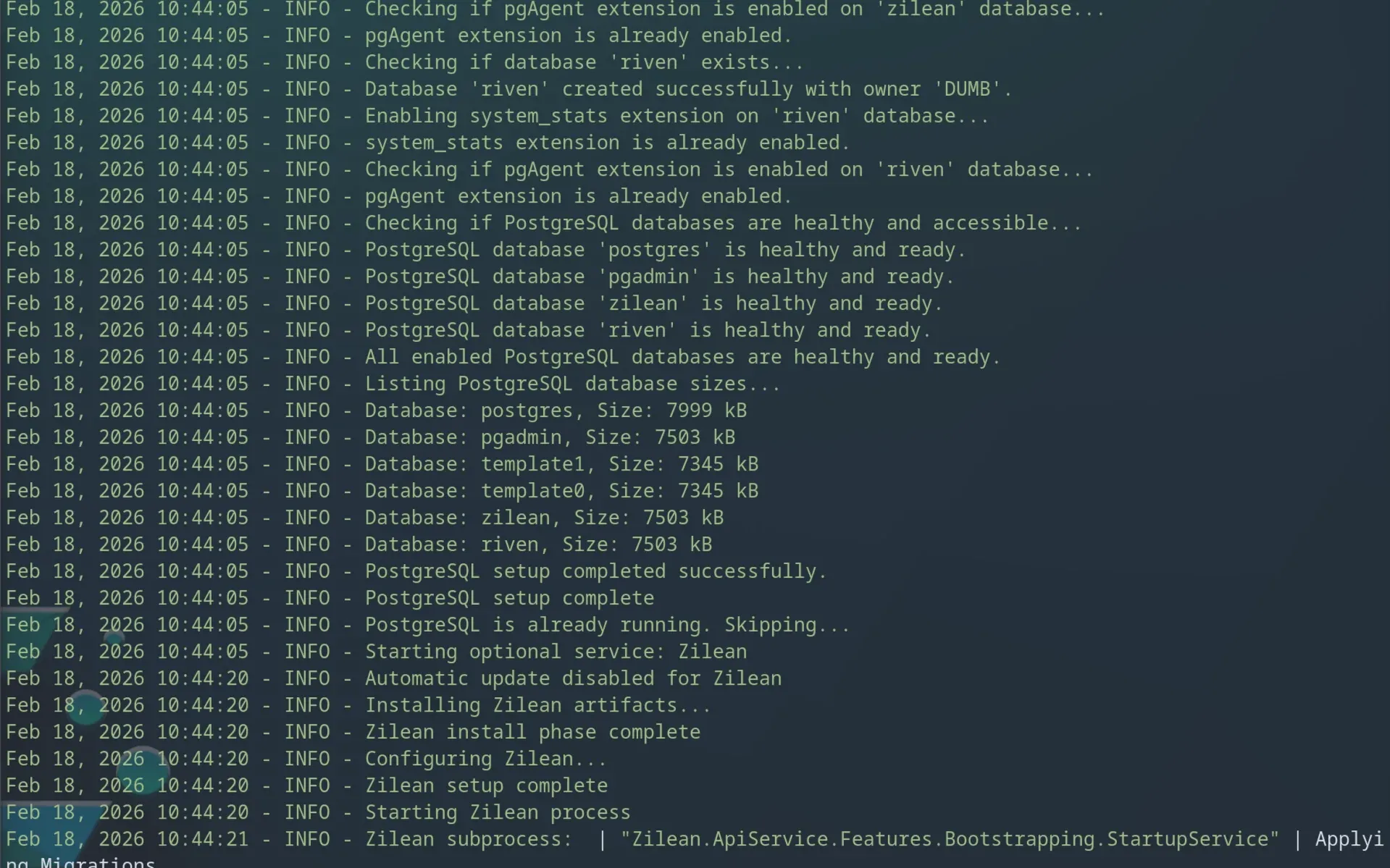
You can check on the live logs of any of your dockers by typing: docker logs -f dumb and see what it's doing. CTRL-C to drop out of that. Tip - you can run docker compose up -d && docker logs -f DUMB at once. This is what you should see:
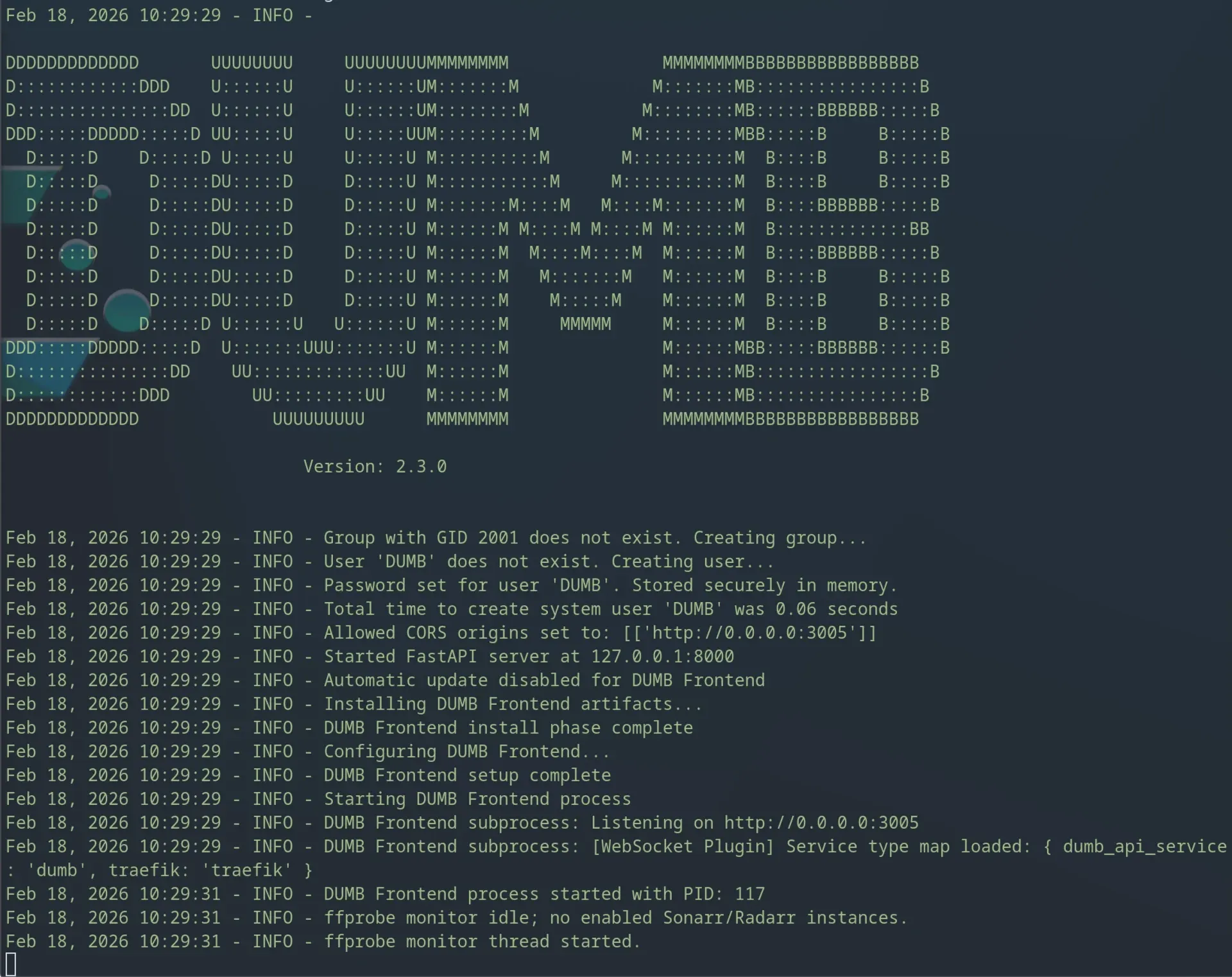
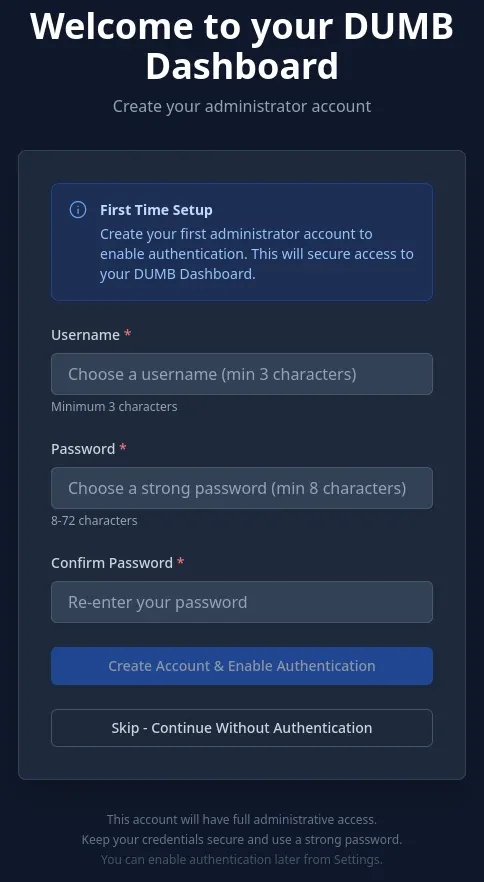
Now you can login to the dashboard and create your admin account. Open your browser and go to: http://<YOUR-SERVER-IP>:3005
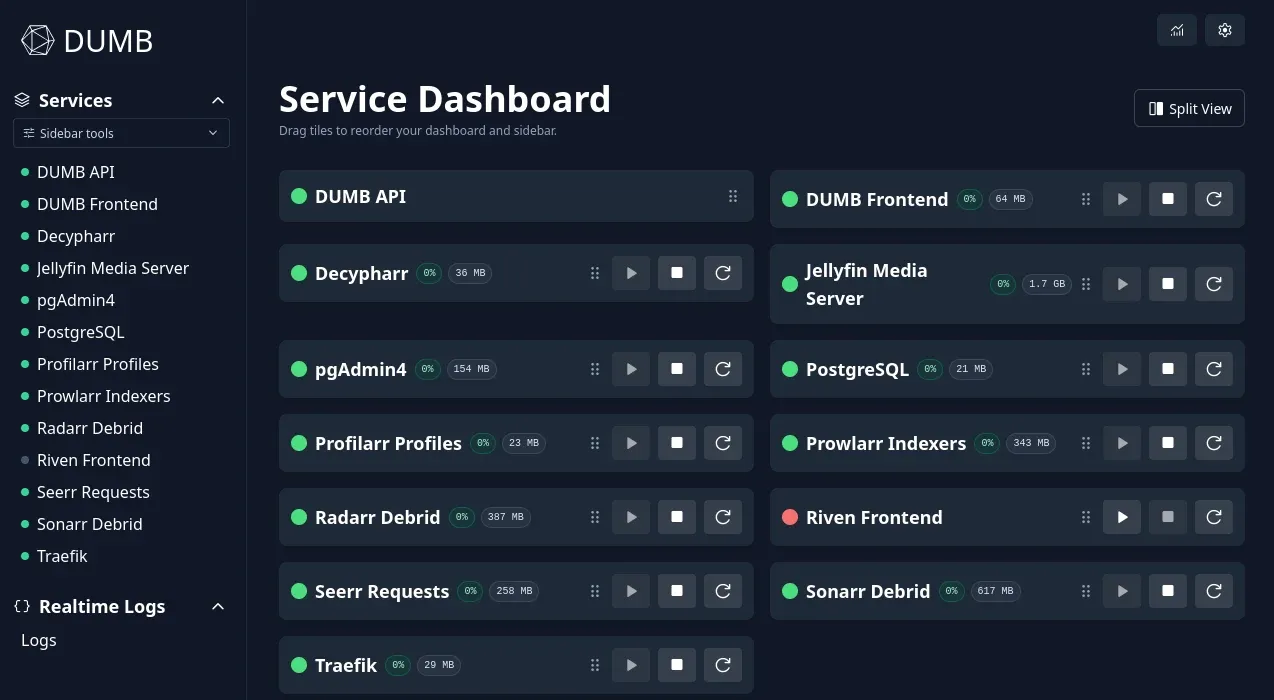
Once you create your user, you'll immediately be brought to the services selection dasboard. You want to ensure once you've finished selecting things you click the "Apply recommendations" button which the drives the submenu below.
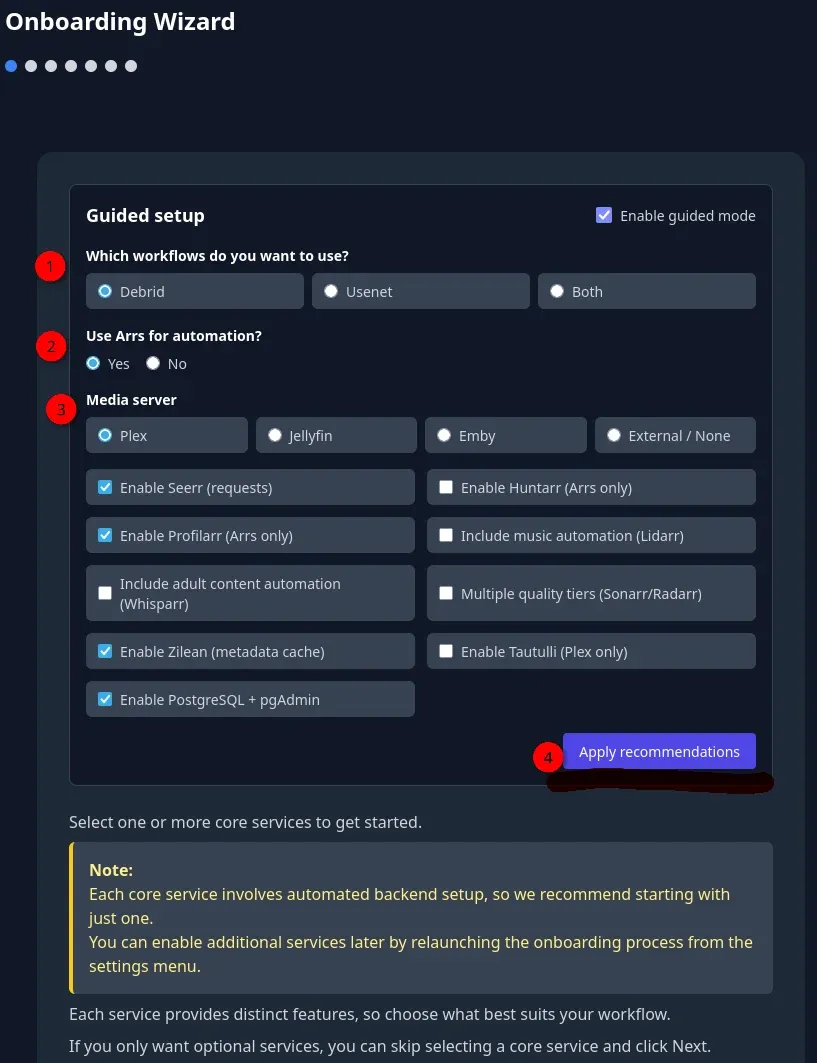
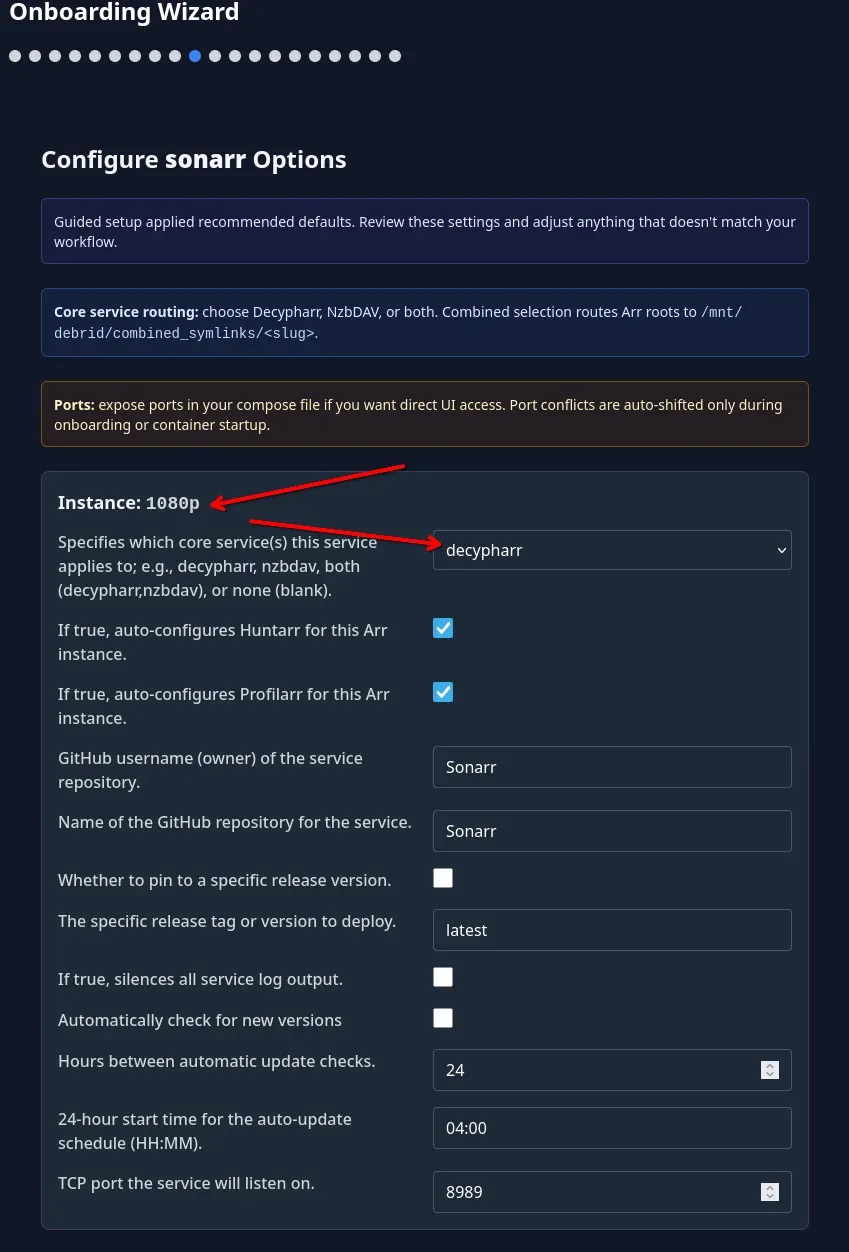
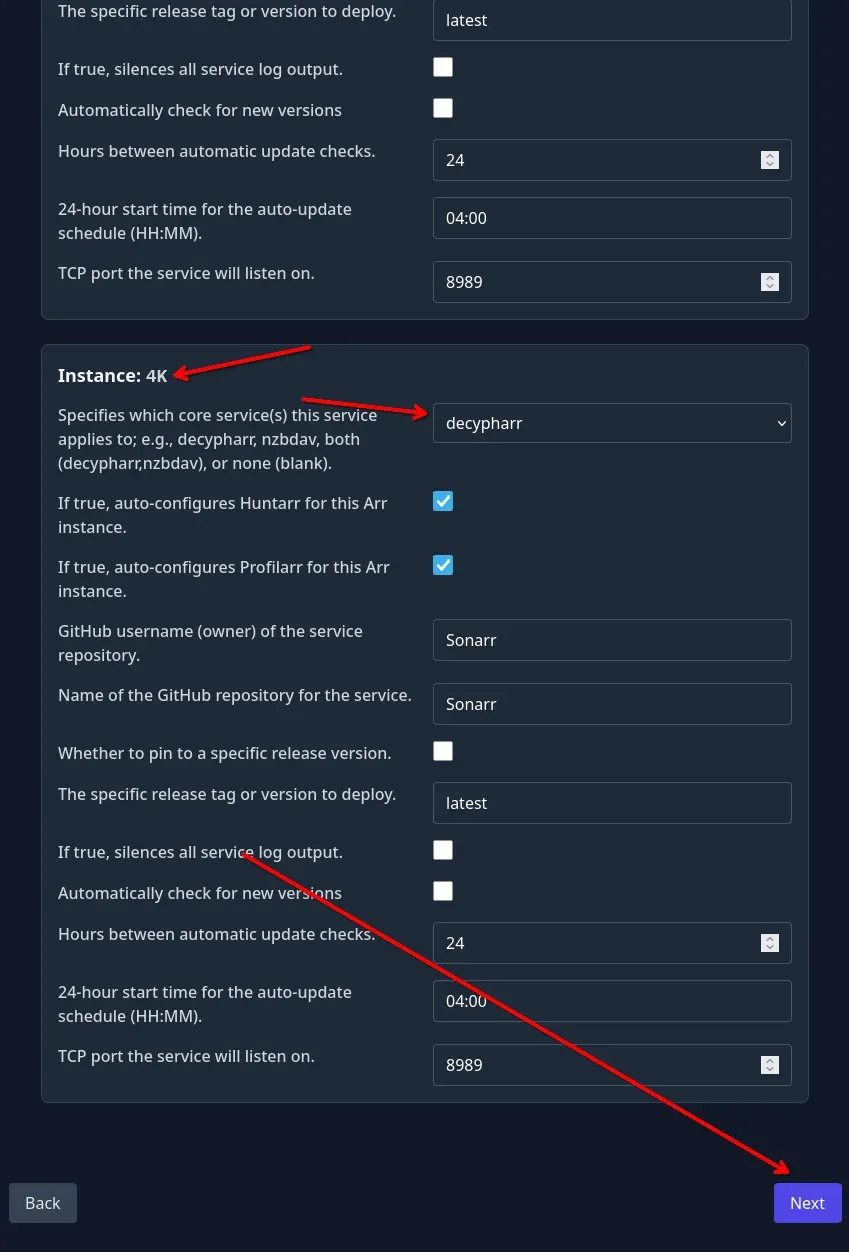
Scroll down and just ensure that the aarrs are selected. If you chose "Multiple quality tiers" above, you'll see 2 instances. Later I blew this away and just chose 1 by un-selecting that. I find 1 instance of Radarr & Sonarr is perfect.
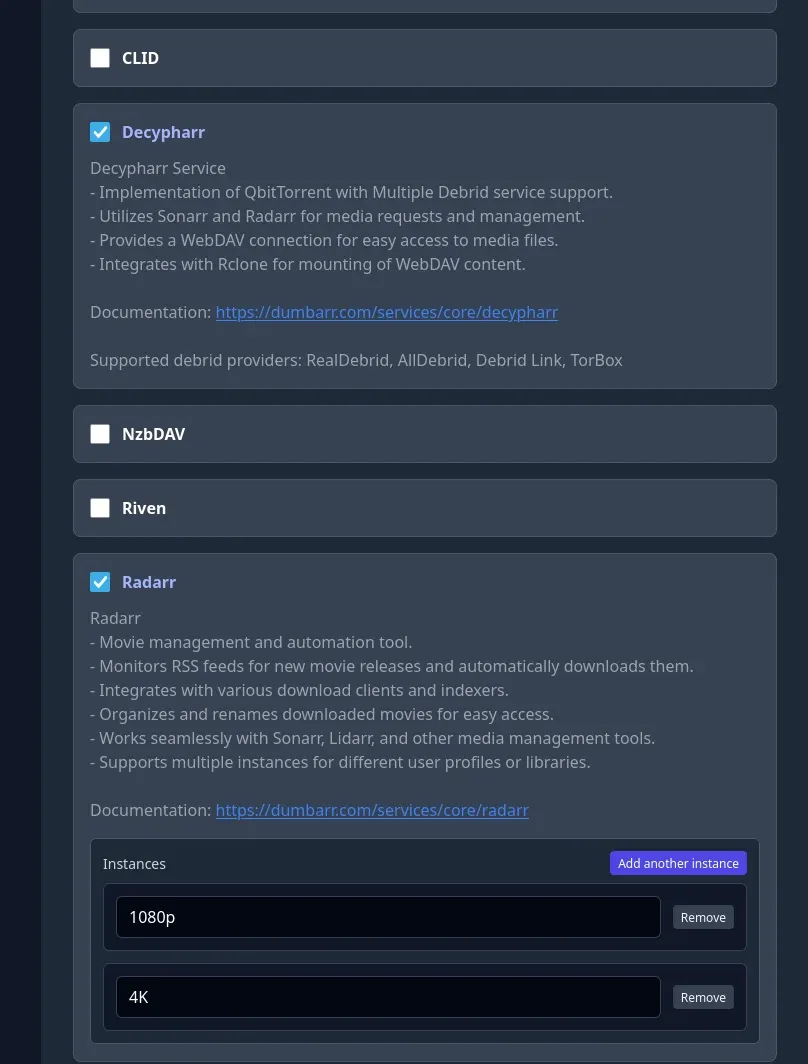
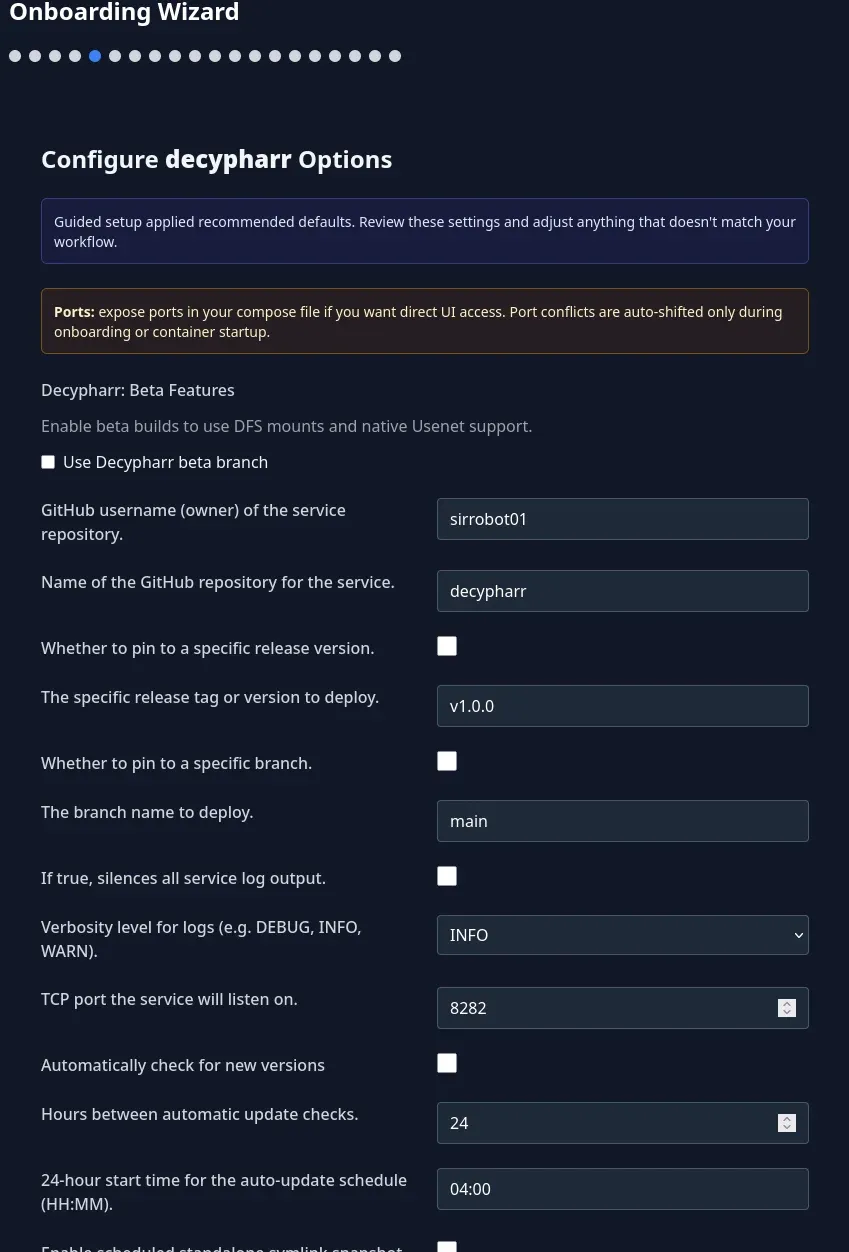
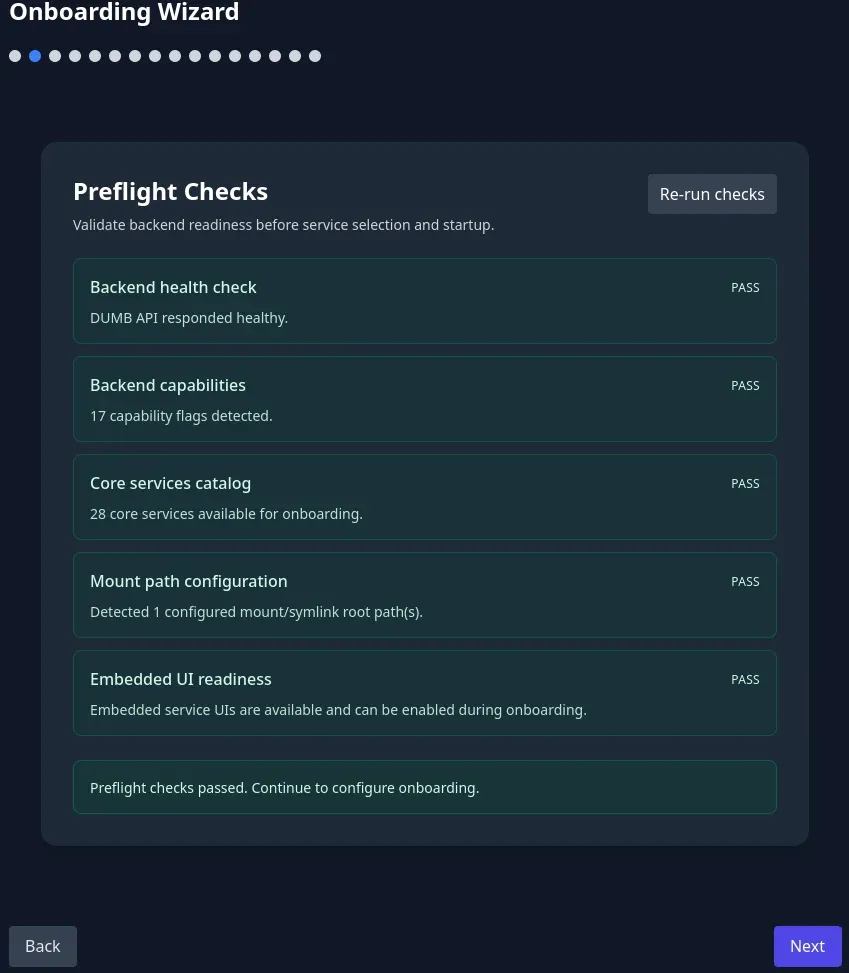
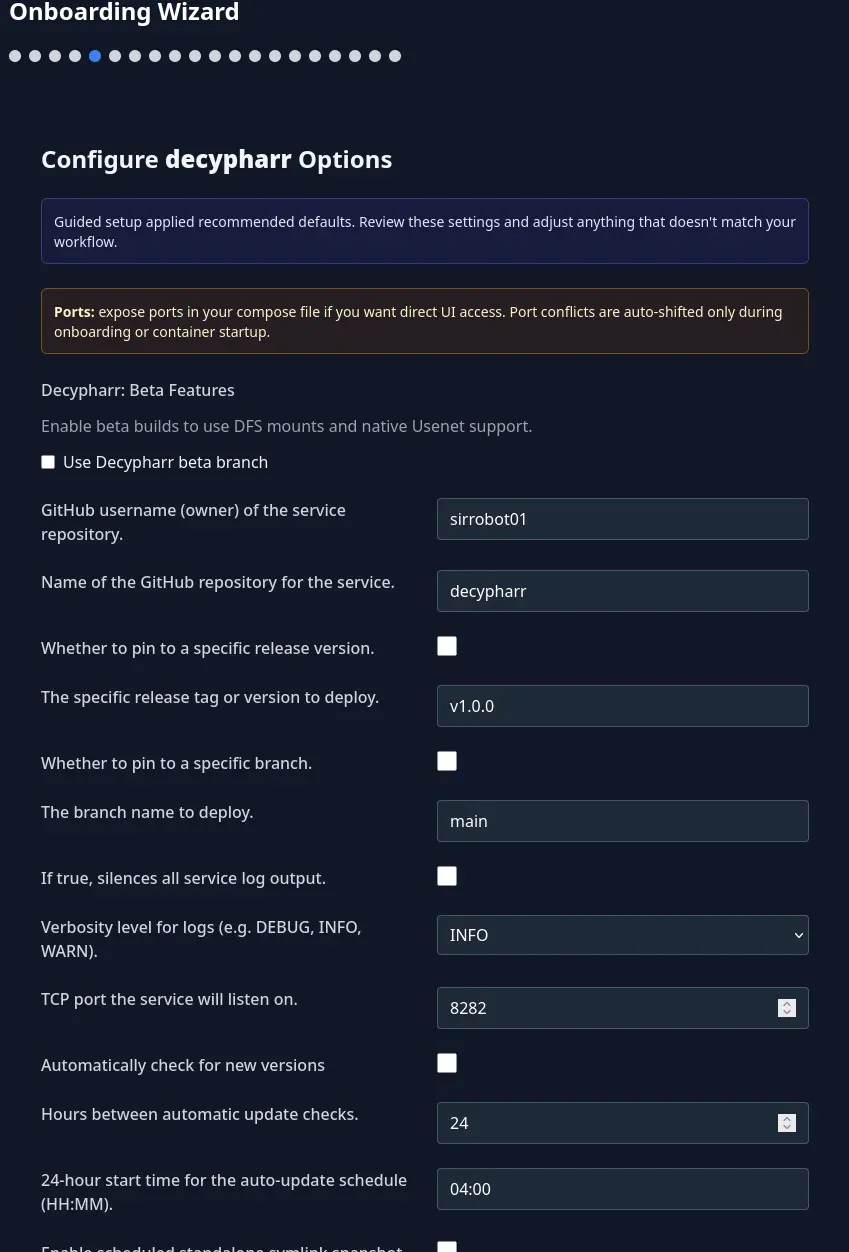
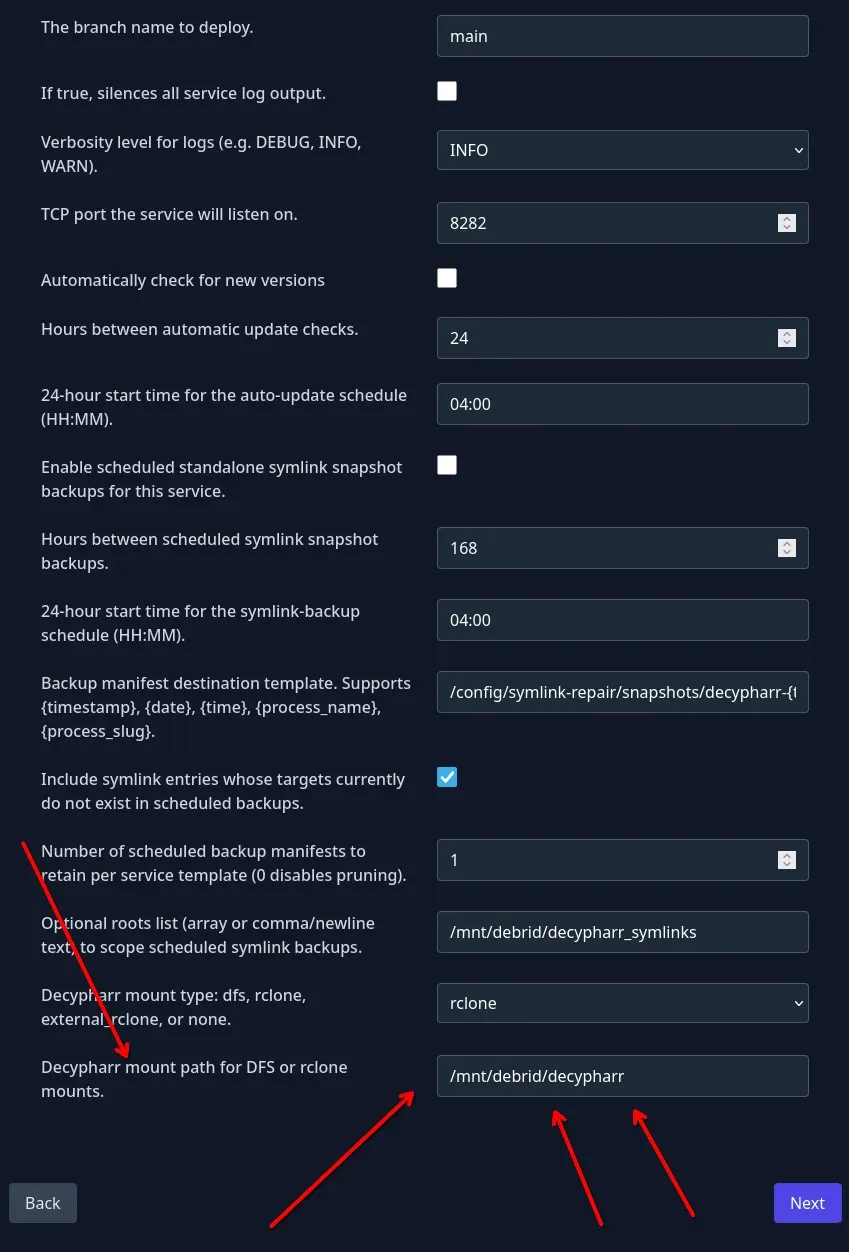
Now you will continue to the optional services selection, and configuring each service. For sonarr & radarr, make sure they are pointing to the decypharr instance in pic 3 with the red arrows:
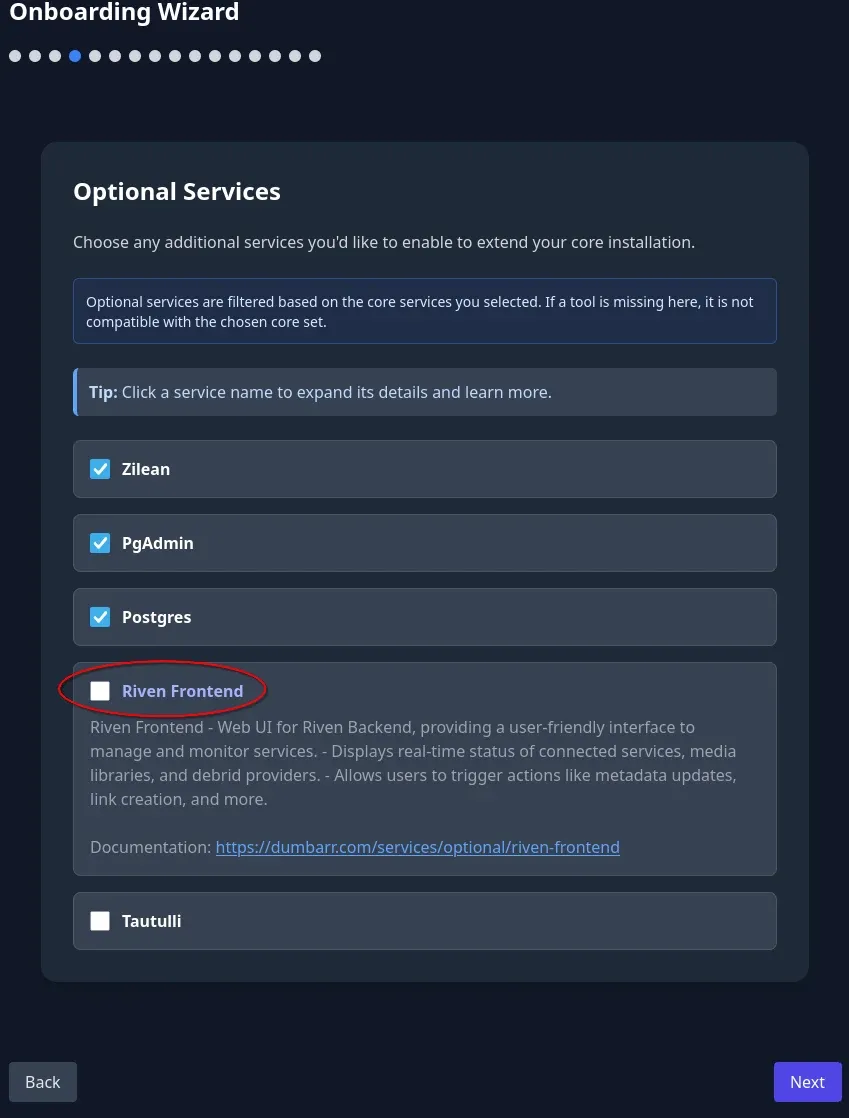
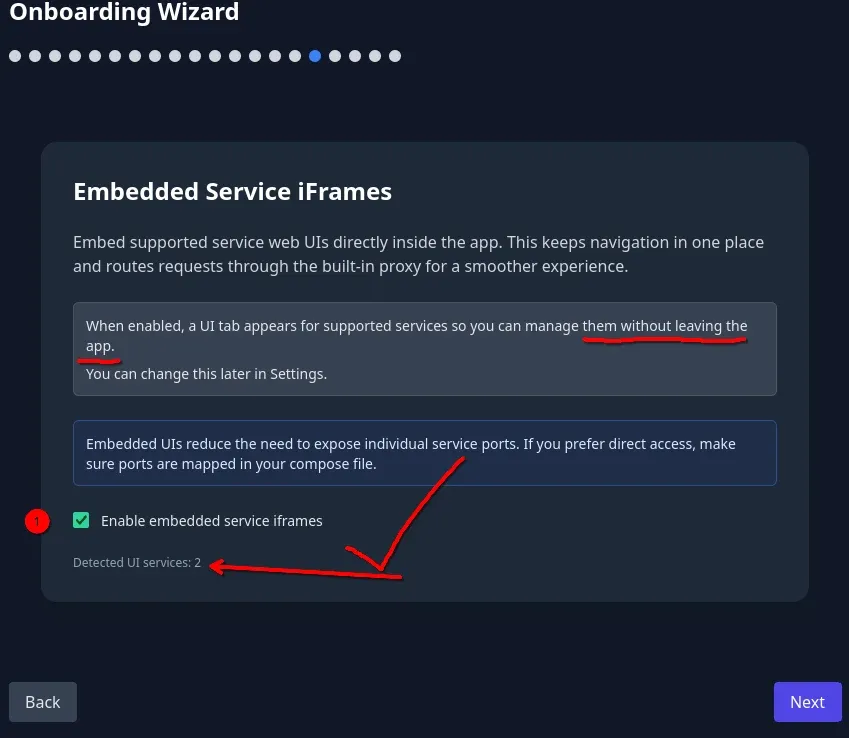
Then you will hit the log watch screen where you will click to start the full install!
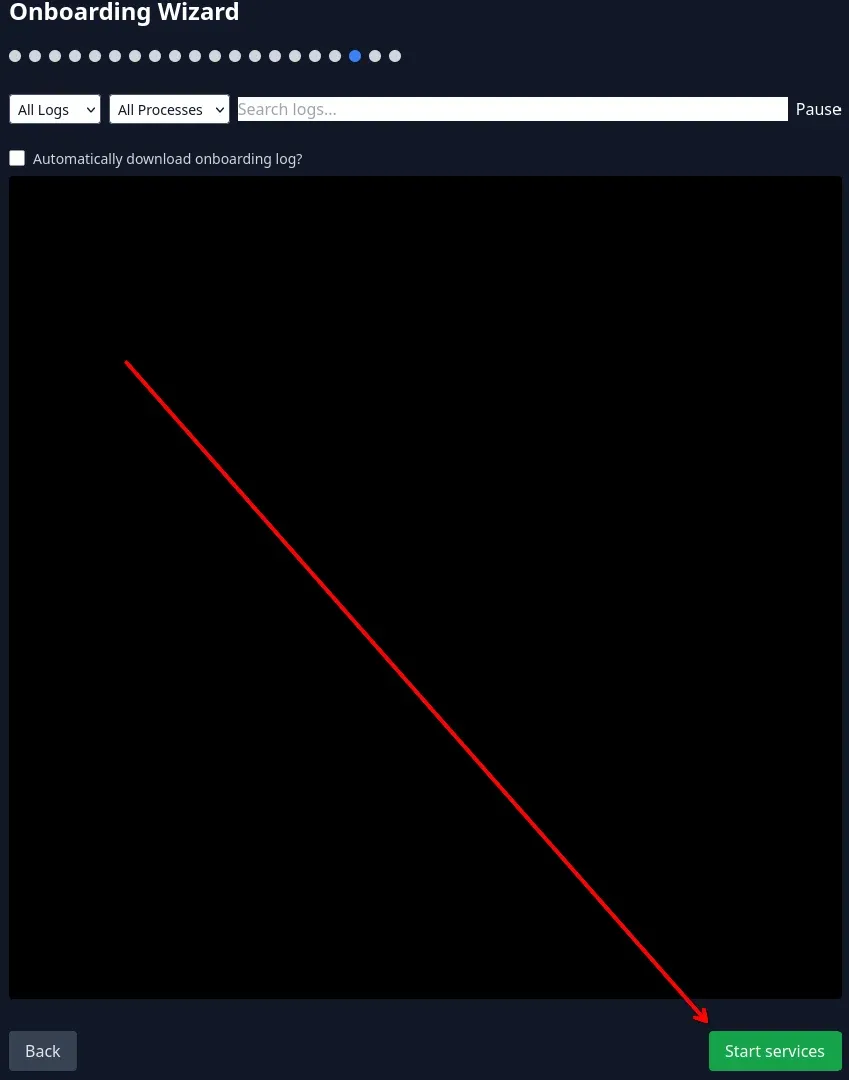
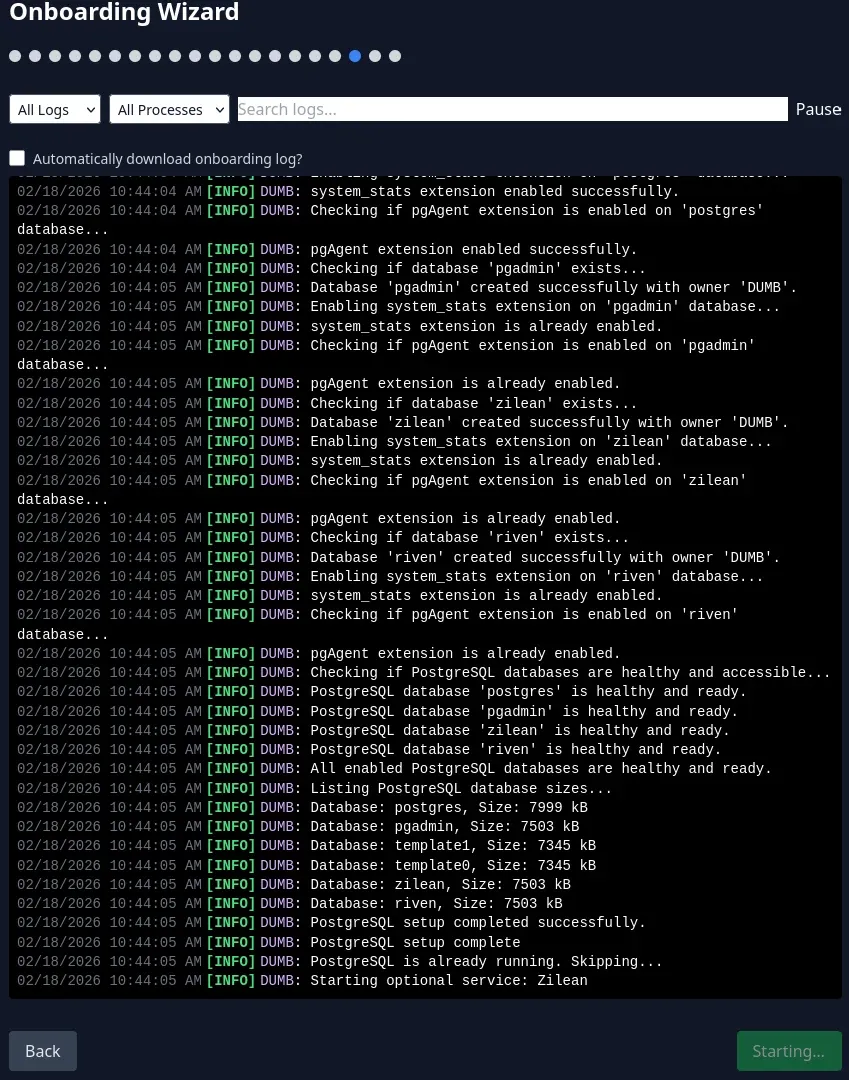
You will then see all the logs of all services, subservices installing and such, some errors are normal so do not panic! Wait for the entire thing to be done, which can take quite awhile depending on the hardware & services you selected. Zilean in particular took quite awhile to cache things right up front...
🚦 Phase 3.1: Configuring Stack Services (The First 20 Minutes)
Once that completes, you'll need to configure each of the services to inter-act with eachother.
Access the "Command Center"
Open your browser and go to: http://<YOUR-SERVER-IP>:3005
This is the DUMB Dashboard. It’s your mission control for Decypharr, Plex/Jellyfin, and the *Arrs, etc...
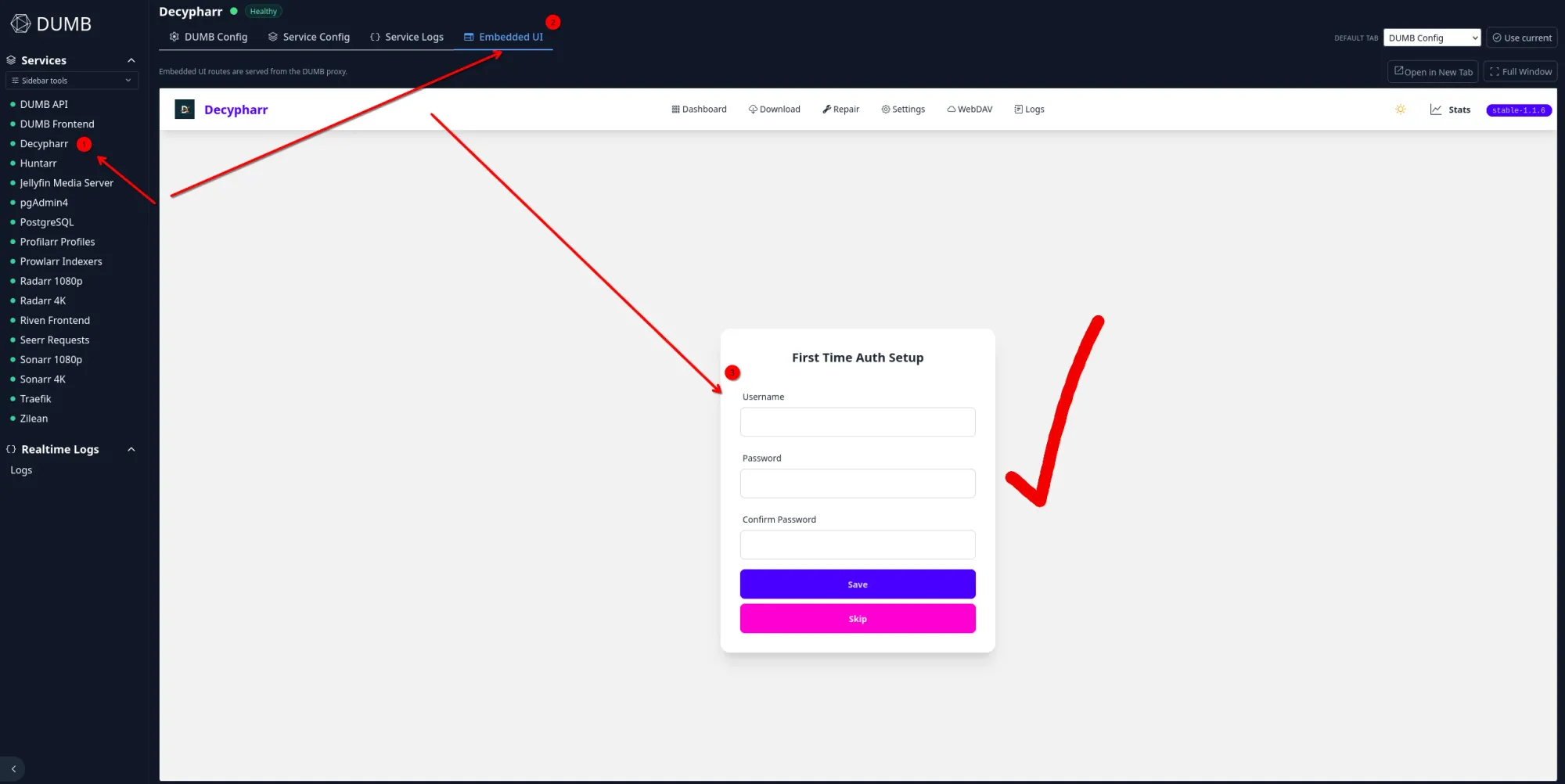
The Real-Debrid Handshake (Give API to Decypharr)
You'll need to open Decypharr first and put your real-debrid API key in there, at: Settings->Debrid->API Key and set your Mount/Rclone folder to:
/mnt/debrid/decypharr/realdebrid/__all__/You get to Decypharr by using that embedded UI option we chose first! I always click to pop it out to another window so I have full view of it.
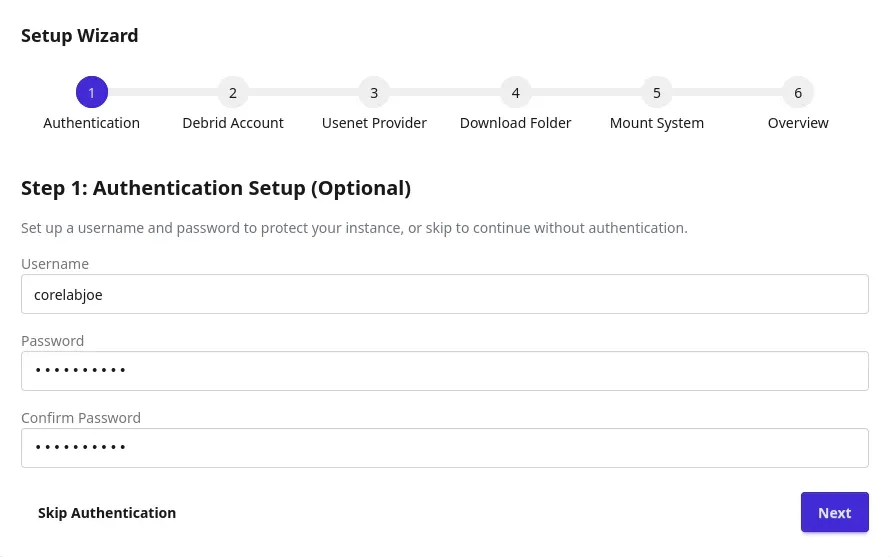
Now you'll configure Decypharr to mount your Debrid storage and start making the magic happen! Once you follow the wizard you'll click to save and Decypharr will restart, and then mount your Debrid!
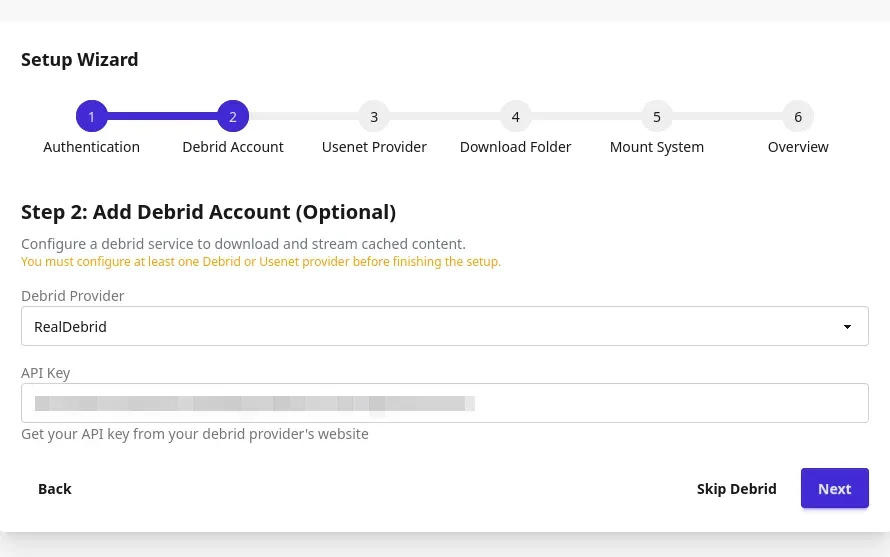
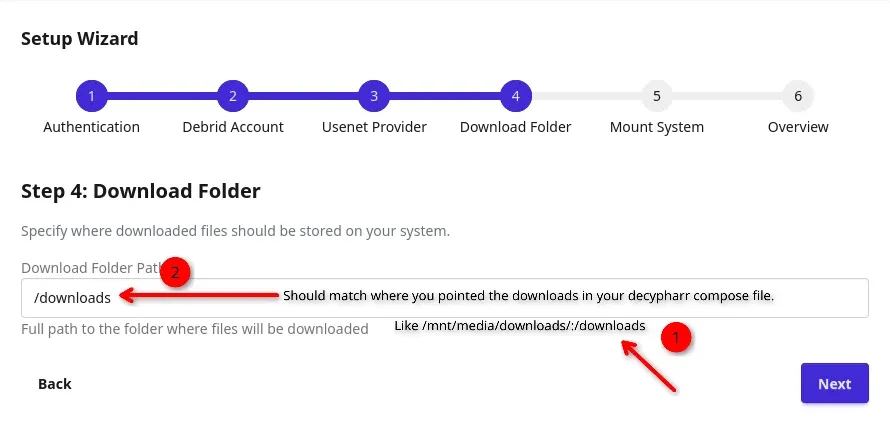
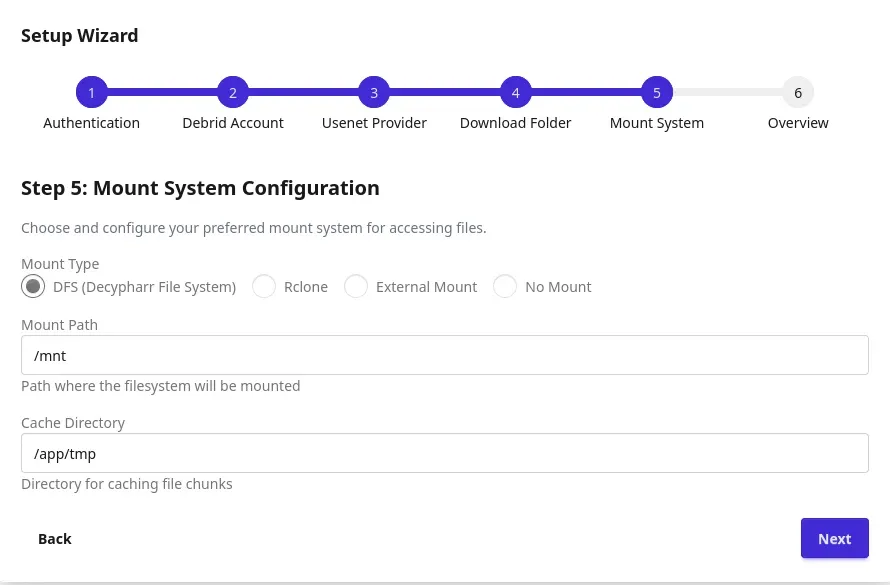
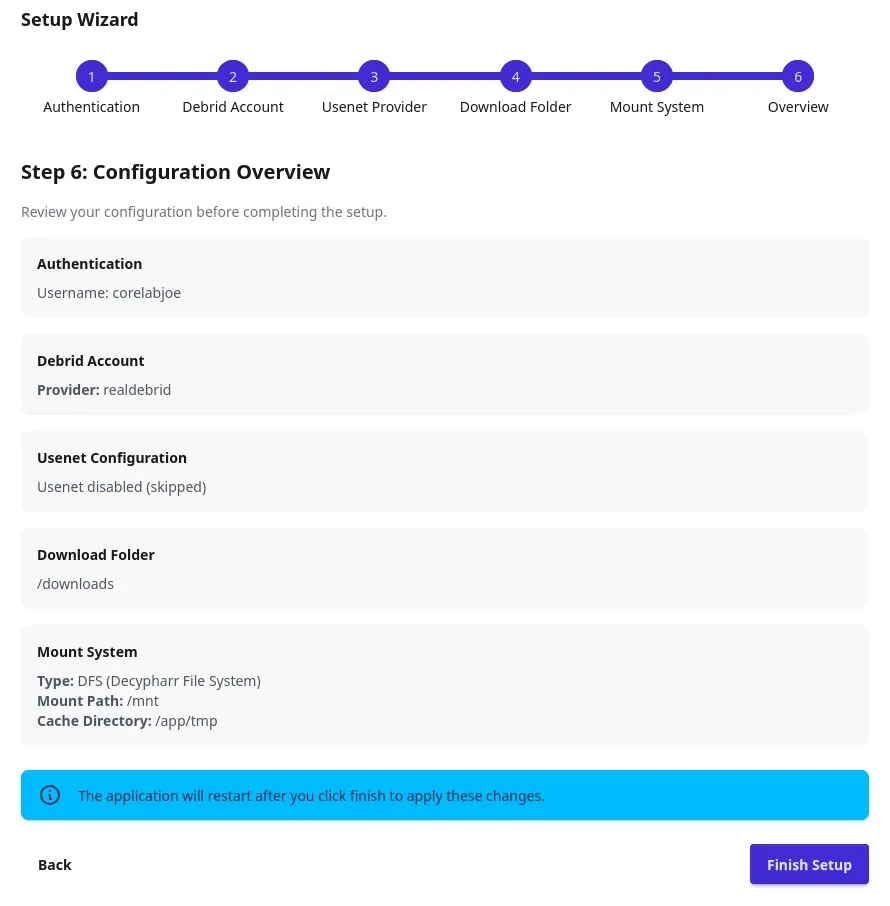
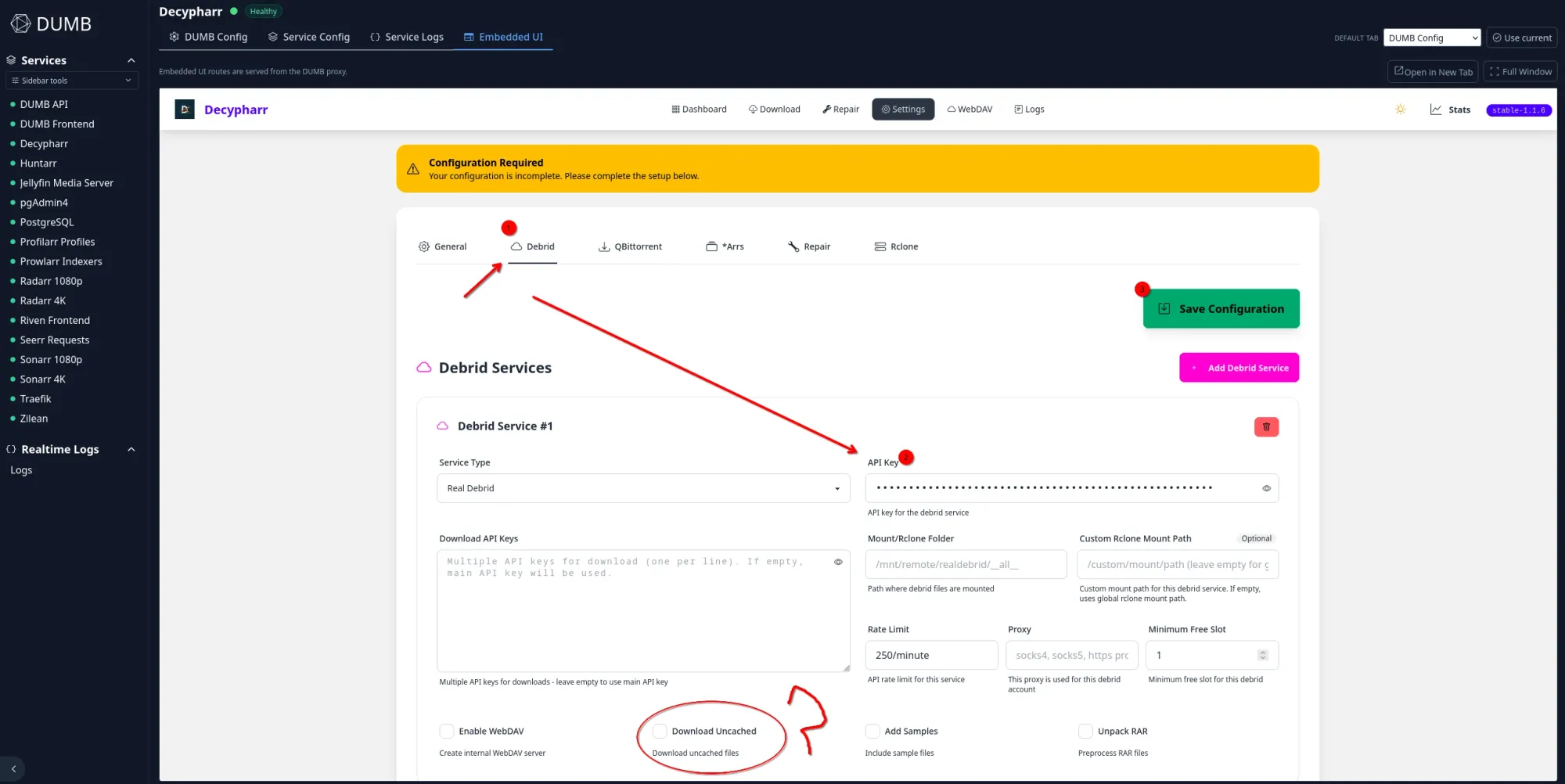
You decide if you want it to ACTUALLY download uncached files or not. Leave all other settings default for now.☝️
- Look at the dashboard logs or the service status.
- You want to see Decypharr: Running and Rclone: Mounted.

⚡ Hardware Transcoding Cheat Sheet
If you aren't using the generator, copy the snippet for your applicable GPU and paste it into your Plex/Jellyfin service in docker-compose.yml. They are referenced in full at the complete compose example above.
Option 1: Intel QuickSync (N100 / N95 / Core i3/i5/i7)
The most common option for Mini PCs.
devices:
      - /dev/dri:/dev/dri # Maps the iGPU to the container
Option 2: NVIDIA (RTX / GTX / Quadro)
Requires the Nvidia Container Toolkit installed on your host OS.
runtime: nvidia
    environment:
      - NVIDIA_VISIBLE_DEVICES=all
      - NVIDIA_DRIVER_CAPABILITIES=all
Option 3: AMD Radeon
devices:
      - /dev/dri:/dev/dri # For VAAPI
      - /dev/kfd:/dev/kfd # For OpenCL (Optional but recommended)
⚙️ Phase 4: Configuring Services
Since DUMB is a "Mega-Container," your apps (Radarr, Sonarr, Decypharr) are already installed - they just need to be woken up & interconnected.
Login to each of the services like Radarr, Sonarr, Prowlarr and configure them one by one to talk to each other, and to Decypharr. You initially access them via that embedded UI, or if you remember the ports, use those like http://yourserverip:8989 for Sonarr, 7878 for Radarr etc..
I configure them in this order, it's logical to me but can be done in anyway:
- Profilarr (Quality profiles):
http://YOUR-SERVER-IP:6868 - Prowlarr (Trackers/sources):
http://YOUR-SERVER-IP:9696 - Sonarr, Radarr (TV, Movies):
http://YOUR-SERVER-IP:8989,http://YOUR-SERVER-IP:7878 - Plex/Jellyfin (Media playing server):
http://YOUR-SERVER-IP:32400/web,http://YOUR-SERVER-IP:8096 - Seerr (Media request service):
http://YOUR-SERVER-IP:5055
If they load, you are ready to link them!
The Media Request Flow from Seerr to Playback
How it flows!
- You Request: (via Seerr or Plex Watchlist)
- The Brains: Radarr/Sonarr grab the request.
- The Search: Prowlarr finds the torrent.
- The Trick: Decypharr "downloads" it instantly to Real-Debrid.
- The Mount: Decypharr now does this for you as well.
- Playback: Plex or Jellyfin show the new media ready and playable!
Step 4.1: Configure Prowlarr (The Search Engine)
Radarr needs a way to find torrents. We use Prowlarr for this.
- Go to Prowlarr (
:9696) and create your login. - Add Indexers: Go to Indexers > Add New.
- For beginners, search for "Public" trackers like 1337x, TorrentGalaxy, or MagnetDL. Filter by selecting torrent, english, and movies/tv.
- Add a pile, at least 5.
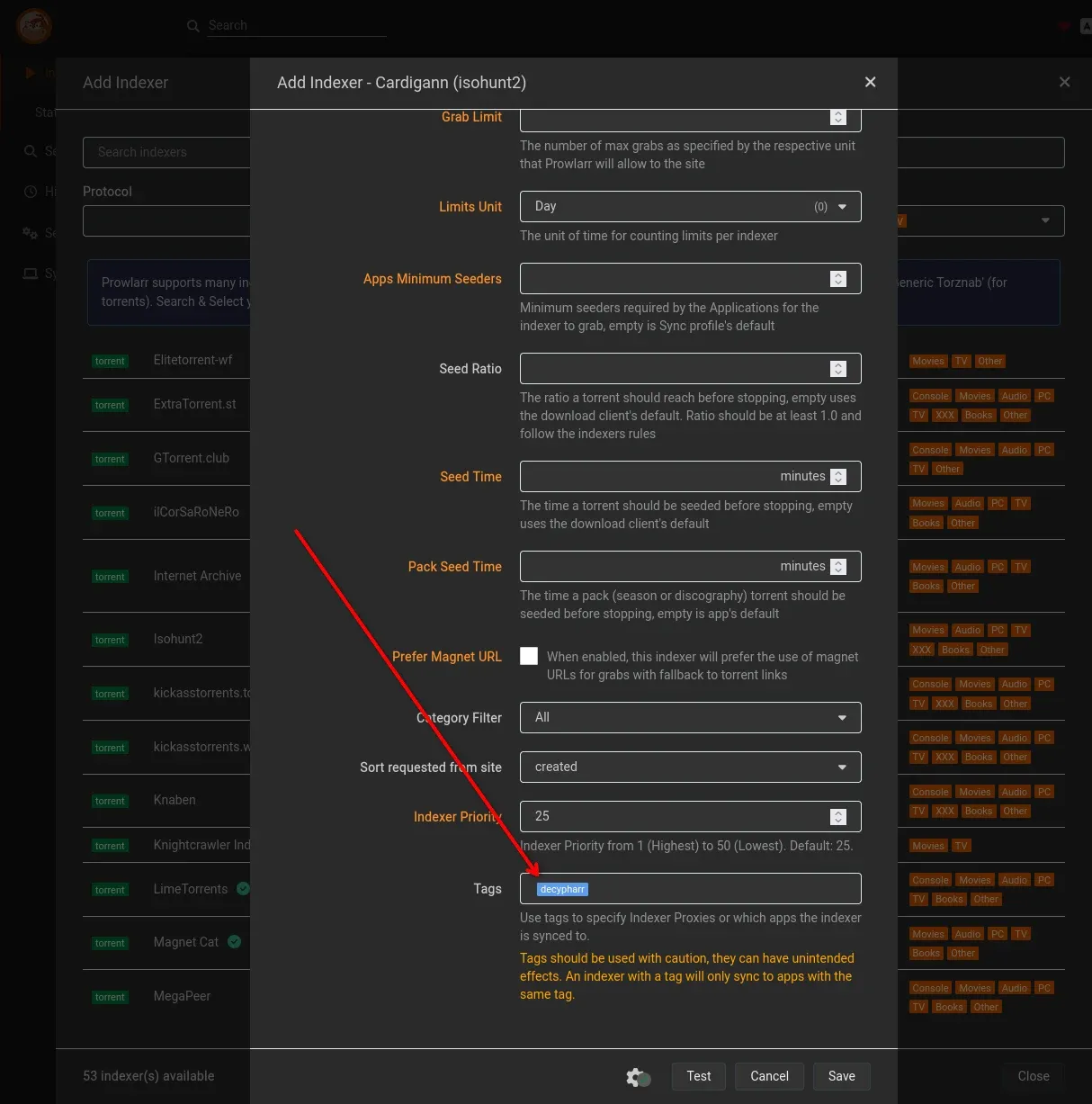
- Make sure to add tag:
decypharron all of them❗- If you have flaresolvarr running, you can add it here as well. Not part of this guide as it's not part of the DUMB stack.
- For beginners, search for "Public" trackers like 1337x, TorrentGalaxy, or MagnetDL. Filter by selecting torrent, english, and movies/tv.
- Link to Apps: Go to Settings > Apps.
- Click
+and choose Radarr. - Prowlarr Server:
http://localhost:9696 - Radarr Server:
http://localhost:7878 - API Key: Copy from Radarr (Settings > General).
- Repeat for Sonarr (
:8989).
- Click
Step 4.2: Prowlarr - Your Custom "TRaSH" like Profiles
Here's where you get unrelenting quality profiles slapped into Sonarr & Radarr automatically. Take a moment here to explore Prowlarr a bit and familiarize yourself with all the profiles. You can get into the nitty gritty or modify them later as well. For a more complete review of Profilarr, jump to my Profilarr install & guide.
 Core Lab Joe
Step 4.3: Connecting the "Fake" Downloader (Decypharr)🏴☠️
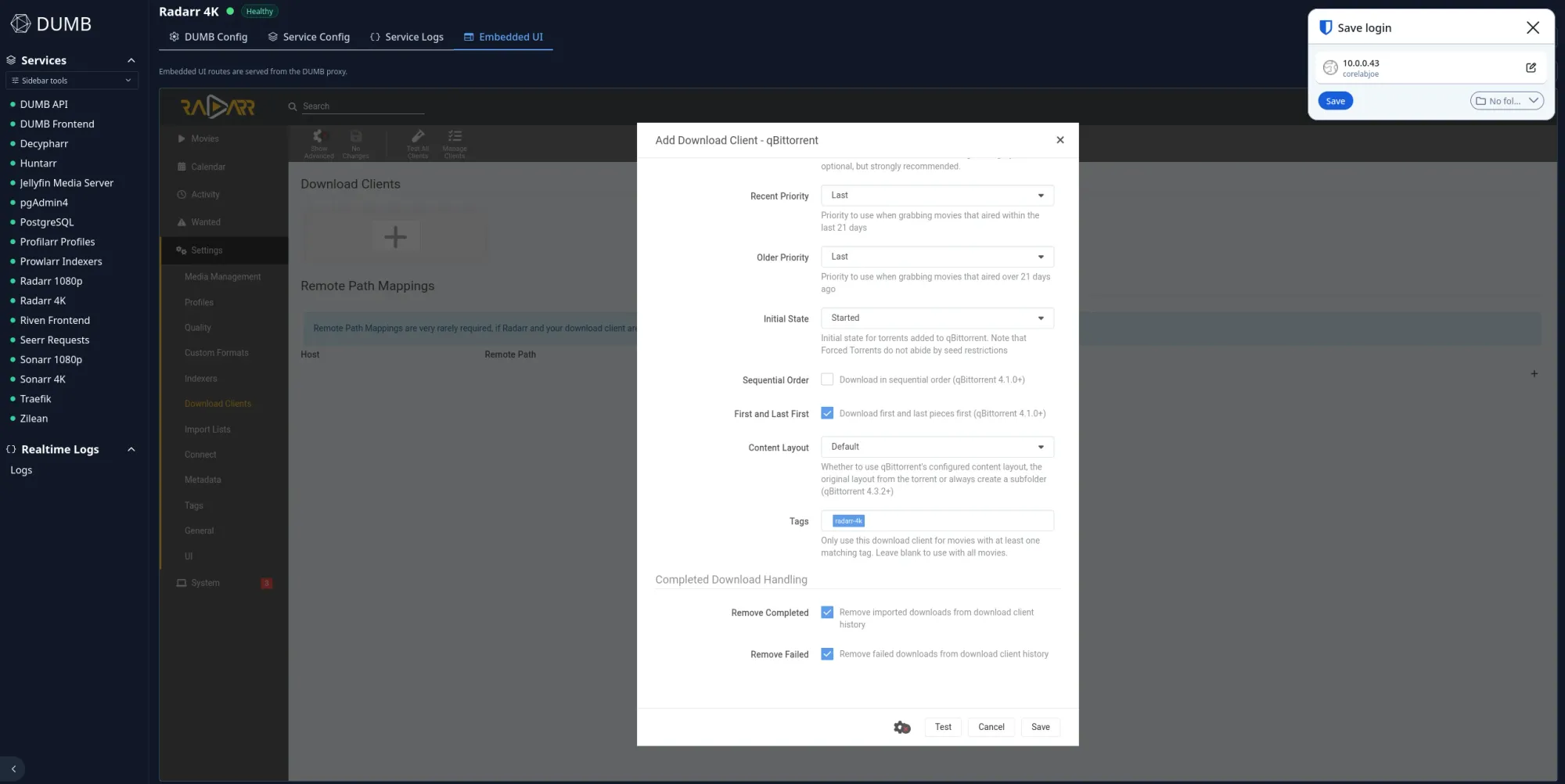
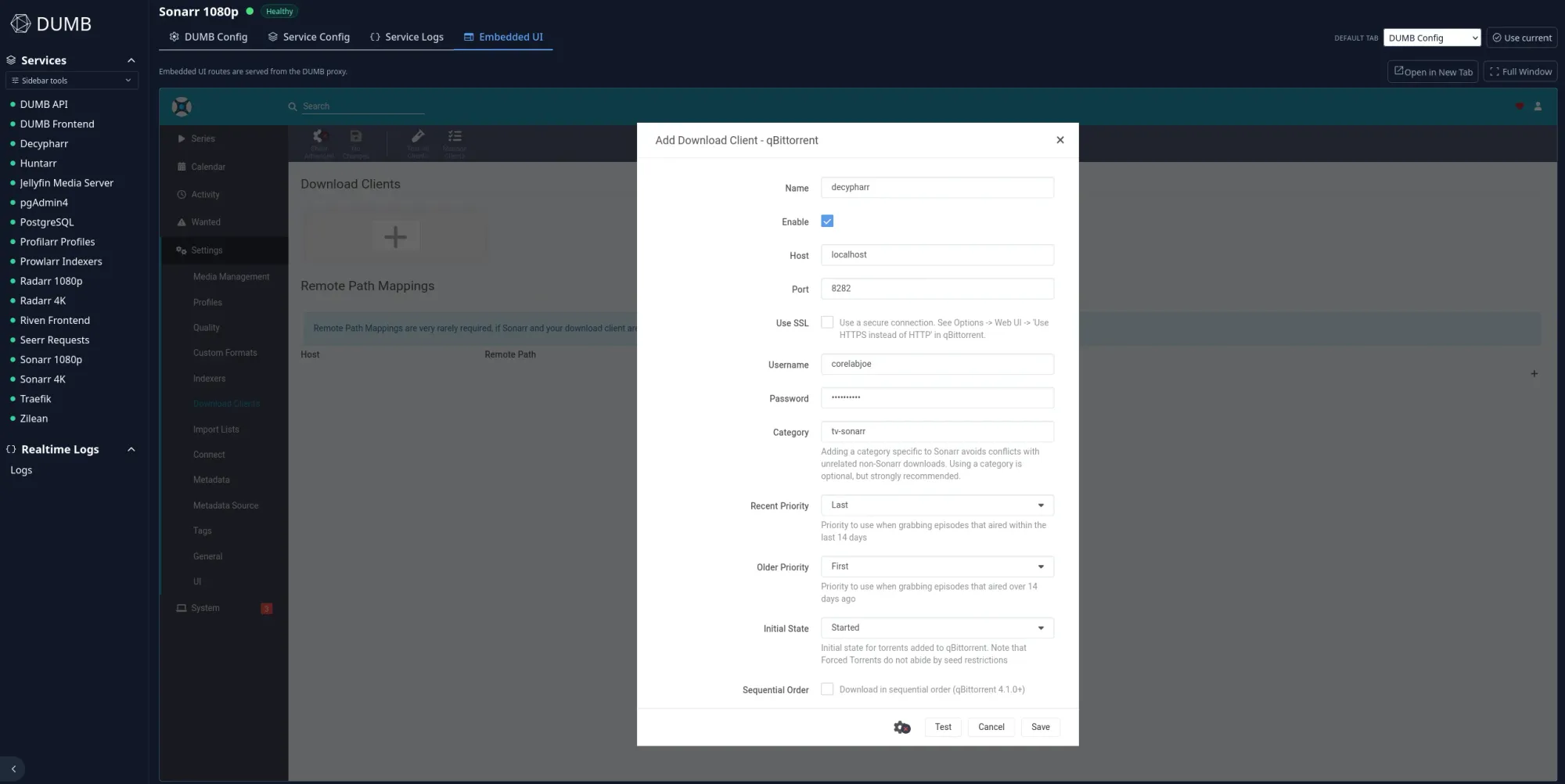
This is the secret sauce. Radarr/Sonarr think they are talking to a QBitTorrent client, but they are actually talking to Decypharr, which instantly caches the file on Real-Debrid.
- Open Radarr (
http://YOUR-IP:7878) or Sonarr (http://YOUR-IP:8989). - Go to Settings > Download Clients.
- Click + and choose QBitTorrent.
- Name:
Decypharr - Host:
localhost(They live in the same container!) - Port:
8282(This is Decypharr's internal port). - Username:
admin - Password:
adminadmin (change this!) - Category (Optional):
movies(for Radarr) ortv(for Sonarr). - Test & Save.
4.4 Step-by-Step Bazarr Setup
- Access Bazarr: Go to
bazarr.yourdomain.com. - Connect Radarr and Sonarr:
- Go to Settings → Sonarr and Settings → Radarr.
- Input the URL (e.g.,
http://sonarr:8989) and API Key for each app. - Test and Save.
- Media Path Check: Bazarr automatically inherits the correct paths from Radarr/Sonarr, but it's good practice to verify under Settings → Media Management that it is also using the
/mnt/debridpath.
4.5 Connecting Media Servers Plex or Jellyfin
Login to whichever one you chose and add their media paths.
- For Plex, you'd navigate to
http://<YOUR-SERVER-IP>:32400/webto begin it's setup.- Login with your Plex account from https://plex.tv and;
- Follow it's setup wizard by first naming your server.
- I'd recommend logging in directly and signing in with your plex account this way, then you don't have to mess around with claim tokens or the dumb.config JSON file.
- For Jellyfin, you'd navigate to
http://YOUR-SERVER-IP:8096to begin it's setup. Similar idea, follow the setup wizard.
Note on Local Network Discovery w/Plex or Jellyfin:
32400:32400 allows you to access the web interface, Bridge Mode breaks local discovery (DLNA/Gdm) because the container is on a different subnet (e.g., docker bridge net 172.18.x.x) than your home LAN (192.168.1.x).For Plex: Go to Settings -> Network -> LAN Networks and add your home subnet (e.g.,
192.168.1.0/24). This forces Plex to treat your local devices as local, even if the discovery broadcast fails.For Jellyfin: Go to Dashboard -> Networking -> LAN Networks and do the same.

4.6 Adding the "Cloud" Libraries
This is the moment of truth. Now that things are fired up, and Decypharr mounted your cloud drive to /opt/appdata/dumb/mnt/debrid/decypharr/realdebrid it's time to make a couple more folders and own them. You'll only need to create these if sonarr & radarr don't automatically make the folders on their own.
By default if you don't make these directories, upon first addition of media in sonarr or radarr, they should make default folders in a slightly different path: dumb/mnt/debrid/decypharr_symlinks/radarr-debrid and dumb/mnt/debrid/decypharr_symlinks/sonarr-debrid. But at first they didn't for me, so I made more 'meaningful' names.
Optional Step, manual tv and movies folders:
1. Create new directory skeleton
sudo mkdir -p /opt/appdata/dumb/debrid/decypharr_symlinks/{tv,movies}

# 4. Set Ownership (CRITICAL)
sudo chown -R mediauser:mediauser /opt/appdata/dumb/debrid/decypharr_symlinks/
sudo chmod -R 755 /opt/appdata/dumb/debrid/decypharr_symlinks/
WHAT the F is going on with these folders⁉️
Decypharr mounts your "cloud" cache drive to dumb/mnt/debrid/decypharr/realdebrid on your local system. Once a "download" is completed, it symlinks it to dumb/mnt/debrid/decypharr_symlinks/tv or movies !
Now in Plex or Jellyfin, create new libraries and point them at your new media folders!
Reminder of the paths:
/opt/appdata/dumb/mnt/debrid/decypharr_symlinks/movies
Step 5: Reverse Proxy Setup (Secure Remote Access)
Since you are a self-hoster, you likely have a proxy running (SWAG, Caddy, or Nginx Proxy Manager). If not, hop over to see my SWAG guide. Here is a rough guide for linking your apps to your custom domain, e.g., radarr.yourdomain.com. Going into detail on this topic is out of scope for this guide, as each reverse proxy could be multiple blog posts in itself!
I only recommend publicly exposing absolutely what you need to. Such as only Jellyseerr; VPN inbound for everything else. I also don't recommend putting Plex behind a reverse proxy, but Jellyfin requires one.
General Reverse Proxy Steps:
- DNS Records: In your domain registrar's settings, create A Records for your subdomains (e.g.,
radarr,sonarr,prowlarr, etc.) pointing to your server's public IP address. - Proxy Configuration: In your proxy application's dashboard (NPM) or config files (SWAG/Caddy):
- Forward Hostname/IP: Use your Docker host's internal IP (e.g.,
192.168.1.100) or the container name if they're on the same Docker network (e.g.,radarr). - Forward Port: Use the internal container ports defined in the
ports:section above (e.g.,7878for Radarr,9696for Prowlarr,3005for DUMB). - SSL: Ensure you activate SSL/TLS to get that secure green lock icon in your browser.
- Forward Hostname/IP: Use your Docker host's internal IP (e.g.,
| App | Internal Port | Suggested Subdomain |
| Prowlarr | 9696 | prowlarr.yourdomain.com |
| Radarr | 7878 | radarr.yourdomain.com |
| Sonarr | 8989 | sonarr.yourdomain.com |
| Bazarr | 6767 | bazarr.yourdomain.com |
Step 5: 🚀 Testing and Launch!
In Seerr, Radarr or Sonarr, search for a new, popular movie or TV show.
- Add it to your monitored list.
- The *arrs check Prowlarr → Prowlarr checks Real Debrid.
- If cached (green checkmark), the file is instantly added to your virtual file system by Decypharr's builtin rclone and webdav.
- Radarr/Sonarr sees the file in
/mnt/debrid→ marks it as "Downloaded." - The *arrs tell Plex/Jellyfin to scan → Content appears instantly!
- Also add something to your Watchlist in Plex.
- If you configured Seerr to add from your watchlist, that'll work too!
Congratulations, you have successfully built one of the most powerful and streamlined media setups possible! 🔥Happy streaming!🎆
🐛 Troubleshooting: The "It Didn't Work" Guide
First step, check the logs by running:
docker logs DUMB 2>&1 | grep -Ei "error|fail|fuse|mount|waiting|api|denied"
And take good look at the output. Address each error 1 by 1 or slap a comment down below ;)
🚨 The "Showstoppers" (Plex Won't Start)
Problem: Plex is stuck on "Waiting for mounts..." or "Service Failed"
- The Cause: Rclone (inside Decypharr) is a perfectionist. It requires its mount point to be a completely empty directory. If you manually created folders inside
/mnt/debrid/realdebrid/on your host BEFORE it created them, Decypharr/rclone will refuse to mount, and Plex will wait forever. - The Fix: 1. Stop the container:
docker compose down. 2. Clean the host folder:sudo rm -rf /opt/appdata/dumb/mnt/debrid/*. 3. Restart:docker compose up -d. Let the container create the sub-folders for you!
Problem: Rclone (inside Decypharr, check logs) isn't starting or FUSE errors in logs
- The Cause: Missing permissions or drivers on your host OS.
- The Fix: Ensure you have
libfuse2installed on your host (Run:sudo apt update && sudo apt install libfuse2 -y). Also, double-check that yourRD_API_KEYis correct and has no extra spaces.
📂 Library & Mapping Issues
Problem: "Radarr says the root folder is missing!"
- The Cause: The container likely started before the virtual drive was fully mounted.
- The Fix: Check your Docker logs (
docker logs DUMB). Is Zurg finished mounting? Once the logs say the mount is ready, simply Restart Radarr inside the DUMB dashboard or restart the whole container.
Problem: "Plex isn't finding files."
- The Cause: Permission mismatch or incorrect volume mapping.
- The Fix: Ensure your
PUIDandPGIDin the Compose file match your host user (typeidin your terminal to check). Also, verify your volume mapping is exactly- /opt/appdata/dumb/mnt/debrid:/mnt/debrid:rshared.
Problem: Prowlarr is running, but Radarr and Sonarr are empty!
- The Fix: Prowlarr needs to "push" the settings. Go to the Prowlarr UI (port
9696), navigate to Settings > Apps, and click the Sync App Indexers button (the refresh icon).
⚡ Performance & Optimization
Problem: "4K Movies are Buffering!"
- The Fix: You likely missed the Golden Flags. Ensure your
RCLONE_MOUNT_OPTIONSinclude--vfs-read-ahead 256M. This forces the server to buffer the video into your RAM ahead of time so the stream doesn't stutter.
Problem: Downloads just sit at "0%" or "Stalled."
- The Fix: Check the Decypharr dashboard (port
8282). It might need you to re-verify your RealDebrid connection or check for API rate limits.
Still stuck? Check out the official DUMB FAQ for deep-dive technical support.
Frequently Asked Questions
What is the DUMB stack exactly?
DUMB stands for Debrid Unlimited Media Bridge. It is a Docker-based stack that uses tools such as Zurg, Rclone, and Decypharr to mount your Real-Debrid library as a virtual drive.
To Plex or Jellyfin, that mounted drive looks like a normal local media folder even though the content is actually stored remotely in your Real-Debrid account.
The advantage is that you can stream extremely large libraries without buying more hard drives.
DUMB is usually the best option if:
- You are starting from scratch
- You want an all-in-one stack
- You do not already have an existing Plex or Jellyfin server
What is the difference between DUMB and DMB?
DUMB and DMB both use Real-Debrid and Zurg, but they are intended for different users.
- DUMB is a complete stack with Plex, Zurg, Decypharr, and related services included
DMB is more modular and is designed for people who already have Plex or Jellyfin running
Choose DUMB if you want the easiest setup.Choose DMB if you already have an existing media server and only want to add Real-Debrid support.
Will Real-Debrid ban me for using Plex or Jellyfin?
Only if you leave the wrong media analysis settings enabled.
Real-Debrid can temporarily or permanently ban accounts when Plex or Jellyfin rapidly scans files, generates thumbnails, analyzes intros, or performs deep media analysis. To Real-Debrid, this can look like a DDoS attack.
In Plex, you should disable:
- Generate video preview thumbnails
- Generate chapter thumbnails
- Detect intros
- Analyze audio tracks
- Extensive library scans
In Jellyfin, disable scheduled image extraction and aggressive metadata scanning.
If you use the recommended settings from this guide, most users never have issues.
Why is my Plex library empty even though Zurg/Decypharr is mounted?
If Zurg/Rclone/Decypharr mount appears to be mounted but Plex shows an empty library, the most common causes are:
- Plex is pointed at the wrong folder
- Rclone or Zurg mounted after Plex started
- The Docker mount is missing
:rshared - Permissions are incorrect
- Your Real-Debrid account has no cached files yet
To fix it:
- Confirm the mount contains files from inside the container
- Restart Plex after Zurg and Rclone are running
- Verify your Docker volume uses
:rshared - Check that Plex is pointed at the mounted
/mnt/zurgor equivalent folder
Why is my DUMB / Zurg / Rclone / Decypharr mount showing as an empty folder?
This usually happens because of one of three issues:
- Missing FUSE support
- Incorrect Docker mount options
- Wrong Real-Debrid API key
Make sure:
libfuse2is installed on the host- Your Docker volume is configured with
:rshared - Rclone is successfully mounted
- Your Real-Debrid API key is entered correctly
You can also test the mount manually:
ls /mnt/zurg
If the folder is empty there too, the problem is with Zurg or Rclone rather than Plex.
Radarr or Sonarr says the root folder does not exist. How do I fix it?
This happens when Radarr or Sonarr is using a different path than Plex or Zurg.
All containers must use the same mounted path.
For example:
/mnt/zurg/movies
/mnt/zurg/tv
If Plex sees /data/movies but Radarr sees /mnt/zurg/movies, imports will fail.
The easiest fix is to standardize all containers around the exact same Docker volume mapping.
Why does Plex/Jellyfin buffer on 4K Remux files?
Buffering is usually caused by one of these issues:
- ISP throttling
- Small Rclone cache settings
- Plex trying to transcode instead of direct play
- Slow internet upload or download speed
The best fixes are:
- Increase
--vfs-read-aheadto at least256M - Enable
--buffer-size 256M - Use Direct Play whenever possible
- Disable advanced security features on Rogers Ignite or Bell Fibe routers
- Use a wired Ethernet connection for the server
If you are using an older CPU or a smaller GPU, 4K transcoding may also be too demanding.
Why do 4K streams work in a browser but not in Plex?
If a Real-Debrid link works directly in the browser but buffers or fails in Plex, Plex is usually trying to transcode the file.
This often happens because:
- The client device does not support the codec
- Subtitles are forcing a transcode
- Plex is set to stream at a lower quality
To fix this:
- Set Plex quality to Original
- Disable image-based subtitles such as PGS
- Use a client that supports HEVC and HDR natively
Do I need a VPN for the DUMB or Real-Debrid setup?
No. Real-Debrid traffic is already encrypted over HTTPS.
Using a VPN can actually create problems because Real-Debrid may detect your account being used from multiple IP addresses and temporarily block access.
For most users, a VPN is unnecessary and can make the setup less reliable.
If you're in a country where Real-Debrid is blocked, you may then need a VPN!
Can I use Plex with Real-Debrid without Docker?
Technically yes, but it is much harder.
The easiest and most reliable method is to use Docker because DUMB, DMB, Zurg, and Decypharr are all designed around containerized deployments.
Without Docker, you would need to manually configure:
- Rclone mounts
- Background services
- Startup scripts
- Permissions and FUSE
Unless you already know Linux extremely well, Docker is the better approach.
How do I prevent Real-Debrid account bans?
The most important rule is: do not let Plex or Jellyfin aggressively scan the mounted library.
You should:
- Disable thumbnail generation
- Disable intro detection
- Turn off deep analysis
- Avoid refreshing the entire library constantly
- Limit the number of simultaneous users
You should also avoid switching between multiple IP addresses rapidly.
Does Real-Debrid work with multiple Plex or Jellyfin users?
Yes, but there are limits.
A few simultaneous users usually work fine. However, if many people are streaming at once or if several people trigger large library scans simultaneously, you are more likely to hit Real-Debrid rate limits which are 200 requests/min.
For a small family or a few friends, the setup is usually fine.
Can I use Jellyfin instead of Plex?
Yes! Jellyfin works very well with Decypharr and Real-Debrid.
However, you still need to disable:
- Preview image generation
- Deep media analysis
- Frequent scheduled scans
Otherwise Jellyfin can cause the same Real-Debrid bans as Plex.
Can I run this on a low-power mini PC like an Intel N100?
Yes. One of the biggest advantages of a Plex + Real-Debrid setup is that you do not need large local storage or a powerful CPU.
An Intel N100 mini PC can run:
- Plex or Jellyfin
- Zurg
- Decypharr
- Radarr and Sonarr
very comfortably, especially if most playback is Direct Play.
If you plan to transcode multiple 4K streams, however, you may want something more powerful.
🎆Congratulations again! Let me know how this worked out in the comments. While this can take a bit of time to setup up front, it's worth it in the end... Might be a good time to examine your Plex config overall and tweak anything you feel is needed.
⚠️DEPRECATED DMB Instructions - For Existing Users of DMB
I'll leave the instructions here for now, for anyone who is already using DMB, but the creator has officially deprecated this in favour of the highly flexible DUMB above. You would simply just not use the builtin Plex or Jellyfin from the DUMB docker above.
Best for: If you already have an existing Plex/Jellyfin server.
| Container | What it Includes | Target User |
| DUMB | Plex, Zurg, Riven, all backend tools. | Beginner/Intermediate; prefers a single, cohesive container. |
| DMB | Zurg, Riven, and all backend tools. (No Plex/Jellyfin.) | Intermediate/Expert; prefers to use an existing media server. |
Best for: Users who ALREADY have a Plex/Jellyfin server running. (Use the generator below to create the DMB stack).
 I-am-PUID-0
⚠️ CRITICAL FOR DMB USERS: If you use external Plex, you MUST add this volume to your existing Plex container: - /opt/appdata/docker/DMB/mnt/debrid:/mnt/debrid If Plex can't see the mount, it can't play the movie.DMB Compose Stack Example:
# -------------------------------------------------------------
# STEP 1: DEFINE NETWORKS (Recommended for cleaner traffic)
# -------------------------------------------------------------
networks:
  debrid_net:
    driver: bridge # Use a standard bridge network for all internal communication

services:
  DMB:
    container_name: DMB
    image: iampuid0/dmb:latest ## Optionally, specify a specific version of DMB w/ image: iampuid0/dmb:2.0.0
    stop_grace_period: 30s ## Adjust as need to allow for graceful shutdown of the container
    shm_size: 512mb  ## Increased for PostgreSQL
    stdin_open: true ## docker run -i
    tty: true        ## docker run -t
    volumes:
      - /opt/appdata/docker/DMB/config:/config                     ## Location of configuration files. If a Zurg config.yml and/or Zurg app is placed here, it will be used to override the default configuration and/or app used at startup.
      - /opt/appdata/docker/DMB/log:/log                           ## Location for logs
      - /opt/appdata/docker/DMB/Zurg/RD:/zurg/RD                   ## Location for Zurg RealDebrid active configuration
      - /opt/appdata/docker/DMB/Riven/data:/riven/backend/data     ## Location for Riven backend data
      - /opt/appdata/docker/DMB/PostgreSQL/data:/postgres_data     ## Location for PostgreSQL database
      - /opt/appdata/docker/DMB/pgAdmin4/data:/pgadmin/data        ## Location for pgAdmin 4 data
      - /opt/appdata/docker/DMB/Zilean/data:/zilean/app/data       ## Location for Zilean data
      - /opt/appdata/docker/DMB/plex_debrid:/plex_debrid/config    ## Location for plex_debrid data
      - /opt/appdata/docker/DMB/cli_debrid:/cli_debrid/data        ## Location for cli_debrid data
      - /opt/appdata/docker/DMB/phalanx_db:/phalanx_db/data        ## Location for phalanx_db data
      - /opt/appdata/docker/DMB/decypharr:/decypharr               ## Location for decypharr data
      - /opt/appdata/docker/DMB/mnt/debrid:/mnt/debrid:rshared    ## Location for all symlinks and rclone mounts
    environment:
      - TZ=America/Toronto
      - PUID=1000
      - PGID=1000
    # network_mode: container:gluetun ## Example to attach to gluetun vpn container if realdebrid blocks IP address
    ports:
      - "3005:3005" ## DMB Frontend
      - "3000:3000" ## Riven Frontend
      - "5050:5050" ## pgAdmin 4
      - "5000:5000" ## CLI Debrid Frontend
      - "8282:8282" ## Decypharr Frontend
    devices:
      - /dev/fuse:/dev/fuse:rwm
    cap_add:
      - SYS_ADMIN
    security_opt:
      - apparmor:unconfined
      - no-new-privileges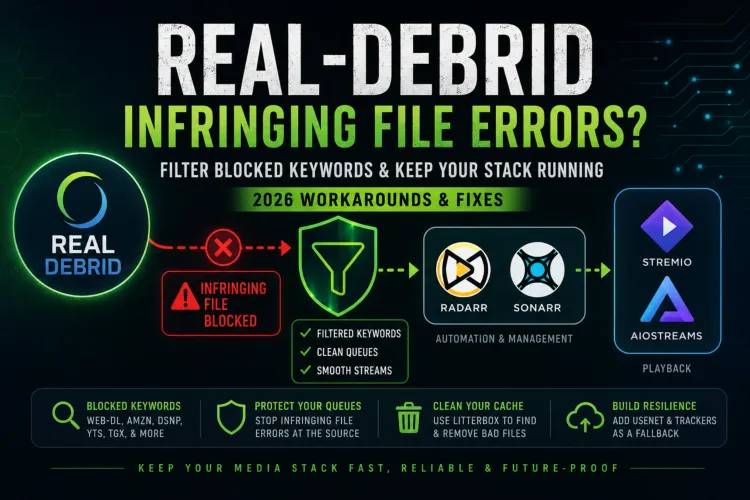
Member discussion