
How to Install Profilarr: Docker Compose & Setup Guide (2026)

If you've followed my previous guides, you might have a powerful Digital Dragon media stack running & humming along. If not, check that out my Ultimate Media Server Guide. Regardless, there’s one final frontier: Quality Control.
How do you stop Radarr from downloading a 2GB compressed "YIFY" rip when you have a 4K TV? How do you tell Sonarr that you prefer "Web-DL" over "HDTV"? How do you ensure you get that SWEET SWEET HDR content that makes everyone gasp?
For years, the answer was manually entering hundreds of "Custom Formats" or using a command-line tool called Recyclarr. Both are effective, but they can be a headache to manage.
Enter Profilarr.
Profilarr is a self-hosted tool that provides a beautiful web interface to manage, sync, and automate your Sonarr and Radarr quality profiles. It connects to community databases (like the famous Dictionarry) and automatically keeps your media server updated with the best possible scoring rules.
In this guide, we’ll deep dive into installing Profilarr and configuring it to auto-curate your library.
🧩 Recyclarr vs. Profilarr: Which One?
Both tools achieve the same goal: syncing TRaSH-style guides to your *Arrs. So which one fits your lab?
- Use Recyclarr if: You prefer "Set it and forget it" configuration via YAML files and want the absolute lightest footprint. It runs as a CLI cron job.
- Use Profilarr if: You want a Visual Dashboard. You want to click and explore profiles, see the history of changes, and manage multiple instances (e.g., a 4K Radarr and a 1080p Radarr) from a single GUI.
For most users in 2026, Profilarr is the more approachable, user-friendly on-ramp to advanced media automation.
🛠️ Step 1: Installation (The Docker Compose)
We will add Profilarr to our existing media stack. It’s lightweight and connects to your other apps over your local network.
Prerequisites:
- You have Docker compose running.
- You have Sonarr and Radarr running.
- You know your API Keys for both (Found in Settings -> General).
The Compose Block
We are sticking to our standard /opt/appdata structure to ensure atomic moves work correctly. If your folders are a mess of /downloads and /media, you should check out my guide docker compose & organizing your media library structure before proceeding.
  profilarr:
    image: santiagosayshey/profilarr:latest
    container_name: profilarr
    restart: unless-stopped
    # Optional: Set a specific hostname if you use internal DNS
    hostname: profilarr
    environment:
      - TZ=America/Toronto # Set your timezone
    volumes:
      - /opt/appdata/profilarr:/config
    ports:
      - "6868:6868"
    # Make sure this is on the same network as Sonarr/Radarr
    networks:
      - media_stack
Note: Run docker compose up -d to deploy the stack.
graph LR
  subgraph Docker Network
  P[Profilarr] -- internal:7878 --> R[Radarr]
  P -- internal:8989 --> S[Sonarr]
  end
  U[User Browser] -- port:6868 --> P
⚙️ Step 2: Initial Setup & Connecting the *Arrs
Once the container is running, open your browser and navigate to http://YOUR_SERVER_IP:6868.
You will be greeted by the initial setup wizard.
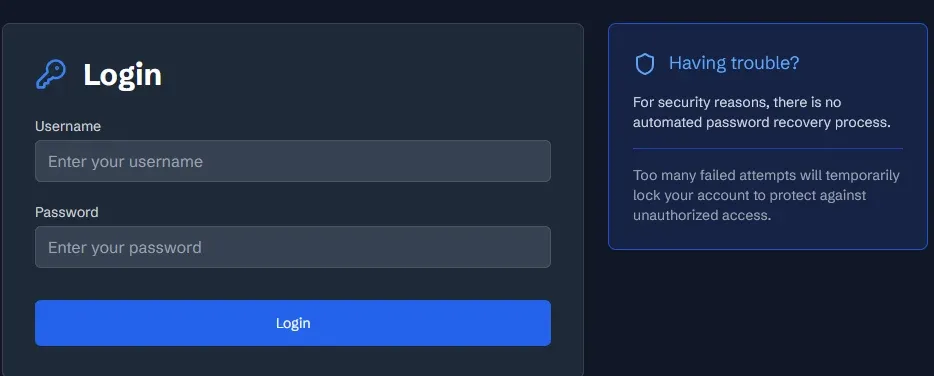
1. Create Your Login
Profilarr requires a secure login. Create your admin username and password. Username can be an email address or just about anything really.
2. Connect Radarr & Sonarr
This is the core "bridge" we need to build.
- Navigate to: Settings -> External Apps
- Add New App: Select Radarr.
- URL: Enter your Radarr URL.
- Docker Tip: If they are in the same bridge network, use the container name:
http://radarr:7878. - Otherwise: Use your LAN IP:
http://192.168.1.50:7878.
- Docker Tip: If they are in the same bridge network, use the container name:
- API Key: Paste the API key from Radarr (Settings -> General).
- URL: Enter your Radarr URL.
- Repeat the process for Sonarr.
- Test Connection: Click the "Test" button to ensure Profilarr can talk to your apps.
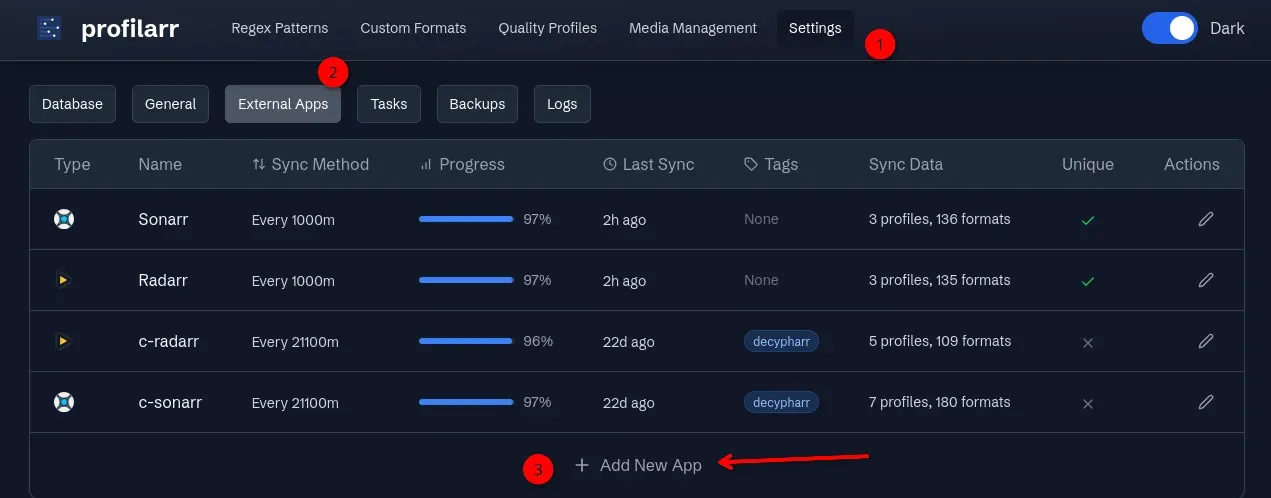
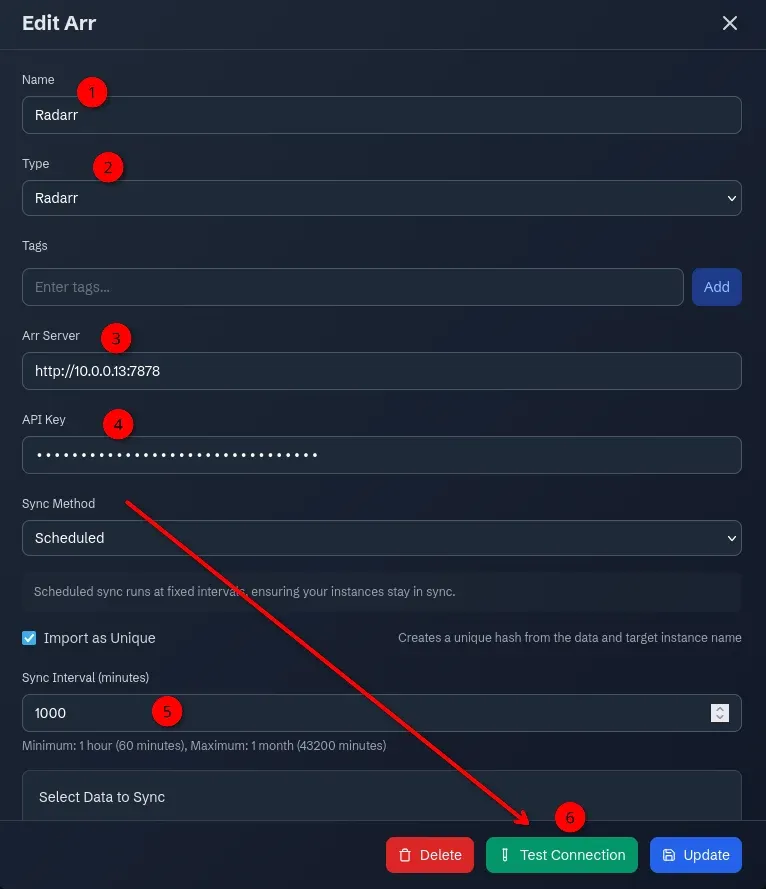
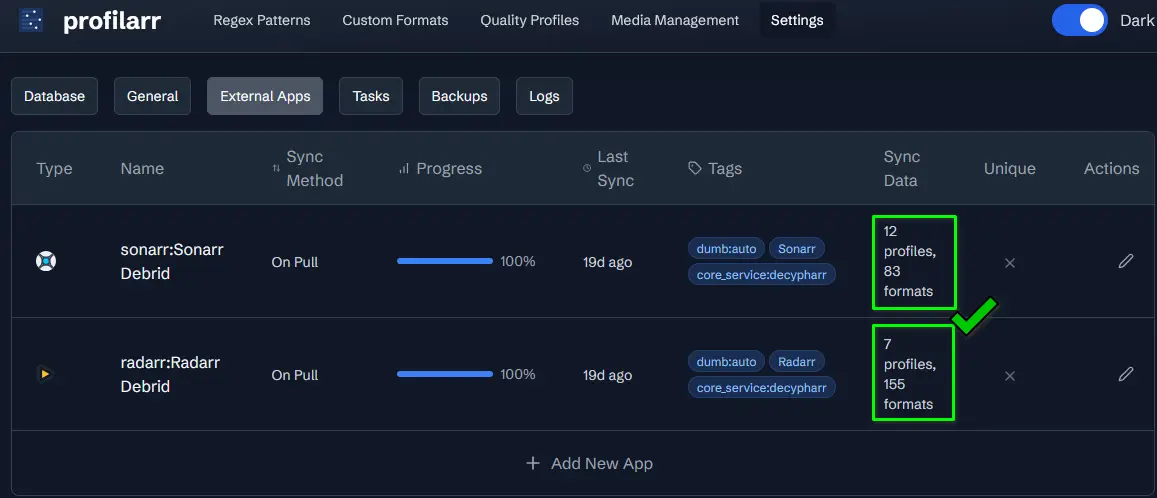
What it should look like when completed:
📚 Step 3: The "Dictionarry" (Choosing Your Rules)
This is where Profilarr shines. Instead of writing rules yourself, you subscribe to a Remote Repo. The standard, high-quality repo used by the community is called Dictionarry.
- Navigate to Settings->Database: The "Import" or "Remote" tab (depending on version).
- You should see the Dictionarry repo listed by default. If not, you can add it:
- Repo URL:
https://github.com/Dictionarry-Hub/dictionarry
- Repo URL:
- Explore the Profiles: Click into the repo. You will see categories like "Anime", "Movies (Web-DL)", "TV (Standard)", etc.
It should look like this when done:
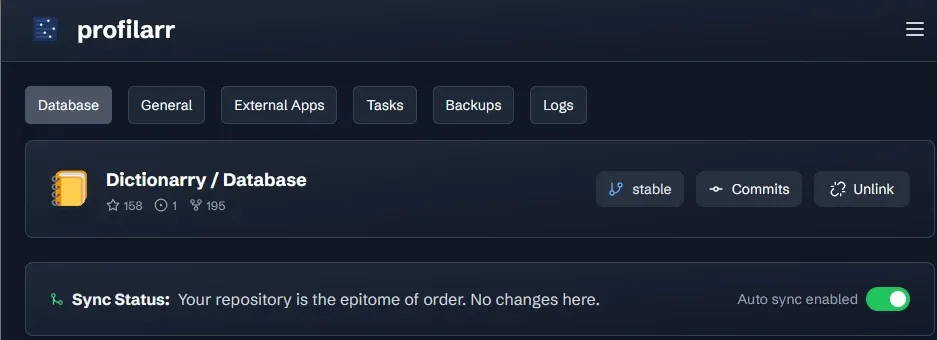
This database contains pre-tuned "Quality Profiles" and "Custom Formats" (logic that scores releases based on audio channels, HDR, codecs, etc.).
🎛️ Step 4: Importing & Syncing Profiles
Now, let’s apply these rules to your actual media managers.
1. Select a Quality Profile Let's say you want a standard "Good Quality" setup for Movies. Find a profile like "1080p Balanced" in the list.
- Pro Tip: Click directly on the profile name to read the description. "1080p Balanced" usually prefers WEB-DLs and will upgrade SD/DVD content automatically.
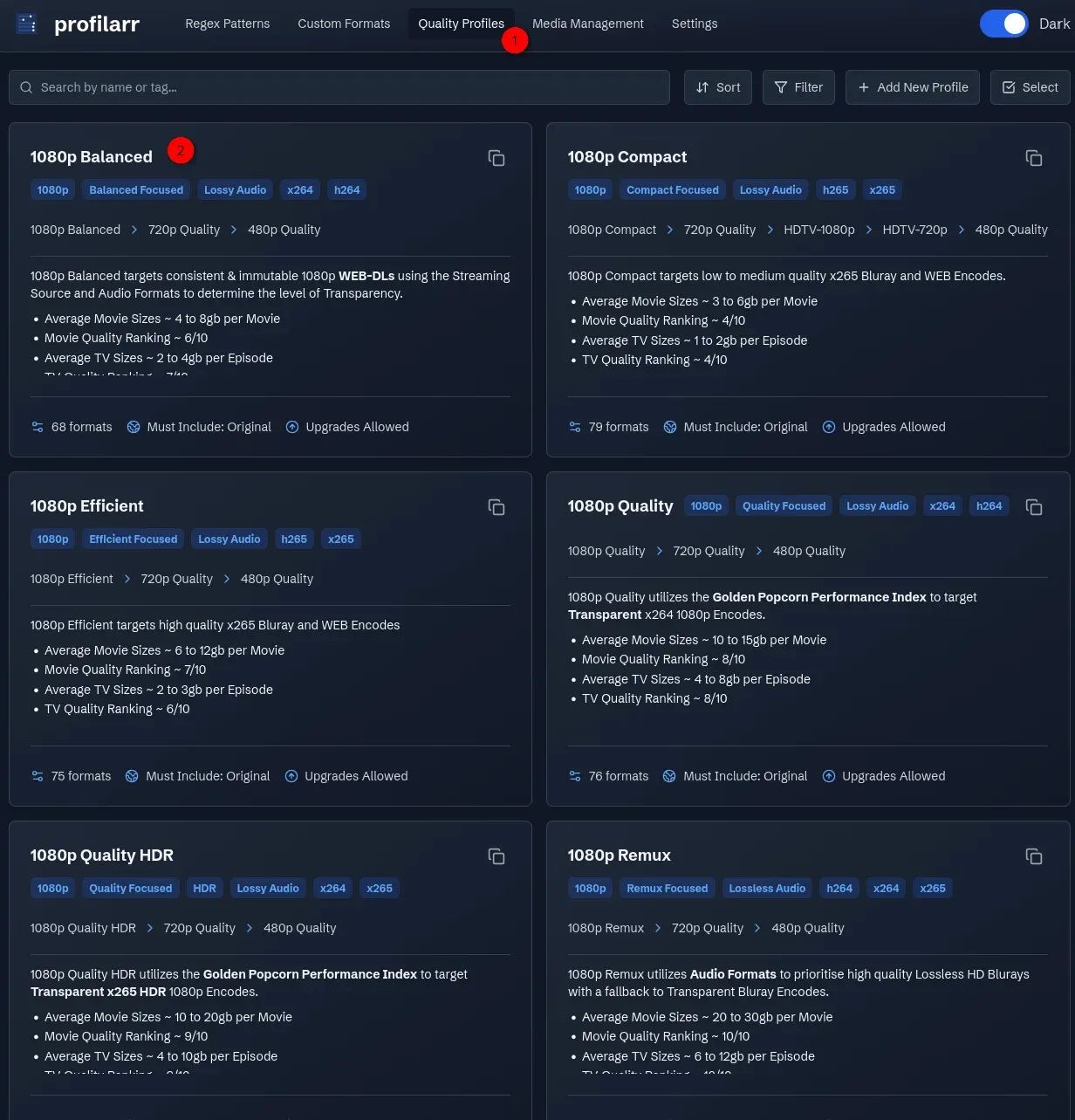
2. The Import Process
- Click the Select button in the top right.
- Check the circle next to the profiles you want (e.g., 1080p Balanced).

- Click Import at the bottom of the screen once you're ready.
- Another menu will pop up asking you to pick Sonarr or Radarr to import to.

3. Verify in Radarr
Go to your Radarr tab and check Settings -> Profiles. You should see your new shiny profile! Next, check Settings -> Custom Formats. You will see a list of new, specific rules (e.g., "HDR10", "DTS-HD", "Bad Release Group").

Navigate to Settings -> Custom Formats. You will see a huge list of new, highly specific formats that Profilarr created for you.
Installing Profilarr does not automatically fix your existing library. It only helps with new downloads!👇
The Fix: After syncing Profilarr, you must go into your Radarr "Movies" list, select all movies, and click "Edit -> Quality Profile -> Change to [New Profilarr Profile]".

Then, trigger an "Interactive Search" or "Cut-off Unmet" search to upgrade your old files.
🪃 Don't forget to do this after your new hard work to automate things!☝️
🔄 Step 5: Automating the Updates
Media standards change. New codecs (like AV1) appear; old release groups get banned. You want your profiles to stay current.
- In Profilarr, go to Settings -> Scheduler.
- Enable Scheduled Syncs.
- Set it to run infrequently. I set mine to update every 245 minutes but you can adjust as you see fit.
Now, if the maintainers of the Dictionarry repo update a scoring rule (e.g., downvoting a bad release group), Profilarr will automatically pull that change and update your Sonarr/Radarr instances while you sleep.
What's Next?
Once you have your profiles set, your system should start upgrading your existing library to higher-quality versions. Make sure you have the storage space ready!
 Core Lab Joe
Ready to super-charge the rest of your media stack or secure & lock it down? Check out my self-hosted practical guides -
 Core Lab Joe
 Core Lab Joe
FAQ: Profilarr & Quality Automation
- Does Profilarr replace Radarr or Sonarr? No. Profilarr is a "management" layer. It doesn't download anything itself; it simply tells Radarr and Sonarr what is worth downloading by injecting high-quality scoring rules into their settings.
- What happens if I already have Custom Formats set up? Profilarr is designed to be the "source of truth." When you sync, it will typically manage its own formats. It is highly recommended to let Profilarr take over management of these formats to avoid conflicting scores.
- Will Profilarr automatically upgrade my existing movies? Only if they are monitored and their current quality is below the "cutoff" in the new profile. Crucial Step: After importing, you must manually assign the new profile to your existing movies/shows in the Radarr/Sonarr "Bulk Edit" menu.
- Is Profilarr better than Recyclarr? "Better" depends on your preference. If you like editing YAML files in a terminal, Recyclarr is great. If you prefer a visual dashboard where you can see exactly what rules are being applied before you sync them, Profilarr is the superior choice for 2026.
- Does this work with 4K and 1080p "Split" instances? Yes! This is one of Profilarr's best features. You can add multiple instances of Radarr (e.g., "Radarr-4K" and "Radarr-HD") and sync different profiles to each from one screen.
Member discussion