
The Best NAS OS of 2026: Beyond Synology & Vendor Lock-in
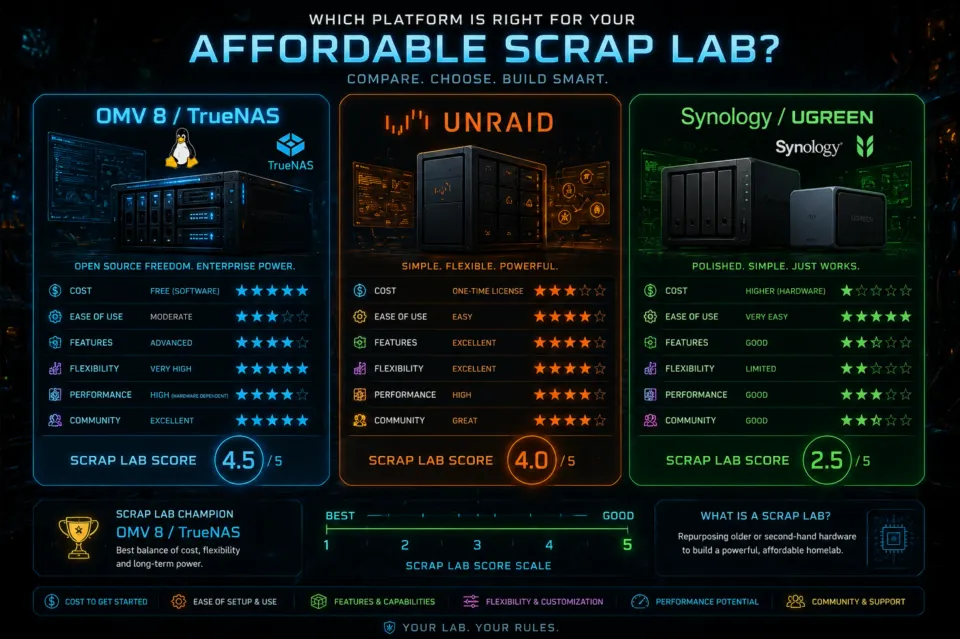
I'm all for a custom NAS and sold my Synology in 2023, however there's a lot of questions about the best NAS OS or system. I strongly suggest TrueNAS Scale (Electric Eel update!) or OpenMediaVault8 (OMV). With the rapid shift away from Synology lately, I thought I'd compare it against some of the free and opensource alternatives.
The 2026 NAS OS Comparison 'Battle Card'
| Feature | Synology (DSM 7.3) | Unraid (v7.x) | TrueNAS SCALE (24.10+) | OpenMediaVault (OMV8) |
| The "Vibe" | Set & Forget (Apple) | The Media Hoarder | The Data Fortress | The DIY Minimalist |
| Cost | Included with hardware | Paid (Annual or Lifetime) | Free / Open Source | 100% Free |
| Boot Drive | Internal (SATA/NVMe) | Internal (NEW in v7) | Internal (SATA/NVMe) | Internal (SATA/NVMe) |
| Container Engine | Docker (Container Mgr) | Docker | Docker (Native & Compose) | Docker Compose (Plugin) |
| Drive Flexibility | High (SHR allows mixed) | Best (Mix any size) | Moderate (RAIDZ Expansion) | Good (SnapRAID/MergerFS) |
| Primary File System | Btrfs | XFS / ZFS | ZFS (Native) | EXT4 / XFS / ZFS |
| Resource Needs | Very Low | Low | High (8-16GB+ RAM) | Ultra-Low (Potato-tier) |
| 2026 Verdict | The Safety Choice. Best for zero-maintenance. | The Best for Plex. Best for growing storage over time. | The Security Choice. Best for mission-critical data. | The Efficiency Choice. Best for Mini-PCs & old gear. |
Let's set something straight. Any of the other NAS OS can do what a Synology can do.
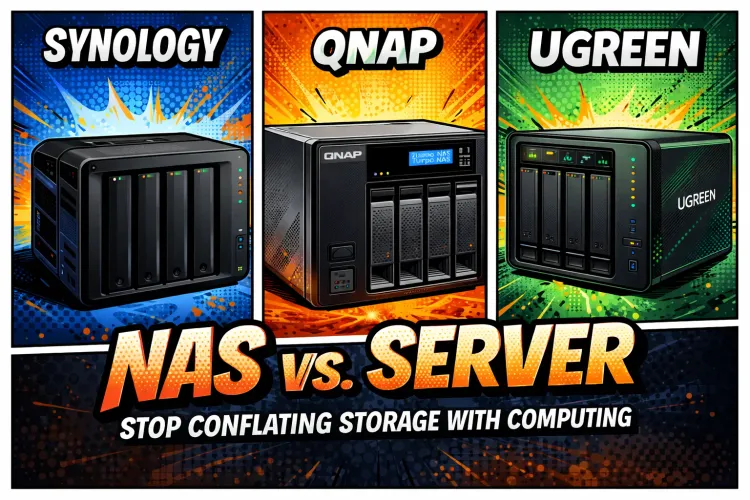
Is a NAS different than a server? Can they crossover? Hit the link to figure it out once and for all!
TrueNAS, OMV and Unraid all compete blow for blow vs Synology, or more due to flexibility of the OS and your hardware. They are all definitely cheaper! Recent UGREEN models have come up in price because they utilize new tech compare to even Synology's new models. For example, the Synology 923+ is using a CPU from 2017 (Ryzen 1600 embedded) but that NAS model was released in 2022.
Some may say it's a matter of personal opinion on if a different NAS OS can do anything better than Synology, but I argue that once you're released from the limited hardware in a Synology (CPU, memory) you can run any amount of dockers and/or VM's to address any use case you could have. Plus you're not spending a significant sum of funds just on a NAS box, with no hard drives, that you then have to pay even more to upgrade.
Before we can really compare them, let's dig in a little.
The "Apple" Mission (Synology): The Set-and-Forget Choice
Let’s be upfront: Synology NAS devices aren’t really NAS devices in the purest sense. They're essentially powerful mini-computers built around a dedicated operating system – DiskStation Manager (DSM).
This is the key differentiator. Synology is to MAC/Apple, what FOSS NAS OS is to the PC!
- What it is: Synology NAS systems are complete storage and computing solutions. They’re built around a robust, user-friendly operating system (DSM) that handles everything from file sharing and backup to media transcoding, Plex integration, and even basic web server hosting.
Key Strengths:
- DSM – The Heart of the System: This is where Synology truly stands out. DSM is incredibly intuitive, packed with features, and offers a huge range of apps and integrations. It’s arguably the best user experience in the NAS market, overall.
- Extensive App Ecosystem: Synology has a massive app store – think Plex, Acronis Cyber Protect, Video Station, Audio Station, and countless others.
- Robust Features: DSM offers advanced features like RAID support (for data redundancy), user permissions, remote access, and even support for Docker containers.
- Scalability: Synology offers a wide range of models, from entry-level to high-performance, allowing you to scale your storage and processing power as your needs grow.
- Community & Support: Synology has a huge and active user community, plus excellent official support.
Potential Drawbacks:
- Price: Synology NAS systems are generally more expensive than all other NAS hardware options. Especially more than UGREEN NAS.
- Upgrades possible, but expensive!$!
- You can upgrade a Synology, depending on model, but for "certified" devices, they charge a premium, just like Apple.
- Complexity: The sheer number of features can be overwhelming for beginners.
SynologyHarddrive Vendor lock in! If you don't run Synology branded hard drives in their newest devices, you lose support.
Synology's storage systems have been transitioning to a more appliance-like business model. Starting with the 25-series, DSM will implement a new HDD compatibility policy in accordance with the published Product Compatibility List. Only listed HDDs are supported for new system installations. This policy is not retroactive and will not affect existing systems and new installations of already released models. Drive migrations from older systems are supported with certain limitations.
As of April 2025, the list will consist of Synology drives. Synology intends to constantly update the Product Compatibility List and will introduce a revamped 3rd-party drive validation program.
The "Mercenary" Mission (UGREEN): High-Value Hardware
UGREEN NAS devices are fundamentally different. They’re essentially pre-built, low-cost NAS-like boxes. They have thier own OS, however the beauty of UGREEN NAS is the ability to install a custom NAS OS (often OpenMediaVault or TrueNAS) and are geared towards basic file sharing and storage.
- What it is: UGREEN NAS devices are designed to provide a basic, affordable way to centralize your files and potentially add some network storage capabilities.
Key Strengths:
- Price: UGREEN NAS devices
arewere significantly cheaper than Synology. You can get a functional NAS for a a slightly cheaper cost. - Can run any NAS OS❗
- Ease of Use (Initially): They’re often simpler to set up than Synology, especially for basic file sharing.
Potential Drawbacks (if running UGREEN OS):
- Limited Features: They lack the advanced features and robust ecosystem of Synology, yet. Don’t expect Plex transcoding or advanced RAID options out of the box.
- OS Limitations: The underlying operating system is often less polished and offers fewer customization options.
- Community Support: Support is typically limited to the manufacturer’s website and online forums, which may be less active than Synology’s.

4-Bay NAS! Intel Pentium Gold 8505 5-Core CPU, 8GB DDR5 RAM, 128G SSD, 1 * 10GbE, 1 * 2.5GbE, 2 * M.2 NVMe Slots, 4K HDMI
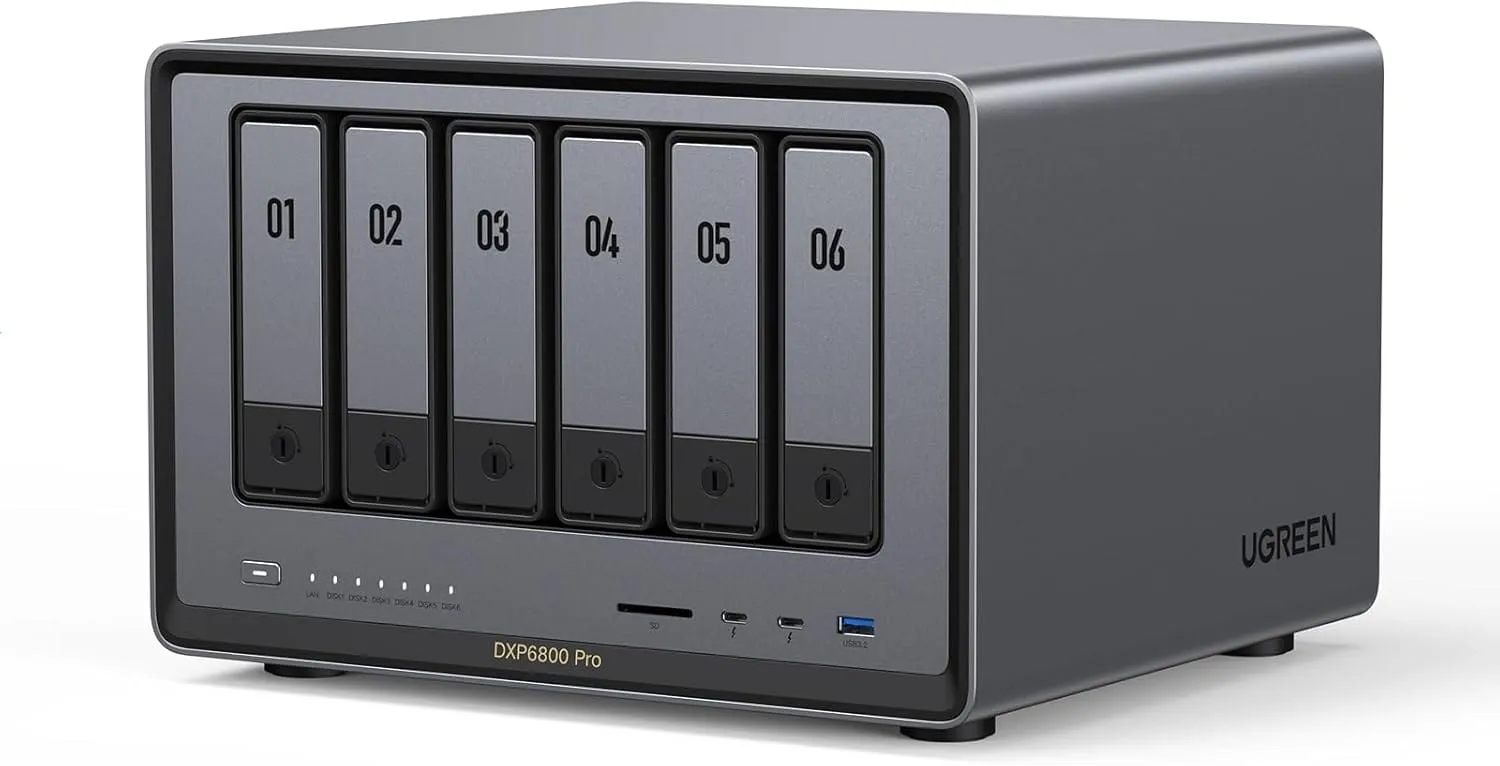
6-Bay Desktop NAS, Intel i5 1235u 10-Core CPU, 8GB DDR5 RAM, 128G SSD, 2 * 10GbE, 2 * M.2 NVMe Slots, 8K HDMI, 2 * TBT4, Network Attached Storage
The "Tactical" Mission (OpenMediaVault): Lightweight & Efficient
If Synology is a pre-built armored vehicle, OpenMediaVault (OMV) is a stripped-down, high-mobility tactical rig. It is built directly on top of Debian 13 Trixie Linux, making it one of the most stable and lightweight NAS operating systems in existence. It’s the go-to choice for those who want a "Digital Fortress" that can run on almost anything—from an old office PC to a Raspberry Pi.
What it is: OMV is a free, open-source NAS solution that provides a clean web-based interface for managing storage, users, and services. Unlike TrueNAS, which demands significant RAM and specific hardware, OMV is incredibly lean. It doesn't force you into a specific file system; it gives you the keys to the armory and lets you choose your own loadout.
Key Strengths:
- Ultimate Hardware Flexibility: OMV will run on "toaster" level hardware. It requires as little as 1GB of RAM, making it perfect for repurposing old hardware or building low-power, "silent" NAS nodes.
- Debian Foundation: Because it's just Debian under the hood, any tutorial you find for Linux or Debian usually works on OMV. It is rock-solid and industry-standard.
- Choose Your File System: You aren't locked into ZFS. OMV supports EXT4, XFS, and Btrfs out of the box. Want ZFS? You can add it via the OMV-Extras plugin. You can even make it 'unraid like' and do MergerFS & Snapraid allowing you to mix and match different sized hard drives (similar to Unraid) without the cost!
- Docker-Native (Compose Plugin): With the latest OMV7 and OMV8 releases, the system has moved toward a powerful Docker Compose workflow. You can manage your entire "Arr" stack or media server directly from the web GUI without needing separate tools like Portainer (though you can still use it if you prefer).
Potential Drawbacks:
- The "Jank" Factor: OMV is a "Lego set." While the UI has improved significantly in 2026, it can still feel a bit "utilitarian" compared to the polished look of Synology or Unraid.
- Update Discipline: Major version upgrades (e.g., OMV7 to OMV8) usually require a bit more "under the hood" attention than a Synology one-click update. It’s a system that rewards those who read the manual.
- Plugin Dependency: To get the "good stuff" (ZFS, Docker, specific backup tools), you must install OMV-Extras. It’s not quite "everything in the box" like its competitors. It's meant to be purpose built.
Tactical Summary: Choose OMV if you are building on a budget, using a Mini-PC (The Gatehouse), or if you want a system that stays out of your way and lets you manage the OS like a true Linux admin.
The "Fortress" Mission (TrueNAS SCALE): Absolute Data Integrity
If OMV is a lightweight scout vehicle, TrueNAS SCALE is a main battle tank. It is built on Debian Linux (just like OMV), but it is designed for one thing above all else: absolute data integrity. It uses the ZFS file system natively & by default, which protects your data against "bit rot" and silent corruption using advanced checksums. Their latest release is "Electric Eel" which is more or less, what everyone has been waiting for. This swaps TrueNAS from K8s back to native docker, and you can finally do native ZFS expansion adding a drive at a time!
What it is: TrueNAS SCALE is the modern, Linux-based successor to the legendary TrueNAS CORE. It combines enterprise-grade storage reliability with "hyper-converged" features like virtual machines and a massive app ecosystem. In late 2024/2025, the "Electric Eel" update replaced its complex backend with Native Docker, making it a massive favorite for homelabbers who previously found it too difficult to use.
Key Strengths:
- The ZFS Gold Standard: TrueNAS is built around ZFS. Features like Snapshots (allowing you to "roll back" a folder to exactly how it looked 5 minutes ago) and Self-Healing make it the most secure place for your "Digital Fortress" data.
- Native Docker & Compose: No more struggling with "TrueCharts" or Kubernetes. You can now deploy standard Docker containers or paste in a
docker-compose.yamlfile directly. It is faster, leaner, and finally competes with Unraid on ease of use. - RAIDZ Expansion (2026 Update): One of the biggest complaints was that you couldn't easily add a single drive to a ZFS array. As of the "Fangtooth" (25.04) release, you can now expand RAIDZ vdevs, making it much more flexible for home users who buy one drive at a time.
- Enterprise Features for Free: You get high-end features like iSCSI (great for booting your PC over the network) and Replication (automatically syncing your NAS to a second offsite unit) without paying a cent.
Potential Drawbacks:
- RAM Hungry: ZFS loves memory. While OMV can run on 2GB, TrueNAS SCALE really wants 8GB to 16GB of RAM minimum to perform its "self-healing" magic.
- Hardware Picky: It performs best with an HBA (Host Bus Adapter) in IT Mode. Avoid using standard "SATA Expansion cards" or motherboards with "fake RAID" enabled; TrueNAS wants direct, raw access to your drives.
- Complexity: The UI is professional and clean, but the permission settings (ACLs) can be intimidating for beginners. It expects you to understand the difference between a "Pool," a "Vdev," and a "Dataset."
Tactical Summary: Choose TrueNAS SCALE if your data is irreplaceable (family photos, business docs) and you have modern hardware with at least 16GB of RAM. It is the definitive "Fortress" OS.
Performance & Storage Configuration Comparisons
Understanding RAID Basics - It's NOT Just About Redundancy!
Before we get into specific configurations, let’s quickly recap RAID (Redundant Array of Independent Disks). It’s not a magic bullet for data protection, but it can significantly improve performance and/or provide redundancy.
- RAID 0 (Striping): This is purely for performance. Data is split across all drives. No redundancy – if one drive fails, all your data is lost.
- RAID 1 (Mirroring): Data is duplicated across all drives. Provides excellent redundancy – if one drive fails, you have a perfect copy. However, you only get the capacity of a single drive.
- RAID 5 & 6 (Parity): These offer a balance of redundancy and capacity. They use parity information to reconstruct data if a drive fails. RAID 6 can withstand two drive failures.
Comparing 6-Bay RAID Configurations
Let’s look at how these configurations play out in a 6-bay system:
1. RAID 0 (6-Way Striping):
- Capacity: 6 drives = ~6TB (depending on drive size)
- Performance: Extremely fast read/write speeds due to parallel data access.
- Redundancy: None. Catastrophic failure = data loss.
- Cost: Lowest cost per TB.
- Ideal For: Users who prioritize speed above all else and are willing to accept the risk of data loss. (e.g., video editing, high-speed backups – with offsite backups!)
2. RAID 1 (Mirroring):
- Capacity: 6 drives = ~6TB (but usable capacity is 3TB)
- Performance: Read speeds are good, but write speeds are limited by the slowest drive.
- Redundancy: Excellent – protects against drive failure.
- Cost: Highest cost per TB at 50% for parity!
- Ideal For: Users who need reliable data protection and don’t require extreme performance. (e.g., family photo storage, general file sharing)
3. RAID 5 & RAID 6 (Parity):
- Capacity: 6 drives = ~6TB (but usable capacity is 4.5TB - 5TB depending on RAID level)
- Performance: Read speeds are good, but write speeds are slower than RAID 0 due to parity calculations.
- Redundancy: RAID 5 can withstand one drive failure. RAID 6 can withstand two drive failures.
- Cost: Moderate cost per TB.
- Ideal For: A good balance of redundancy and capacity for most users. RAID 6 is generally recommended for critical data.
Storage Hybrid RAID (SHR)
- Overview: Developed by Synology, SHR is a software RAID solution that dynamically adapts to the number of drives in the array. It intelligently stripes data across drives to maximize capacity while maintaining performance. It’s not a traditional RAID level; it’s a method of managing drives.
- Pros:
- Efficient Capacity Utilization: Shrines drives of different sizes together, using the largest drives for performance and the smaller ones for capacity.
- Good Performance: Offers performance close to RAID 5/6 while using fewer drives.
- Automatic Drive Management: Handles drive failures and rebuilds automatically.
- Cons:
- Synology Ecosystem: Primarily designed for Synology NAS devices.
- Rebuild Times: Can have longer rebuild times compared to traditional RAID 5/6, especially with large drives.
- Typical Use Cases: Ideal for users who want a balance of capacity, performance, and redundancy, particularly with Synology NAS systems.
ZFS with RAID-Z (RAID-Z1 & RAID-Z2)
- Overview: ZFS is a powerful, advanced file system known for its data integrity features, snapshots, and scalability. RAID-Z (formerly RAID-5) is ZFS's native RAID implementation.
- RAID-Z1: Similar to RAID 5 – tolerates one drive failure.
- RAID-Z2: Tolerates two drive failures – a significant advantage over RAID 5/6. The more drives you scale up with, the more storage efficiency you gain.
- Pros:
- Data Integrity: ZFS’s checksumming and self-healing capabilities provide exceptional data protection.
- Snapshots & Cloning: Excellent support for snapshots and clones.
- Scalability: Handles huge storage arrays effectively.
- Advanced Caching: ZFS utilizes RAM as a cache automatically, greatly boosting performance.
- Cons:
- Resource Intensive: Requires more CPU and RAM than traditional RAID.
- Complexity: Can be more complex to configure and manage.
- Hardware Compatibility: Requires a hardware controller for optimal performance.
- Typical Use Cases: Critical data storage, virtual machine storage, environments requiring high data integrity.
Unraid
- Overview: Unraid is a software-based NAS operating system that utilizes a unique "bucket" system. It's designed for ease of use, flexibility, and cost-effectiveness. Unlike traditional RAID, it doesn't stripe data across drives. Instead, it creates individual "buckets" on each drive, allowing for expansion and flexible storage allocation.
- Pros:
- Ease of Use: Very user-friendly interface, simple drive expansion.
- Flexibility: Each drive is independent, allowing for variable drive sizes.
- Cost-Effective: Lower initial hardware cost, especially with smaller drives.
- Snapshots: Excellent snapshot functionality.
- Cons:
- Performance Limitations: Performance can be limited by the CPU and RAM, particularly with large numbers of drives.
- No True RAID: Doesn't offer the redundancy benefits of traditional RAID unless an additional parity disk is added.
- Limited Advanced Features: Lacks some of the advanced features of ZFS.
- Typical Use Cases: Home media servers, small business file sharing, users prioritizing ease of use and flexibility.
Performance Comparison Tables (Expanded)
| RAID Level/Method | Read Speed | Write Speed | IOPS | Data Integrity | Capacity Efficiency |
|---|---|---|---|---|---|
| RAID 0 | Fastest | Fastest | Highest | None | Poor |
| RAID 1 | Good | Slow | Moderate | Excellent | Excellent |
| RAID 5/6 | Moderate | Slow | Moderate | Good | Poor |
| SHR | Good | Moderate | High | Good | Excellent |
| ZFS (RAID-Z1/2) | Moderate | Slow | Moderate | Excellent | Poor |
| Unraid | Moderate | Moderate | Moderate | Limited | Excellent |
ZFS vs UNRAID:
- Data Integrity: ZFS (RAID-Z1/2) and traditional RAID 1 offer superior data integrity compared to Unraid. Unraid relies primarily on backups.
- Capacity Efficiency: Unraid excels in capacity efficiency, allowing for variable drive sizes and easy expansion. ZFS and traditional RAID are less flexible.
- Complexity: Unraid is the easiest to set up and manage. ZFS can be the most complex.
ZFS vs Traditional RAID & SHR:
- Data Integrity: ZFS (RAID-Z1/2) is significantly better at protecting against data corruption than traditional RAID. Traditional RAID relies on parity, which can be less reliable.
- Capacity Efficiency: SHR is the most efficient in terms of utilizing drive sizes. ZFS is less efficient, but still better than traditional RAID.
- Complexity: ZFS is the most complex to manage, requiring a deeper understanding of the file system. SHR is relatively easy to use within the Synology ecosystem.
- Hardware Controller: ZFS strongly benefits from a hardware RAID controller for optimal performance. While it can run on software controllers, performance will be limited.
Which is Right for You?
Hardware NAS?
- Choose Synology if: You need a robust, feature-rich NAS for a wide range of tasks, including media server hosting, backup, virtualization, and advanced data management. You’re willing to invest more money and time to learn the system.
- Choose UGREEN if: You’re on a tight budget and just need a basic NAS for simple file sharing and storage. You’re comfortable with a more limited system and don’t require advanced features.
Software NAS (Custom NAS)?
- Choose OMV7, TrueNAS or Unraid on a Custom NAS if: You want ultimate flexibility, avoid vendor lock-in, want to enjoy affordable upgrades, virtualization & advanced use cases on a system that you build yourself. The potential is massive.
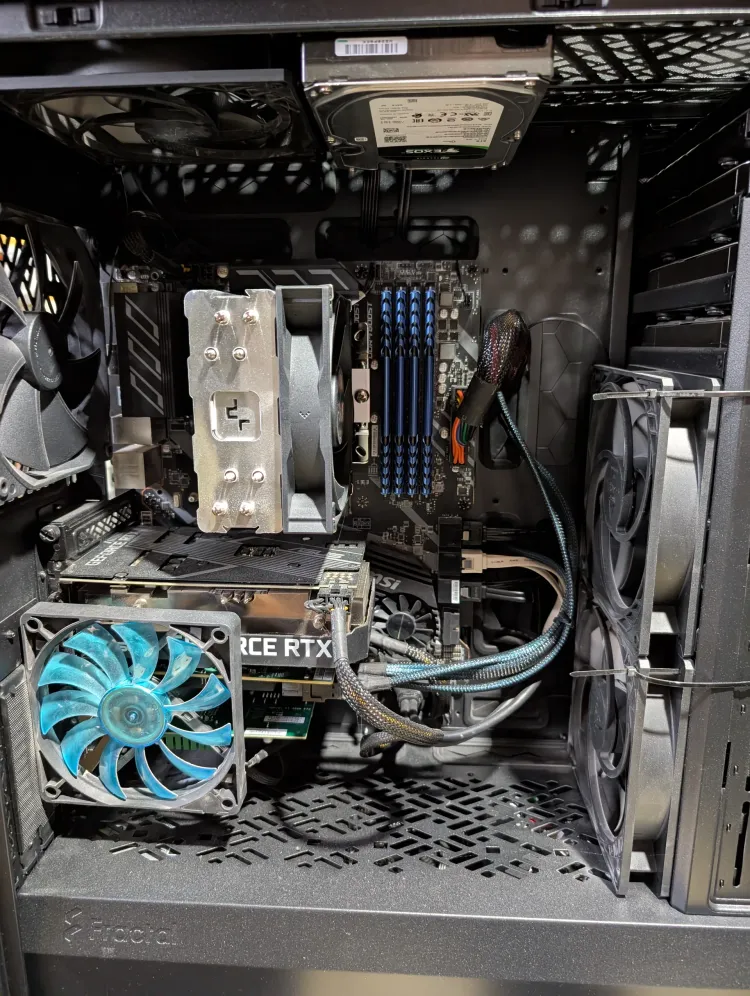
- Core Lab is running on a custom purpose built-"NAS". See here.
The Final Mission Briefing: Which Path Will You Take?
Choosing your NAS OS is like choosing your primary base of operations. The hardware is the walls, but the OS is the intelligence agency running inside. To make your final choice, you must identify your primary mission profile.
🛑 Profile 1: The "Zero-Dark-Thirty" (Synology)
The Mission: You need a system that works 24/7 with zero intervention. You want your family's photos backed up, your files synced, and a polished mobile app for every member of the "unit."
- Choose this if: You value your time more than your hardware freedom. You don't want to learn Linux; you want to "deploy and enjoy."
- The Gear: [Synology DS923+ or DS1522+]
🛠️ Profile 2: The "Scrap-Metal Tech" (OpenMediaVault)
The Mission: You’re repurposing an old office PC or a low-power Mini-PC (The Gatehouse). You want a lean, mean machine that doesn't waste a single CPU cycle on "bloatware."
- Choose this if: You’re on a budget, building a "hidden" edge node, or want a pure Debian experience where you control every single Docker container via YAML.
- The Gear: [Intel N150 Mini-PC / Used Dell Optiplex]
- The Core Labs choice!
🎬 Profile 3: The "Digital Hoarder" (Unraid)
The Mission: You have a collection of 10TB, 14TB, and 18TB drives you’ve "shucked" over the years. You want the easiest way to run Plex, download your media, and add more storage whenever a sale hits.
- Choose this if: Your main goal is a media server and you want the most flexible "Mix-and-Match" drive array on the planet.
- The Gear: [Custom Build in a Jonsbo N3 or Fractal Node 804]
🛡️ Profile 4: The "Fortress Commander" (TrueNAS SCALE)
The Mission: You are storing irreplaceable data (business records, a decade of RAW photography). You want the "Gold Standard" of data protection (ZFS) and you have the RAM to back it up.
- Choose this if: Data integrity is your #1 priority and you want to use the same file system that enterprise data centers trust. (Bonus: The 2026 "Electric Eel" update makes this easier than ever for Docker users).
- The Gear: [Enterprise-grade hardware / 32GB+ ECC RAM]
Final Tactical Tip: "RAID is Not a Backup"
No matter which OS you choose, remember the 3-2-1 Rule:
- 3 copies of your data.
- 2 different media types (NAS + External Drive).
- 1 copy offsite (Cloud or a "Buddy Backup" at a friend's house).
Core Lab Simple Backup Guide here.
Your Digital Fortress is only as strong as your weakest link. Secure your data, commander.

Member discussion