
NAS vs Server: What’s the Difference? (2026 Guide for Homelabs)
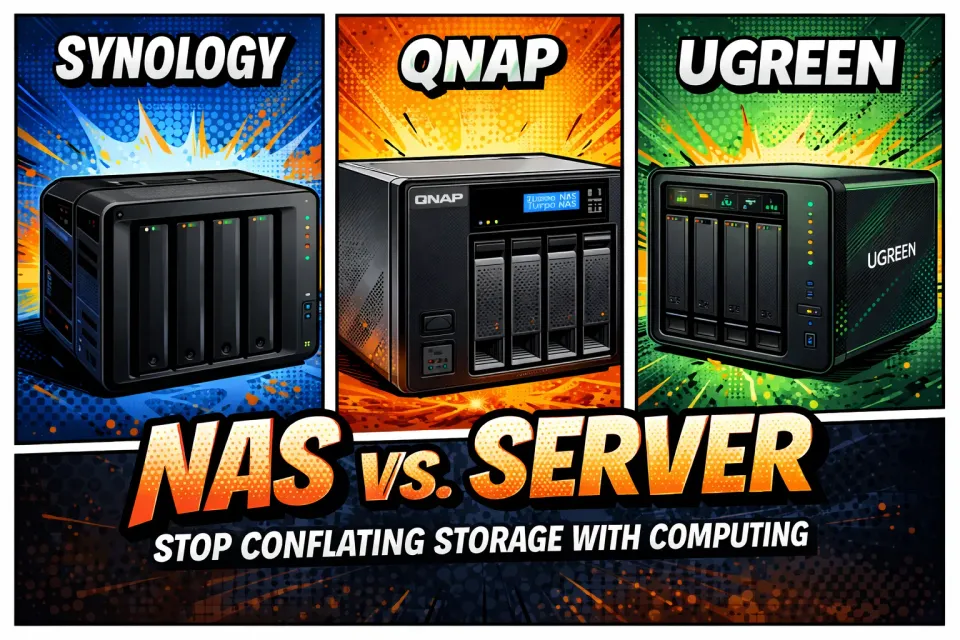
Why NAS and Servers Are NOT the Same Thing
In the modern homelab world, “NAS” and “server” are often used interchangeably - but they’re not the same thing. A NAS is built for storage. A server is built for compute.
TL;DR
* NAS = storage (files, backups, media)
* Server = compute (apps, containers, transcoding)
* Best setup: use both together
The “All-in-One Appliance” Myth
If you walk into a big-box store and buy a sleek, multi-bay unit from Synology, QNAP or UGREEN, you’ve bought an appliance. It’s polished, it’s convenient, and it’s marketed as a "Media Server," "Backup Server," and "Cloud Server" all in one. But technically?
You’ve bought a storage device that is pretending to be a server.
Understanding the DNA-level difference between these two is the first step in building a resilient "Blue Team" architecture.
NAS vs Server: What’s the Difference?
What Is a NAS?
A NAS is a specialized file-level computer. Its hardware is optimized for I/O (Input/Output) - moving bits from a hard drive or multiple hard drives to a network cable.
- Focus: Data redundancy (RAID), file sharing protocols (SMB/NFS), and power efficiency.
- The Hardware: Often features lower-clocked CPUs and specialized drive controllers. It is built to keep your disks spinning safely for a decade.
What is a Server?
A Server isn't a specific type of hardware; it is a functional role. Technically, any computer that offers a service (a function, data, or resources) to other computers or users on a network is a server.
- Focus: Compute power (CPU cycles), memory (RAM), and task execution.
- The Role: Whether it’s hosting a website, running a complex "DUMB" stack, or managing a cybersecurity SIEM like Grafana, a server is there to process data, not just hold it.
Regardless of NAS or Server, you'll want to secure your self-hosted services.
There's also the consideration of physical space. Where do you put your new toy once you've decided on one? Where to fit it into your life and home? Almost anywhere is the answer, so long as you can get some airflow there but the Technodabbler has some great examples of where to keep your server/NAS!
NAS vs Server: Key Differences
Here's the semi-detailed differences, at a hardware layer.
🧠 NAS vs Server vs Mini PC Comparison Table: What Should You Actually Use?
| Feature | NAS (e.g., Synology / QNAP) | Dedicated Server | Mini PC (Modern Intel) |
|---|---|---|---|
| Primary Role | Storage & file sharing | Compute + storage + services | Compute (apps, containers, media) |
| Ease of Use | ⭐⭐⭐⭐⭐ (plug & play) | ⭐⭐ (DIY, complex) | ⭐⭐⭐⭐ (simple, flexible) |
| Performance | ⭐⭐ | ⭐⭐⭐⭐⭐ | ⭐⭐⭐⭐ |
| Plex/Jellyfin | ⚠️ Limited (Direct Play preferred) | 🚀 Excellent (GPU/iGPU capable) | 🔥 Excellent (QuickSync) |
| 4K Transcoding | ❌ Rare / limited | ✅ High capacity | ✅ Strong (UHD 770+) |
| Docker Support | ⚠️ Limited / constrained | ✅ Full control | ✅ Full control |
| Upgradeability | ❌ Very limited | ✅ Full (CPU, GPU, RAM) | ⚠️ Limited (RAM/SSD) |
| Power Efficiency | ⭐⭐⭐⭐ | ⭐⭐ | ⭐⭐⭐⭐⭐ |
| Cost (Value) | 💸 High for performance | 💸💸 (varies widely) | 💰 Best price/performance |
| Best Use Case | Backups, file storage | Homelab, AI, heavy workloads | Plex, containers, self-hosting |
| Scalability | ⚠️ Limited to bays | ✅ Massive | ⚠️ Moderate |
| Networking | Built-in, simple | Fully customizable | Standard |
CPU classes (Celeron vs Xeon / Ryzen)
A lot of NAS use low powered CPUs and that's part of the appeal, the fact they sip power. Sometimes these are basically laptop CPUs like "U" models, other times these are even ASRock Chips or ATOM chips. VERY low power, but correspondingly not good for compute-intensive tasks.
ECC RAM (why servers care, NAS sometimes)
You'll read on Reddit that people SCREAM you should have ECC RAM. While it's absolutely desirable in enterprise environments, the idea that it’s a hard requirement for ZFS at home doesn’t really hold up under scrutiny. The often-cited End-to-End Data Integrity for File Systems: A ZFS Case Study makes it clear that ZFS is extremely effective at detecting and correcting on-disk corruption, which is where the vast majority of real-world data integrity issues actually occur. The system’s checksumming and self-healing design works exactly as intended in those scenarios. Yes, the paper also notes that ZFS is less resilient to memory corruption, but that’s true of any filesystem - and even ECC memory only mitigates, not eliminates, the problem, correcting roughly 94% of errors with common SECDED implementations.
Where things really go off the rails is the infamous “Scrub of Death” argument. The theory is that a single bad bit in non-ECC RAM during a scrub could cascade into catastrophic pool-wide corruption. It sounds terrifying -and it’s also wildly unrealistic. As explained in detail by one of the original ZFS developers in an Ars Technica Forums thread, memory doesn’t behave like that. A single bad address doesn’t suddenly process your entire filesystem; if RAM were that broken, your system wouldn’t even stay running. At worst, you’re talking about isolated corruption events, not total data annihilation.
From Matthew Ahrens, ZFS developer:
"There's nothing special about ZFS that requires/encourages the use of ECC RAM more so than any other filesystem. If you use UFS, EXT, NTFS, btrfs, etc without ECC RAM, you are just as much at risk as if you used ZFS without ECC RAM."
Even if you assume “worst case” RAM actively trying to sabotage you, ZFS still doesn’t just blindly overwrite good data. During a scrub, if a block appears corrupted, ZFS pulls a second copy (or reconstructs it from parity). If that second read is valid, it repairs the original - no harm done. If both reads appear invalid due to bad RAM, ZFS refuses to overwrite anything and instead flags an error. For corruption to actually be written back to disk, you’d need not just bit flips, but a valid checksum collision has to occur! With ZFS’s default 256-bit hashing, that’s on the order of 1 in 2²⁵⁶ (roughly 1 in 10⁷⁷) - effectively impossible in any real-world homelab scenario. As linked above, it's only actually happened 1 time, that anyone is aware of.
So the practical takeaway is pretty straightforward: ECC is nice to have, but it’s not some magical line between “safe” and “unsafe.” ZFS already protects you from the most common and dangerous forms of corruption, and the nightmare scenarios people repeat online don’t hold up when you actually walk through how the system behaves. I’ve been running ZFS since 2013 -both with and without ECC - and the reality is a lot less dramatic than the internet makes it sound.
PCIe lanes (huge for GPUs / NVMe)
This is huge in this discussion, maybe the largest consideration. A prebuilt NAS cannot be upgraded for one thing, as far as PCIE lanes go. This is tied to the chipset (motherboard) and CPU (architecture/generation). Let's break this down by use case and time period.
Today - You want a NAS that can store files, maybe do some medium docker processing such as Immich. You notice that when you load hundreds of images into Immich, it's not exactly blistering speed. That's ok, it goes in, it's safe on your 4 HDD NAS and with an NVME cache drive, it's fast when you review the pictures.
+1 year or so - You've gotten sick of paying for multiple streaming subscriptions, you've read into the hype of Jellyfin vs Plex, you're going go roll with one. Now what?
Can your NAS handle this?
If you thought ahead a bit, or were lucky and just happened to purchase a version of NAS that has an Intel QuickSync chip, you can support doing some transcoding and media server tasks. Some... Maybe it's an older QuicSync and runs great when you have 2-3 streams going, but as soon as 1 or 2 more go, or someone tries to play a 4K and it has to transcode down to 1080p, the NAS chokes and you get the freeze & circle of doom!
Ah darn, can I slap a low-profile discrete GPU in there? Nope...
IOPS vs compute workloads
The clean way to think about it is this: NAS workloads are dominated by IOPS and throughput, while server workloads are dominated by compute (CPU/GPU/RAM). If you mix those priorities up, you end up solving the wrong problem with the wrong hardware.
A NAS lives and dies by how fast it can move data.
That means IOPS (input/output operations per second), latency, and sequential throughput matter far more than raw CPU power. Spinning disks might only give you ~75–200 IOPS each, which is why RAID layouts, caching (ARC/L2ARC), and things like SSDs or NVMe matter so much in a ZFS setup.
Your CPU on a NAS mostly just needs to be “good enough” to handle checksumming, compression, and moving data around. Throwing a 16-core CPU at a pool of slow disks doesn’t magically make it faster - your bottleneck is still the drives and you're just burning more electricity.
A server flips that equation. Once your data is already loaded into memory (maybe from a NAS!), the storage layer mostly gets out of the way, and now you’re limited by how fast you can process that data. Plex/Jellyfin transcoding, Frigate object detection, AI workloads, databases, and anything container-heavy all lean hard on CPU, GPU, and RAM. These are compute-bound tasks. They don’t care if your disks can do 1,000 IOPS vs 10,000 IOPS if the CPU is pegged at 100% trying to transcode or analyze video!
If your Plex server is stuttering, it’s probably not because your ZFS pool can’t do enough IOPS, it’s because your CPU or GPU is tapped out. On the flip side, if your file transfers or VM storage feel sluggish, upgrading your CPU won’t help; you need more IOPS (SSD tiers, better vdev layout, or more spindles). Nail this distinction early and your hardware decisions get a lot simpler, and a lot cheaper.
Why NAS and Servers Get Confused
Marketing blurs the lines...
The consumer market has undergone a massive "appliance-ification." This is what I like to call a "marketechture" term... Made up words to sell you on stuff.
Twenty years ago, if you wanted a server, you built a server. Today, companies package low-power ARM or Celeron processors into specialized drive enclosures, slap a pretty web interface on top, and call it a day after saying it can do X, Y and Z all at once.
These devices are Network Attached Storage (NAS). Their primary mission- their "soul" - is the integrity and availability of your data. They are designed to be "always on, low power, and high capacity." However, they now include "App Stores" that let you click-install Plex or Docker, users have begun to think that a NAS is a server.
The Real Problem with “Do-Everything” Devices
The Reality Check: Just because your toaster can technically grill a cheese sandwich doesn’t make it a commercial stovetop. A NAS is a storage specialist; a Server is a compute generalist.
There are some newer exceptions to this rule such as the newer UGREEN 4800-Plus. We'll dive into how/why below.
Can a NAS Be Used as a Server?
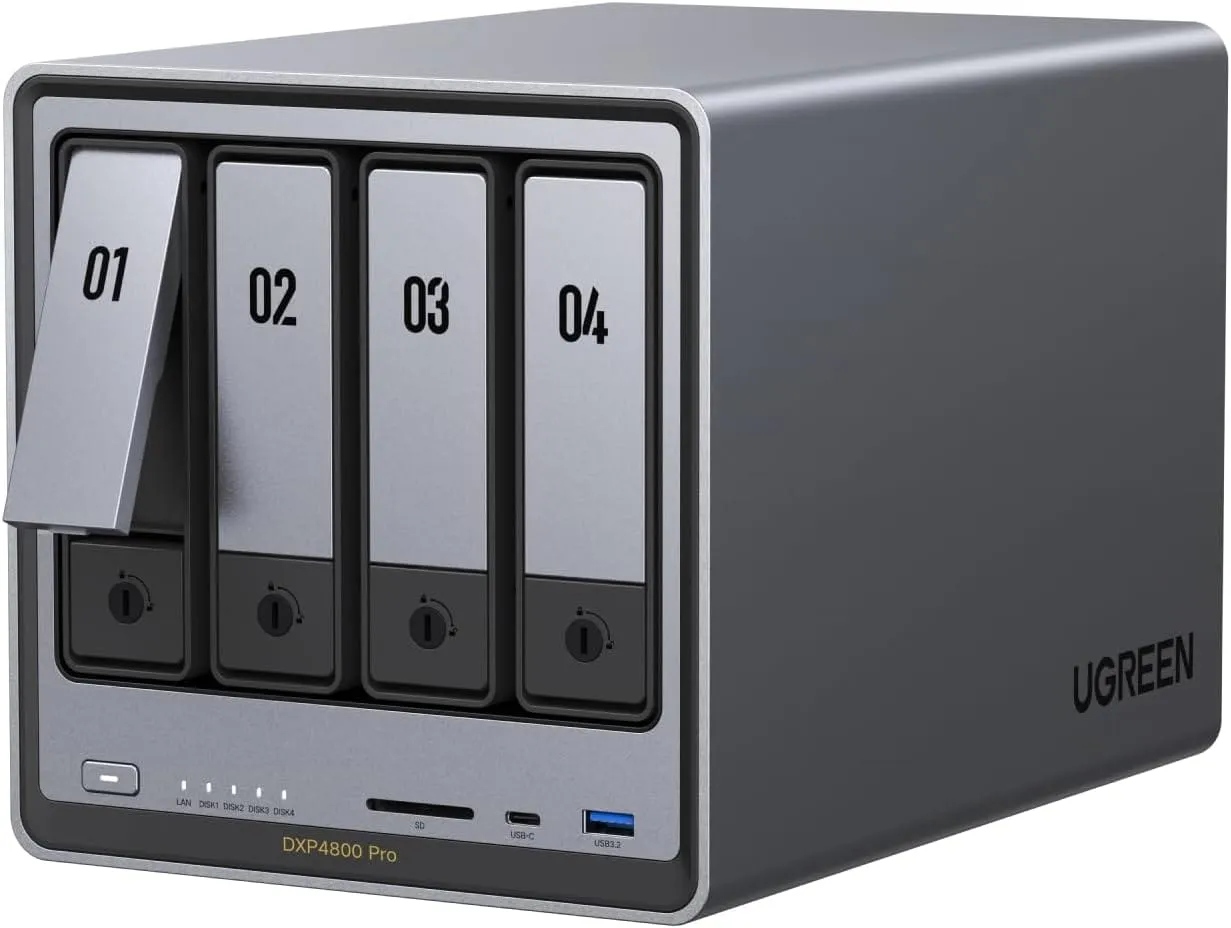
My Core Lab custom server is also a NAS. But it's not something I bought off the shelf, it was built from the ground up.
Any computer can be a server. Your old 2016 desktop? If you install Debian and host a file share, it’s a server. That $2,000 enterprise rack? If it’s just holding files, it’s functioning as a NAS.
Modern NAS units are computers. When you run Docker on a Synology, you are using the NAS hardware to perform a server role.
The “Server-Lite” Problem
The Problem: Most consumer NAS units are "Server-Lite." When you ask a low-power NAS to handle 4K transcoding or run 50+ background containers, you are taxing a CPU that was never meant for heavy lifting. This leads to bottlenecking, system instability, and a poor user experience.
NAS vs Server for Plex, Jellyfin, and Docker
When you run a a few applications, or even a slightly heavier duty one like Immich, your NAS will likely be fine. No, it may not process 10k images you just uploaded at any record breaking speed, but it will work.
When you fire up 15+ apps/docker containers, a couple VMs (Virtual machines), plus normal NAS duties, plus using it as a media server, here's where things slow right down to the point of streams crashing, apps closing, and everything sucking and no one's approval around the house or office.
NAS vs Server Hardware Differences (CPU, RAM, PCIe, IOPS)
There are a few newer ones out there that have the proper CPU to be a bit of a mini-server-powerhouse. These are newer hardware refreshes from the top NAS hardware companies like UGREEN, Synology etc, 25-26 models.
Direct Play vs Transcoding (Why It Matters)
One great example of this is the new UGREEN DXP 4800 PRO featuring an Intel i3-1315u CPU which can support transcoding almost everything right up to (but not including) AV1. So this means your handy little NAS CPU can take a h265 encoded video file and transform it on the fly, to h264 to playback on an old Android TV or phone! It can even drop a 4k HDR file down to 1080p whilst doing a bit of tone-mapping, so it doesn't get all washed out on grandma's tv.
It can't do to many of those at once however, and here's where the issue presents itself.
Here's a breakdown of why it matters that the new version of the DXP4800 has that CPU for a media server:
NAS vs Server vs Mini PC - What Should You Use?
📊 Let’s look at real-world Plex & Jellyfin performance across common hardware tiers:
| Attribute | i3-1315U (UHD iGPU) | UHD 770 (Desktop iGPU) | Intel Arc A380 |
|---|---|---|---|
| Class | Mobile CPU + weak iGPU | Desktop iGPU | Dedicated GPU |
| Power Envelope | ~15–25W | ~65–125W (CPU) | ~75W |
| 1080p Transcodes | ~10–20 | ~20–30 | ~30–40 |
| 4K → 1080p | ~4–6 | ~8–12 | ~12–18 |
| 4K HDR Tone Map | ~3–5 | ~6–10 | ~10–15 |
| AV1 Decode | Yes | Yes | Yes + Encode |
| AV1 Encode | No | No | Yes (huge) |
| Stability (Linux/Docker) | Excellent | Excellent | Good (finally matured) |
| Efficiency | 🔥 Best | Good | Medium |
It's easy to see that although capable, the i3-1315U is not a server CPU but can do some reasonable work as a media server. You should base your decision off how many people will concurrently be using your NAS or media server.
How Many Streams a NAS Can Actually Handle
If it'll only be 2-4 people consistently on there while transcoding, the UGREEN or similar will be a good fit. If you'll end up going to 6 or 8 consistent users, for streaming anyway, you would need to have something more capable and likely need a computer with an Intel chip that has a Quicksync UHD770. Or, right up to an Intel Arc A380 if you want to future proof yourself with AV1!
For normal NAS & file operations, your limit is only how fast the drives can spin in that NAS!
The UGREEN 4800 is a fantastic all around entry-point to self-hosting, if you don't want to custom-build a server just yet.
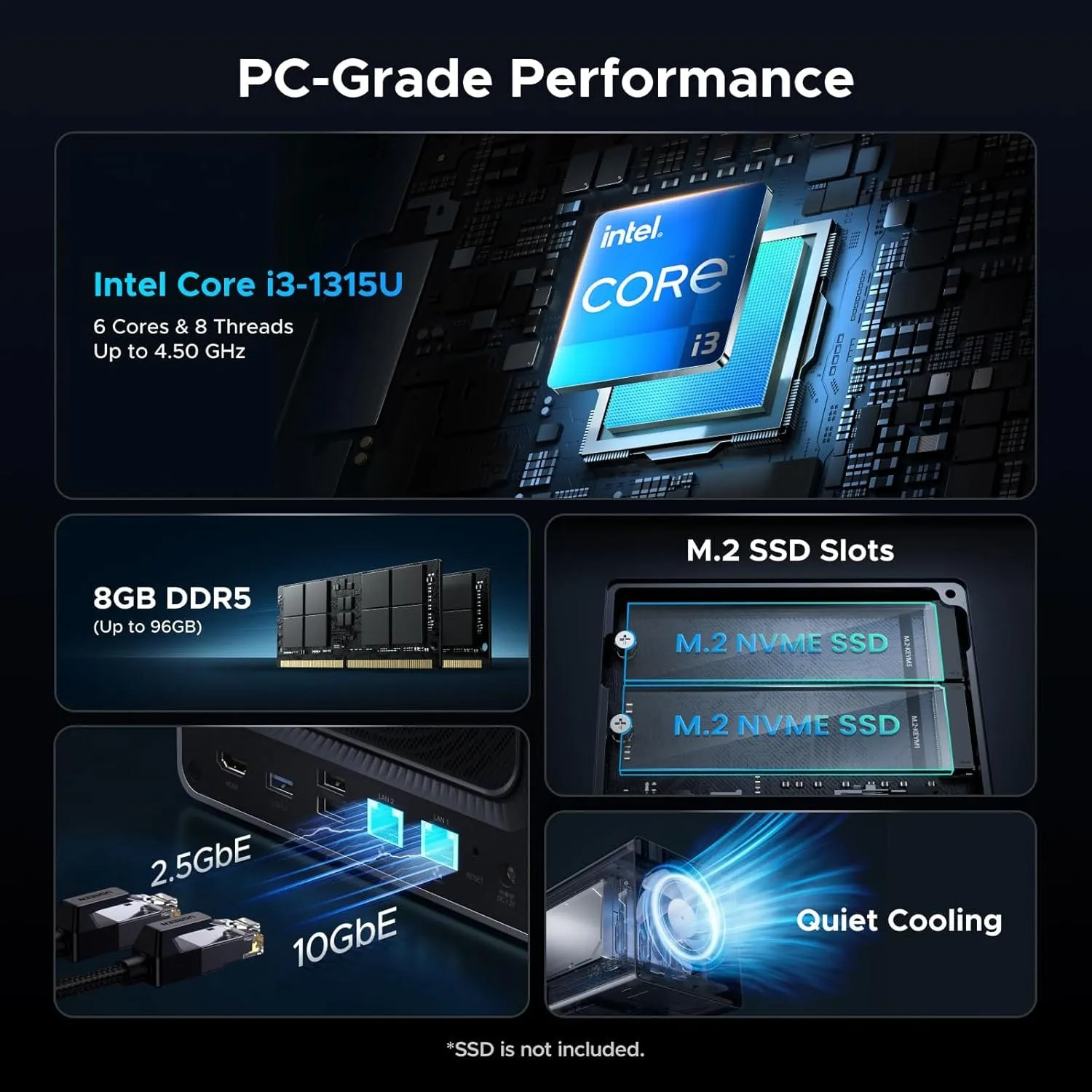
UGREEN NAS DXP4800 Pro 4-Bay Desktop NAS
Intel® Core™ i3-1315U 6-Core / 8 thread CPU, 8GB DDR5 RAM, Built-in 128G SSD, 1x 10GbE, 1x 2.5GbE, 2X M.2 NVMe Slots, 4K HDMI, Network Attached Storage (Diskless)
🏗️ Best Homelab Setup in 2026 (NAS + Server Combo)
As a cybersecurity professional, I advocate for the Separation of Powers whenever possible. In a professional SOC, you don't run your analytics on the same box that holds your forensic logs. In a mature homelab, the principle is the same: Modularize to Survive.
If your budget allows, move away from the "all-in-one" (AIO) server and adopt a two-node architecture:
The “Digital Vault” + “Compute Engine” Model
- The "Digital Vault" (NAS Role): A dedicated, low-power box (e.g., a repurposed desktop running OpenMediaVault). Its sole mission is the integrity and availability of your data.
- The "Compute Engine" (Server Role): A high-performance node (e.g., an Intel N150 or an i5-13600K or a Ryzen 5500) that handles the heavy lifting - containers, VMs, and game servers - while mounting storage via NFS or SMB from the Vault.
🛡️ Why Separation Improves Stability & Security
- Hardware-to-Role Optimization: You don't need a 14-core CPU to move files. A NAS can run on a 5W chip that supports HDD spin-down, saving you significant hydro/electrical costs. Meanwhile, your Server can stay "lean and mean" with high-frequency cores for gaming and transcoding.
- Reduced Blast Radius: If you push a Docker config too hard and kernel-panic your Server, your OpenMediaVault storage remains untouched. Your data isn't at the mercy of a buggy container.
- Hardware Lifecycle Independence: Want to upgrade to the latest Ryzen 9000 for better gaming performance? You can swap the Server node without ever unmounting a hard drive or risking your RAID array.
- Maintenance Flexibility: If your Server’s PSU dies, you can temporarily mount your NAS shares to a laptop or a spare PC. Your "Vault" stays online, and your services are back up in minutes.
- Thermal Management: Spinning disks generate heat. By separating them from a high-TDP CPU, you reduce the cooling requirements for both units, often leading to a quieter lab.
⚠️ Disadvantages of Separated Units (The Trade-offs)
- Network Dependency: Your performance is now limited by your "backplane." If you are running 4K Plex streams or heavy database apps over a 1GbE link, you’ll hit a bottleneck. You often need 2.5GbE or 10GbE to make this feel local.
- Increased Complexity: You now have two OSs to patch, two sets of backups to manage, and "Mount Point" logic to troubleshoot if the network hiccups.
- Idle Power Draw: While individual units can be efficient, two power supplies idling will almost always pull more "vampire power" than a single high-quality PSU in an all-in-one build.
- The "RPi Trap": Using unstable hardware (like an RPi with USB-SATA adapters) for your NAS creates a "flaky" foundation. If the storage layer isn't rock-solid, the high-performance server above it is useless.
- Physical Space: Two boxes, two power bricks, and extra cabling. It’s not as "clean" as a single 4-bay chassis sitting on a desk.
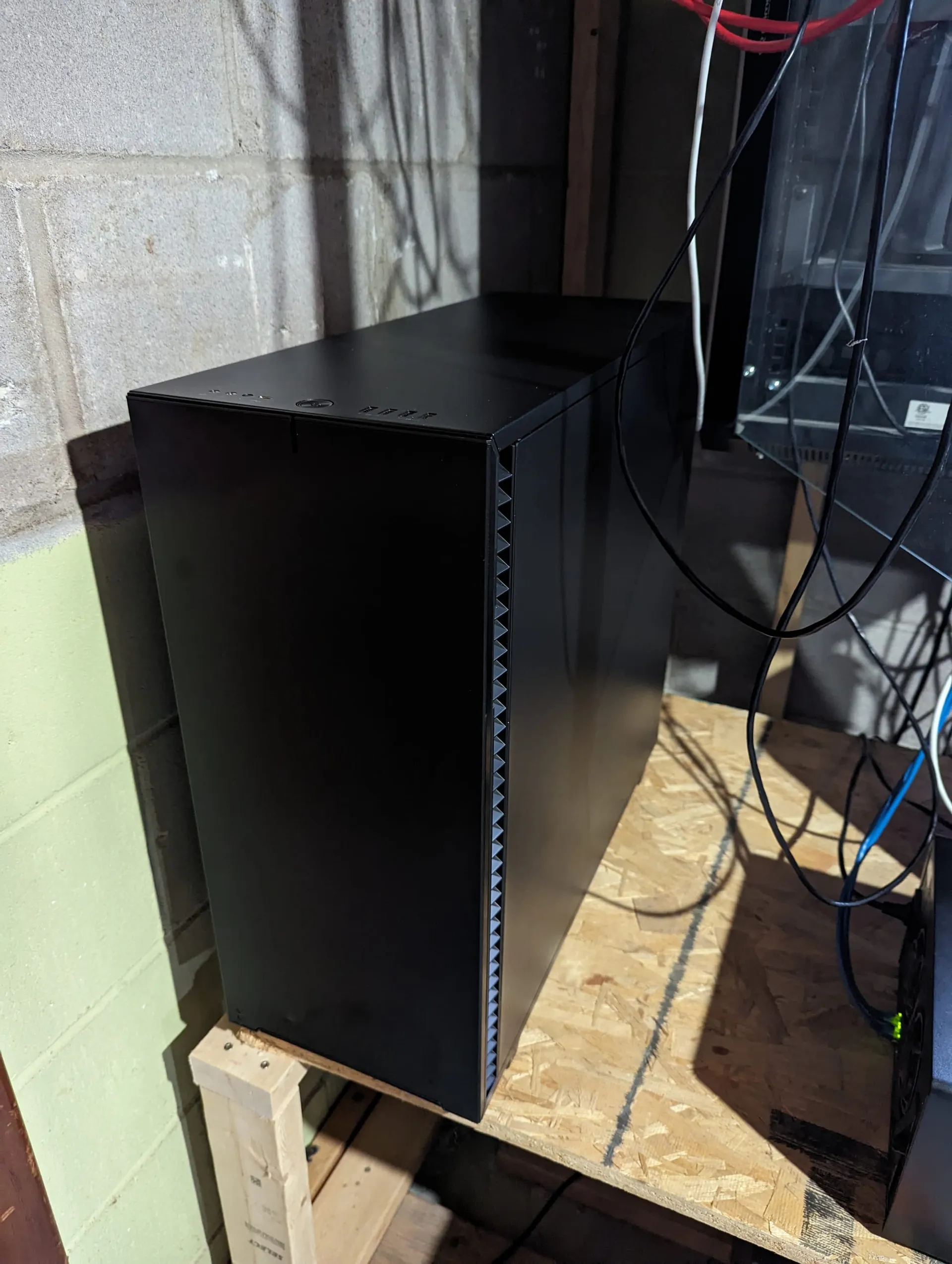
While the "Separation of Powers" is the gold standard for resiliency, the All-in-One (AIO) Server is the undisputed champion of the starting line. For many in the Core Lab community, an AIO isn't just a budget choice - it’s a strategic entry point.
Here is a breakdown of why you might choose to keep everything "under one roof" and how to do it without compromising your security posture.
🏗️ All-in-One Server vs Separate NAS: Pros and Cons
An All-in-One system combines your Storage (NAS) and your Compute (Server) into a single physical chassis. You might have your OpenMediaVault or TrueNAS running as the base OS, with all your game servers and apps running as Docker containers on top of it.
🛡️ Why AIO Builds Are Great
- The Budget Primary Driver: This is the biggest factor. Instead of buying two cases, two power supplies, and two motherboards, you put every dollar into one high-quality system. You save on hardware costs and initial "buy-in" price.
- Simplicity of Management: One IP address to hit. One dashboard to monitor. One set of security updates to run. For a beginner, managing the networking between two separate boxes can be a steep learning curve; the AIO removes that friction.
- Leveraging Spare Parts: Most "Scrap Lab" builds start as AIOs. If you have an old gaming tower with six SATA ports, it’s much more logical to throw in some drives and run your servers there than to try and split that aging hardware into two weak nodes.
- Space & Power Efficiency: A single, modern system (like a high-end Mini PC or a custom-built mid-tower) often pulls less power at idle than two separate machines. If you live in an apartment or have limited desk real estate, one box is the "clean" way to go.
- Maximum Internal Speed: In an AIO, your game servers talk to your storage at the speed of the internal bus (SATA/NVMe) rather than being throttled by a 1GbE network cable. This results in lightning-fast load times for Satisfactory saves or Palworld assets.
⚠️ The Risks (Single Point of Failure)
- The Single Point of Failure: This is the biggest risk. If your motherboard dies or your OS drive fails, everything goes dark. Your files, your game servers, and your media are all offline simultaneously.
- BACKUPS are not an option, they are mandatory!
- Resource Contention: A "greedy" game server like Palworld or Satisfactory can eat all the available RAM, potentially starving the NAS OS and causing data write errors or system instability.
- Security Complexity: Since your "Vault" and your "Public Face" (the game servers) share the same kernel, you have to be extremely diligent with Docker permissions and network (VLAN) zoning. A container escape on an AIO is much more dangerous than on a separated compute node.
💡How to Build a “Safe” All-in-One System: The "Intentional" AIO Build
If you are going the AIO route, don't just "wing it." Use a system that can handle the dual-load. I recommend a build that prioritizes high RAM capacity (min 32GB RAM, preferably 64GB) and NVMe storage for the OS/Apps to keep the mechanical HDDs strictly for long-term storage.
You can checkout my complete Core Lab custom Server/NAS build. From there, I have deployment guides on setting up Open Media Vault 8 and more and pre-thought out builds on my hardware guide page👇!
🧩 Best Setup for 2026: Mini PC + NAS (The Sweet Spot)
Mini PC (Compute) + NAS (Storage)
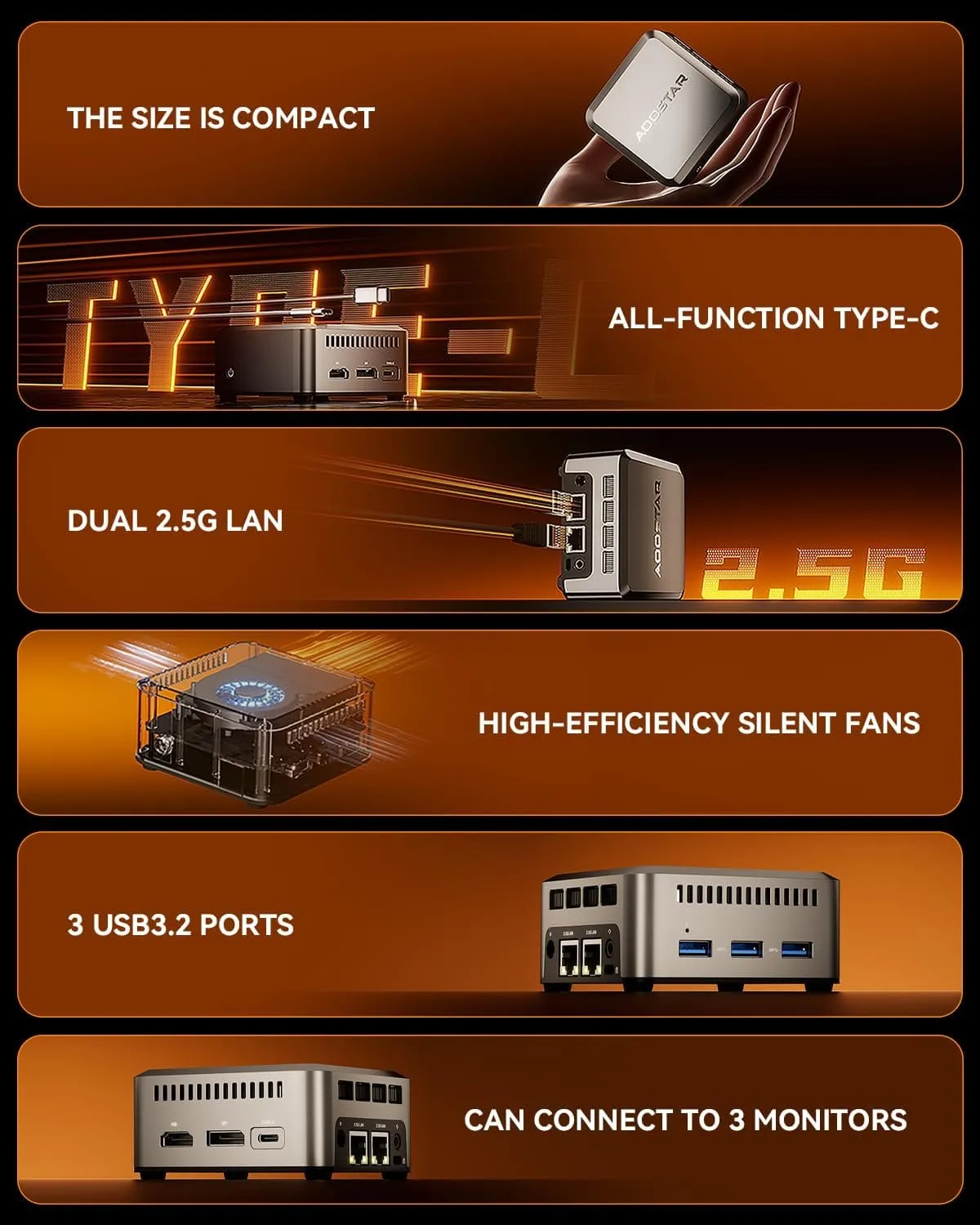
Intel Twin Lake N150 (Upgraded N100) Mini PC
Mini Desktop PC with LPDDR5 12GB RAM 512GB M.2 2242 SSD, Mini Computers 4K Triple Display/Dual 2.5G LAN/WiFi5/BT5 for Office/Business
- Mini PC → runs Plex, Docker, apps (N150 at least)
- NAS → stores media, backups (Can be almost a potato)
- Can be an old PC that can simply operate 2-8 HDDs you plugin! Does not need to be very performant at all.
👉 This combo setup:
- Outperforms most prebuilt NAS units
- Costs less than high-end NAS
- Scales cleanly over time
Conclusion / What's Next⁉️
If your system is doing heavy work, it’s a server. If it’s protecting your data, it’s a NAS. Trying to make one do both without intentional design, is where most homelabs fail.
If you've decided on your hardware/build, take a peek now at my Selfhosted Cybersecurity series to protect your home network, or, setup your environment for ultimate streaming mastery.
 Core Lab Joe
 Core Lab Joe
Frequently Asked Questions
❓ What’s the difference between a NAS and a server?
A NAS is designed for file storage and sharing, while a server provides compute power to run applications, databases, and services. NAS = storage. Server = storage + processing.
❓ When should you use a NAS instead of a server?
Use a NAS when you need simple, centralized storage, backups, and file sharing. Choose a server when you need to run apps like Plex, Docker, or databases.
❓ Can a NAS replace a server?
Not really. While some NAS devices can run apps, they lack the CPU power, flexibility, and scalability of a proper server for demanding workloads.
❓ Can a NAS be used as cloud storage or backup?
Yes. Most NAS systems support remote access, cloud sync, and automated backups, making them ideal for private cloud storage.
❓ Can a NAS work without internet?
Yes. A NAS works fully on your local network (LAN). Internet is only needed for remote access, updates, or cloud sync.
❓ Is a NAS just a file server?
Essentially yes—but simplified. A NAS is a specialized file server appliance designed to be easy to use, while a traditional server is more powerful and flexible.
❓ NAS vs DAS: what’s the difference?
- NAS (Network Attached Storage): Accessible over the network by multiple devices
- DAS (Direct Attached Storage): Connected directly to one machine (USB/SATA)
NAS = shared storage
DAS = local storage
❓ What hard drives should you use in a NAS?
Use drives designed for 24/7 operation like NAS-grade HDDs. They offer better reliability, vibration tolerance, and firmware tuning than desktop drives.
❓ How much storage can a NAS handle?
NAS systems scale from a few terabytes to hundreds of terabytes or more, depending on drive count and expansion options. A typical 6 bay NAS can hold 144TB no problem.
❓ What are common NAS use cases for home or small business?
- File storage and sharing
- Automated backups
- Media libraries (Plex/Jellyfin)
- Surveillance storage
- Document collaboration
❓ How does a NAS compare to a server for performance?
Servers are significantly more powerful. They handle multiple users, applications, and heavy workloads, while NAS devices are optimized for storage tasks.
❓ What network setup does a NAS need?
A NAS connects via Ethernet to your router or switch. For best performance, use Gigabit or faster networking.
❓ Do you need a server license to run a NAS?
No. NAS devices include their own built-in operating systems, so no separate server licensing is required.
❓ Can a NAS run Plex or Jellyfin?
Yes—but performance depends on hardware. Many NAS devices struggle with transcoding, making them better suited for direct play or light use.
❓ Is a NAS good enough for Plex?
For basic streaming, yes. For multiple users or 4K transcoding, a dedicated server or GPU is a much better choice.
❓ Why do people confuse NAS and servers?
Because modern NAS devices can run apps, people assume they’re servers. In reality, they’re storage devices with limited compute features.
Member discussion