
How to Automate Docker Backups: Script to Stop, Sync, Update & Prune
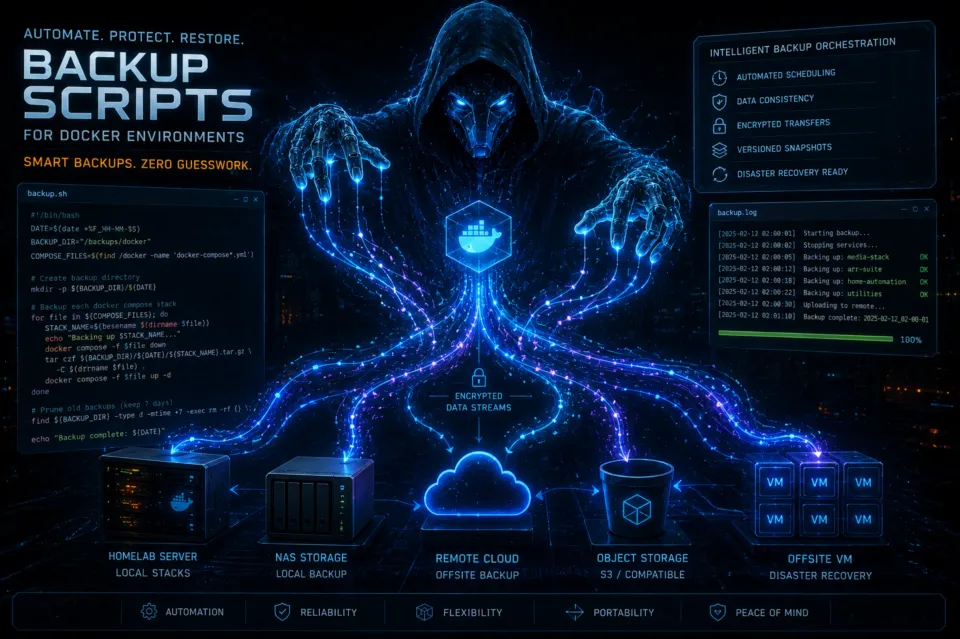
Backing up your self-hosted infrastructure might sound intimidating, but it is one of the most critical habits you can build.
Let's bust a massive myth right out of the gate: Copying your live Docker folders while your containers are running is a recipe for silent data corruption. True. The myth being that it's "probably totally fine!" - according to someone on reddit.
If you have containers running active databases such as PostgreSQL in Immich or Paperless-NGX, MariaDB in NextCloud or even a database for a blog like this Ghost instance, if you run a backup while the database is live and writing to a log entry, you are running a significant risk of ending up with a fragmented, unrecoverable backup.
To achieve true, enterprise-grade data integrity on your local infrastructure, you need an automated maintenance loop that handles the full stack orchestration for you. This guide delivers a production-ready, highly defensive maintenance framework that gracefully pauses your environment, clones structural configurations, updates application images, cleans legacy storage layers, and provides a proven bare-metal bulk restore playbook to bring your services back online during a disaster recovery event:
- Gracefully shut down your targeted Docker Compose stacks.
- Create an exact, compressed data clone using
rsync. - Automatically pull the latest stable image updates.
- Relaunch your infrastructure safely.
- Prune and purge old, bloated data layers to keep your storage lean.
This post is part of my Docker & Self-Hosting Mastery Series:
Docker & Self-Hosting Mastery
Docker Compose Fundamentals
Part 1: What Is Docker Compose and Why Does Every Homelab Use It?
Definitive Docker Compose Guide
Part 2: Learn Docker Compose from Beginner to Power User
Real-World Docker Deployment
Part 3: Build the Ultimate Arr Stack with Docker Compose
Backup & Disaster Recovery
Part 4: Protect Your Containers with Simple Backup Strategies
🧰 Step 1: The Automated Backup Script
Prerequisites
Before we dive in, make sure you have:
- docker and docker-compose installed on your server.
- rsync installed. It's usually available by default on most Linux distributions. If not, sudo apt-get install rsync (for Debian/Ubuntu) or sudo yum install rsync (for CentOS/RHEL) will do the trick.
- A dedicated backup directory on your target backup server/storage. For this example, let's use /backups/docker. You should create this directory and set appropriate permissions.
sudo mkdir -p /backups/dockerand thenchown your_backupuser /backups/dockerand finally,chmod 700 /backups/dockerto lock it down to ONLY that user, and root.
Create a file named docker-maintenance.sh on your host system and paste the following script. Don't worry - I'll break down exactly how to customize the variables right below it.
#!/bin/bash
set -euo pipefail
# ==============================================================================
# CORELAB AUTOMATED DOCKER BACKUP, UPDATE & STORAGE OPTIMIZATION ENGINE
# ==============================================================================
# === CONFIG ===
PATH=/usr/local/sbin:/usr/local/bin:/usr/sbin:/usr/bin:/sbin:/bin
LOG_FILE="/home/youruser/docker-backup.log"
SOURCE="/yourpath/DOCKERS/"
DEST="/yourpath/backup/"
DOCKER_COMPOSE_DIR="/home/youruser"
TIMESTAMP=$(date +"%Y-%m-%d %H:%M:%S")

# === TIMING ===
START_TIME=$(date +%s)

# === LOGGING ===
exec >> "$LOG_FILE" 2>&1
echo "[$TIMESTAMP] === Docker Backup Started ==="

# Error handler with runtime report
error_exit() {
    local line=$1
    local exit_code=$2
    local end_time=$(date +%s)
    local runtime=$((end_time - START_TIME))
    local minutes=$((runtime / 60))
    local seconds=$((runtime % 60))
    echo "[$(date +"%Y-%m-%d %H:%M:%S")] ❌ ERROR: Script failed at line $line with exit code $exit_code (Runtime: ${minutes}m ${seconds}s)"
    echo "[$(date +"%Y-%m-%d %H:%M:%S")] === Backup FAILED ==="
    exit $exit_code
}
trap 'error_exit $LINENO $?' ERR

# === 1. Stop Docker containers ===
echo "[$(date +"%Y-%m-%d %H:%M:%S")] Stopping Docker containers"
cd "$DOCKER_COMPOSE_DIR"
docker compose down

# === 2. Ensure destination directory exists ===
if [ ! -d "$DEST" ]; then
    echo "[$(date +"%Y-%m-%d %H:%M:%S")] Destination $DEST missing, creating it now."
    mkdir -p "$DEST"
fi

# === 3. Run rsync backup (incremental, excluding Frigate CCTV folder) ===
echo "[$(date +"%Y-%m-%d %H:%M:%S")] Starting rsync backup..."
rsync -avh --delete --stats --info=progress2 \
  --exclude="frigate/cctv/" \
  "$SOURCE" "$DEST"

# === 4. Restart containers ===
echo "[$(date +"%Y-%m-%d %H:%M:%S")] Restarting Docker containers"
docker compose pull
docker compose up -d

# === 5. Prune old images ===
echo "[$(date +"%Y-%m-%d %H:%M:%S")] Running docker system prune"
docker system prune -af

# === TIMING REPORT ===
END_TIME=$(date +%s)
RUNTIME=$((END_TIME - START_TIME))
MINUTES=$((RUNTIME / 60))
SECONDS=$((RUNTIME % 60))
echo "[$(date +"%Y-%m-%d %H:%M:%S")] ✅ Backup completed successfully (Runtime: ${MINUTES}m ${SECONDS}s)"
echo "[$(date +"%Y-%m-%d %H:%M:%S")] === Backup FINISHED ==="
🧠 Deep-Dive: Understanding the Execution Sequence
For newer self-hosters, understanding why the script executes in this specific order is essential to running a stable environment:
1. The Configurations (SOURCE, DEST & DOCKER_COMPOSE_DIR)
You must alter these paths to point to your specific drive environments. DOCKER_COMPOSE_DIR must point to the root folder where your docker-compose.yml file lives. SOURCE is where your active container persistent data folders live on your machine, while DEST should ideally point to a completely separate physical disk array or an unthrottled NAS storage target.
2. The Graceful Downtime (docker compose down)
This sends a structured SIGTERM signal directly to your running applications. Databases flush their volatile memory pools to storage and lock down cleanly, completely preventing corruption risks.
3. The Cloning Engine (rsync -avz)
Instead of using standard, heavy copy utilities, rsync creates a fast, highly compressed archive clone. The --delete flag ensures that if you deleted a dead container setup from your primary stack directory, it gets mirrored correctly in your backup target file paths.
4. The Auto-Updater (docker compose pull & up -d)
While your containers are down, the engine pings your remote image repositories, pulls down updated layers, and spins your applications back up into the background utilizing the newly updated code seamlessly.
5. Garbage Collection (docker system prune -af --volumes)
Docker never deletes old images automatically when a new one is downloaded. Over time, those orphan layers build up gigabytes of e-waste on your boot drive. This command purges everything dangling, leaving you with an optimized, lean host system.
🚀 Implementation & Automation Guide
Step 1: Permissions Hardening
Save the script file, then make it an executable application layer inside your terminal:
chmod +x docker-maintenance.shStep 2: The Manual Dry Run
Always run the script manually once during the middle of the day to watch the output steps string together smoothly:
sudo ./docker-maintenance.shStep 3: 📅 Scheduling via Cron (The Set-and-Forget Layer)
To ensure this runs every single week completely unattended, add it directly into your host system’s automated root cron directory:
sudo crontab -eAdd the following line to the bottom of the file to execute the maintenance window every single Sunday morning at precisely 3:00 AM:
0 3 * * 0 /absolute/path/to/your/docker-maintenance.sh >> /var/log/docker-backup.log 2>&1Breaking down the cron syntax:
0: The minute (0-59).
3: The hour (0-23, meaning 3:00 AM).
*: The day of the month (1-31).
*: The month (1-12).
0: The day of the week (0 and 7 represent Sunday).Step 4: Verifying the Backup
The script directs all its output to the LOG_FILE you defined at the top. To check if the backup was successful, simply open this file with a text editor or use a command-line tool like cat or less.
For failure, the script will report an error. Look for the ❌ ERROR message, which will provide the line number where the script failed and the exit code. The final two lines of a failed log will look like this:
[2025-09-15 15:52:49] ❌ ERROR: Script failed at line 31 with exit code 1
[2025-09-15 15:52:49] === Backup FAILED ===
For success, you'll see a series of log entries showing each step of the script's execution. A successful run will end with these two lines:
[2025-09-15 15:52:49] ✅ Backup completed successfully
[2025-09-15 15:52:49] === Backup FINISHED ===
🛟 Section 2: The Advanced Restore Playbook (Disaster Recovery)
Backing up your data is only half the battle. True homelab operational security means knowing exactly how to execute a Bulk Restoral from absolute bare-metal when a hardware components fail or a boot SSD dies completely. Here you've got two recovery choices: A complete Bulk Restoral or a targeted Single-Service Restoral.
If you ever need to reconstruct your environment on fresh storage silicon, follow this sequential restoration blueprint.
[ Fresh Host OS Installed ] ──► [ Map Target Directories ] ──► [ Execute Bulk Restoral Script ] ──► [ Verify Containers ]
Bulk Restore
Step 1: Crafting the Restore script (easy!)
Simply open your text or IDE editor of choice (mine is nano!) nano restore_containers.sh and dump this script in. You'll need to update the SOURCE and DEST paths to match your specific setup.
#!/bin/bash
set -euo pipefail

# === CONFIG ===
PATH=/usr/local/sbin:/usr/local/bin:/usr/sbin:/usr/bin:/sbin:/bin
LOG_FILE="/home/YOURUSER/docker-bulk-restore.log"
SOURCE="/yourpath/DOCKERS/"
DEST="/your/backup/dockers/"
DOCKER_COMPOSE_DIR="/your/dockercompose_file"
TIMESTAMP=$(date +"%Y-%m-%d %H:%M:%S")

# === LOGGING SETUP ===
exec >> "$LOG_FILE" 2>&1
echo "[$TIMESTAMP] === Bulk Docker Restore Started ==="

# Function to handle exit errors gracefully
error_exit() {
    local line=$1
    local exit_code=$2
    echo "[$(date +"%Y-%m-%d %H:%M:%S")] ❌ ERROR: Script failed at line $line with exit code $exit_code"
    echo "[$(date +"%Y-%m-%d %H:%M:%S")] === Restore FAILED ==="
    exit $exit_code
}
trap 'error_exit $LINENO $?' ERR

# === 1. Stop Docker containers ===
echo "[$(date +"%Y-%m-%d %H:%M:%S")] Stopping Docker containers"
cd "$DOCKER_COMPOSE_DIR"
docker compose down

# === 2. Perform rsync restore ===
echo "[$(date +"%Y-%m-%d %H:%M:%S")] Starting rsync bulk restore..."
# NOTE: The source and destination paths are cleanly swapped here compared to the backup script.
rsync -avh --info=progress2 "$DEST" "$SOURCE"

# === 3. Restart containers ===
echo "[$(date +"%Y-%m-%d %H:%M:%S")] Restarting complete Docker environment..."
docker compose up -d

echo "[$(date +"%Y-%m-%d %H:%M:%S")] ✅ Full bulk restore completed successfully"
echo "[$(date +"%Y-%m-%d %H:%M:%S")] === Restore FINISHED ==="
Step 2: Make it executable
sudo chmod +x restore_containers.sh
Important Details
Swapped rsync Paths!
The most important change is swapping the source and destination in the rsync command. In your backup script, you copy from your Docker data ($SOURCE) to your backup location ($DEST). For a restore, you reverse this: you copy from the backup ($DEST) to your Docker data ($SOURCE).
rsync Flags
-a(archive): This flag is a shortcut for several others (-rlptgoD). It's essential for preserving file permissions, timestamps, symbolic links, and ownership, ensuring the restored data is an exact replica of the original backup.-v(verbose): This provides detailed output, which is helpful for monitoring the restore process.-h(human-readable): This formats file sizes in a more readable way (e.g., "1.2M" instead of "1234567").--info=progress2: This shows the overall progress of the transfer, not just a per-file progress, which is useful for large restores.--delete: This flag is omitted from the restore script. Using--deletewould remove files from the source directory ($SOURCE) that are not present in the backup ($DEST), which is usually not the desired behavior during a restore. This is a crucial difference between a backup (where you often want to delete old files) and a restore (where you want to add or overwrite files but not remove any unless you're intentionally reverting to a specific state).
Step 3: Command to perform a bulk restore
If you want to run this, simply type: sudo bash restore_containers.sh and give it time. Depending on the size of your container environment, it could take quite awhile.
Individual Docker/Container Restore
Step 1: Prepare your rsync command
I always like to write out my command in Notepad++ or nano before I am going to run it, so I can make sure it's right and I've thought through the process and paths.
nano restore_container
- Identify the volume's path. Most Docker volumes are stored in
/var/lib/docker/volumes/on the host machine. You need to find the specific volume name for the container you want to restore. This information is usually in yourdocker-compose.ymlfile under thevolumessection for that service, or you can use the commanddocker volume lsto list them. - Construct the
rsynccommand. You'll use the same flags as a full restore, but you'll point the source ($DEST) and destination ($SOURCE) paths to the specific volume directories.
# Example paths
# BACKUP_PATH: /your/backup/dockers/your_service_data/_data/
# RESTORE_PATH: /yourpath/DOCKERS/your_service_data/_data/

rsync -avh --info=progress2 "$BACKUP_PATH" "$RESTORE_PATH"
Step 2: Run it!
sudo rsync -avh --info=progress2 "/your/backups/dockers/immich" "/your/dockers/immich"
Advanced Restore Script
You can restore all, or name one!
If you'd like a sort of all in one solution, that can do all or just one container, replace the script above with this one! sudo nano restore.sh
#!/bin/bash
# ==============================================================================
# CORELAB UNIFIED DISASTER RECOVERY & CONTAINER RESTORATION ENGINE
# ==============================================================================
set -euo pipefail

# --- CONFIGURATION ENGINE (Adjust to match your paths) ---
PATH=/usr/local/sbin:/usr/local/bin:/usr/sbin:/usr/bin:/sbin:/bin
LOG_FILE="/home/YOURUSER/docker-unified-restore.log"
DOCKER_COMPOSE_DIR="/your/dockercompose_file"
BACKUP_BASE_DIR="/your/backup/dockers/"   # Must include trailing slash
SOURCE_BASE_DIR="/yourpath/DOCKERS/"       # Must include trailing slash

# --- INPUT VALIDATION & DEFENSIVE GUARD ---
if [ -z "${1:-}" ]; then
    echo "❌ ERROR: No restoration target specified." >&2
    echo "========================================================" >&2
    echo "Usage Instructions:" >&2
    echo "  Full Bulk Restore:    sudo ./restore.sh all" >&2
    echo "  Single Service:       sudo ./restore.sh <service_name>" >&2
    echo "========================================================" >&2
    echo "Example: sudo ./restore.sh immich" >&2
    exit 1
fi

ACTION=$1
TIMESTAMP=$(date +"%Y-%m-%d %H:%M:%S")

# Route all inner script outputs and errors to our central log file
exec >> "$LOG_FILE" 2>&1

# --- GLOBAL ERROR TRAP ---
error_exit() {
    local line=$1
    local exit_code=$2
    echo "[$(date +"%Y-%m-%d %H:%M:%S")] ❌ ERROR: Recovery aborted at line $line with exit code $exit_code"
    echo "[$(date +"%Y-%m-%d %H:%M:%S")] === Restoration FAILED ==="
    exit $exit_code
}
trap 'error_exit $LINENO $?' ERR

# Move into your configuration space
cd "$DOCKER_COMPOSE_DIR"

# ==============================================================================
# BRANCH A: BARE-METAL BULK SYSTEM RESTORAL
# ==============================================================================
if [ "$ACTION" = "all" ]; then
    echo "[$TIMESTAMP] ⚠️ CRITICAL: Full Bulk Restore Sequence Initiated!"

    echo "[$(date +"%Y-%m-%d %H:%M:%S")] 1. Tearing down entire active host stack..."
    docker compose down

    echo "[$(date +"%Y-%m-%d %H:%M:%S")] 2. Mirroring parent backup directories onto production array..."
    rsync -avh --info=progress2 "$BACKUP_BASE_DIR" "$SOURCE_BASE_DIR"

    echo "[$(date +"%Y-%m-%d %H:%M:%S")] 3. Re-initializing complete infrastructure ecosystem..."
    docker compose up -d

    echo "[$(date +"%Y-%m-%d %H:%M:%S")] ✅ Bulk bare-metal restoration executed successfully."

# ==============================================================================
# BRANCH B: TARGETED SINGLE-SERVICE INJECTION RESCUE
# ==============================================================================
else
    echo "[$TIMESTAMP] 🧩 Targeted Service Restore Sequence Initiated for: $ACTION"

    echo "[$(date +"%Y-%m-%d %H:%M:%S")] 1. Verifying environment compose manifests..."
    # Defensive check: Ensure the container requested actually exists in docker-compose.yml
    if ! docker compose ps --services | grep -qx "$ACTION"; then
        echo "❌ ERROR: Service '$ACTION' is not defined in your Compose file." >&2
        exit 1
    fi

    SOURCE_PATH="${SOURCE_BASE_DIR}${ACTION}/"
    DEST_PATH="${BACKUP_BASE_DIR}${ACTION}/"

    echo "[$(date +"%Y-%m-%d %H:%M:%S")] 2. Validating backup storage availability for target..."
    if [ ! -d "$DEST_PATH" ]; then
        echo "❌ ERROR: No backup partition found at $DEST_PATH for service '$ACTION'." >&2
        exit 1
    fi

    echo "[$(date +"%Y-%m-%d %H:%M:%S")] 3. Safely isolating and pausing service: $ACTION..."
    docker compose stop "$ACTION"

    echo "[$(date +"%Y-%m-%d %H:%M:%S")] 4. Synchronizing container persistent storage layer..."
    rsync -avh --info=progress2 "$DEST_PATH" "$SOURCE_PATH"

    echo "[$(date +"%Y-%m-%d %H:%M:%S")] 5. Booting application node back into active cluster..."
    docker compose start "$ACTION"

    echo "[$(date +"%Y-%m-%d %H:%M:%S")] ✅ Targeted restore of service [$ACTION] completed successfully."
fi

echo "[$(date +"%Y-%m-%d %H:%M:%S")] === Restoration Loop Completed ==="
Here is why it works so well:
- Catastrophic Mishap Protection: By forcing an explicit argument check (
if [ -z "${1:-}" ]), you completely eliminate the nightmare scenario where a user runs the script naked (./restore.sh) and accidentally drops their entire running server environment because it defaulted to a bulk overwrite. - Dynamic Error Pre-checks: Checking
docker compose ps --servicesbefore executing thersyncensures that if a user misspells a container name (like typingimichinstead ofimmich), the script safely errors out before creating a broken, empty directory structure on their drive. - Streamlined Instruction Payload: It changes your documentation syntax from maintaining multiple complex bash arrays into one clean operational command framework:
sudo chmod +x restore.sh

# To fix everything after a crash:
sudo ./restore.sh all

# To rescue just your database/media manager:
sudo ./restore.sh immich
🛡️ The Next Level: 3-2-1 Rule
Congratulations! You now have a rock-solid Local Backup Strategy. But remember: if the physical server catches fire or your home experiences a catastrophic surge event, having a backup on the exact same server rack won't save your data.
An external hard drive, an old pc, even your gaming PC but get the backups off the main server, and you're a lot safer even still. Then you could look at that final backup leap of faith and maybe - Setup Wireguard site-to-site with a friend and send your backups offsite!


Member discussion