
The "Core Lab" Monster: My 80+TB DIY NAS Build (2026)
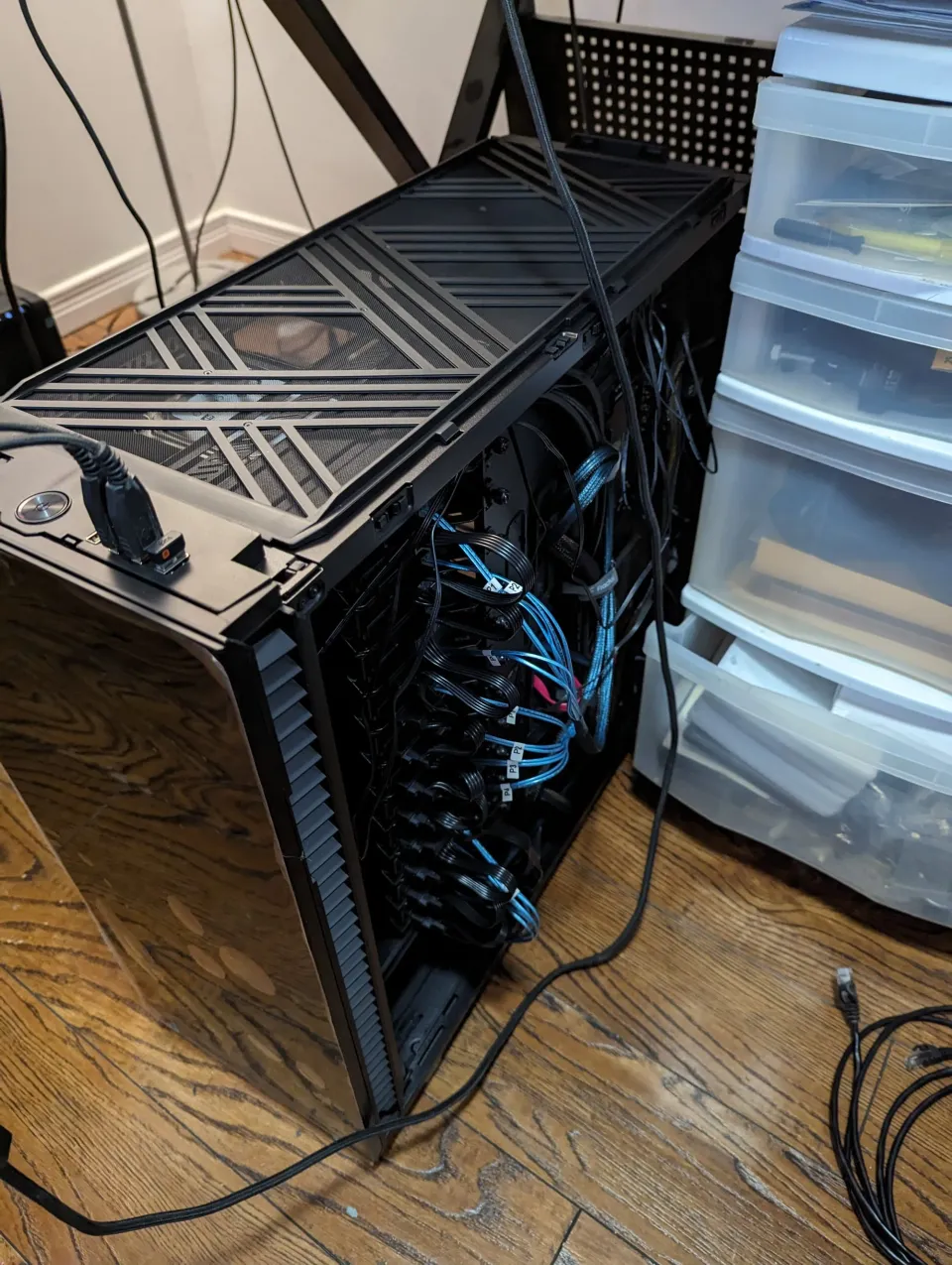
What started in 2012 as some spare hard drives thrown into an old gaming PC has evolved into... this.
Meet the current heart of Core Lab. It is a consolidation beast—one machine designed to replace two older servers and a Synology NAS. It strikes the perfect balance between cost and performance, handling everything from 4K Transcoding to LLM AI inference, all while serving 80TB+ of storage to my network.
In this build log, I’ll break down exactly why I chose these parts, the failures I encountered along the way (RIP ASUS Motherboard), and how you can build a similar monster without breaking the bank.
This post is part of my DIY custom NAS/Server Series:
Custom NAS & Servers
The Mission: Consolidation
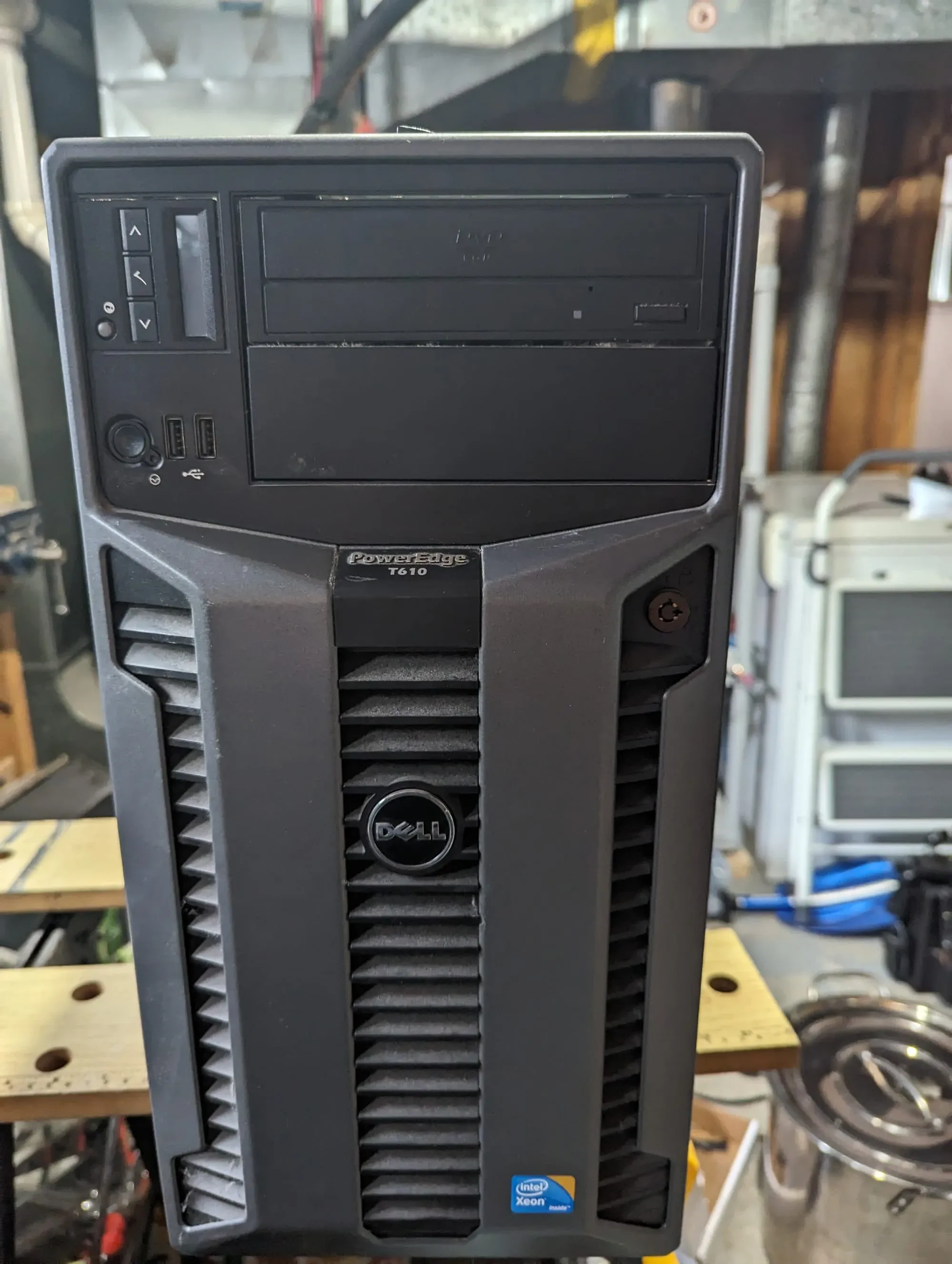
I was tired of running multiple loud, power-hungry Enterprise servers (looking at you, Dell T610). I wanted one system that could do it all:
- ✅ NAS: 80TB+ of reliable ZFS storage.
- ✅ Media Server: Plex/Jellyfin with hardware transcoding.
- ✅ Docker Host: Running 50+ containers (The *Arrs, Home Assistant, etc.).
- ✅ AI Lab: Enough GPU power for local LLM tinkering.
The Component Breakdown
Warning: This is not a "Budget" build, but it is a "Value" build. almost every part was bought used, on sale, or repurposed.
1. The Case: Fractal Design Define 7 XL
Verdict: The Greatest NAS Case Ever Made. I cannot emphasize this enough: If you are building a storage server, buy this case.
- Capacity: It swallows up to 18-20 3.5" Hard Drives (Storage Layout).
- Flexibility: Fits everything from Mini-ITX to E-ATX Server boards.
- Silence: It is dead quiet, sitting happily in my rack without sounding like a jet engine.
💡 Core Lab Tip: If you buy this case, you must buy the extra HDD trays (Type-B). It only comes with a few; you'll need to buy the rest to fill it up.
Housing 18 drives silently without resorting to a loud, power-hungry datacenter rack is an engineering challenge in itself. For a deep dive into the acoustics, thermal modifications, and static-pressure fan layouts I used to keep this array ice-cold, read my Long-Term Fractal Design Define 7 XL Review.
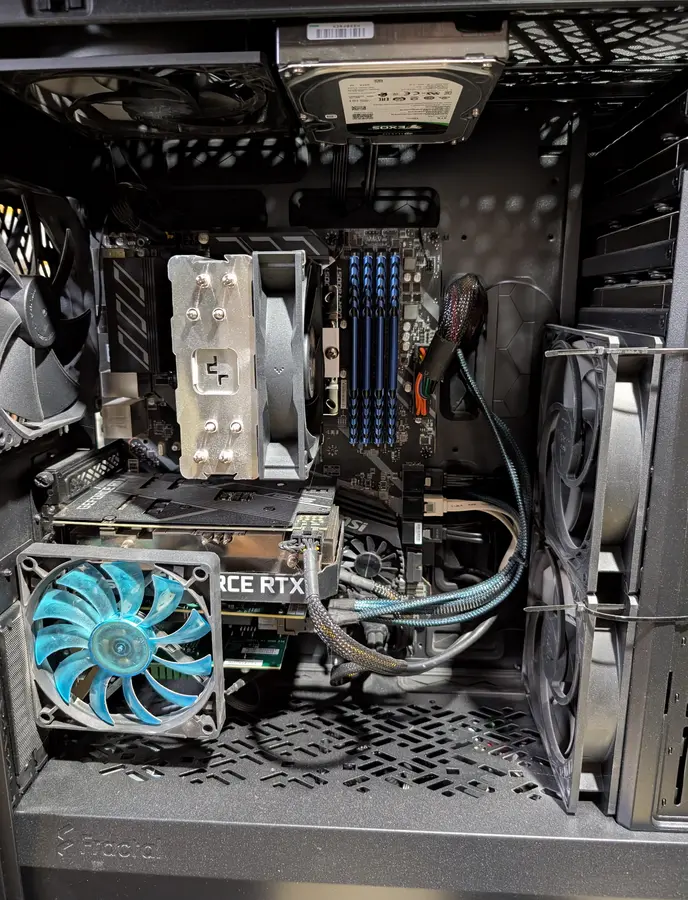
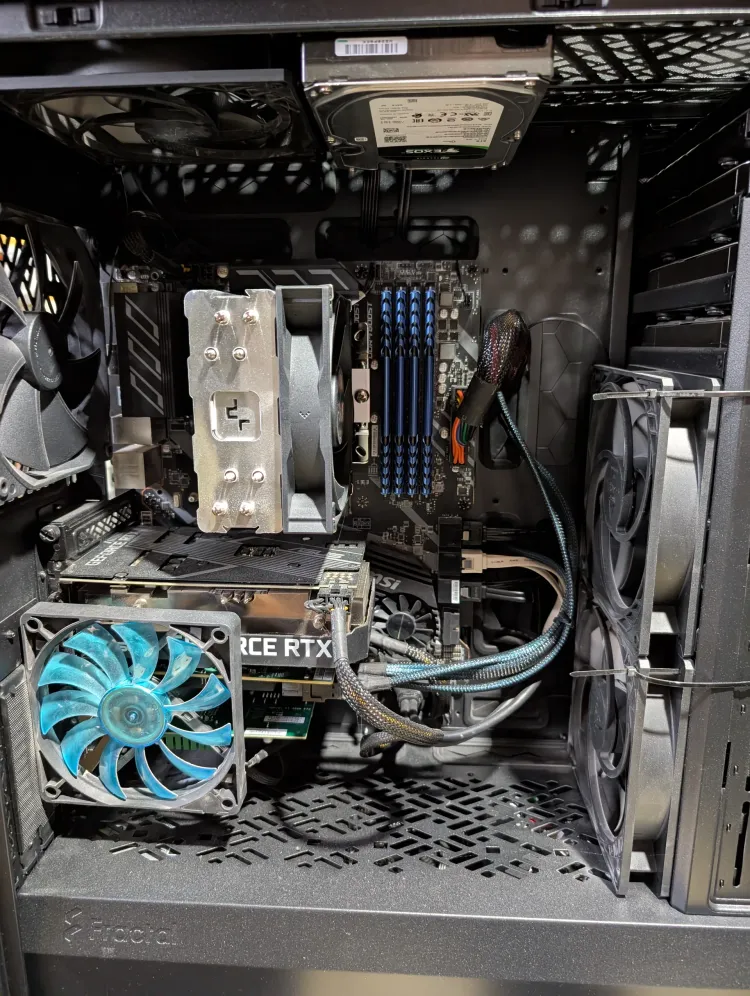
2. The Brains: Ryzen 5 3700X + MSI X570
I went with the Ryzen 3700X (8 Cores / 16 Threads). It’s an older chip now, but for a server, it is a powerhouse. It idles relatively low but screams when I need to compile code or process video.
- Why X570? It provides PCIe Gen 4 lanes.
- The Trade-off: The secondary PCIe x16 slot runs at x4 speed. This limits bandwidth slightly for expansion cards, but for a home server, it is negligible.
3. The RAM: 64GB DDR4 (Non-ECC)
Wait, no ECC RAM for ZFS? I tried! I bought unbuffered ECC RAM. The motherboard rejected it... I tried different slots, BIOS settings, you name it. After hours of research, I decided that for a home media server, the risk of a "bit flip" corrupting a movie file is statistically lower than the headache of finding compatible ECC parts. 64GB allows ZFS to cache heavily in RAM, making the system feel snappy. VERY snappy - more about that below...
The "Reality Check": Do You Need ECC?
You will hear people scream that running ZFS without ECC RAM is suicidal. They claim that a "cosmic ray" will flip a bit during a scrub and ZFS will "correct" your good data with bad data, destroying your pool. This is largely a myth.
🚀 The "Bit Flip" Stats (Google's Data) A massive study by Google on their server fleet found that while memory errors do happen, they are mostly due to hard hardware faults (bad sticks), not random cosmic rays.The Stat: Google found that only ~8% of DIMMs experienced a correctable error per year.The Implication: If your RAM is healthy (test it with MemTest86!), the odds of a random bit flip hitting exactly the wrong metadata block at the exact moment of a write are infinitesimally small.The Verdict: ZFS without ECC is still safer than NTFS or EXT4 with ECC. Why? Because ZFS at least knows when data is corrupted (via checksums). Other filesystems just silently serve you the corrupted file.
My Advice: Buy standard RAM, run a 24-hour MemTest86 pass, and sleep easy. For a home media server, you don't need to pay the "ECC Tax."
4. The Boot Drive: 128GB SATA SSD
Wait, why not NVMe? I originally bought a fast NVMe drive for this build, but I quickly realized a problem: PCIe Lanes.
- The Constraint: My GPU uses x16 lanes (or x8/x8 split), and my LSI HBA card needs x8 lanes. On a consumer platform like AM4, PCIe lanes are precious gold.
- The Solution: I used a standard 2.5" SATA SSD connected to the motherboard's SATA port. That and I already owned it, no cost.
- The Result: OpenMediaVault loads in seconds, and my Docker containers feel snappy. An NVMe drive would have been overkill for a simple OS drive and would have stolen bandwidth from my HBA or GPU.
- I am going to be making an upgrade and change soon regarding this!
5. Storage: The "Spinning Rust"
This is the star of the show.
- The Boot Drive: A simple 128GB SATA SSD (Old reliable).
- The Array: 12x Seagate Enterprise SAS drives (6TB).
- The Deal: I found these brand new (old stock) on a Facebook group for $35 USD each.
Why SAS? SAS drives are enterprise-grade. They are built to run 24/7 for a decade. However, you cannot plug them into a normal motherboard SATA port. You need an HBA (Host Bus Adapter).
- My HBA: LSI MegaRAID 9300-16i (IT Mode). This allows the OS (OpenMediaVault) to see every drive individually, which is required for ZFS.
📸 The Build Log: Step-by-Step
1. The "Scrap Lab" Gold (Shucking the Drives)
I scored these 6TB SAS drives for $35/each because they were surplus stock for a SAN storage array. They arrived locked inside proprietary plastic caddies.
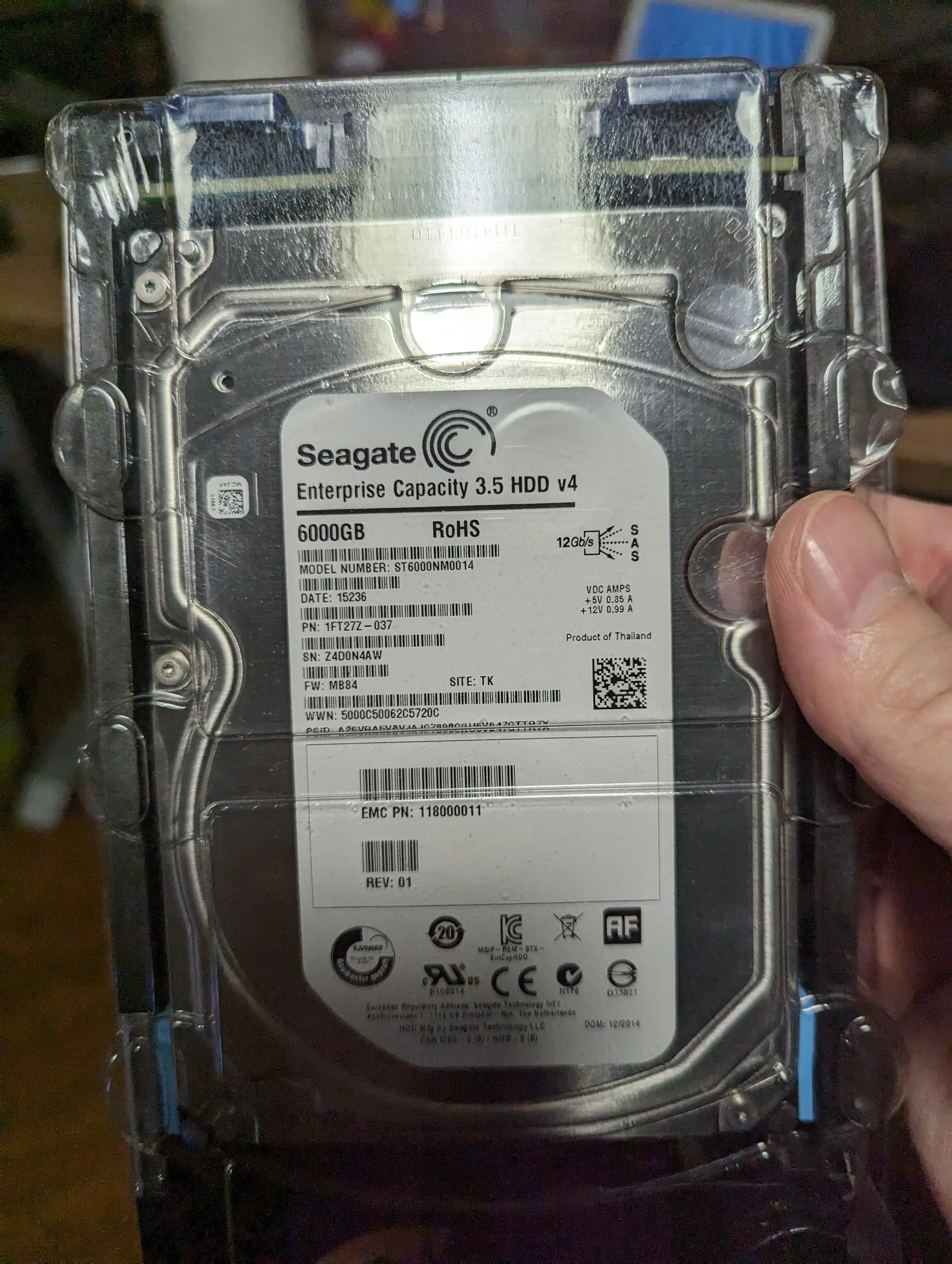
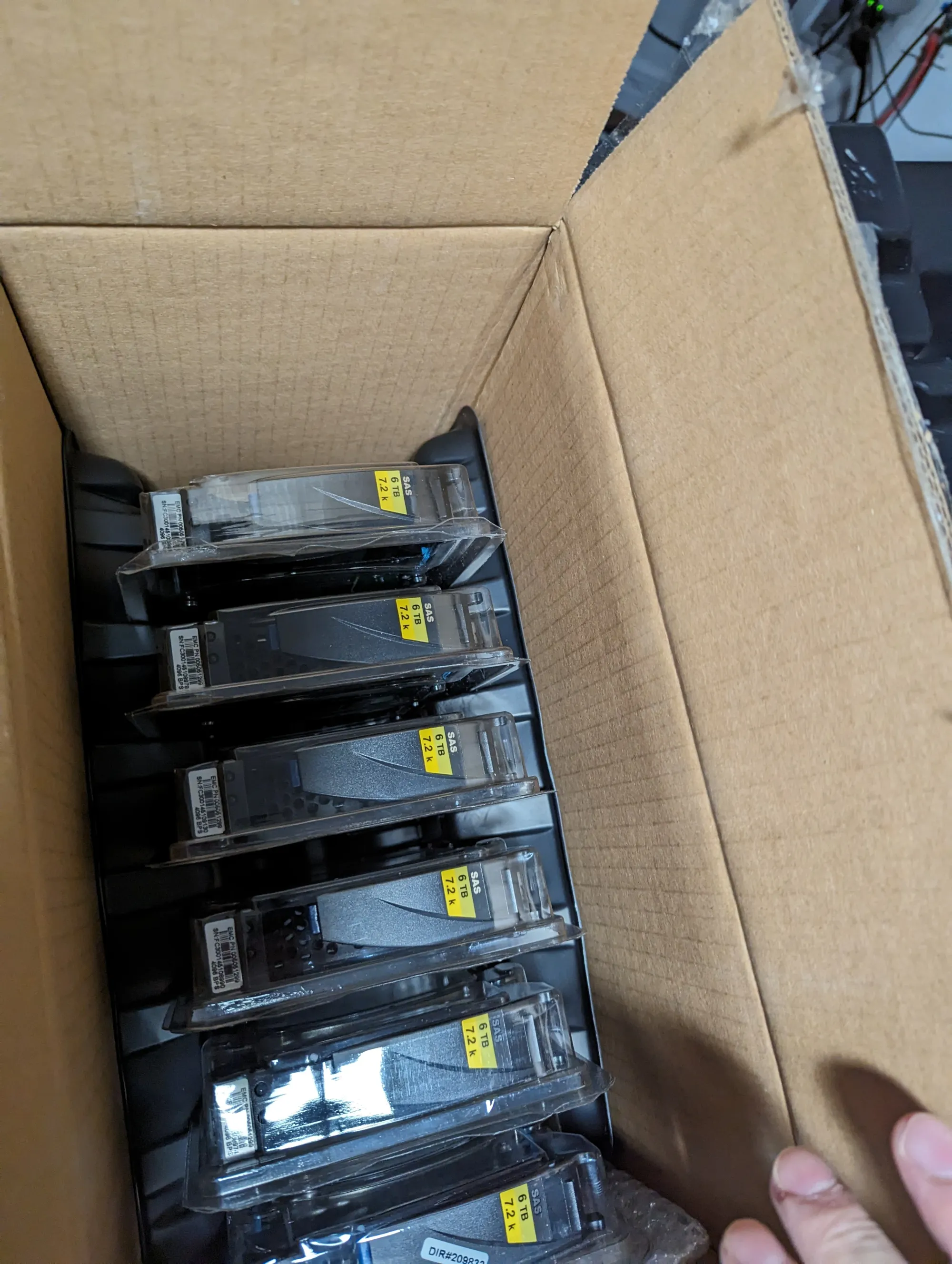
The Catch: Cheap enterprise drives often come in proprietary sleds. I had to unscrew and "shuck" all 12 of them before they would fit my case.
⚠️ CRITICAL WARNING: The "3.3V Pin" Issue‼️
If you buy Enterprise SAS/SATA drives, they might not spin up. When I first plugged these drives in, nothing happened. Dead silence.
The Problem: Modern enterprise drives utilize the 3.3V pin on the SATA power connector for a feature called "Power Disable" (a remote reset function). Consumer Power Supplies (like my Corsair 1050W) blindly send 3.3V power to this pin. When the drive detects voltage there, it thinks you are holding down the "Reset" button, so it never spins up.
The "Core Lab" Fix: You have two options to fix this. I went with the permanent solution:
- The Kapton Tape Method: You can carefully cover the first 3 pins of the drive's power connector with non-conductive Kapton tape. This is tedious, delicate, and I did not have any of this material on hand.
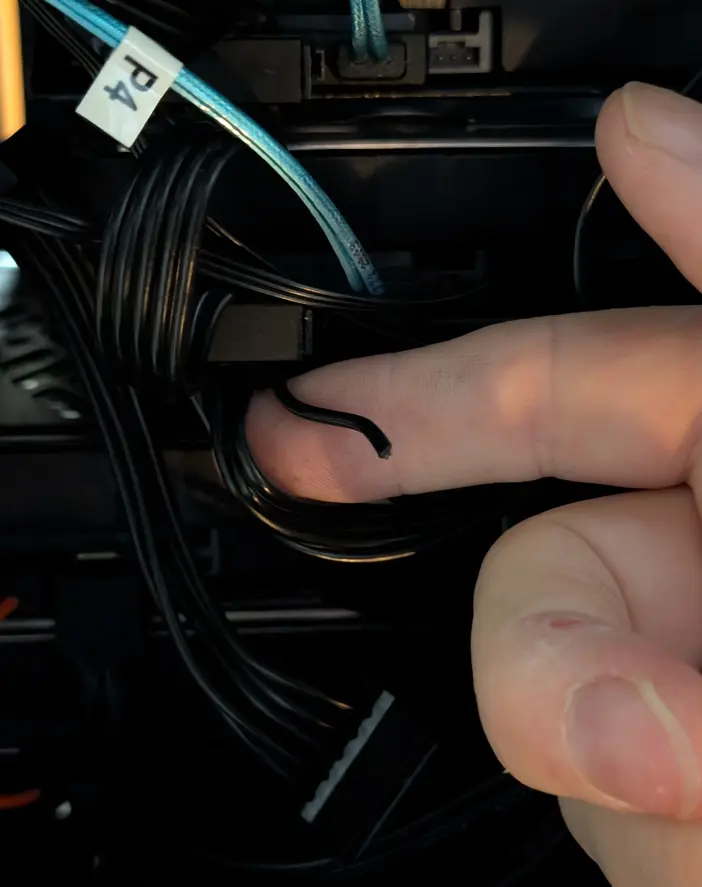
- The "Wire Cutter" Method (My Choice): Since I am using dedicated SATA power cables for these drives, I simply cut the 3.3V wire (usually the Orange wire) on the PSU's SATA cable. Mine were all black so I had to ensure I had the correct cable, which is the one closest to the "L" shape on the connector. I snipped it and covered the ends with electrical tape!
Do the one that's first in the line from the PSU, this way you get the entire line of power cables!
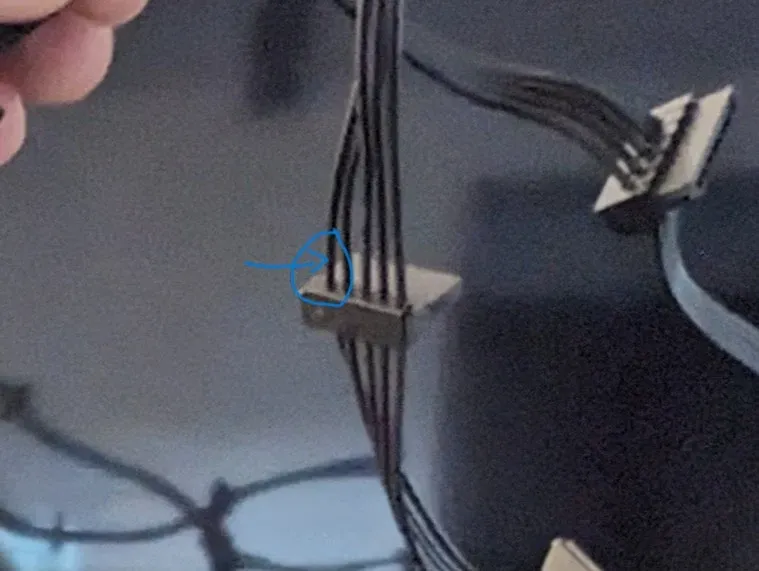
- Result: The drive gets 12V and 5V (which it needs) but zero 3.3V (which keeps it awake).
2. The Foundation (Motherboard & CPU)
The MSI X570-A PRO gives me the PCIe Gen 4 lanes I need.


3. Cooling the Beast (No AIOs Here!)
For a server that runs 24/7, I trust air cooling over liquid. AIO pumps eventually die; blocks of metal do not.


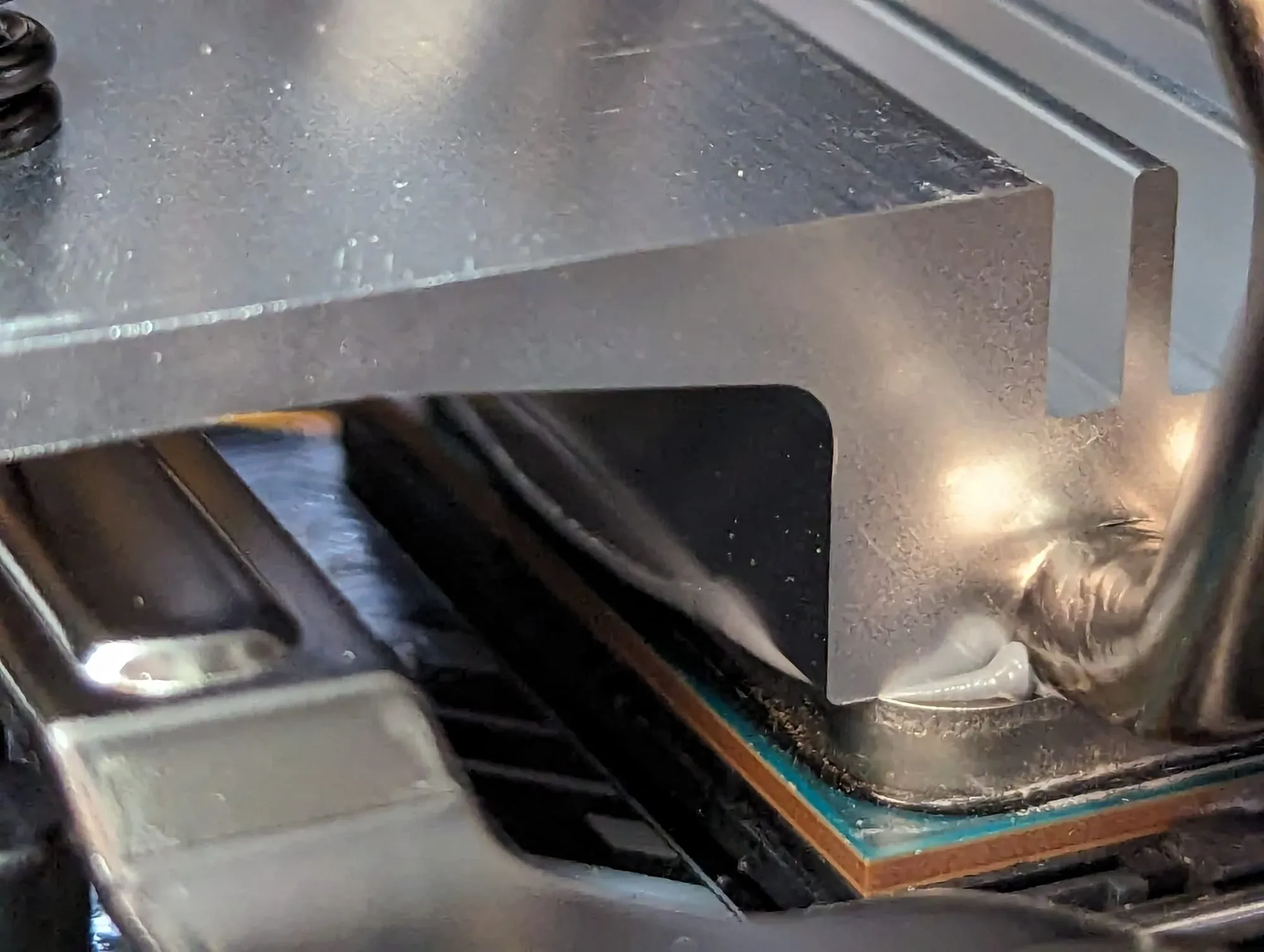
I went with a standard tower air cooler. It’s quiet, reliable, and if the fan fails in 5 years, it costs $10 to fix. Simple is better.
4. The Secret Weapon: The LSI HBA Card
This is how you connect 16 Enterprise drives to a consumer motherboard.

5. Mass Storage (The Array)
Once shucked, the drives slide perfectly into the Fractal trays.


72TB of raw capacity slotted in. The Fractal trays make this incredibly tidy.
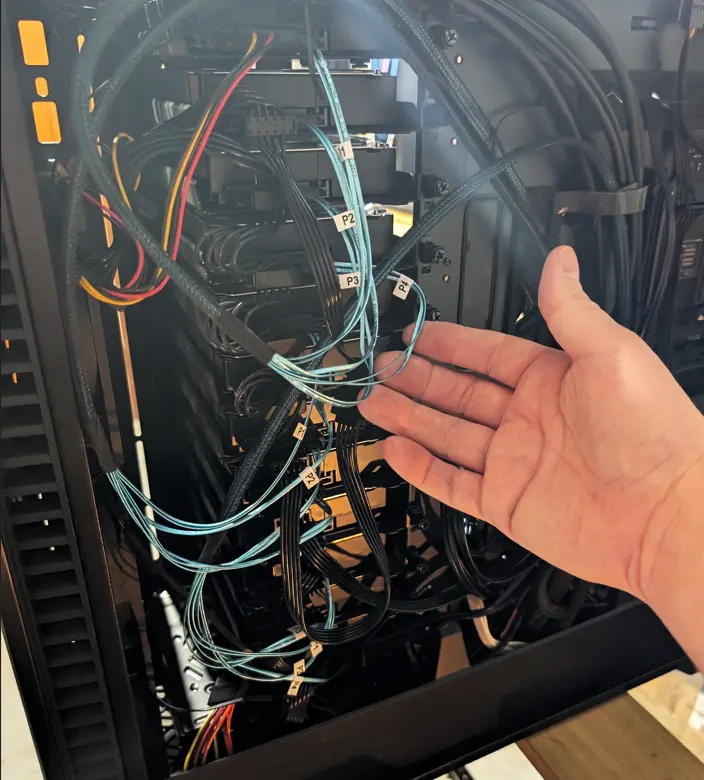

The beginning of 72TB of raw capacity slotted in. The Fractal Define 7 XL makes cable management surprisingly easy, even with this much spinning rust.
6. The "PCIe Tetris" Hack (10Gbps on an x1 Slot)
This is where the MSI X570's consumer roots started to hurt. I had a GPU in the top slot and the LSI HBA in the bottom x4 slot. I physically had no room left for my Dual 10Gbps Intel NIC. The Solution: A StarTech x1 to x16 Adapter.

The Trade-off: This Intel NIC normally wants an x8 slot. By forcing it into an x1 slot, I am technically strangling its bandwidth.
- Theoretical Max: PCIe 3.0 x1 caps out around ~1GB/s (8Gbps).
- Reality: I can't hit the full dual 20Gbps potential of the card, but for a home server, getting ~8Gbps is still light years faster than standard Gigabit Ethernet. It works perfectly for my needs.
My Beloved Case Choice: Fractal Design Define 7 XL!
I cannot go on enough about how amazing the Fractal Design Define 7 XL case is! I'll literally never be buying another NAS / server case again. Absolutely wild how flexible and wonderful it is to build with.
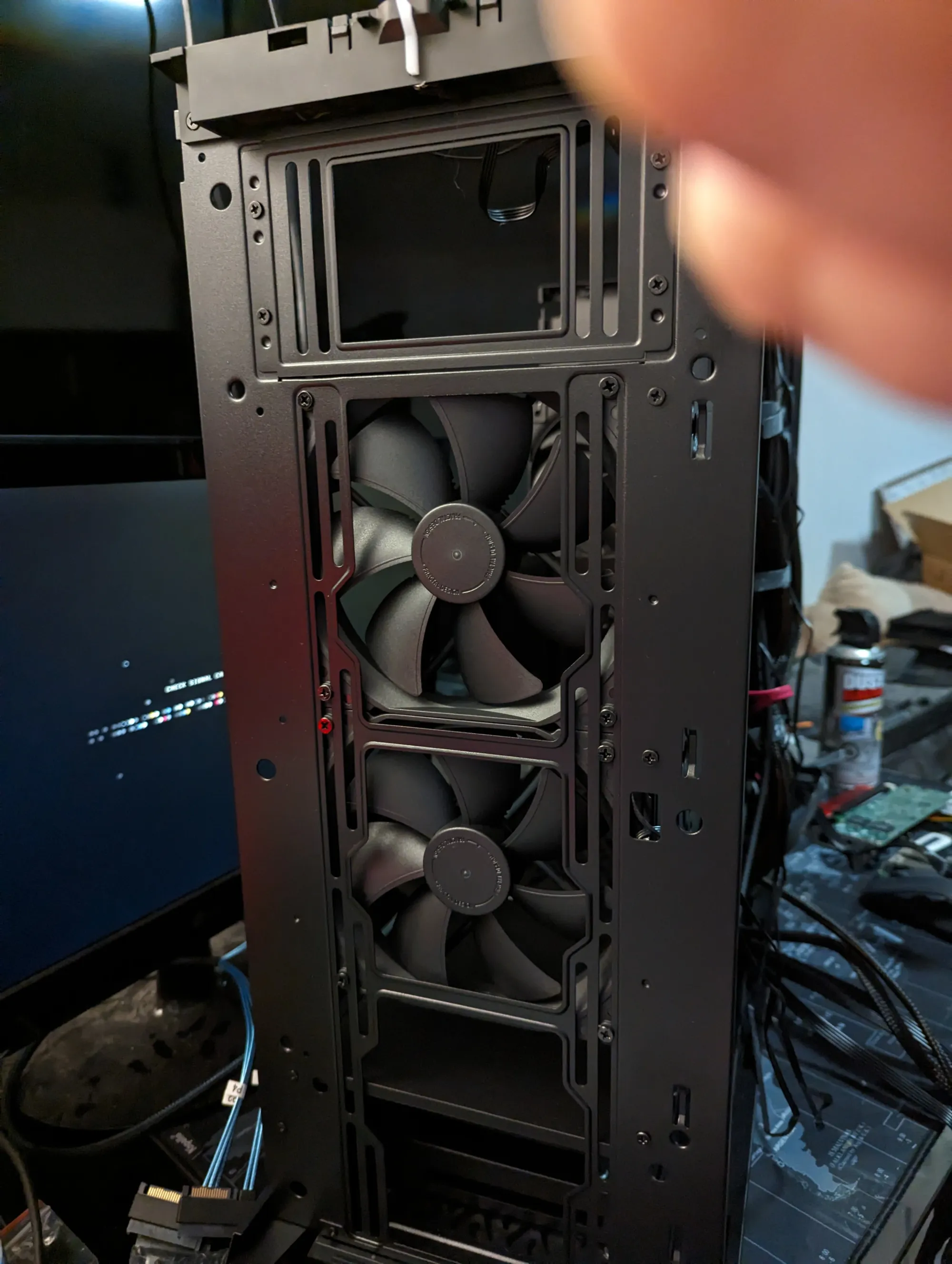
It may not be pretty to some, but when it was going to be sitting under my network rack in my back storage room, who cares? I needed maximum functionality and ability out of it! You can install up to 20, yes 20 3.5inch drives!
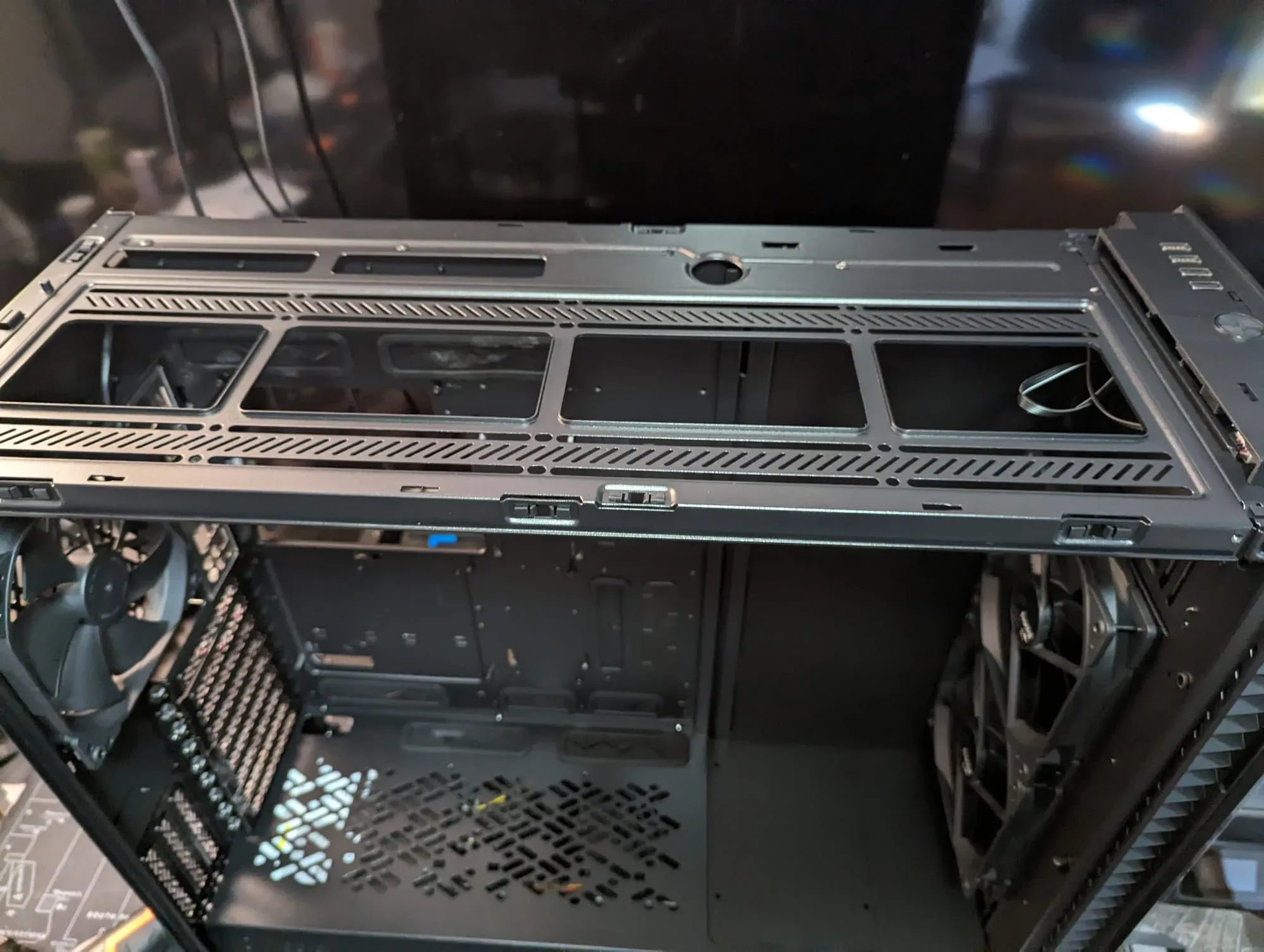
That said, why I chose it broken down -
- Seemingly perfectly for what I had in mind: One server to do my storage & plex & dockers (entire tech stack) in an incredibly flexible case & layout.
- Strong Online reviews - Linux Tech Tips, Hardware Canucks, Reddit...
- Can hold up to 20 3.5" drives! in "storage" configuration.
- Can fit any motherboard from E-ATX (Xlarge like server mobo) through to mini-itx!
- Flexibility for upgrades later, whichever way/size/shape I chose.
- Cable management, fan placement options, ease of use and most importantly, cooling capability. Lastly for me was noise / silent operation.
If you go with a Fractal case, you'll need these drive trays!


Those beautiful blacked out fans in the front?👇
Arctic P12 Pro PST 120mm Case Fans
This is my favourite case fan and natural go to. I have them in my workstation and in my server, plus in my kids PCs. It's incredibly well built for being so cheap, it's like they cheated on materials design or something!

→ Check it on Amazon ⭐ 4.5
📊 Performance: How Fast is it?
I ran fio to stress-test the ZFS pool. Here is the result of reading a 4GB file with a queue depth of 64 (simulating heavy load).
The Benchmark Result:
- Read Speed: ~3,409 MB/s (Sequential)
- 3,409 MB/s ≈ 27.3 Gbps
- The Math:
3409 * 8 (bits) = 27,272 Mbps->27.27 Gbps.
In fact, my drive array is nearly 3x faster than a 10Gbps network. I could technically feed two 10Gbps clients at full speed simultaneously and still have overhead left...
- IOPS: ~208k
- Latency: ~4.5ms
You might be looking at 208k IOPS and thinking, "That's impossible. Mechanical hard drives only do ~150 IOPS. Did the benchmark break?"
It didn't break. It demonstrated the magic of ZFS ARC (Adaptive Replacement Cache).
The "Library" Analogy:
Standard RAID: Every time you ask for a file, the system has to walk all the way to the back of the library (the hard drives), find the book, and walk it back to the front desk. This is slow.
ZFS ARC: ZFS realizes you might need that book again, so it leaves it on the front desk (RAM). When you ask for it, the librarian hands it to you instantly.
Why My Benchmark Was So Fast: I have 64GB of RAM in this server. My benchmark test file was only 4GB. ZFS saw that the entire test file could fit into the RAM cache. So, instead of reading from the spinning rust, it read directly from the memory chips.
Real-World Benefit: Is this "cheating"? No. This is exactly how you want a NAS to behave! In the real world, this means your Plex library thumbnails, recent documents, and directory lists load instantly because they live in RAM. The hard drives only wake up when you pull a massive, rarely accessed movie file.
The Lesson: Don't skimp on RAM for your NAS. It turns a sluggish archive into a lightning-fast server.
Translation: This thing saturates my 10Gbps network link without breaking a sweat. Whether it's 5 people streaming Plex or me moving a 50GB backup file, the drives are never the bottleneck.
Detailed Field Report (FIO Output)
I ran a test with fio, reading a 4Gb 4k block size file. And this is with the ZFS array slightly bottlenecked due to my PCIe lane issue, and running my workload of Plex & 58 dockers! Result at very bottom...
root@codex:/# fio --name=seq_read --rw=read --bs=4k --size=4G --filename=/brain/DOCKERS/fio_test --direct=1 --iodepth=64 --numjobs=4
seq_read: (g=0): rw=read, bs=(R) 4096B-4096B, (W) 4096B-4096B, (T) 4096B-4096B, ioengine=psync, iodepth=64
...
fio-3.33
Starting 4 processes
seq_read: Laying out IO file (1 file / 4096MiB)
note: both iodepth >= 1 and synchronous I/O engine are selected, queue depth will be capped at 1
note: both iodepth >= 1 and synchronous I/O engine are selected, queue depth will be capped at 1
note: both iodepth >= 1 and synchronous I/O engine are selected, queue depth will be capped at 1
note: both iodepth >= 1 and synchronous I/O engine are selected, queue depth will be capped at 1
Jobs: 4 (f=4): [R(4)][100.0%][r=3691MiB/s][r=945k IOPS][eta 00m:00s]
seq_read: (groupid=0, jobs=1): err= 0: pid=610309: Fri Aug 15 14:03:24 2025
read: IOPS=209k, BW=816MiB/s (856MB/s)(4096MiB/5020msec)
clat (usec): min=2, max=2693, avg= 4.51, stdev= 4.76
lat (usec): min=2, max=2693, avg= 4.55, stdev= 4.76
clat percentiles (nsec):
| 1.00th=[ 2928], 5.00th=[ 3120], 10.00th=[ 3280], 20.00th=[ 3472],
| 30.00th=[ 3664], 40.00th=[ 3824], 50.00th=[ 4016], 60.00th=[ 4256],
| 70.00th=[ 4576], 80.00th=[ 4960], 90.00th=[ 5600], 95.00th=[ 6240],
| 99.00th=[17280], 99.50th=[23424], 99.90th=[36096], 99.95th=[43264],
| 99.99th=[70144]
bw ( KiB/s): min=729304, max=991544, per=25.10%, avg=835712.00, stdev=98751.54, samples=10
iops : min=182326, max=247886, avg=208928.20, stdev=24688.13, samples=10
lat (usec) : 4=48.71%, 10=49.76%, 20=0.73%, 50=0.78%, 100=0.02%
lat (usec) : 250=0.01%, 500=0.01%, 750=0.01%, 1000=0.01%
lat (msec) : 2=0.01%, 4=0.01%
cpu : usr=9.98%, sys=87.55%, ctx=8104, majf=0, minf=12
IO depths : 1=100.0%, 2=0.0%, 4=0.0%, 8=0.0%, 16=0.0%, 32=0.0%, >=64=0.0%
submit : 0=0.0%, 4=100.0%, 8=0.0%, 16=0.0%, 32=0.0%, 64=0.0%, >=64=0.0%
complete : 0=0.0%, 4=100.0%, 8=0.0%, 16=0.0%, 32=0.0%, 64=0.0%, >=64=0.0%
issued rwts: total=1048576,0,0,0 short=0,0,0,0 dropped=0,0,0,0
latency : target=0, window=0, percentile=100.00%, depth=64
seq_read: (groupid=0, jobs=1): err= 0: pid=610310: Fri Aug 15 14:03:24 2025
read: IOPS=209k, BW=816MiB/s (855MB/s)(4096MiB/5022msec)
clat (usec): min=2, max=963, avg= 4.52, stdev= 3.43
lat (usec): min=2, max=963, avg= 4.56, stdev= 3.43
clat percentiles (nsec):
| 1.00th=[ 2928], 5.00th=[ 3120], 10.00th=[ 3248], 20.00th=[ 3472],
| 30.00th=[ 3632], 40.00th=[ 3824], 50.00th=[ 4016], 60.00th=[ 4256],
| 70.00th=[ 4576], 80.00th=[ 4960], 90.00th=[ 5600], 95.00th=[ 6304],
| 99.00th=[18304], 99.50th=[23680], 99.90th=[36096], 99.95th=[43264],
| 99.99th=[68096]
bw ( KiB/s): min=729576, max=999104, per=25.09%, avg=835520.00, stdev=99702.78, samples=10
iops : min=182394, max=249776, avg=208880.00, stdev=24925.70, samples=10
lat (usec) : 4=49.17%, 10=49.20%, 20=0.76%, 50=0.84%, 100=0.02%
lat (usec) : 250=0.01%, 500=0.01%, 750=0.01%, 1000=0.01%
cpu : usr=8.34%, sys=89.29%, ctx=8511, majf=0, minf=12
IO depths : 1=100.0%, 2=0.0%, 4=0.0%, 8=0.0%, 16=0.0%, 32=0.0%, >=64=0.0%
submit : 0=0.0%, 4=100.0%, 8=0.0%, 16=0.0%, 32=0.0%, 64=0.0%, >=64=0.0%
complete : 0=0.0%, 4=100.0%, 8=0.0%, 16=0.0%, 32=0.0%, 64=0.0%, >=64=0.0%
issued rwts: total=1048576,0,0,0 short=0,0,0,0 dropped=0,0,0,0
latency : target=0, window=0, percentile=100.00%, depth=64
seq_read: (groupid=0, jobs=1): err= 0: pid=610311: Fri Aug 15 14:03:24 2025
read: IOPS=208k, BW=813MiB/s (852MB/s)(4096MiB/5039msec)
clat (usec): min=2, max=3226, avg= 4.53, stdev= 5.71
lat (usec): min=2, max=3226, avg= 4.57, stdev= 5.71
clat percentiles (nsec):
| 1.00th=[ 2896], 5.00th=[ 3088], 10.00th=[ 3248], 20.00th=[ 3472],
| 30.00th=[ 3632], 40.00th=[ 3824], 50.00th=[ 4016], 60.00th=[ 4320],
| 70.00th=[ 4640], 80.00th=[ 5024], 90.00th=[ 5600], 95.00th=[ 6368],
| 99.00th=[17280], 99.50th=[23424], 99.90th=[36096], 99.95th=[43264],
| 99.99th=[73216]
bw ( KiB/s): min=729256, max=986368, per=24.97%, avg=831448.80, stdev=94785.38, samples=10
iops : min=182314, max=246592, avg=207862.20, stdev=23696.34, samples=10
lat (usec) : 4=48.47%, 10=49.98%, 20=0.74%, 50=0.78%, 100=0.02%
lat (usec) : 250=0.01%, 500=0.01%, 750=0.01%, 1000=0.01%
lat (msec) : 4=0.01%
cpu : usr=8.93%, sys=88.59%, ctx=7949, majf=0, minf=11
IO depths : 1=100.0%, 2=0.0%, 4=0.0%, 8=0.0%, 16=0.0%, 32=0.0%, >=64=0.0%
submit : 0=0.0%, 4=100.0%, 8=0.0%, 16=0.0%, 32=0.0%, 64=0.0%, >=64=0.0%
complete : 0=0.0%, 4=100.0%, 8=0.0%, 16=0.0%, 32=0.0%, 64=0.0%, >=64=0.0%
issued rwts: total=1048576,0,0,0 short=0,0,0,0 dropped=0,0,0,0
latency : target=0, window=0, percentile=100.00%, depth=64
seq_read: (groupid=0, jobs=1): err= 0: pid=610312: Fri Aug 15 14:03:24 2025
read: IOPS=208k, BW=814MiB/s (854MB/s)(4096MiB/5032msec)
clat (usec): min=2, max=1758, avg= 4.53, stdev= 3.81
lat (usec): min=2, max=1758, avg= 4.57, stdev= 3.81
clat percentiles (nsec):
| 1.00th=[ 2896], 5.00th=[ 3088], 10.00th=[ 3248], 20.00th=[ 3472],
| 30.00th=[ 3632], 40.00th=[ 3824], 50.00th=[ 4016], 60.00th=[ 4320],
| 70.00th=[ 4640], 80.00th=[ 5024], 90.00th=[ 5664], 95.00th=[ 6368],
| 99.00th=[17280], 99.50th=[23424], 99.90th=[35584], 99.95th=[42752],
| 99.99th=[67072]
bw ( KiB/s): min=729320, max=994056, per=25.04%, avg=833692.80, stdev=98700.76, samples=10
iops : min=182330, max=248514, avg=208423.20, stdev=24675.19, samples=10
lat (usec) : 4=48.37%, 10=50.10%, 20=0.73%, 50=0.78%, 100=0.02%
lat (usec) : 250=0.01%, 500=0.01%, 750=0.01%, 1000=0.01%
lat (msec) : 2=0.01%
cpu : usr=9.02%, sys=88.69%, ctx=7674, majf=0, minf=12
IO depths : 1=100.0%, 2=0.0%, 4=0.0%, 8=0.0%, 16=0.0%, 32=0.0%, >=64=0.0%
submit : 0=0.0%, 4=100.0%, 8=0.0%, 16=0.0%, 32=0.0%, 64=0.0%, >=64=0.0%
complete : 0=0.0%, 4=100.0%, 8=0.0%, 16=0.0%, 32=0.0%, 64=0.0%, >=64=0.0%
issued rwts: total=1048576,0,0,0 short=0,0,0,0 dropped=0,0,0,0
latency : target=0, window=0, percentile=100.00%, depth=64
Run status group 0 (all jobs):
READ: bw=3251MiB/s (3409MB/s), 813MiB/s-816MiB/s (852MB/s-856MB/s), io=16.0GiB (17.2GB), run=5020-5039msec
🛠 The "Core Lab" Monster Specs (2024 Build)
Note: This is the exact list of what I used. Some parts (like the CPU) are older generations now. For my current 2026 recommendations, scroll to the bottom.
| Component | My Pick | Why I Chose It |
| Case | Fractal Design Define 7 XL | The King of NAS cases. Fits 18+ drives and is dead silent. |
| CPU | AMD Ryzen 5 3700X | 8 Cores / 16 Threads. Repurposed from an old gaming rig. Plenty of power for Docker + Plex. |
| Motherboard | MSI X570-A PRO | Chosen for stability and PCIe Gen 4 support. (Replaced the ASUS TUF that failed to boot with HBA). |
| RAM | 64GB DDR4 (3200MHz) | Non-ECC. High capacity allows ZFS to cache files in RAM for 200k+ IOPS speed. |
| GPU | NVIDIA RTX 3060 12GB | The VRAM sweet spot for local AI/LLM experiments and handles unlimited hardware transcode streams. |
| HBA Card | LSI 9300-16i (IT Mode) | Essential for connecting 16 SAS drives to a consumer motherboard. Bypasses RAID to let ZFS manage the disks. |
| Boot Drive | 128GB SATA SSD | Simple and reliable. Used SATA instead of NVMe to save precious PCIe lanes for the HBA & GPU. |
| Network | Dual Intel 10Gbps NIC | Enterprise-grade networking. (Mounted via a StarTech x1 Adapter to fit in the bottom slot). |
| Storage | 12x Seagate 6TB SAS | Enterprise surplus drives ($35/each). Required the "3.3V Pin Mod" to spin up. |
| Power Supply | Corsair 1050W | Overkill? Maybe. But it handles the spin-up current of 12 enterprise drives without flinching. |
With this guy built, and OS setup OMV8 wise, I could finally retire these two old dogs (power hungry!) and a Synology NAS!

📅 Want to Build This in 2026?
Hardware moves fast. While my Ryzen 3700X is still a beast, buying one new today doesn't make sense.
If you want to build a modern version of this monster (using current-gen CPUs, DDR5, and widely available parts), I have curated multiple updated parts lists for 2026.



Member discussion