
How to Safely Delete Unused Images in Ghost CMS: The Surgical Guide
I am not a developer, my python script was partially written with AI/LLM.
Ghost CMS is famous for being fast, but if you’ve been self-hosting for a while, you’ve likely noticed a "shadow bloat" creeping into your backups. You delete a post, but the images stay. You upload a 5MB hero image, and Ghost silently generates five different resized versions of it. That's actually a feature, not a bug...
So now your /content/images folder has ballooned into a chaotic mess of old screenshots, unused diagrams, and half-a-dozen "optimized" versions of every single photo you've ever uploaded. Every. Single. One! My images folder was at 1.9G before I noticed!
👻Ghost does not prune or clean up images! Once uploaded into Ghost CMS, they are there forever, even if you delete them from a post or a page...
When I started looking for a way to clean this up, most scripts I found were "sledgehammers" - they'd delete your favicon, your theme's UI icons, and your responsive image sets because they didn't understand how Ghost actually handles data.
There does seem to be a tool out there that people were using some time ago, but it does not clean quite as thoroughly as I had hoped. It does not delete the size variants, provide a 'move' vs hard delete first, nor provide a simple way to restore.
Today, we’re going to build a "Laser-Guided" ⚡ cleanup system that differentiates between your actual content and your system assets. I'll go go over how to run the existing Ghost cleanup tool as well, and then dive into my script / solution for more thorough pruning.
If you'd prefer to save space without deleting files or images, skip to Step 3 at least for additional and effective ways to keep your Ghost CMS light!
Ghost Blog / CMS Hacks
Why Standard Ghost Cleanup Scripts are Dangerous
A standard cleanup script usually just looks at your database and asks: "Is this filename in a post?" If the answer is no, it deletes it. This is dangerous for three reasons:
- Responsive Images: Ghost creates multiple sizes (w400, w1000, etc.) for every image. These aren't explicitly in your database, but your site needs them for mobile users & devices (phones, tablets, etc)
- Original Backups (
_o): Ghost keeps your original uncompressed upload as a backup. So that beautiful large, colourful 4.7MB JPEG you uploaded 3 years ago? Yeah! It's still there! - Theme Assets: Your favicon and logo are often stored in the images folder but aren't part of a "post."
The "Laser-Guided" Logic
To solve this, my script uses a three-tier verification process:
- The API Recon: We query the Ghost Admin API to get the "Source of Truth" for every post, page, and tag. This actually checks the database that underpins your entire site.
- The YYYY/MM Filter: We only target folders that match the
2024/01/pattern. This automatically protects your system icons and theme assets. - The "_o" Protector: We check if an optimized version of an image is in use before we touch the original backup, or the generated sizes variants.
The Safe Solution: The Admin API Cleanup Script
The safest in Ghost 6.x is to ask the Ghost Admin API for everything it knows, then compare that to your local filesystem.
I co-wrote (Thanks LLM!) this Python script specifically for this. It checks published posts, drafts, authors, and settings, and it defaults to a Dry Run so it won't touch a single byte until you explicitly tell it to.
Prerequisites
- Debian 13 (In OMV8, or Debian raw)
- Python3 & libraries
🛡️ The Debian 13 "Safe Room": Dealing with PEP 668
If you try to install Python libraries directly on Debian 13, you’ll likely see a wall of text claiming your environment is "externally managed." This isn't a bug; it's a Blue Team feature. Debian is protecting its own system-critical Python scripts from being overwritten by whatever we’re trying to build. To bypass this safely, we use a Virtual Environment (venv). This creates a localized "sandbox" where our Ghost Janitor can live without touching the OS guts.
The "Clean Room" Setup
Run these commands to create and enter your isolated workspace:
# 1. Install the venv overhead if you haven't yet
sudo apt update && sudo apt install -y python3 python3-pip python3-venv python3-dev

# 2. Create the environment
python3 -m venv ~/ghost-tools

# 3. "Step into" the environment
source ~/ghost-tools/bin/activate
Pro-Tip: You’ll know you’re in the "Clean Room" because your terminal prompt will now start with(ghost-tools). Now, and only now, can you run yourpip install requests PyJWTcommands without the OS yelling at you.
When you’re finished running the cleanup script, just type deactivate to return to your normal shell.
Then verify the install happened properly:
python3 --version
pip3 --version
You should see something like:
Python 3.13.x
pip 25.x from ...
Debian 13 includes Python 3.13 by default, and python3-pip, python3-venv, and python3-dev are the recommended packages to install alongside it.
This would make the initial setup far simpler.
Part 1: The Core Lab Ghost Janitor (Surgical Python Script)
This script identifies orphans, checks their age (safety first!), and moves them to a _quarantine folder rather than deleting them immediately. Create the script with nano easily:
nano ghost-janitor.py
Paste the contents into that file:
import os
import re
import time
import json
import shutil
import requests
import jwt
from pathlib import Path
from datetime import datetime

# --- CONFIGURATION ---
GHOST_URL = "https://your-domain.com"
ADMIN_API_KEY = "YOUR_ADMIN_API_KEY"
CONTENT_IMAGES_DIR = "/var/www/ghost/content/images"

DRY_RUN = True  # Always start with True!
EXCLUDED_DIRS = ['icon', 'thumbnail', '_quarantine', 'size']
MIN_AGE_SECONDS = 86400  # 24 hours safety margin

images_dir = Path(CONTENT_IMAGES_DIR)
QUARANTINE_DIR = images_dir / "_quarantine"
LOG_FILE = images_dir / "purge-log.txt"

def log(message):
    timestamp = datetime.now().strftime("%Y-%m-%d %H:%M:%S")
    line = f"[{timestamp}] {message}"
    print(line)
    with open(LOG_FILE, "a") as f:
        f.write(line + "\n")

def generate_jwt(api_key):
    id, secret = api_key.split(':')
    iat = int(time.time())
    header = {'alg': 'HS256', 'typ': 'JWT', 'kid': id}
    payload = {'iat': iat, 'exp': iat + 5 * 60, 'aud': '/admin/'}
    return jwt.encode(payload, bytes.fromhex(secret), algorithm='HS256', headers=header)

def extract_image_paths(api_data):
    used = set()
    def extract_from_string(s):
        matches = re.findall(r'/content/images/([^"\'\s\\?]+)', s)
        for m in matches:
            base_match = re.sub(r'^size/w\d+/', '', m)
            used.add(base_match)

    for endpoint in api_data:
        items = api_data[endpoint].get(endpoint, [])
        for item in items:
            for key in ['html', 'mobiledoc', 'lexical']:
                if key in item and item[key]:
                    extract_from_string(str(item[key]))
            extract_from_string(json.dumps(item))
    return used

def main():
    log("=== Ghost Image Cleanup Started (Laser-Guided) ===")
    token = generate_jwt(ADMIN_API_KEY)

    # Fetch data from Admin API
    endpoints = ['posts', 'pages', 'settings', 'users', 'tags']
    api_data = {}
    headers = {'Authorization': f'Ghost {token}'}
    for ep in endpoints:
        r = requests.get(f"{GHOST_URL}/ghost/api/admin/{ep}/?limit=all", headers=headers)
        api_data[ep] = r.json()

    used_images = extract_image_paths(api_data)

    orphans = []
    for f in images_dir.rglob('*'):
        if f.is_file():
            rel = f.relative_to(images_dir).as_posix()

            # The Laser Filter: Only target YYYY/MM folders
            if not re.match(r'^\d{4}/\d{2}/', rel): continue

            if rel not in used_images:
                # The _o Protector
                match = re.search(r'_o(\.[a-zA-Z0-9]+)$', rel)
                if match:
                    if (rel[:match.start()] + match.group(1)) in used_images: continue
                orphans.append(rel)

    for orphan in orphans:
        src = images_dir / orphan
        dest = QUARANTINE_DIR / orphan
        dest.parent.mkdir(parents=True, exist_ok=True)
        if not DRY_RUN:
            shutil.move(str(src), str(dest))
            log(f"Quarantined: {orphan}")
        else:
            log(f"[DRY] Would quarantine: {orphan}")

if __name__ == "__main__":
    main()
CTRL-O and Y to save. Voila!
Part 1A: Modify the Variables & Prepare to Dryrun
Go back into the file, or if you stayed in there, now look at the upper portion specifically and set these variables to your specific instance of Ghost:
# --- CONFIGURATION ---
GHOST_URL = "https://corelab.tech/"
ADMIN_API_KEY = "use_your_admin_apikey"
CONTENT_IMAGES_DIR = "/var/www/ghost/content/images" # Default, works

DRY_RUN = True  # Always start with True!
EXCLUDED_DIRS = ['icon', 'thumbnail', '_quarantine', 'size']
MIN_AGE_SECONDS = 86400  # 24 hours safety margin

images_dir = Path(CONTENT_IMAGES_DIR)
QUARANTINE_DIR = images_dir / "_quarantine"
LOG_FILE = images_dir / "purge-log.txt"
3rd Reminder - Run a full backup of your contents folder before flipping DRY_RUN = False.
You only need to modify the top lines, and I put examples in there. You then run the script by typing:
python3 ghost-janitor.py and you'll see it load and start processing the images! When done, you will see a list of files and total space reclaimed. It'll look something like this:
[2026-04-06 14:45:42] [DRY] Would quarantine: 2025/12/Welcome.jpg
[2026-04-06 14:45:42] [DRY] Would quarantine: size/w400/2025/12/Welcome.jpg
[2026-04-06 14:45:42] [DRY] Would quarantine: size/w1140/2025/12/Welcome.jpg
[2026-04-06 14:45:42] [DRY] Would quarantine: size/w750/2025/12/Welcome.jpg
[2026-04-06 14:45:42] [DRY] Would quarantine: size/w960/2025/12/Welcome.jpg
[2026-04-06 14:45:42] CLEANUP COMPLETE — Would strategically reclaim 289.61 MB
[2026-04-06 14:45:42] === Finished ===
Part 1B: Incident Response - How to Restore Quarantined Images
In cybersecurity, we don't just plan for success; we plan for failure. If you run the cleanup and realize your favorite 2023 header image is missing, you need a way to revert instantly.
Create this script simply with nano. nano ghost-restore.py
import shutil
from pathlib import Path

CONTENT_IMAGES_DIR = "/var/www/ghost/content/images"
images_dir = Path(CONTENT_IMAGES_DIR)
QUARANTINE_DIR = images_dir / "_quarantine"

def main():
    print("=== Restoring Ghost Images from Quarantine ===")
    for f in QUARANTINE_DIR.rglob('*'):
        if f.is_file():
            rel_path = f.relative_to(QUARANTINE_DIR)
            target = images_dir / rel_path
            target.parent.mkdir(parents=True, exist_ok=True)
            shutil.move(str(f), str(target))
            print(f"Restored: {rel_path}")

if __name__ == "__main__":
    main()
Who said a little unintentional chaos engineering couldn't be planned for, eh 😜
Part 2: Alternative - Using the ghost-purge-images NPM Tool
I tried it out, and ensured I could help others utilize an already existing (and functional!) tool. Ghost-prune-images cleaned out unused images safely, and saved me a good amount of space!
My script above would have saved about 1.3Gb, ghost-prune-images saved 975Mb. Not bad!
Running ghost-prune-images in your Ghost CMS docker:
Step 1: Drop into your Ghost CMS simply with docker exec -it ghost /bin/sh
Step 2: Install their tool by typing npm install -g ghost-purge-images
Step 3: Prep your dry run command by obtaining your Ghost Admin & Content API keys.
Get the keys following this steps:
- On your Ghost admin, click on Integrations at the left menu
- Click on Add custom integration and set any name
- Copy the Content API & Admin API Keys to use them
- Slap them into your command:
ghost-purge-images display --content-key=YOUR_CONTENT_KEY --admin-key=YOUR-ADMIN-KEY --url=https://yourdomain.ca
- Slap them into your command:
Step 4: Perform the dry run (display in your command above, means it will only display the results, not delete).

This is where it found and calculated how much it would delete:
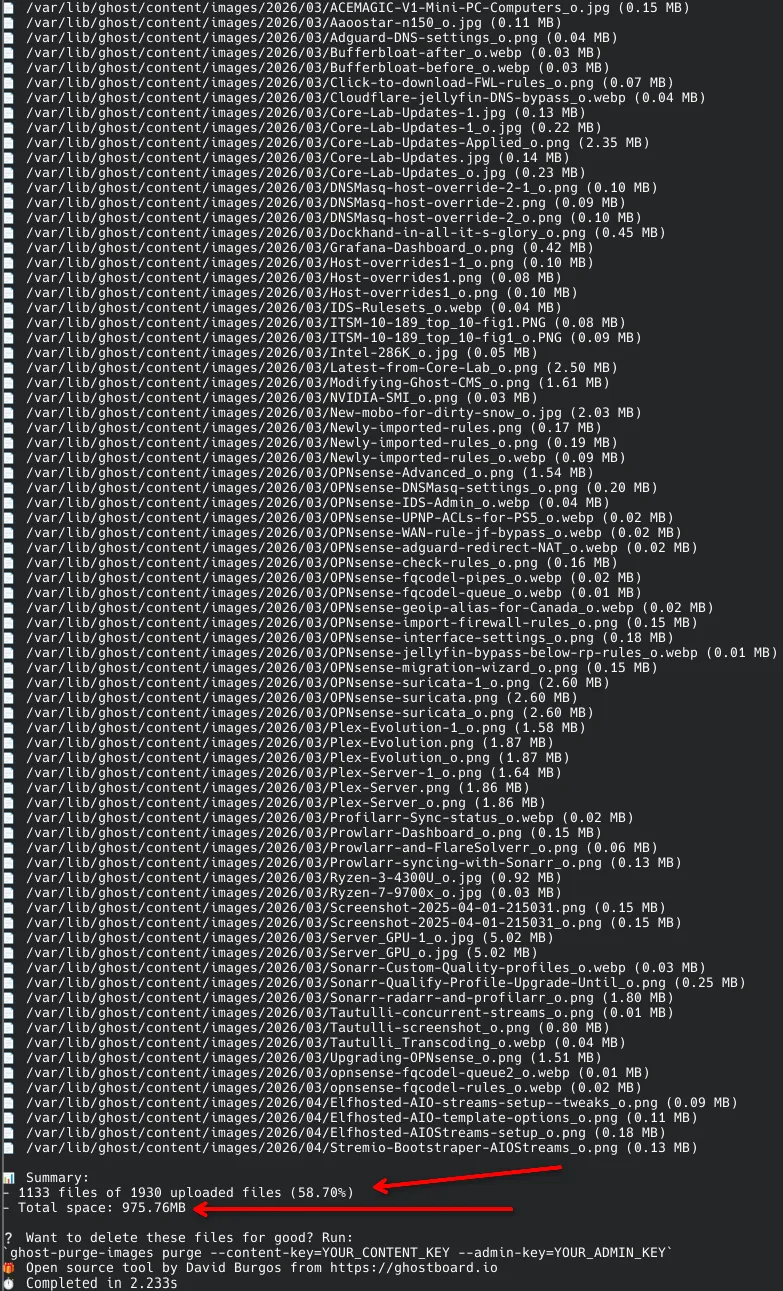
Okay! Nice, some real space & efficiency savings here.
If you're happy with the results, like me, you'll remove that 'display' command above with the 'purge' command, the real deal!
Step 5: Real Run ⚠️ Will DELETE images!
ghost-purge-images purge --content-key=YOUR_CONTENT_KEY --admin-key=YOUR_ADMIN_KEY --url=https://yourdomain.ca
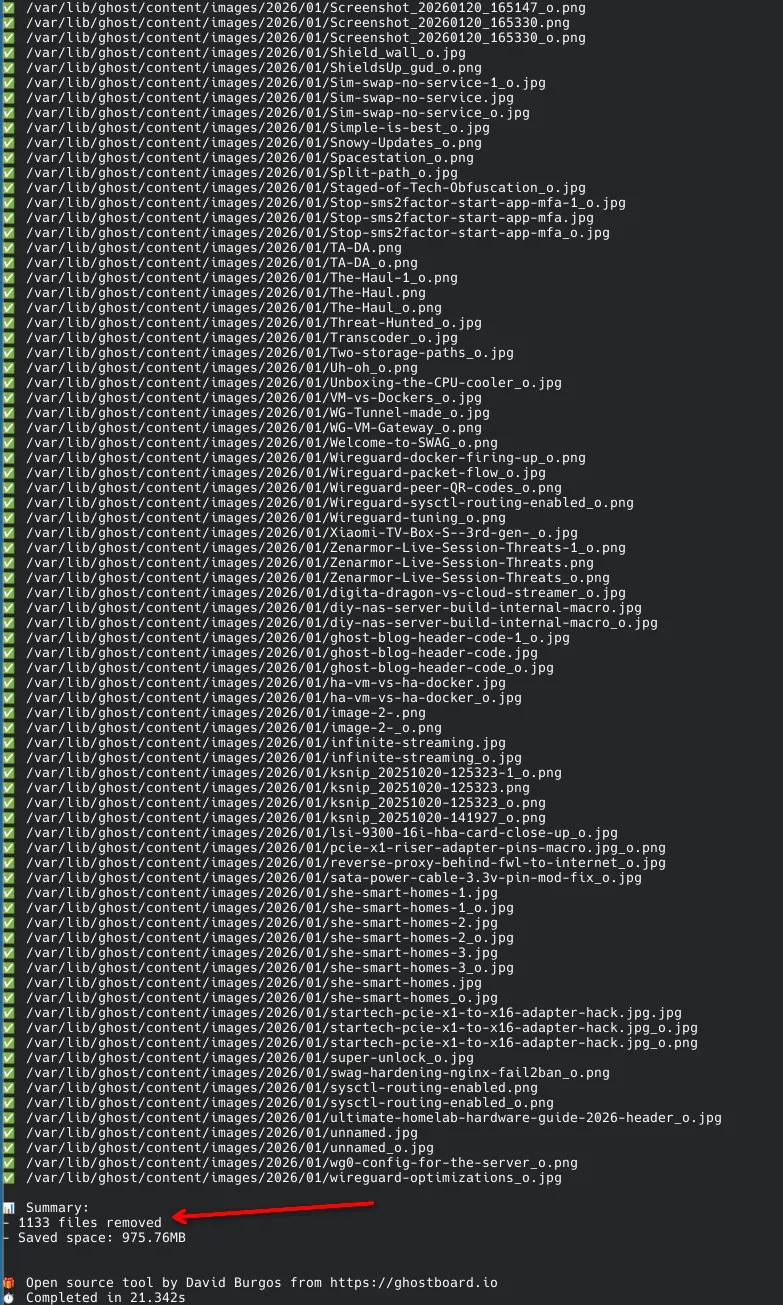
Did what it said, removed 1133 files, saving me 975MB!
I now ran my script above to see how much more, it would capture for deletion:
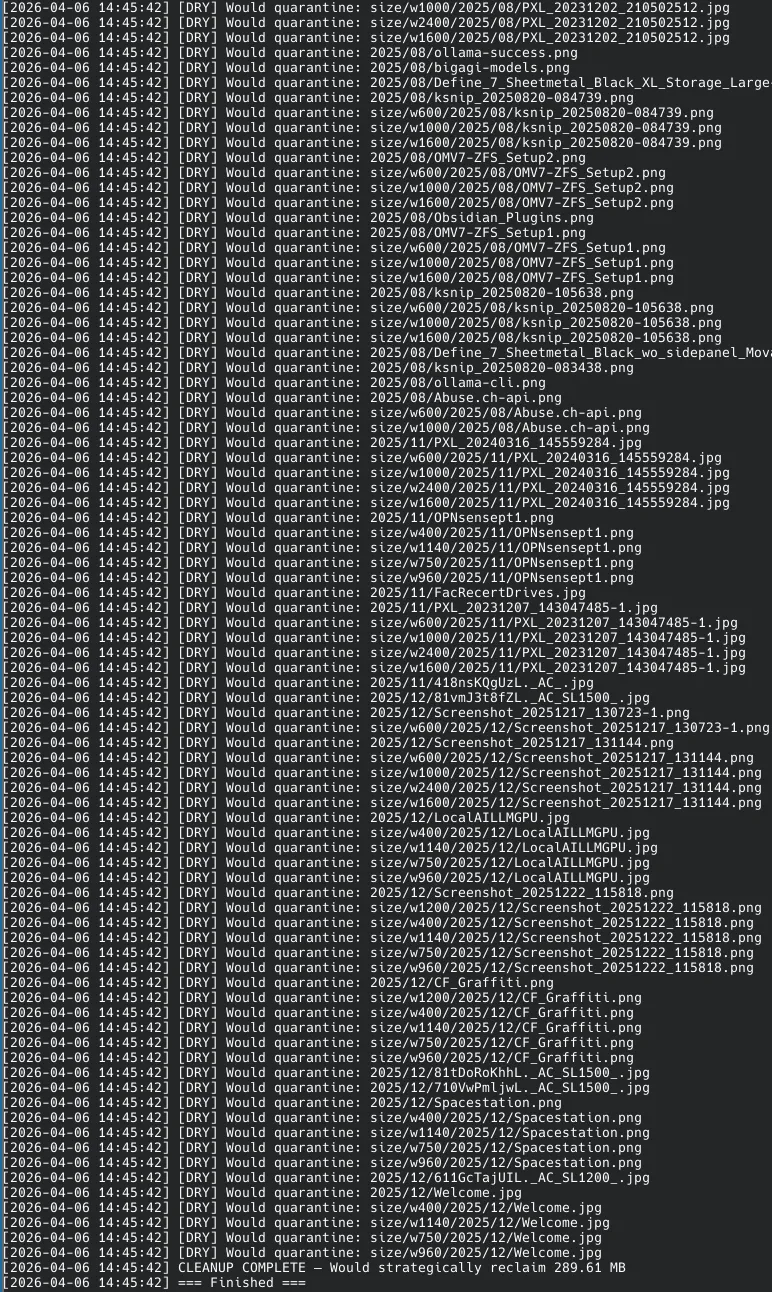
An additional 289.61MB on top of that! This lines up with my test earlier where my script estimated savings of roughly 1.3GB. 😀
So which one should you use? Up to you! Mine (Core Lab's Ghost Janitor) is slightly more aggressive, but still safe. Theirs (Ghost-prune-images) is slightly easier to run, for now as you just drop into your existing Ghost and run it from inside there, whereas mine requires python to be installed. Ghost-prune-images tool does remove unused / orphaned tags however, which is also good but I curate the tags carefully & manually myself.
Part 3: Prevention - Reducing Ghost CMS Bloat at the Source
The best way to manage bloat is to never let it in. Most people upload high-res JPEGs and let Ghost do the heavy lifting. Instead, try this workflow:
- Pre-Resize: Don’t upload a 4000px wide photo if your theme’s content width is 800px. Resize to a max of 2000px (for Retina displays) before the upload.
- Lossless Compression: Run your assets through a dedicated compressor. I use the Icosix Image Compressor (FREE!) to shave off the final 15-20% of file size that standard exports often miss.
- WebP/AVIF: Use modern formats. WebP offers 25-35% better compression than JPEG with zero visible quality loss.
Part 4: UI Assets - SVGs vs. Heavy Icon Fonts
One of the biggest performance killers on a tech blog is the "Icon Font" (like FontAwesome). Loading an entire 200KB font file just to display three social media icons is a massive waste of bandwidth.
For my recent theme customizations - like the floating Table of Contents and mobile breadcrumbs - I’ve begun the move exclusively to Inline SVGs.
- Zero HTTP Requests: Inline SVGs are part of the HTML. No extra server calls.
- Perfect Scaling: They look sharp on a 4K monitor and a five-year-old smartphone.
- Lightweight: A typical UI icon from the Icosix SVG library is often less than 1KB.👇


By replacing a bulky icon font with a handful of targeted SVGs, you can improve your Largest Contentful Paint (LCP) score instantly.
Part 5: Delivering at the Edge
Once your images are lean and your UI is SVG-based, the final step is ensuring they reach the user fast. Since many of us in the self-hosting community are routing traffic through a Reverse Proxy (like Nginx or SWAG), we can leverage "The Edge."
- Cloudflare Caching: Set a layered "Cache Everything" rule for your
/content/images/directory. This keeps the load off your home server and serves the files from a data center closest to your reader. - Nginx Tweaks: Ensure your
proxy_cacheis correctly configured to handle WebP headers, so your proxy knows to serve the optimized version whenever possible.
Final Thoughts
Self-hosting is about taking control of your data, but that control comes with the responsibility of maintenance. It’s about intentionality. By using the YYYY/MM folder pattern as a safety boundary, we turn a risky maintenance task into a routine one.
Rule of Thumb: Keep your _quarantine folder for 30 days. If your site looks perfect after a month of traffic, rm -rf that folder and enjoy the reclaimed disk space.
🙋♂️ Frequently Asked Questions (2026 Edition)
Q: Does Ghost CMS automatically delete images when I delete a post? A: No. Ghost is designed for data persistence. When you delete a post or an image from the editor, the file remains in your /content/images folder forever. Over time, this creates "shadow bloat" that slows down your backups.
Q: What are the _o files in my images folder? A: Those are your "Originals." When you upload an image, Ghost keeps the uncompressed original version as a backup and creates several "size" variants for your theme. Our surgical cleanup ensures these are only deleted if the image is truly an orphan.
Q: Is it safe to delete the /size/ folder? A: No. The /size/ folder contains the responsive versions of your images that Ghost serves to mobile devices and tablets. Deleting these will force your site to serve massive original files to mobile users, destroying your PageSpeed scores.
Q: Why use a "Quarantine" folder instead of direct deletion? A: In a "Blue Team" mindset, we always assume something might go wrong. Moving files to a _quarantine folder allows you to verify your site is still visually intact before a final "hard delete." It’s the difference between a controlled migration and a catastrophic loss.
Written by
On this page
What's Next?