
The Ultimate 2026 Obsidian Docker Guide: GPU-Accelerated & Wayland Ready
Obsidian is the "External Brain" of the Core Lab. But running a Chromium-based Electron app in a browser can be sluggish if you don't give it the right hardware "muscles." I already have an NVIDIA GPU in my server, powering other containers like Immich, Ollama, Plex and Jellyfin!
This guide is for homelab builders who want browser-accessible, self-hosted knowledge management integrated into their existing infrastructure.
If you just want a fantastic notes app, install native Obsidian.
If you've never heard of Obsidian, go have a read on your fav search bar or lookup some Youtube vids, it's an amazing documentation & visualization repository that people basically end up mapping more or less, their brains out with. You can keep it simple and basically use it as a powerful "To-Do" tracker that you can access anywhere in the world or, overpower it with plugins, AI integration, colouring, tagging sorting, mind-mapping, sky is the limit!
In this update, we are moving away from legacy X11 and embracing Wayland. This allows for smoother scrolling, better latency, and if you have the right GPU - very near-native performance!
Obsidian Wayland Shift
The new LSIO images use PixelFlux Wayland.
- Rendering (
DRINODE): This is the GPU doing the 3D/UI work. - Encoding (
DRI_NODE): This is the GPU turning that UI into a video stream for your browser. - Zero Copy: When you point both to the same device, the "handshake" happens entirely on the GPU.
What is X11 and Wayland? (Deep Dive)
They are both display protocols, with X11 having been around since the 1980's believe it or not! Wayland is the new modern replacement, a long time in coming...
Yes, these are both Linux display protocols - as the Obsidian docker runs 'in' linux, these are what it uses natively.
So X11 & Wayland = Windows Desktop Manager (DWM) + graphics stack. It's all the behind the scenes 'plumbing' that makes windows appear and things move, resize, accept clicks etc.
Wayland (the modern replacement). Wayland is more like modern direct messaging. Apps talk more directly to the compositor (the display manager), with fewer middlemen.
This makes it:
- Simpler
- Lower latency
- More secure
- Better for GPU acceleration
- Better suited for modern remote streaming
Wayland Renders like: Obsidian → Wayland compositor → GPU encode → browser stream
X11 (the old-school way) - X11 is like an old office building with a giant central receptionist. Every app says:
“Hey receptionist, please draw my window.”
“Move this here.”
“Mouse clicked here?”
X11 renders kinda like: App → X11 → browser
Pros:
- Mature
- Extremely compatible
- Works with almost everything
Cons:
- Complicated
- Lots of legacy baggage
- More overhead
- Security model is... let’s call it “historically optimistic”
For Dockerized GUI apps, X11 often meant:
- Mounting X sockets
- Weird DISPLAY variables
- Fragile forwarding
- Random rendering issues
Classic Linux “it technically works, provided you sacrifice an afternoon.”
X11 vs Wayland & Feature Comparison/Enablement Table
| Feature | Level 1 (Scrap) | Level 2 (Intel/AMD) | Level 3 (Nvidia) |
| Protocol | X11 (Fallback) | Wayland | Wayland |
| Acceleration | Software | Hardware (VAAPI) | Hardware (NVENC) |
| Zero Copy | No | Yes | Yes (Best) |
Should You Run Obsidian in Docker?
| Use Case | Native Desktop App | Docker / Browser-hosted |
|---|---|---|
| Personal laptop notes only | ✅ Best choice | ❌ Overkill |
| One device, offline use | ✅ Best choice | ❌ No benefit |
| Access from multiple devices without local installs | ⚠️ Limited | ✅ Strong fit |
| Self-hosted browser access | ❌ No | ✅ Yes |
| Reverse-proxied secure remote notes | ❌ No | ✅ Yes |
| Integration with self-hosted tooling | ⚠️ Limited | ✅ Excellent |
| Maximum plugin compatibility | ✅ Best | ⚠️ Usually good, occasional caveats |
| Lowest complexity | ✅ Best | ❌ More setup |
Use Docker Obsidian if:
You want browser-based access, centralized vault hosting, remote secure access, or integration into your self-hosted stack.
Real World Use Cases for Obsidian & Where it Shines (IMO)
Homelab Runbooks
- Document container configs / customizations, VLAN maps, server setups, recovery steps etc...
Operations Wiki
- Centralised internal documentation accessible ANYWHERE.
Knowledge-base Extraordinaire
- Store notes, snippets, favorites, scripts, troubleshooting, random notes.
Secure Personal Notes and/or Journal
- Reverse-proxied access behind Authelia/other MFA, that you can always access with no 'sync' delay.
Part 1 - Obsidian Docker Compose Setup Guides🪨
This guide delves directly into the setup & operation of Obsidian within Docker Compose environments for self-hosting. Ready to setup your first 'vault'?
Prerequisites
- Docker: Version 20.10.18 or higher. Verify installation with
docker --version. - Docker Compose: Installed & ready to go. Verify installation with command
docker-compose version. - Basic Linux Command Line Familiarity: Basic familiarity (beginner level) comfort with navigating directories and executing commands in a terminal.
- Common commands would be
cdmkdirnanostuff like that. Check permissions withls -lor delete a file withrm
- Common commands would be
- Obsidian Account (Optional): While self-hosting allows for local-only vaults, an Obsidian account enables synchronization (paid feature) and access to certain plugins. (I don't use this feature).
📦 Level 1: The "Scrap Lab" Build (CPU Only)
Best for: Older hardware, low-power N100 nodes without GPU passthrough configured, or users who don't care about ultra-smooth animations.
services:
  obsidian:
    container_name: obsidian
    image: lscr.io/linuxserver/obsidian:latest
    restart: unless-stopped
    networks:
      - fortress_network
    security_opt:
      - seccomp:unconfined # Required for Electron/Chromium
    ports:
      - "3000:3000" # HTTP (Internal/Proxy)
      - "3001:3001" # HTTPS (Local Browser)
    environment:
      - PUID=1000
      - PGID=100
      - TZ=America/Toronto
      - PIXELFLUX_WAYLAND=false # Falls back to legacy X11 for stability on weak CPUs
    volumes:
      - /your/path/obsidian/config:/config
    shm_size: "1gb"

networks:
  # This creates a dedicated bridge so containers can talk via hostname
  fortress_network:
    driver: bridge
📦 Level 2: The "Intel/AMD" Build (iGPU Acceleration)
Best for: Intel QuickSync (N100, i5, etc.) or AMD APUs. This uses the open-source drivers already in the Linux kernel.
services:
  obsidian:
    container_name: obsidian
    image: lscr.io/linuxserver/obsidian:latest
    restart: unless-stopped
    networks:
      - fortress_network
    security_opt:
      - seccomp:unconfined
    devices:
      - /dev/dri:/dev/dri # Passes the iGPU to the container
    ports:
      - "3000:3000"
      - "3001:3001"
    environment:
      - PUID=1000
      - PGID=100
      - TZ=America/Toronto
      - PIXELFLUX_WAYLAND=true
      - AUTO_GPU=true # Automatically finds and pairs your iGPU for Zero Copy
    volumes:
      - /your/path/obsidian/config:/config
    shm_size: "2gb"

networks:
  # This creates a dedicated bridge so containers can talk via hostname
  fortress_network:
    driver: bridge
📦 Level 3: The "Nvidia Beast" Build (Hardware Acceleration)
Best for: Users with dedicated Nvidia GPUs (GTX/RTX/Quadro). This requires the Nvidia Container Toolkit installed on your host.
Prerequisites:
- Drivers: 580+ installed via
.runfile or repo on the host machine running the container.- Must have the docker NVIDIA-TOOLKIT runtime installed & setup.
- Kernel Mod: You must have
nvidia-drm.modeset=1in your GRUB/Bootloader. - Dummy Plug: If your server is headless, you might need a physical HDMI/DP dummy plug for the GPU to initialize the display. But you prob already dealt with this if you have a headless server.
services:
  obsidian:
    container_name: obsidian
    image: lscr.io/linuxserver/obsidian:latest
    restart: unless-stopped
    security_opt:
      - seccomp:unconfined
    networks:
      your_dockernet:
        ipv4_address: 10.0.0.X # Optional: Static IP for your internal VLAN
    ports:
      - "3000:3000"
      - "3001:3001"
    environment:
      - PUID=1000
      - PGID=100
      - TZ=America/Toronto
      - PIXELFLUX_WAYLAND=true
      - DRINODE=/dev/dri/renderD128 # The Rendering Node
      - DRI_NODE=/dev/dri/renderD128 # The Encoding Node (Same node = Zero Copy)
    volumes:
      - /your/path/obsidian/config:/config
    shm_size: "2gb"
    deploy:
      resources:
        reservations:
          devices:
            - driver: nvidia
              count: 1
              capabilities: [compute,video,graphics,utility]
Note: You can remove the whole networks: section if you like, that is for a pre-existing network you would create and to show you can run it on a macvlan or ipvlan network. Or keep the fortress network settings from the above examples for simplicity.
🛡️ Tactical Briefing: Why the "Fortress Bridge" Network?
If you’ve looked at other Docker guides, you’ve likely seen Macvlan or Host networking. While those have their place, they often break the "Security First" rule of a Digital Fortress. Plus they can be more complex and a user-defined bridge network is simpler, and intended for this purpose.
Here is why I recommend new docker users use the User-Defined Bridge instead:
- Internal DNS Discovery: By using
driver: bridge, Docker creates a private internal switch. Every container on thefortress_networkcan talk to the others using their container_name. If your Reverse Proxy needs to find Obsidian, it just looks forhttp://obsidian:3000. No IP addresses to memorize or manage. - Hardware Independence: Macvlan requires you to know your exact physical network interface name (like
eth0orenp2s0). If you move your SSD to a new Mini-PC, those names change and your containers won't start. The Fortress Bridge works on any hardware, every time. - Port Mapping (The Gatekeeper): The
ports:section acts as your firewall.- 3000: This is for your Reverse Proxy (external access).
- 3001: This is for you to access the app via your local network IP. By defining these, you control exactly which doors are open to your "Vault."
Note: If you are deploying multiple apps (like Sonarr and Prowlarr), make sure they all use the same networks: name at the bottom of their respective Compose files. This allows them to communicate privately without exposing their traffic to your entire home network.
Click this link for NVIDIA container setup if you'd like to use nvidia gpu acceleration.
Detailed Explanation on all Variables
services: obsidian:: Defines a service named "obsidian."container_name: obsidian: You can give it a different name, if you wanted, adds confusion but necessary sometimes.image: lscr.io/linuxserver/obsidian:latest: Uses thelinuxserver/obsidianDocker image. This image is regularly updated to include the latest Obsidian releases and dependencies. You could pin it if you don't want it to automatically upgrade. See their link for further instructions: https://hub.docker.com/r/linuxserver/obsidiancontainer_name: obsidian: Assigns the name "obsidian" to the Docker container.ports: - "3000:3000": Maps port 3000 on the host machine to port 3000 within the container. This is where you should point a reverse proxy at. Change the host port if 3000 is already in use.- Port 3001 is for HTTPS access which is now required by default!
https://yourip:3001will get you to your vault! volumes: - /yourpath/DOCKERS/obsidian/config:/config: This is critical. It mounts a local directory named./config(relative to thedocker-compose.ymlfile) to the/configdirectory inside the container. All Obsidian vault data, including notes, attachments, and configuration, will be stored in this local directory. Without this, your data will be lost when the container is stopped or removed!restart: unless-stopped: Ensures the container automatically restarts if it crashes or the server reboots, unless you explicitly stop it.environment:: Sets environment variables within the container.TZ=Etc/UTC: Sets the timezone. ReplaceEtc/UTCwith your appropriate timezone (e.g.,America/Toronto). Incorrect timezone settings can lead to incorrect timestamps in your notes. A full list of timezones can be found here.USERNAME=obsidian: (Optional) Sets the username for Obsidian.VAULT_NAME=MyVault: (Optional) Sets the vault name.
Starting the Obsidian Container
- Navigate to the Directory: Open a terminal and navigate to the directory containing the
docker-compose.ymlfile you made, if you aren't already still there.
Start the Container: Execute the following command:
docker-compose up -dThe -d flag runs the container in detached mode (in the background).
Verify Container Status: Check the container's status with:
docker ps | grep obsidianYou should see the "obsidian" container listed with a status of "Up."
Check the logs:
docker logs -f obsidian

CTRL-C to exit
You should see some live-running logs looking something like:
[+] up 1/1
✔ Container obsidian Started 2.4s
[migrations] started
[migrations] no migrations found
───────────────────────────────────────
  ██╗     ███████╗██╗ ██████╗
  ██║     ██╔════╝██║██╔═══██╗
  ██║     ███████╗██║██║   ██║
  ██║     ╚════██║██║██║   ██║
  ███████╗███████║██║╚██████╔╝
  ╚══════╝╚══════╝╚═╝ ╚═════╝
Brought to you by linuxserver.io
───────────────────────────────────────
To support LSIO projects visit:
https://www.linuxserver.io/donate/
───────────────────────────────────────
GID/UID
───────────────────────────────────────
User UID: 1000
User GID: 100
───────────────────────────────────────
[ls.io-init] Generating labwc rc.xml from template
[ls.io-init] Removing window decorations
/usr/bin/nvidia-smi
**** creating video group videofnic with id 106 ****
**** adding /dev/dri/renderD128 to video group videofnic with id 106 ****
**** permissions for /dev/dri/card0 are good ****
by-path
card0
renderD128
**** NVIDIA GPU detected ****
**** Setting up OpenCL ICD for NVIDIA ****
**** Fixing GBM library linkage ****
cp: '/usr/lib/x86_64-linux-gnu/gbm/nvidia-drm_gbm.so' and '/lib/x86_64-linux-gnu/gbm/nvidia-drm_gbm.so' are the same file
[custom-init] No custom files found, skipping...
[svc-de] Wayland mode: Waiting for socket at /config/.XDG/wayland-1...
[svc-de] /config/.XDG/wayland-1 found launching de
[ls.io-init] done.
No desktop processes found to terminate.
17
18
INFO:selkies.main:Starting mode 'websockets'...
INFO:selkies.main:Starting Selkies in 'websockets' mode.
INFO:data_websocket:pcmflux library found. Audio capture is available.
INFO:data_websocket:pixelflux library found. Striped encoding modes available.
[Wayland] DRINODE unset. Initializing Software Renderer (Pixman).
[Wayland] Socket listening on: "wayland-1"
INFO:root:Expected C js_config_t size (from ctypes): 1354 bytes
[svc-de] Wayland mode: Waiting for socket at /config/.XDG/wayland-1...
[svc-de] /config/.XDG/wayland-1 found launching de
INFO:main:Upload directory ensured: /config/Desktop
Accessing Obsidian
Open a web browser and navigate to http://IPyoupicked:3000 or https://IPyoupicked:3001 You should see the Obsidian welcome screen. If you'd like to use it only on your LAN or via VPN, you're done and can start setting up your plugins!
If you'd like to serve it to the internet so you can access it anywhere, see below further below, past the plugins which are next👇
Obsidian Plugin Installation & Setup
Obsidian plugins are typically installed via the Obsidian community plugins interface. However, because the container is isolated, you need to ensure the plugins are accessible within the container's file system.
- Access the Community Plugins Interface: Within Obsidian, go to
Settings > Community plugins > Browse. - Install Plugins: Install the desired plugins as you normally would. The plugin files will be downloaded and stored within the container's file system.
- Enable Plugins: After installation, enable the plugins in the
Community pluginssettings.
Important Considerations for Plugins:
- Plugin Compatibility: Ensure the plugins are compatible with the version of Obsidian running in the container.
- Plugin Dependencies: Some plugins may have external dependencies. These dependencies must be present within the container's environment.
- Persistent Plugin Settings: Plugin settings are stored within the
/configdirectory, which is mounted to the host machine. Therefore, plugin settings are persistent across container restarts.
If you'd like a detailed guide on how to add and customize certain plugins please add a comment below! Later I'll likely publish a post how to integrate your own LLM into Obsidian and the magic therein!
Part 2 - How to Serve Obsidian through a Reverse Proxy
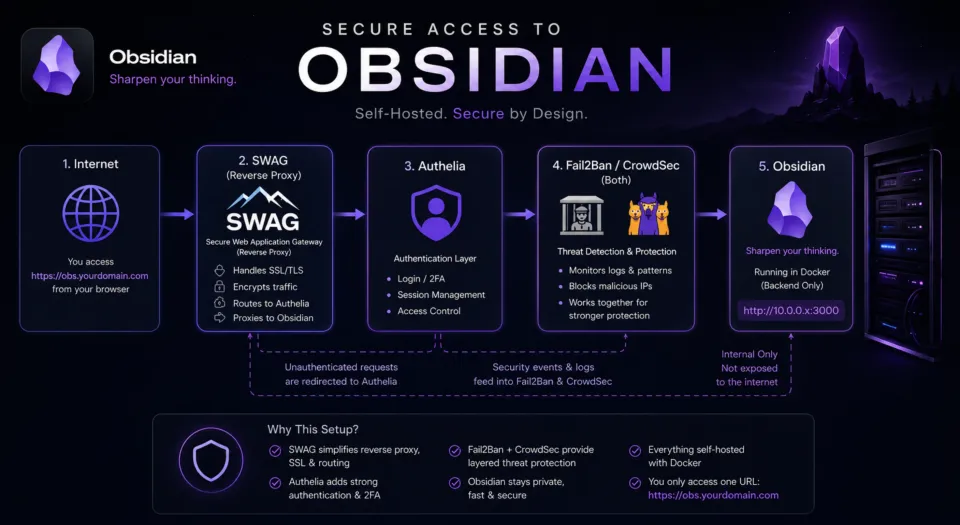
My reverse proxy of choice, by far and large is SWAG but you can serve up Obsidian anyway you so chose. The key here is to do it safely.
A reverse proxy alone is not enough to secure Obsidian😮
Obsidian has NO builtin authentication AT ALL! Not safe to share out to internet without MFA like Authelia! Setup your reverse proxy of choice and an MFA solution before serving it to the internet.
Follow my Authelia setup guide via SWAG here.
- Sample SWAG reverse proxy config file to serve Obsidian:
server {
    listen 443 ssl;
    listen [::]:443 ssl;

    server_name obs.*;

    include /config/nginx/ssl.conf;

    client_max_body_size 0;

    # enable for ldap auth (requires ldap-location.conf in the location block)
    #include /config/nginx/ldap-server.conf;

    # enable for Authelia (requires authelia-location.conf in the location block)
    include /config/nginx/authelia-server.conf;

    # enable for Authentik (requires authentik-location.conf in the location block)
    #include /config/nginx/authentik-server.conf;

    location / {
        # enable the next two lines for http auth
        #auth_basic "Restricted";
        #auth_basic_user_file /config/nginx/.htpasswd;

        # enable for ldap auth (requires ldap-server.conf in the server block)
        #include /config/nginx/ldap-location.conf;

        # enable for Authelia (requires authelia-server.conf in the server block)
        include /config/nginx/authelia-location.conf;

        # enable for Authentik (requires authentik-server.conf in the server block)
        #include /config/nginx/authentik-location.conf;

        include /config/nginx/proxy.conf;
        include /config/nginx/resolver.conf;
        set $upstream_app 10.0.0.X;
        set $upstream_port 3000;
        set $upstream_proto http;
        proxy_pass $upstream_proto://$upstream_app:$upstream_port;

        proxy_buffering off;
    }
}
Make sure you change the set server_name at the top and $upstream_app IP ADDRESS towards the bottom
Reminder and different visualization of how Obsidian is served & protected via this stack:

🛡️ Closing the Loop (Reverse Proxy)
If you are using SWAG, remember that because this container uses a self-signed cert for port 3001, your proxy needs to "ignore" the invalid certificate. However, it is simpler to point your proxy at Port 3000 (HTTP) and let the proxy handle the SSL for the outside world.
Conclusion
Next, try out - Home Assistant, among many other great containers to play with!
🛠️ Frequently Asked Questions: Obsidian in Docker (2026)
Why has the Obsidian Docker setup changed so much recently?
The transition from legacy X11 to the Wayland stack is the biggest shift. By moving to a modern compositor (Labwc/Smithay), the container now supports Zero Copy encoding. This means the GPU handles the UI rendering and the video stream simultaneously without wasting CPU cycles.
Does my hardware support the new Wayland-based Obsidian image?
Most modern hardware does. However, the Wayland stack requires a processor with AVX2 support (Intel Haswell/4th Gen or newer). If you are running an older "Scrap Lab" machine without AVX2, you must set PIXELFLUX_WAYLAND=false in your environment variables to fall back to X11.
How do I fix the "Black Screen" error on startup?
This usually happens for one of three reasons:
- Missing AVX2: (See above) Fall back to X11.
- Missing Security Opts: Ensure your Compose file includes
security_opt: - seccomp:unconfined. - Nvidia Initialization: Headless Nvidia servers often require a Display Dummy Plug to trick the GPU into initializing the DRM node.
What is "Zero Copy" encoding and why should I care?
Zero Copy allows the frame to be rendered and encoded entirely on the GPU. Without it, the GPU renders the frame, copies it to your system RAM (hitting the CPU), and then encodes it. Zero Copy drastically lowers latency and keeps your CPU usage near zero, even when the UI is highly active.
Why is the text blurry in my web browser?
Browser-based GUI containers sometimes use chroma subsampling to save bandwidth. To get crisp, native-looking text, click the sidebar in your browser session and enable FullColor 4:4:4 encoding. Note that this works best with Nvidia hardware acceleration; Intel/AMD may see a performance hit.
Is it safe to expose Obsidian to the internet?
By default, the container has no authentication. In the "Digital Fortress" spirit, you should never expose port 3000/3001 directly to the web. Always place it behind a Reverse Proxy (like SWAG or Nginx) with a secondary authentication layer like Authelia or Cloudflare Access.



Member discussion