Build Your Own Local AI Server / Stack with Ollama & Docker (2026 Guide)
Imagine asking your own AI assistant questions about your documents, photos, code, smart home, or homelab - without sending a single byte to OpenAI, Google, or Anthropic.
What's changed since 2025?
A LOT in the AI sphere but on this post - clear use cases for local AI, privacy wins, how to integrate it with FOSS tools & containers!
That's exactly what a self-hosted AI server lets you do.
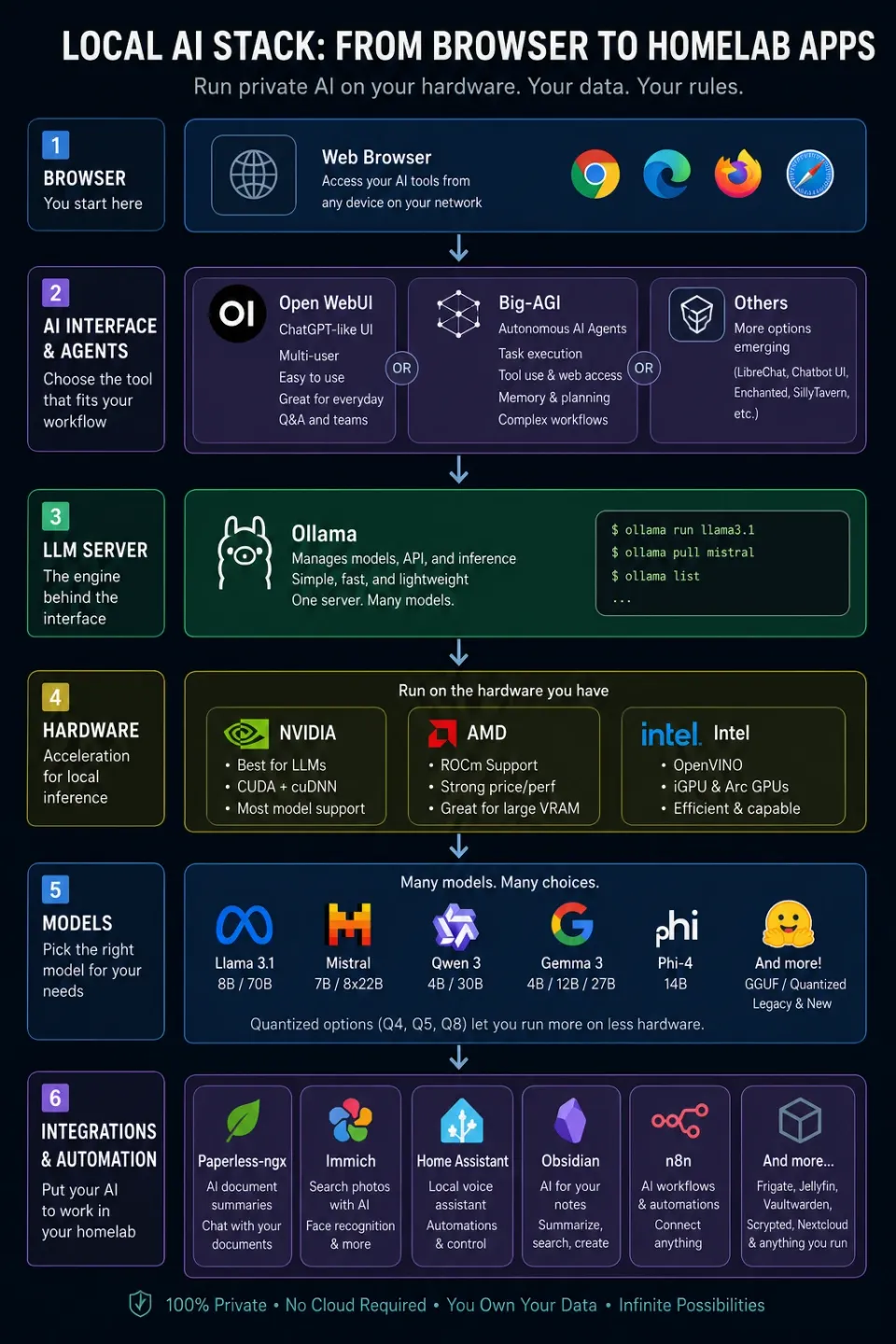
Using Ollama and Docker, you can run modern language models entirely on your own hardware, connect them to applications like Paperless-ngx, Immich, Obsidian, Home Assistant, and Open WebUI, and build an AI assistant that works entirely inside your own network.
This guide walks through building a modern local AI stack for 2026.
 Core Lab Joe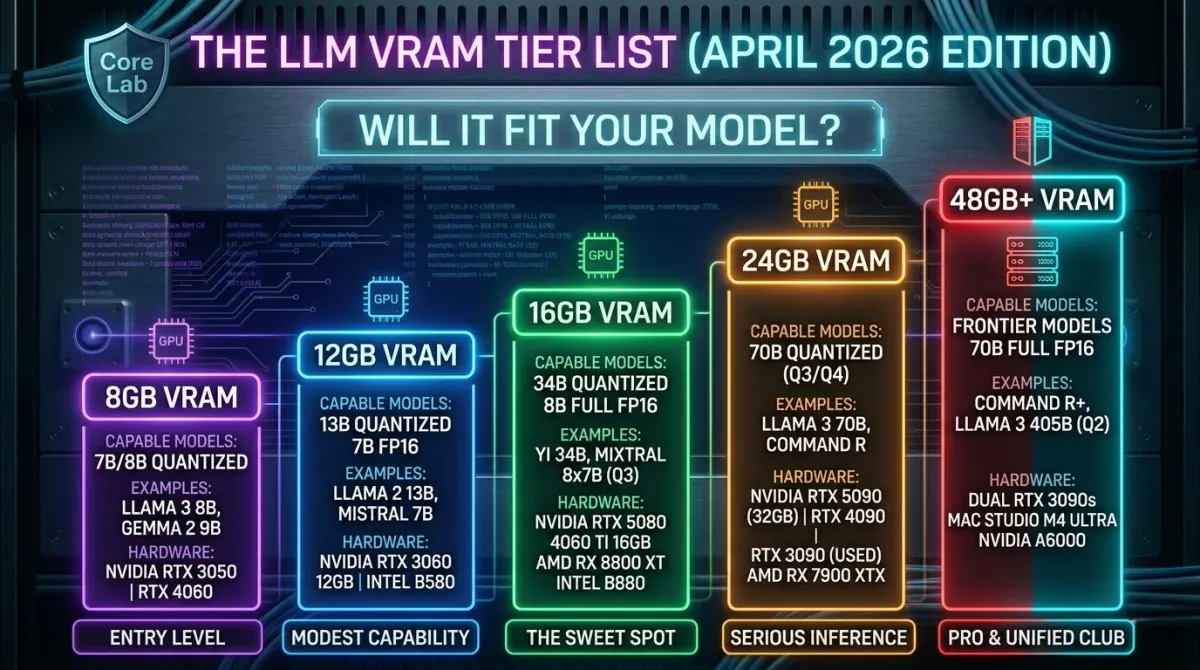
Why run AI locally?
There are a plethora of reasons to run AI locally, even though it's taxing on hardware. There's massive cost savings if you can find a model capable of meeting your needs, as your no longer paying for tokens, just electricity.
| Cloud AI | Local AI |
|---|---|
| Internet required | Offline |
| Monthly subscription | Free after hardware |
| Data leaves home | Private |
| API limits | Unlimited |
| Vendor lock-in | None |
What Can I DO with local AI (LLM)?
There's the basic choices like chatting locally with an LLM as you would online. But it goes far deeper once you have one running at home. You can integrate it directly with a pile of FOSS (free open-source software) apps!
- Paperless-ngx (Paperless-AI, now directly integrated)
- Summarizes documents, can "chat" with your docs!
- Immich (Builtin machine learning)
- Seamlessly search your photos with contextual search terms!
- Search for people, recognition of faces!
- Home Assistant (LLM & MCP integration)
- Local voice assistant!
- n8n Automation Platform
- AI Workflows of every kind imaginable
- Obsidian
- Turn your personal documentation into a knowledge base you can "speak" to, summarize, discuss or have your AI take actions on.
- Frigate
- You can have your AI summarize camera detections and generate text to speech and tell you what is happening!
- Jellyfin (Via a plugin)
- Metadata optimization & curation
Why I chose Ollama & Big-AGI?
Ollama is the quintessential lord of LLMs at this point. I'll cover some reasons why that is!
- Ease of Use - The Biggest Factor: This is Ollama's killer feature. It's incredibly simple to get started. You can download a binary, run
ollama run <model_name>, and you're interacting with a large language model. This dramatically lowers the barrier to entry for people who aren't comfortable with Docker or command-line complexities. - Model Management: Ollama handles model downloading, caching, and switching between models very cleanly. It abstracts away a lot of the underlying complexity.
- Cross-Platform: Ollama is available for macOS, Linux, Windows (Preview), and even mobile (iOS and Android). This broad compatibility is a significant advantage.
- Growing Model Library: While not exhaustive, the number of models available through Ollama is constantly expanding. The community support for adding new models is strong.
- API: Ollama provides a simple API, making it easy to integrate LLMs into your own applications or workflows. This is the secret-sauce for how we integrate it across our homelab later...
- Community: A large and active community provides support and contributes to the project.
- Automatic Optimization: Ollama automatically optimizes models for your hardware, which can improve performance.
Big-AGI has some really killer features I enjoy such as "Beaming" which means if you run more than 1 model, you can ask a question or give it a task and it will run this across multiple models at once! This is amazing and really helped me learn how drastic the answers and differences between models can be... Or not in some cases! Additionally:
- Autonomous Task Execution: This is the core differentiator. Big-AGI agents can autonomously break down goals into subtasks, choose appropriate tools, and execute them without constant human intervention.
- Memory & Long-Term Planning: It incorporates memory systems (vector databases like ChromaDB or Pinecone) to store information from past experiences, enabling agents to learn and improve over time. This allows for long-term planning and complex, multi-step tasks.
- Tool Integration: Big-AGI supports a wide range of tools, including web browsing, file I/O, code execution, and API integrations. This allows agents to interact with the real world and perform a variety of tasks. This kind of blew my mind when I realized it could go out to the web and pull info. That said, smaller versions (4b) etc due tend to hallucinate more than anyone likes to admit so you'd better have it tell you it's sources and/or fact check the crap out of what it tells you!
- Open Source & Self-Hosted: This is a huge draw for many users. It provides transparency, control, and the ability to customize the system to their specific needs. Self-hosting also addresses privacy and data security concerns.
- Relatively Easy to Get Started: While powerful, Big-AGI has made strides in simplifying the setup process, making it accessible to a wider range of users.
- Active Community: A vibrant and supportive community contributes to the project, provides assistance, and shares innovative use cases.
Installation & Setup of Ollama & Big AGI with Docker Compose
Prerequisites
Before we dive into the Docker Compose setup, ensure you have the following installed:
- Docker Compose: Setup guide here.
- Basic understanding of Docker and Docker Compose concepts.
- Sufficient RAM and storage: Running LLMs requires significant resources. Even moreso if you don't have GPU acceleration!
- [Optional but highly recommended] NVIDIA GPU and drivers: For accelerated performance. Link to LLM GPU buyer's guide here.
- If using NVIDIA GPU - you need the drivers & toolkit here.
Docker Compose Files
We'll define a docker-compose.yml file to orchestrate the Ollama and Big-AGI containers. Create a new directory for your project and save the following content as docker-compose.yml:
  ollama:
    image: ollama/ollama:latest
    container_name: ollama
    ports:
      - "11434:11434"
    networks:
      backend:
      your_vlan:
        ipv4_address: your_lan_ip
    volumes:
      - /opt/DOCKERS/ollama:/root/.ollama
    restart: unless-stopped
    environment:
    - OLLAMA_KEEP_ALIVE=24h
    deploy:
      resources:
        reservations:
          devices:
          - driver: nvidia
            count: 1
            capabilities: [gpu]
Ollama
Explanation:
ollamaservice:image: Specifies the Ollama Docker image.ports: Maps port 11434 on the container to the same port on the host machine (for API access).volumes: Creates a persistent volume (ollama_data) to store downloaded models. This prevents models from being lost when the container is stopped or removed.environment: Sets the timezone for the container.
restart: unless-stopped: Ensures Ollama restarts automatically unless explicitly stopped.
  big-agi:
    image: ghcr.io/enricoros/big-agi:latest
    networks:
      backend:
      your_network:
        ipv4_address: yourlanip
    ports:
      - "3000:3000"
    command: [ "next", "start", "-p", "3000" ]
Big-AGI
big-agiservice:ports: Maps port 3000 on the container to the same port on the host machine (for the Big-AGI web interface).
restart: unless-stopped: Ensures Big-AGI restarts automatically unless explicitly stopped.
Running the Setup
- Navigate to the project directory in your terminal.
- Run the following command:
docker-compose up -d - Monitor the output in the terminal to track the progress of the setup. You'll see the Ollama image being pulled (if it's not already present) and the Big-AGI image being pulled as well and started.
Setting up Ollama
Jump into your ollama docker by typing:
docker exec -it ollama /bin/bash
Then, you are dropped into the CLI of ollama! Next type ollama list and you will see a blank list or something similar to this:

Run your first LLM!
- Visit https://ollama.com/search?o=newest and pick a model you can run, according to your hardware. Reminder - GPU LLM guide here.
- I recommend starting out with a 4b model if running on CPU/RAM only (No GPU). A good candidate is gemma3:4b.
- Back to your cli, now type: ollama pull gemma3:4b and you should see it download the LLM!

Depending on the model you picked, this can take awhile! Once it's done downloading you can run it and test it out!
ollama run gemma3:4bIf all goes well, once it's running it will drop you into a prompt directly with your LLM and you can start chatting with it and testing it out immediately!

Accessing Big-AGI & Linking it to your new LLM in Ollama!
Once the setup is complete, open your web browser and navigate to http://ip you picked for big-agi:3000. You should see the Big-AGI interface. You can now configure your agents and start experimenting.
You should have a popup asking you for some basic setup, if not, no worries, hit CTRL-SHIFT-M to load the model settings.
- Under Services, select Ollama.
- Put the IP address and port of your ollama instance in and then click models.
- It will show all models you have pulled thus far and you can configure each for what you'd like to do. Often if you have 1 model it's simple to just click "All services" and close!
Should look like this:

Next, start chatting with your LLM in a nice GUI and playing around with what you can do in Big-AGI!
It's interesting to delve into the various persona presets it has or create your own! Let me know what you end up creating / discovering.
Another good alternative to Big-AGI is LocalAI which has some very unique and cool features! Can check it out on their page: https://localai.io/
Conclusion
This guide provides a streamlined approach to setting up and running Ollama and Big-AGI locally using Docker Compose. By leveraging the power of these tools, you can unlock new possibilities for building and experimenting with autonomous AI agents. You now have your own secure, private local AI where you know that your data is kept right where it belongs, in your home. Please share in the comments what you've integrated it with or requests for content related to LLMs!
Frequently Asked Questions
What is the easiest way to run a local AI model?
The easiest method is running Ollama in Docker alongside Open WebUI. Ollama downloads and serves models such as Llama 3, Mistral and Qwen, while Open WebUI provides a browser interface similar to ChatGPT.
Can I run an LLM without an NVIDIA GPU?
Yes.
Most models can run entirely on CPU, although responses will be much slower. Even a modern Ryzen processor with 32 GB or more of RAM can comfortably run smaller 7B-8B models.
How much VRAM do I need?
Approximate requirements:
| Model | Recommended VRAM |
|---|---|
| 3B | 4 GB |
| 7B | 8 GB |
| 13B | 12–16 GB |
| 30B+ | 24 GB+ |
Quantized models reduce memory requirements considerably.
Is Ollama better than LM Studio?
For servers and homelabs, generally yes.
Ollama was designed for headless operation, Docker deployments and API access, making it ideal for self-hosted services. LM Studio is an excellent desktop application but is less suited for always-on server deployments.
Can multiple users share one Ollama server?
Yes.
One Ollama instance can serve many users simultaneously. Pairing it with Open WebUI allows multiple accounts to connect through a web browser while sharing downloaded models.
Is local AI private?
Generally yes.
Unlike cloud AI services, prompts remain on your own hardware unless you intentionally connect to external APIs. This makes local AI attractive for private documents, homelab automation and development work.
Which models should beginners start with?
Good starting models include:
- Llama 3.1 8B
- Qwen 3
- Gemma 3
- Mistral Small
These provide an excellent balance of quality and hardware requirements.
Can I use local AI with Paperless-ngx or Home Assistant?
Yes.
Many self-hosters integrate Ollama with Paperless-ngx, Home Assistant, Open WebUI and automation tools such as n8n to build private AI workflows without relying on cloud services.
Member discussion